

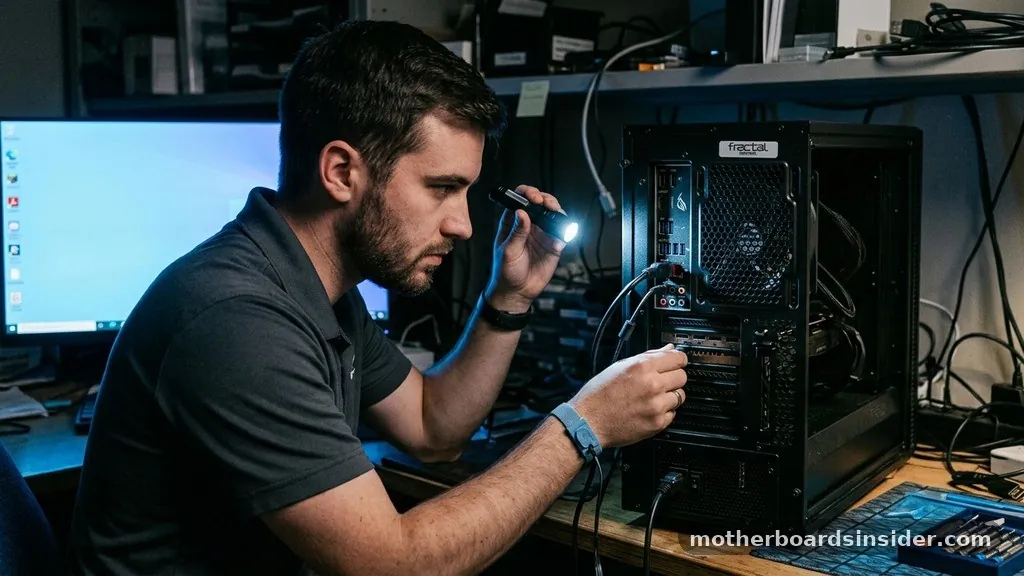
Determining exactly how many USB ports your motherboard provides is a common challenge for PC builders and system upgraders who need to connect peripherals ranging from high-speed external drives to specialized gaming controllers. While manufacturers often advertise the total number of connections, the reality is often split between the fixed ports on the rear I/O panel and the internal headers meant for front-panel expansion. Understanding this distinction is vital for planning your build, as your PC case‘s physical layout and your motherboard’s specific design work in tandem to dictate your total device capacity.
Understanding the Physical Layout of Motherboard USB Ports
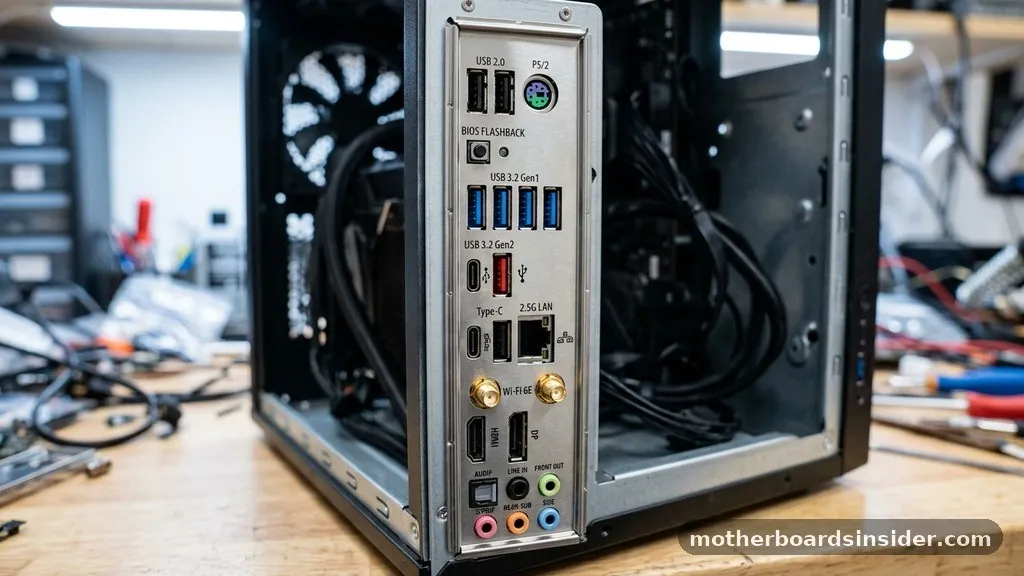
To answer the question of how many USB ports your system possesses, you must first distinguish between rear-facing and internal connections. The rear I/O panel is the most visible part of your motherboard USB configuration.
These are the fixed ports located at the back of the computer, typically clustered near the Ethernet jack and audio outputs. These ports are soldered directly to the motherboard and offer the most stable power delivery and data throughput.
When you look at the back of your machine, you are seeing a specific set of USB standards implemented by the manufacturer. High-end boards may feature a mix of USB 2.0, USB 3.2 Gen 1, Gen 2, or even the latest USB-C connectors.
These rear ports are designed for permanent or semi-permanent devices such as keyboards, mice, printers, and external monitors. Because they are integrated into the I/O shield, they are the first point of contact for external hardware, but they are limited by the physical space of the ATX or Micro-ATX form factor.
Beyond the rear, the internal architecture of the motherboard hides several hidden connection points. These are known as USB headers. A header is essentially a set of pins on the motherboard surface designed to connect to the front panel cables of your computer case.
Without these, your case’s front-facing ports would be non-functional. Recognizing the difference between a port (the female slot on the back) and a header (the male pin array on the board) is the first step in calculating your total connectivity potential.
Identifying Internal USB Headers for Front Panel Connectivity
Internal headers are the unsung heroes of PC connectivity. While the rear panel is limited, the headers allow you to extend the number of available ports to the front of your chassis.
Most modern motherboards include at least one USB 2.0 header and one or more USB 3.0 or 3.2 Gen 1 headers. These allow the case manufacturer to provide two or four additional ports on the front of the tower, which is significantly more convenient for plugging in thumb drives or temporary peripherals.
When you are assessing your system, you should consult your motherboard manual to see exactly which pins correspond to which standards. For instance, a single 19-pin internal header usually supports two USB 3.0 ports.
If your motherboard has two of these headers, you have the potential for four front-panel ports, provided your case has the cabling to support them. Some advanced boards even include a dedicated USB-C internal header, which is becoming increasingly common as high-speed external drives and mobile devices shift toward that connector type.
It is important to note that these headers are not just for case ports. Many internal components, such as liquid cooling pumps, digital power supply units, and RGB lighting controllers, utilize these internal USB connections to communicate with software like Corsair iCUE or NZXT CAM. If you have a complex build with multiple internal controllers, you might find that you run out of headers quickly, necessitating an internal USB hub to provide additional connectivity.
Differentiating Between USB Standards and Data Speeds
Not all USB ports are created equal. When checking your hardware, you will encounter various generations, often referred to as USB Gen standards.
These specifications determine the maximum data transfer rate, measured in Gbps (Gigabits per second). Knowing the speed of your ports is just as important as knowing the total count, especially if you are connecting high-bandwidth devices like external NVMe SSDs or 4K webcams.
The evolution of USB technology has been rapid, leading to significant confusion regarding naming conventions. For example, USB 3.0, USB 3.1 Gen 1, and USB 3.2 Gen 1 are effectively the same technology, offering speeds up to 5 Gbps.
Meanwhile, USB 3.2 Gen 2 doubles that to 10 Gbps, and USB 3.2 Gen 2×2 pushes the limit to 20 Gbps. A USB-C port on your motherboard might support these high speeds, whereas a traditional rectangular USB 2.0 port is limited to a much slower 480 Mbps.
| Connection Type | Typical Speed | Common Use Case |
|---|---|---|
| USB 2.0 | 480 Mbps | Keyboards, Mice, Printers |
| USB 3.2 Gen 1 | 5 Gbps | External Hard Drives, Flash Drives |
| USB 3.2 Gen 2 | 10 Gbps | High-speed SSDs, Capture Cards |
| USB 3.2 Gen 2×2 | 20 Gbps | Professional Data Transfer |
Methods to Verify Your Motherboard USB Count
If you no longer have the physical manual for your motherboard, there are several reliable ways to determine your exact port count. The most straightforward method is to visit the manufacturer’s official support page.
By searching for your specific motherboard model, you can download the PDF manual, which will contain a detailed diagram of the I/O panel and a map of the internal headers. This is the most accurate source of information for your specific hardware configuration.
Another effective way to check your connectivity is through the operating system. In Windows, you can open the “Device Manager” and expand the “Universal Serial Bus controllers” section.
While this will not show you the physical headers that are currently unoccupied, it will list all the controllers and ports that are active and recognized by the system. For a more visual approach, you can use system information tools such as CPU-Z to identify your motherboard model, which you can then cross-reference with online databases.
Finally, a physical inspection is often the most revealing method. By opening your computer case, you can physically count the headers on the motherboard. Look for the black or blue plastic blocks with rows of pins.
These are clearly marked in the motherboard layout diagram found in the manual. If you have an empty header, you can purchase an expansion bracket that fits into a PCIe slot to add more ports, or an internal hub that converts one header into multiple ports.
Addressing Topical Gaps: Common Misconceptions
A common point of confusion is the belief that every USB port on a motherboard is equal. Many users assume that because they have “ten USB ports,” they have ten high-speed ports. In reality, motherboards often bundle ports onto a single controller.
If you plug two high-bandwidth devices into two ports that share the same controller, you may experience a drop in performance. This is known as “bandwidth sharing.”
Another gap in understanding involves the power delivery of these ports. Not every port is designed to charge a smartphone or power a high-draw external drive. Some ports are specifically labeled as “charging ports” and provide higher amperage.
If you are struggling with a device that disconnects randomly, it might not be a broken port, but rather a power delivery limitation. Always check if your motherboard software (like an AI Suite or Control Center) offers “Fast Charge” or “High Power” settings for specific rear-facing ports.
Furthermore, users often forget that the case itself acts as a gateway to the motherboard’s internal potential. You might have a motherboard with three internal headers, but if your case only provides two USB ports on the front, you are effectively leaving one header unused. This is a common situation where enthusiasts add internal card readers or extra front-panel brackets to maximize the utility of their system.
Optimizing Connectivity for Complex Setups
For power users, gamers, and content creators, the standard allotment of ports is rarely enough. If you find yourself constantly unplugging devices to make room for others, it is time to optimize your setup.
The first step is to prioritize which devices need the fastest connection. Always reserve the USB 3.2 Gen 2 or USB-C ports for your fastest external storage, while reserving the USB 2.0 ports for low-bandwidth items like your keyboard, mouse, or Bluetooth dongle.
If you have exhausted all your rear ports and internal headers, you have a few hardware-based solutions:
- PCIe Expansion Cards: These cards plug into your motherboard’s PCIe slots and provide additional rear-facing USB ports. They are excellent for adding high-speed USB 3.2 or even Thunderbolt connectivity.
- External USB Hubs: These are the most common solution. A powered USB hub is essential if you are connecting multiple devices, as it ensures that each peripheral receives consistent power without straining the motherboard’s own power rails.
- Internal USB Hubs: If you have run out of internal headers for your cooling and lighting gear, an internal hub is a small PCB that plugs into one header and multiplies it into four or more, often powered by a SATA cable from your PSU.
Managing Bandwidth and Power Constraints
When you add additional hardware, you must be mindful of the total load on your motherboard’s USB bus. Motherboards have a finite amount of bandwidth allocated to their USB controllers.
While modern chipsets are highly efficient, overloading a single controller with high-bandwidth peripherals can lead to stuttering, disconnects, or data corruption. If you are using a high-resolution capture card or multiple high-speed external drives, try to spread them across different controllers if your motherboard provides them.
Power is another critical factor. Every USB port has a maximum power output, typically 0.9A for USB 3.0 ports.
If you connect a device that requires more power than the port can provide—such as a portable hard drive that lacks its own power supply—you might encounter “device not recognized” errors or sudden disconnects. Using a powered hub (one that plugs into a wall outlet) bypasses this issue entirely by providing independent electricity to your devices, leaving the motherboard to handle only the data signals.
Future-Proofing Your Motherboard Selection
If you are currently in the process of choosing a new motherboard, connectivity should be a top priority. When evaluating potential boards, do not just count the total number of ports; look at the type of ports provided.
A board with twelve USB 2.0 ports is significantly less “future-proof” than a board with four USB 3.2 Gen 2 ports and a USB-C header. The industry is moving toward higher data rates, and having a mix of modern connection types will save you from needing expensive expansion cards in the future.
Consider also the front-panel support. Modern cases often feature at least one USB-C port on the front. Ensure that the motherboard you select includes a dedicated internal USB-C header (often called an “A-Key” header).
Without this, that front-panel USB-C port will be completely dead unless you buy an expensive adapter. By evaluating your connectivity needs before you purchase, you ensure that your system remains relevant and capable of handling the next generation of peripherals without requiring major hardware overhauls.
Frequently Asked Questions
How can I tell if my USB ports are 2.0 or 3.0?
Usually, USB 3.0 and newer ports are color-coded blue or red, while USB 2.0 ports are black. You can also check your motherboard manual or look up your specific model on the manufacturer’s website to see a detailed port-by-port specification list.
Do internal USB headers count as ports?
No, internal headers are not ports themselves. They are connection points for cables that lead to ports on your computer case. You need a case with front-panel ports or an expansion bracket to utilize the headers, which then effectively act as additional ports for your system.
Can I add more USB ports to my computer if I run out?
Yes, you can easily add more ports using a PCIe expansion card for the back of your computer or an internal USB hub for your cooling and lighting gear. External powered USB hubs are also a great way to add multiple ports without opening your PC.
Why do some of my USB ports not work?
If a port is not working, it could be a driver issue, a lack of power, or a hardware failure. Try updating your motherboard’s chipset drivers via the manufacturer’s website. If that fails, test the device on a different port to rule out a faulty cable or device.
Conclusion
Knowing how many USB ports your motherboard has is essential for maintaining an organized and functional PC setup. By distinguishing between the fixed rear I/O ports and the internal expansion headers, you gain a clear picture of your system’s capabilities.
Whether you are adding a new high-speed drive, managing internal RGB lighting, or simply looking to connect your favorite peripherals, understanding the layout and limitations of your motherboard allows you to make informed decisions about hardware upgrades. Remember to consult your manual, monitor your bandwidth usage, and utilize expansion solutions like powered hubs or PCIe cards when necessary to keep your system running at peak performance.


