

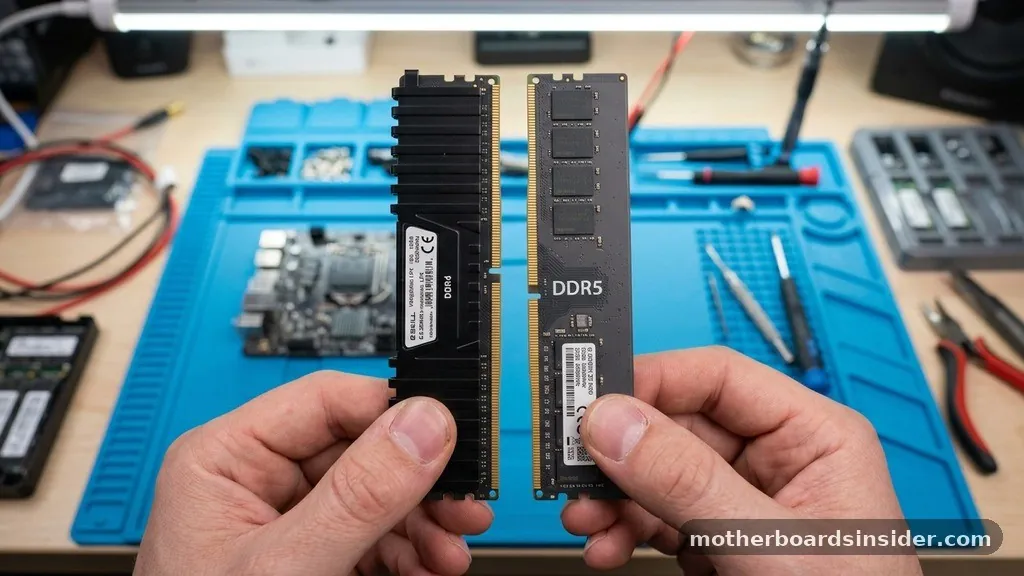
Determining what RAM is compatible with my motherboard is a fundamental skill for anyone looking to upgrade their computer’s performance or build a custom PC from scratch. Whether you are a dedicated enthusiast aiming for peak gaming performance or a professional seeking to optimize your workstation, the wrong memory module can result in a system that refuses to boot or suffers from persistent stability issues.
Because the market is flooded with various standards, speeds, and physical form factors, relying on guesswork is never a viable strategy. Instead, you must approach memory selection with a methodical understanding of your hardware’s technical specifications.
Every motherboard is engineered with a specific set of constraints regarding the type of memory it can support. These constraints are dictated by the chipset, the CPU socket, and the physical layout of the DIMM slots.
By identifying the exact make and model of your board and cross-referencing that data with official documentation, you can identify the compatible options that will provide the best performance for your specific needs. This process may seem daunting at first, but with the right approach, you can ensure your upgrade is both successful and cost-effective.
Understanding Memory Generations and Physical Standards
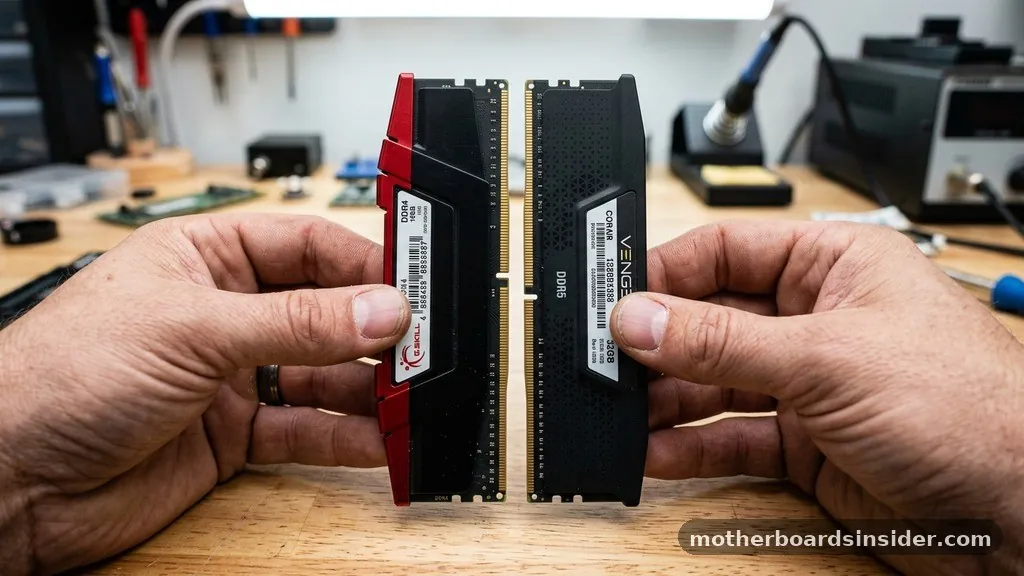
The first step in answering the question of what RAM is compatible with my motherboard is distinguishing between the different generations of memory technology. Memory standards have evolved rapidly, and they are not backward or forward compatible.
You cannot, for example, insert a DDR5 module into a motherboard designed for DDR4. The physical notches, known as keys, are positioned differently on each generation of memory sticks to prevent users from accidentally damaging their hardware by forcing an incompatible stick into a slot.
When checking RAM compatibility, you must look for the specific DDR version your motherboard supports. Currently, the industry is transitioning between DDR4 and DDR5. DDR4 has been the standard for many years, offering a mature and stable platform, whereas DDR5 provides significantly higher bandwidth and power efficiency for modern high-end systems.
Beyond the generation, you must consider the form factor. Desktop computers use DIMM (Dual In-line Memory Module) sticks, which are longer, while laptops and small-form-factor PCs typically use SO-DIMM (Small Outline DIMM) modules.
Attempting to use a desktop DIMM in a laptop slot is physically impossible, as the two standards differ in both size and pin configuration. Always verify your motherboard’s manual to see exactly which generation and form factor are required.
Locating Your Motherboard Specifications
To find the right RAM, you first need to know exactly what hardware you are working with. Many users mistakenly assume that all motherboards of a certain brand are the same, but the manufacturer produces dozens of different boards, even within a single chipset generation.
To find the precise information you need, you should look for the model number printed directly on the PCB of the motherboard. If the case is closed, you can use software utilities like CPU-Z or the System Information tool in Windows to pull the model name and revision number.
Once you have the exact model, visit the manufacturer’s official website. Every reputable manufacturer provides a support page for their motherboards, which includes a detailed manual and a QVL (Qualified Vendor List). The QVL is essentially a list compatible set of memory modules that the manufacturer has physically tested and verified to work with that specific board.
While a module not on the list might still work, the QVL is your best resource for guaranteed stability. If you are struggling to identify your hardware, you can refer to the official JEDEC Solid State Technology Association website to learn more about the industry standards that govern memory manufacturing and compatibility protocols.
The Role of Memory Frequency and Timing
Once you have identified the correct generation and form factor, you must consider the speed and latency of the memory. RAM compatibility is not just about the stick fitting into the slot; it is also about whether the motherboard and CPU memory controller can handle the operating frequency of the RAM. A motherboard might support DDR4, but it may only be rated to run at 2666MHz natively. If you purchase 3600MHz RAM, it will likely default to the lower speed unless you enable an overclocking profile in the BIOS, such as XMP (Extreme Memory Profile) or DOCP.
Latency, often denoted as “CL” (CAS Latency), also plays a critical role in system performance. Lower latency generally means the memory can respond to requests more quickly, which is highly beneficial for gaming and compute-intensive tasks. However, balancing high frequency with low latency is a delicate art.
If you install memory that is far beyond the officially supported speed of your motherboard, you might experience boot loops or blue screens. Always check the “Memory Support” section of your motherboard’s specifications page to see the maximum officially supported frequency and whether it requires specific BIOS settings to achieve that speed.
Utilizing a Compatibility Checker Tool
If you find manual lookup tedious or confusing, a compatibility tool or compatibility checker can be an immense help. Many major memory manufacturers provide web-based tools that allow you to enter your system’s brand and model to find compatible options.
These tools are excellent for narrowing down your search, as they filter out modules that are physically or electronically incompatible with your build. Using a tool help function provided by a trusted manufacturer can save you hours of research.
When using these tools, ensure you are selecting the exact model of your computer or motherboard. If you are using a pre-built system from a company like Dell, HP, or Lenovo, the motherboard might be a proprietary design.
In these cases, the manufacturer’s own support site is the most reliable source of information. Avoid generic memory search tools that do not account for the specific limitations of pre-built systems, as these machines often have stricter memory requirements than standard retail motherboards.
Common Pitfalls in Memory Upgrades
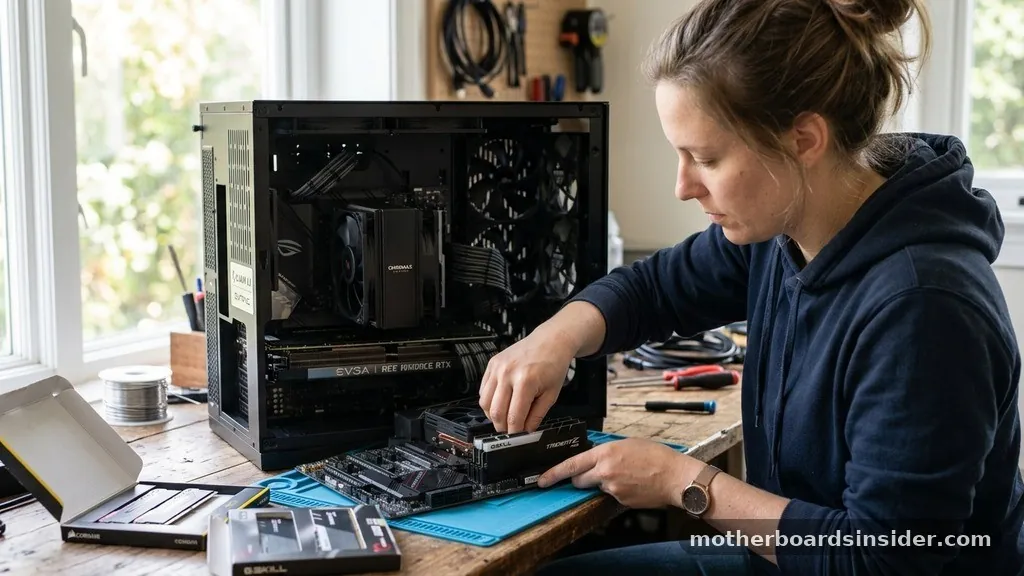
Even when you believe you have found the right hardware, there are several common mistakes that can lead to compatibility issues. One of the most frequent errors is mixing and matching memory kits. While it is theoretically possible to run different brands or speeds of RAM together, it is rarely a good idea.
The system will always force all installed sticks to run at the speed and timing of the slowest module. Furthermore, different brands often use different memory dies (the actual silicon chips inside the stick), which can lead to unpredictable stability issues even if the advertised speeds are identical.
Another common mistake is ignoring the maximum capacity limits of the motherboard. Just because you have four slots does not mean you can fill them all with the largest capacity sticks available. Every motherboard has a maximum total capacity (e.g., 64GB or 128GB) and a maximum capacity per slot.
If you exceed these limits, the system will fail to post. Additionally, consider the physical height of the RAM modules if you are using a large air cooler for your CPU. High-profile RAM with elaborate RGB heat spreaders can physically interfere with the CPU fan, making it impossible to install.
Table: Comparing RAM Generation Characteristics
The following table highlights the fundamental differences between common memory generations. When determining what RAM is compatible with my motherboard, use this as a quick reference to ensure you are looking at the correct category.
| Generation | Voltage (Typical) | Pin Count | Typical Speeds (MHz) |
|---|---|---|---|
| DDR3 | 1.5V | 240 | 800 – 2133 |
| DDR4 | 1.2V | 288 | 2133 – 5333 |
| DDR5 | 1.1V | 288 | 4800 – 8400+ |
Addressing Topical Gaps: Dual-Channel and BIOS Updates
A frequently overlooked aspect of memory installation is the importance of “Dual-Channel” architecture. Most modern motherboards feature two or four memory slots, and they are designed to operate in pairs to double the available bandwidth between the RAM and the CPU. To take advantage of this, you must install your RAM modules in the correct slots—usually the 2nd and 4th slots from the CPU.
If you install two sticks of RAM in adjacent slots (e.g., 1st and 2nd), the system will likely operate in “Single-Channel” mode, effectively cutting your memory performance in half. Always consult your manual for the recommended slot configuration.
Furthermore, many users forget that their motherboard might require a BIOS update to support newer or faster memory kits. If you are using a motherboard that was released before a specific generation of RAM became popular, the default BIOS firmware may not have the necessary microcode to properly initialize the memory.
Regularly checking for BIOS updates on the manufacturer’s website is a crucial part of maintaining RAM compatibility over the lifespan of your computer. A simple update can often resolve stability issues or allow the board to support higher-speed memory profiles that were not previously available.
Best Practices for Successful Installation
Once you have verified that your chosen RAM is compatible and have the sticks in hand, the actual installation process requires care. Always ensure your system is completely powered down and that you have discharged any static electricity by touching a grounded metal object.
When inserting the RAM, ensure the notch on the module aligns perfectly with the ridge in the slot. Apply firm, even pressure to both ends of the stick until you hear a satisfying “click” as the locking tabs snap into place.
After installation, it is highly recommended to enter the BIOS during the first boot. Do not assume the system will automatically detect the optimal settings. Look for the memory configuration menu and ensure that the XMP or EXPO profile is enabled.
Without this, your high-performance RAM will likely run at a lower, baseline “JEDEC” speed. Taking this extra step ensures you are actually getting the performance you paid for and that your power delivery and signal integrity are optimized for the specific hardware you have installed.
Frequently Asked Questions
How can I tell if my RAM is compatible with my motherboard without opening the PC?
You can use software like CPU-Z or HWInfo to identify your exact motherboard model. Once you have the model name, search for it on the manufacturer’s official support page to view the list of supported memory specifications and the Qualified Vendor List (QVL).
Can I mix different brands or speeds of RAM in the same motherboard?
While it is technically possible, it is not recommended. If you mix speeds or brands, the system will default all modules to the speed and latency of the slowest stick. This can cause instability, system crashes, or failure to boot because of mismatched timing profiles.
What happens if I install RAM that is faster than what my motherboard supports?
If you install faster RAM, the system will typically downclock the memory to the maximum speed supported by your motherboard or CPU. However, in some cases, the system may fail to post entirely if the motherboard cannot handle the voltage or frequency requirements of the faster modules.
Do I need to update my BIOS before installing new RAM?
It is often a good practice to update your BIOS before upgrading memory, especially if you are installing high-frequency kits or moving to a newer generation of hardware. BIOS updates frequently include improved memory compatibility patches that ensure better stability with a wider range of RAM modules.
Conclusion
Navigating the complexities of hardware upgrades requires patience and a commitment to verifying technical details. By understanding that what RAM is compatible with my motherboard depends on specific factors like the memory generation, physical slots, and BIOS support, you can avoid the frustration of incompatible parts.
Always prioritize the manufacturer’s documentation and QVL over anecdotal advice, and remember that consistent, stable performance is the result of matching your memory to the intended design of your system. Whether you are building a new rig or breathing new life into an older machine, following these guidelines will help ensure your memory upgrade provides the performance boost you expect.


