

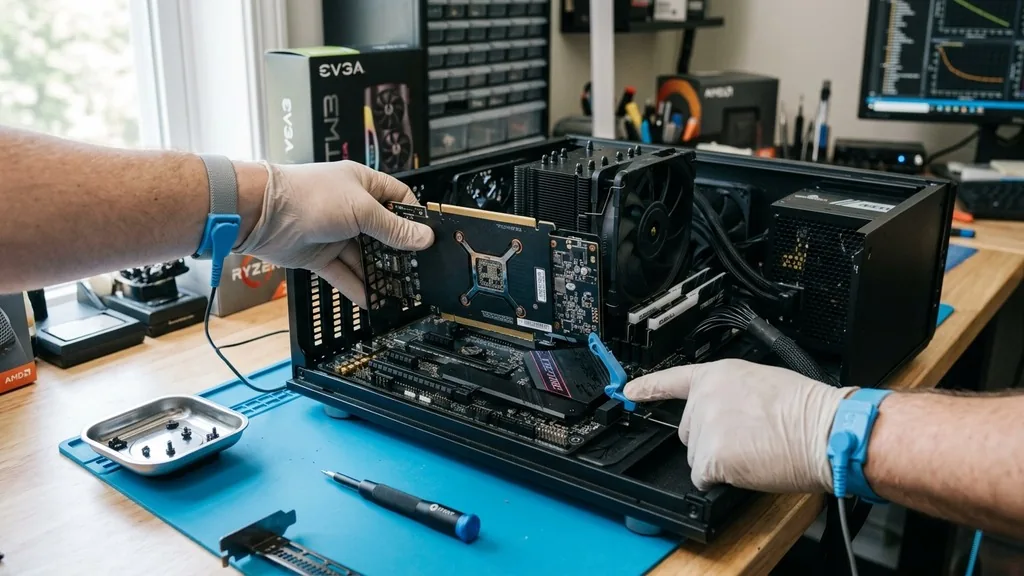
Learning how to remove a graphics card from a motherboard is a fundamental skill for any PC enthusiast. Whether you are upgrading to a high-performance GPU, troubleshooting a hardware issue, or performing routine maintenance, the process requires patience and precision.
Many users worry about damaging their expensive hardware, but with the right approach, you can swap out your components without incident. The key lies in understanding how the card is physically anchored to the chassis and the motherboard itself, ensuring you don’t force any connection that is meant to stay locked.
Preparing Your Workstation for GPU Removal

To prepare for removing a graphics card, you must create a clean, well-lit workspace and ensure your computer is powered down and disconnected from all external power sources. Before you touch any internal components, it is vital to manage the risk of static discharge. Electrostatic buildup can fry sensitive integrated circuits in an instant.
If you have an ESD strap, wear it and clip the lead to an unpainted metal part of your PC case. If you do not have one, touch a large metal object regularly to discharge any potential current stored in your body. Clear your desk of clutter to ensure you have enough room to lay the PC case on its side, which provides the best angle for accessing the interior.
Gather your tools before you begin. For most modern builds, a standard Phillips head screwdriver is the only tool you will need. Having a small bowl or magnetic tray for your case screws is a smart move, as losing a screw inside your machine can be a headache.
Make sure your workspace is a static-safe surface—avoid working on carpeted floors or wearing wool sweaters that generate significant static electricity. By setting up correctly, you minimize the chance of accidental drops or component damage, making the entire procedure much safer and more efficient.
Disconnecting Power and External Cables
The first physical step in the removal process involves disconnecting all cables attached to the GPU. You will typically find a VGA cable, DisplayPort cable, or HDMI cable plugged into the back of the card. Gently unscrew or press the release tab on these connectors to unplug them.
Once the display cables are out of the way, focus on the PCIe power connector. Most modern graphics cards require dedicated power from your power supply unit. These cables usually have a small latch on the side that locks them into the port on the GPU.
Press down on this latch firmly while pulling the connector straight out. Do not wiggle the cable excessively, as this can stress the pins.
If your card uses multiple power connectors, ensure every single one is detached. It is common for users to forget a secondary 6-pin or 8-pin connector tucked away near the back of the card. If you attempt to pull the card out while a power cable is still attached, you could damage the connector port or even the motherboard socket.
Double-check the area around the GPU to ensure no stray wires are caught under the cooling fans or the backplate. Once the card is completely liberated from the power supply, you are ready to move on to the mechanical fasteners holding the card to the case.
Unscrewing the GPU Bracket from the Case
Every graphics card is physically secured to the back of the computer chassis through a metal GPU bracket. This bracket aligns with the expansion slot covers on your case and is held in place by one or two screws. Using your Phillips head screwdriver, remove these screws carefully.
Keep them in a safe place, as you will need them again when installing your new card or re-seating the current one. Many modern cases use thumbscrews, but if yours are tight, don’t force them with your fingers; use the screwdriver to avoid stripping the threads.
Once the screws are removed, the card is no longer anchored to the chassis, but it is still locked into the PCIe slot on your motherboard. At this stage, the card might feel slightly loose, but it will not slide out freely. Never try to yank the card out of the slot at this point.
The locking mechanism is still fully engaged, and applying force will almost certainly break the plastic tab on the motherboard. Take a moment to look at the rear of the card where it meets the case, ensuring no other brackets or support struts are still fastened to the frame.
The Critical Role of the PCIe Retention Clip
The most important part of the removal process is disengaging the retention clip. Located at the end of the PCIe slot, this small plastic lever acts as a safety lock to prevent the heavy graphics card from sagging or vibrating out of its connection.
On many motherboards, this clip is partially hidden by the card itself, making it difficult to reach. You may need a thin, non-conductive object like a plastic spudger or a long, thin screwdriver to reach into the gap between the motherboard and the bottom of the GPU.
To release the lock, push the lever downward or outward, depending on the specific motherboard design. You will often hear or feel a distinct “click” when the mechanism disengages. Once you have triggered the release, the card will no longer be locked into the slot.
It is absolutely essential that this step is performed correctly. If you try to remove the card while the clip is still engaged, you risk tearing the entire PCIe slot off the motherboard, which is a catastrophic hardware failure. Always verify that the clip has moved fully into the open position before proceeding to the final extraction.
Safely Extracting the Card from the Motherboard
With the power cables detached, the case screws removed, and the locking mechanism disengaged, you are ready to remove the GPU. Place your hands on both ends of the card, applying even pressure. Pull the card straight out of the slot, moving parallel to the motherboard.
Avoid tilting the card at an angle, as the pins in the PCIe slot can bend if subjected to uneven stress. If the card feels stuck, do not force it. Stop and re-examine the area to ensure the retention clip is fully open and that no cables are still snagged underneath.
Some cards are quite large and may have a slight bit of tension due to the friction of the PCIe pins. A gentle, steady pull is usually sufficient to release it. Once the card is free, place it on a static-safe surface, such as an anti-static mat or the original box the card came in.
Avoid placing it on carpet or conductive surfaces. If you are preparing to install a new card, take a moment to inspect the empty slot for dust or debris. Keeping the slot clean helps ensure the new card makes a solid electrical connection, which is vital for system stability.
Common Challenges and Troubleshooting
Sometimes, removing a card is not as straightforward as the manuals suggest. You might encounter situations where the GPU is too large to comfortably reach the retention clip, or the case design makes the screws difficult to access.
If you find your card is stuck, check for hidden motherboard standoff obstructions or case supports that might be interfering with the card’s movement. Another common issue is that the card feels “wedged” in the slot; this is often due to the card being slightly tilted during the initial installation.
If you suspect the card is jammed, try pushing it very slightly back into the slot to reset its position, then ensure the retention clip is fully depressed before trying to pull it out again. Never use excessive force. If you are struggling, consult the official documentation for your motherboard or case.
You can find more detailed information on hardware maintenance at Intel’s official support page regarding component installation and safety. Remember that patience is your best tool. If you feel frustrated, step away for a few minutes and return with a fresh perspective.
Comparison of GPU Removal Scenarios
Different system configurations require slightly different approaches. Below is a comparison of typical scenarios you might encounter when removing a graphics card from your motherboard.
| Scenario | Primary Challenge | Recommended Action |
|---|---|---|
| Small Form Factor Case | Limited physical space | Remove secondary components or cables to create room. |
| Large Air-Cooled GPU | Obstructed retention clip | Use a long, thin non-conductive tool to press the latch. |
| Multi-GPU Setup | Crowded PCIe lanes | Remove the topmost card first to access the lower ones. |
| Water-Cooled Loop | Rigid tubing interference | Ensure there is enough slack; consider draining if necessary. |
Addressing Common Topical Gaps
Many guides overlook the importance of what happens after the card is removed. One major gap is the handling of thermal paste. If you are removing the card to replace its cooler, you will need to clean the old thermal compound off the GPU die using high-purity isopropyl alcohol and a lint-free cloth.
Do not use standard paper towels, as they can leave behind fibers. Another frequently missed point is the software side of things. Before you pull the card, it is best practice to use a tool like Display Driver Uninstaller (DDU) if you are switching from an NVIDIA card to an AMD card, or vice versa, to ensure a clean slate for your new drivers.
Additionally, consider the state of your motherboard’s PCIe slot. If you have removed the card because of performance issues, inspect the slot for any signs of physical damage, such as bent pins or burn marks. If the slot looks compromised, the issue may be with the motherboard rather than the graphics card itself.
By taking a holistic view of the system, you prevent unnecessary upgrades and save yourself time and money. Always treat the components with care; they are delicate precision instruments designed to operate within very specific tolerances.
Frequently Asked Questions
- Is it easy to remove a GPU safely? Yes, removing a graphics card is a straightforward process if you take your time. The most important step is ensuring the retention clip is fully disengaged and all power cables are removed. Never force the card if you feel resistance, as this usually indicates a latch is still locked.
- Why does my graphics card feel stuck in the slot? The card is likely still held by the PCIe retention clip. Even if you have removed the screws from the case, the plastic latch at the end of the slot keeps the card firmly in place. Double-check that the latch is pushed down completely before you pull again.
- Can I swap out my graphics card without uninstalling drivers? While your PC will likely boot, it is highly recommended to uninstall old drivers, especially when switching between different manufacturers like AMD and NVIDIA. Using a clean driver installation prevents conflicts, system crashes, and performance issues that can arise from leftover files from the previous hardware configuration.
- Do I need to turn off the power supply before removing the card? Absolutely. Always shut down the PC completely and flip the switch on the back of the power supply unit to the “off” position. Unplug the power cable from the wall as well. This prevents any stray electrical currents from causing a short circuit while you are working inside the case.


