

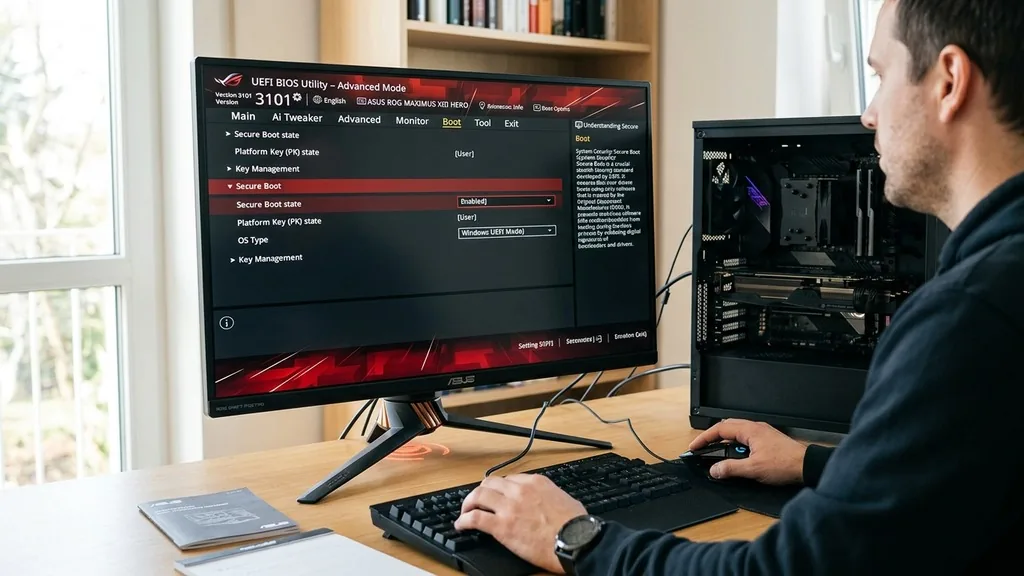
Enabling security features on your computer is a critical step for maintaining system integrity, especially when preparing your hardware for modern operating systems like Windows 11. Learning how to turn on secure boot on an ASUS motherboard allows your system to verify the digital signature of firmware, drivers, and OS loaders, ensuring that only trusted software executes during the startup process.
While the process is generally straightforward, ASUS motherboards often feature complex BIOS interfaces that can vary significantly between older and newer models. By correctly configuring these settings, you protect your machine from rootkits and other low-level boot-time malware.
Understanding the Role of Secure Boot in System Security
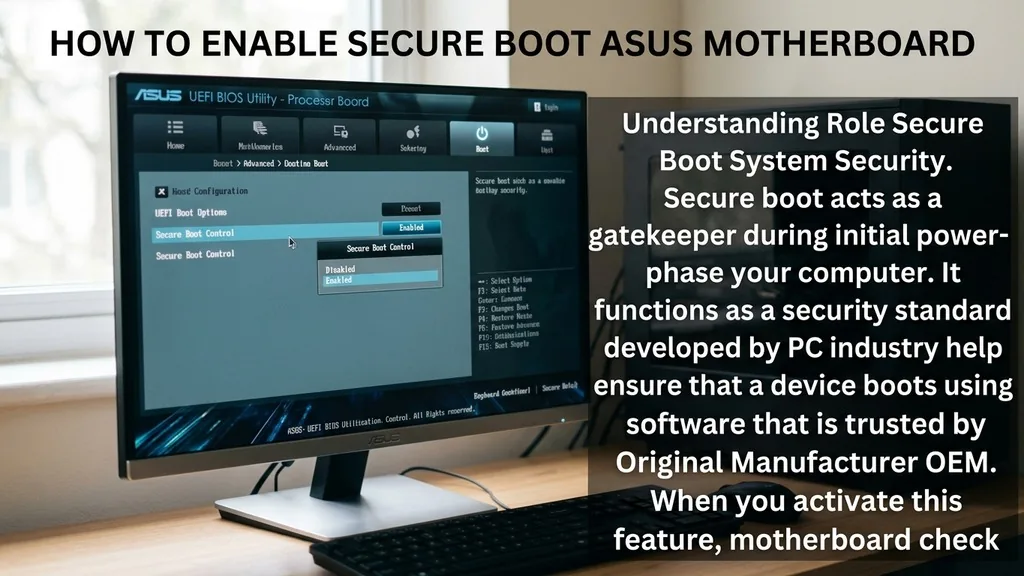
Secure boot acts as a gatekeeper during the initial power-on phase of your computer. It functions as a security standard developed by the PC industry to help ensure that a device boots using only software that is trusted by the Original Equipment Manufacturer (OEM). When you activate this feature, the motherboard checks the digital signature of each piece of boot software, including firmware drivers, EFI applications, and the operating system itself.
If a signature matches the database stored in the firmware, the boot continues. If it fails, the system halts to prevent unauthorized code from running.
This mechanism is vital for modern computing environments. Without it, malicious actors could potentially install bootkits that load before your antivirus software even initializes. By integrating this into your ASUS BIOS, you create a chain of trust that starts from the moment you press the power button.
It is a fundamental component of the UEFI (Unified Extensible Firmware Interface) specification, which has largely replaced the legacy BIOS. Understanding that this is a protective measure rather than just a software requirement helps you appreciate why it must be configured correctly.
Preparing Your ASUS BIOS for Configuration
Before you dive into the settings, you need to ensure your system is prepared for the transition. Most modern ASUS motherboards are set to UEFI mode by default, but if your system was installed using the older CSM (Compatibility Support Module) mode, you may encounter issues.
Secure boot generally requires UEFI mode to function correctly. If you try to enable it while CSM is active, you will likely find the option greyed out or completely missing from your menu.
Accessing your BIOS is the first hurdle. Typically, you need to restart your computer and repeatedly press the Delete or F2 key on your keyboard during the splash screen. Once inside, you might see the “EZ Mode” interface.
While this provides a snapshot of your system, you will need to switch to “Advanced Mode” to gain the granular control required for security settings. You can usually toggle between these modes by pressing F7. Once you are in Advanced Mode, you are ready to navigate to the security and boot menus.
Navigating the ASUS BIOS Menu Structure
The layout of an ASUS BIOS can be intimidating due to the sheer volume of options available. To find the necessary settings, look for the “Boot” tab located in the top navigation bar.
Inside this menu, you will often find a sub-menu labeled “Secure Boot.” If it is not immediately visible, check the “Key Management” or “Tool” sections, as some specific firmware versions tuck these settings away to prevent accidental changes.
Once you locate the Secure Boot sub-menu, you will see the current “Boot State” or “Platform Key” status. If the status shows as “Setup” or “Disabled,” you have the opportunity to change it. Navigating these menus requires patience; the interface is designed to prevent accidental modifications to critical system parameters.
If you ever feel lost, you can simply press the Escape key to back out of a sub-menu without saving any changes. Always remember that your goal is to find the “OS Type” setting, which usually needs to be switched from “Other OS” to “Windows UEFI Mode.”
Enabling Secure Boot and Managing Keys
When you decide to enable the feature, you are essentially telling the motherboard to start validating signatures. Within the Secure Boot menu, you will see an option for “OS Type.” By setting this to “Windows UEFI Mode,” you instruct the board to enforce the security policies required by Microsoft.
This is often the point where many users get stuck, as the option might appear locked. If the option is locked, ensure that you have cleared any existing keys or restored factory default keys if you have previously modified the system.
Managing keys is a more advanced aspect of this process. The “Key Management” section allows you to install or clear the Platform Key (PK), Key Exchange Key (KEK), and Signature Database (db). For the vast majority of users, you should use the default factory keys provided by ASUS.
Avoid clearing these keys unless you are performing a specific, advanced security configuration, as doing so can prevent your system from booting into your operating system entirely. You can find detailed technical documentation on these standards at the UEFI Forum specifications page, which defines how these hardware-level security protocols interact with your system.
Troubleshooting Common ASUS Boot Issues
Why does the option sometimes remain greyed out? This is a common frustration. Usually, the culprit is the Compatibility Support Module (CSM).
If CSM is enabled, the system is essentially running in a legacy mode that doesn’t support the modern security protocols required for secure boot. To fix this, navigate to the “Boot” tab, find “CSM (Compatibility Support Module),” and set “Launch CSM” to “Disabled.”
After disabling it, you must save your changes and restart the computer to re-enter the BIOS. Once CSM is off, the Secure Boot settings will typically become accessible.
Another issue involves the storage drive partition style. Secure boot requires a GPT (GUID Partition Table) partition style. If your Windows installation is on an MBR (Master Boot Record) drive, you will not be able to enable secure boot successfully without converting the drive.
This is a more complex task that involves using tools like MBR2GPT within Windows. Always back up your data before attempting to change partition styles, as this involves significant modifications to how your storage drive is structured.
Applying Settings and Verifying the Boot State
After you have made the necessary changes, you must save them before exiting. In the ASUS BIOS, this is typically done by pressing the F10 key, which opens a dialog box asking you to confirm your changes.
Once you confirm, the system will restart. Upon booting back into Windows, you can verify if the process was successful by checking the System Information tool.
To do this, click on the Start menu, type “System Information,” and press Enter. Look for “Secure Boot State” in the list on the right side of the window. If it says “On,” you have successfully configured your motherboard.
If it says “Off” or “Unsupported,” you may need to re-examine your BIOS settings or ensure that your firmware is up to date. Updating your BIOS can often resolve compatibility issues where the hardware might not correctly report its security status to the operating system.
Comparing BIOS Security Features
To help you distinguish between the various states and settings you might encounter, use the following table to understand what each configuration typically represents in an ASUS environment.
| Setting/Status | Description |
|---|---|
| CSM Enabled | Legacy mode; prevents Secure Boot from being active. |
| OS Type: Windows UEFI | Enables the enforcement of trusted signatures. |
| Secure Boot State: On | System is actively validating boot software signatures. |
| Key Management: Factory | Default security keys provided by the manufacturer. |
This comparison helps clarify why certain steps are mandatory. For instance, you cannot have a “Secure Boot State: On” while “CSM” is also enabled, as they represent two fundamentally different ways of initializing a computer. Understanding these dependencies is key to successful configuration.
Advanced Tips for ASUS Motherboard Maintenance
Maintaining a secure boot environment involves more than just a one-time configuration. As you update your system, you should periodically check that your BIOS is running the latest firmware version. ASUS frequently releases updates that improve hardware compatibility and security.
You can update your BIOS through the “EZ Flash” utility found within the BIOS interface. This process involves downloading a file from the official ASUS support site, placing it on a USB drive, and selecting it within the update menu.
If you ever decide to install a different operating system, such as a Linux distribution, you might need to adjust your key management settings. Some Linux distributions support secure boot, while others require you to use “Custom” mode to add their specific signing keys to the database.
This is a more technical process that requires careful management of your keys to avoid locking yourself out of the boot process. Always keep a record of any custom keys you add, as these are specific to your motherboard’s firmware database.
Frequently Asked Questions
- Why is the Secure Boot option greyed out on my ASUS motherboard? This usually happens because the Compatibility Support Module (CSM) is enabled. You must enter the Boot menu in your BIOS, find the CSM settings, and set them to “Disabled.” After saving and rebooting, the Secure Boot option should become selectable.
- Do I need to enable Secure Boot for Windows 11? Yes, Secure Boot is a mandatory requirement for installing and running Windows 11. It works alongside TPM 2.0 to ensure your system meets the security standards defined by Microsoft for modern operating systems, providing a safer environment for your data and programs.
- Will enabling Secure Boot delete my data? Enabling Secure Boot itself does not delete your data. However, if your system drive is currently formatted as MBR and you need to convert it to GPT to support UEFI boot, you must be extremely careful, as improper disk management can lead to data loss.
- What happens if I disable Secure Boot after enabling it? If you disable it, your system will still boot, but you will lose the hardware-level verification of your boot loaders. This is generally not recommended unless you are troubleshooting specific hardware compatibility issues or installing an operating system that requires legacy support.
By following these steps, you ensure your system is running with the latest security protections. Always verify your changes in the Windows System Information menu to ensure the settings took effect.
Keeping your firmware updated and your security features enabled provides a solid foundation for a stable and secure computing experience. If you encounter persistent issues, consult the manual for your specific ASUS motherboard model, as different series, such as the ROG or Prime lines, may have slightly different menu layouts or terminology.


