


Updating the firmware on your computer is one of the most effective ways to ensure hardware compatibility and system stability. Learning how to update BIOS on MSI motherboard hardware might seem intimidating at first, but with the right preparation, it is a straightforward process that can resolve performance bottlenecks or support newer processor generations. Whether you are troubleshooting a persistent hardware bug or preparing to install a brand-new CPU, knowing the status of your current firmware is the first step toward a smoother computing experience.
Understanding the Importance of BIOS Firmware
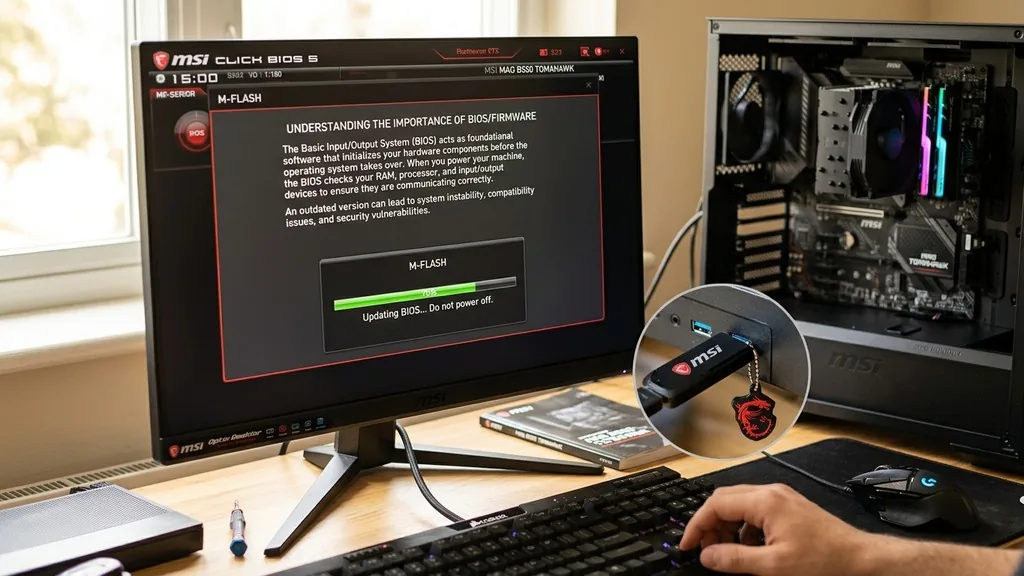
The Basic Input/Output System, or BIOS, acts as the foundational software that initializes your hardware components before the operating system takes over. When you power on your machine, the BIOS checks your RAM, processor, and storage devices to ensure they are communicating correctly.
An outdated version can lead to compatibility issues, particularly when using modern peripherals or high-speed memory kits. By performing a regular firmware maintenance routine, you ensure that your motherboard remains compatible with the latest industry standards and security patches.
Many users assume that a BIOS update is only necessary when building a new PC. However, manufacturers frequently release updates to optimize power delivery to the CPU, improve memory stability, and resolve bugs that could cause random system crashes.
If you notice your system hangs during boot or fails to recognize specific components, checking for a newer version is a logical troubleshooting step. Always verify your current version within the system information menu before jumping into a flash process, as you do not want to overwrite your firmware unnecessarily.
Verifying Your Current BIOS Version
Before downloading any files, you must confirm which version is currently installed on your system. You can easily find this information without needing to reboot your computer. Simply press the Windows key and type “System Information” into the search bar.
Once the application opens, look for the “BIOS Version/Date” field in the summary list. This entry tells you exactly which iteration your board is running, allowing you to compare it against the latest releases on the manufacturer’s website.
It is critical to be precise during this step. Identifying your exact motherboard model is equally important, as flashing the wrong firmware file can result in a non-functional system. You can find your specific board model printed directly on the PCB, or you can use third-party diagnostic tools to extract the exact serial number and model name.
Ensuring you have the correct file for your specific hardware revision is the most important safety precaution you can take. If you have any doubts, visit the official MSI support portal to cross-reference your findings with their database.
Preparing the USB Flash Drive for the Update
The most reliable way to perform an update is through the M-Flash utility found within the BIOS menu itself. To do this, you will need a reliable USB drive. Ensure the drive is formatted to FAT32, as most motherboards cannot read NTFS or exFAT file systems during the boot process.
Once formatted, you need to download the correct firmware file from the support page. The file usually comes in a compressed ZIP folder. Extract the contents and move the specific BIOS file—which often has a file extension matching your motherboard’s series—onto the root directory of your flash drive.
Avoid putting the file inside a subfolder, as the M-Flash utility may have trouble locating it if it is buried too deep in the directory structure. You should also ensure the drive is empty or at least free of other complex files that might interfere with the read process.
Using a smaller, older USB 2.0 drive is sometimes preferable to high-capacity USB 3.0 drives, as older controllers are often more compatible with the low-level firmware environment of the BIOS. Keep the drive connected to a rear USB port, ideally one soldered directly to the motherboard, rather than a front-panel connector.
How to Enter BIOS Safely
Once your drive is prepared, you must restart your machine to enter the UEFI environment. As the computer begins the power-on self-test, repeatedly tap the “Delete” key on your keyboard. Some systems might require the “F2” key instead, but the “Delete” key is the standard for almost all MSI boards.
If the computer boots into Windows too quickly, you can also access the menu through the advanced startup options. Go to Settings, select Update & Security, choose Recovery, and click Restart Now under Advanced Startup.
Once you are in the menu, you will see a graphical interface that allows you to manage system settings. Do not change any voltage or clock speed settings while you are here, as the goal is to perform a clean update. Navigate to the “M-Flash” button, which is typically located in the bottom left or right corner of the screen.
Clicking this will prompt the system to reboot into a dedicated flash mode. During this transition, do not turn off your computer or unplug the power, as interrupting the process can lead to a bricked motherboard that may require professional repair.
Using the M-Flash Utility
The M-Flash environment is a specialized interface designed specifically for flashing firmware. Once the system reboots into this mode, it will scan your connected storage devices for the BIOS file you moved to your USB drive earlier. You will see a list of available files; select the correct one using your mouse or keyboard.
The system will ask you to confirm the update. This is your final chance to verify that the model number matches your hardware.
Once you confirm, the progress bar will begin. This process usually takes between two to five minutes. During this time, the screen might flicker or the fans might ramp up to high speeds—this is completely normal behavior.
The motherboard is essentially rewriting its own brain, so the system needs to maintain stable power and cooling. If you are using a desktop, ensure your power supply is stable. If you are using a laptop, ensure the battery is charged and the charging cable is firmly connected to the wall outlet.
What to Do After the Flash Completes
When the progress bar hits 100%, the system will typically restart automatically. It might take a bit longer than a standard boot, as the motherboard is re-initializing the hardware with the new firmware.
Once it successfully reaches the Windows login screen, you should go back into the BIOS menu once more to ensure everything is configured correctly. An update often resets your settings to the default factory state, meaning any custom fan curves, XMP profiles for your RAM, or boot order preferences might be wiped.
Check the system information once more to confirm the new version number is displayed. If the version matches the one you downloaded, the process was a success. You can now re-apply your preferred settings, such as enabling XMP to ensure your RAM runs at its rated speed.
If you experience any instability after the update, try clearing the CMOS, which resets the BIOS to a clean state. This is a common practice that solves minor glitches caused by residual data from the previous firmware version.
Troubleshooting Common Update Issues
Occasionally, a flash might fail or the system might refuse to detect the drive. If the BIOS utility does not see your file, double-check that the file was extracted and that the USB drive is formatted to FAT32. Some users encounter issues where the file is still inside a folder or the file extension was accidentally changed during the download process.
If the utility hangs, wait at least ten minutes before assuming it is frozen. If it truly freezes, you may need to use the “Flash BIOS Button” feature if your specific MSI motherboard supports it.
The Flash BIOS Button is a lifesaver for many, as it allows you to update the firmware without even having a CPU or RAM installed. You simply plug in the USB, press the button on the rear I/O panel, and an LED will blink to indicate the update is in progress.
This is particularly useful if you bought a new processor that the motherboard doesn’t recognize yet. Always consult your manual to see if your board has this dedicated feature, as it bypasses the need to enter the software menu entirely.
Comparison of BIOS Update Methods
Different boards offer different levels of support for updates. Below is a quick comparison of the most common ways to handle this task.
| Method | Ease of Use | Risk Level | Requirements |
|---|---|---|---|
| M-Flash (Internal) | High | Low | USB drive, BIOS file |
| Flash BIOS Button | Very High | Very Low | USB drive, Power Supply |
| MSI Center/Live Update | Moderate | Moderate | Windows OS, Internet |
While the table above highlights the most common methods, remember that the M-Flash method is generally considered the “gold standard” for stability. Updating via software inside Windows, while convenient, carries a higher risk because background processes or driver conflicts could potentially interrupt the flash. If you have the option, always prefer the hardware-level methods like M-Flash or the physical button.
Addressing Topical Gaps and Common Queries
Many users ask if they should update their BIOS if their system is working perfectly. The answer depends on your specific needs. If you are not experiencing any hardware issues, you are not strictly required to update.
However, if you are planning to upgrade your CPU to a newer generation, an update is usually mandatory. Another gap in common knowledge is the danger of “downgrading.” Most manufacturers prevent you from installing an older version of the firmware once a new one is applied, so ensure you truly want the update before you start.
Another common concern is whether the BIOS update will erase your personal data. The answer is no. Your files, photos, and installed programs reside on your storage drive, not the motherboard chip.
The firmware update only affects the motherboard’s internal settings. However, it is always a best practice to have a backup of your important data, just in case a hardware component fails during the process. Maintaining a healthy system is a combination of software updates and proper hardware care.
Frequently Asked Questions
- Does an MSI BIOS update automatically? No, MSI motherboards do not update the BIOS automatically. You must manually download the file from the support website and initiate the update process through the M-Flash utility or the dedicated Flash BIOS button on the rear I/O panel.
- How do I know if my MSI BIOS is up to date? You can check your current version by typing “System Information” in the Windows search bar. Compare the “BIOS Version” listed there with the latest available file for your specific motherboard model on the official MSI support website.
- Is it safe to update the BIOS? Yes, it is safe provided you do not lose power during the process. Ensure your computer is connected to a stable power source, and if you are on a laptop, make sure the battery is charged and the AC adapter is plugged in.
- Can I skip versions when updating? In most cases, yes, you can jump straight to the latest version. MSI usually includes all previous fixes in the newest release. However, always read the notes on the download page, as some specific versions may require a bridge update.


