

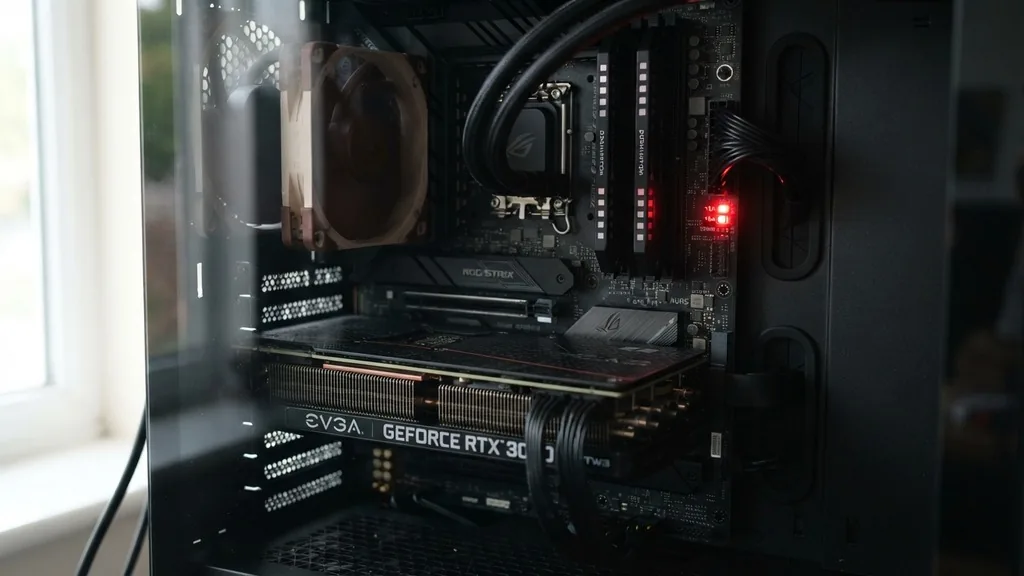
When you build or troubleshoot a PC, the term VGA often appears in two distinct contexts: as a legacy analog video interface and as a critical diagnostic indicator on your motherboard. Understanding what is VGA on motherboard requires distinguishing between the physical 15-pin connector that used to dominate monitors and the modern “VGA light” that signals a failure during the system startup sequence. Many users confuse the two, leading to unnecessary panic when a small LED on their circuit board starts glowing during a boot attempt.
Understanding the VGA Diagnostic LED
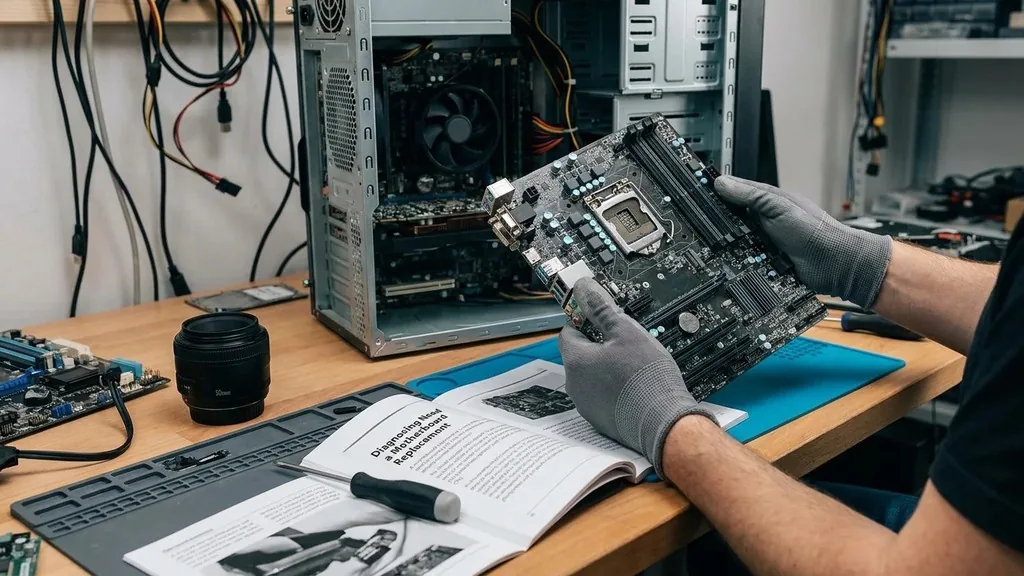
The VGA light on a motherboard is a specific component of the POST (Power-On Self-Test) diagnostic system. When you press the power button, your computer initiates a series of checks to ensure the CPU, RAM, and graphics hardware are functional before handing control to the operating system. If the motherboard detects that it cannot initialize the graphics output, it triggers the VGA LED to notify the user.
This indicator is essentially a silent messenger. It doesn’t tell you exactly which component is broken, but it narrows the field of suspects significantly. When the light remains illuminated, the motherboard is telling you that it has successfully passed the CPU and memory checks, but it hit a wall when trying to communicate with the graphics subsystem.
This is the stage where the system attempts to initialize the display driver to show you the BIOS splash screen. If that communication fails, the process halts, and the motherboard keeps that light on to guide your troubleshooting efforts.
Differentiating Between Legacy Ports and System Status
Historically, VGA stood for Video Graphics Array, a standard introduced by IBM in 1987. This physical port, colored blue with 15 holes, was the industry standard for connecting monitors for decades.
You might still see these ports on older motherboards or budget-friendly business hardware. However, in the context of motherboard troubleshooting, the acronym has been repurposed.
The motherboard manufacturers use the term “VGA” as a shorthand for “Video Graphics Adapter” or simply “Graphics.” Even if your modern motherboard lacks a physical VGA port, it will still have a VGA debug LED. This is where confusion peaks for many enthusiasts.
You might be using an HDMI or DisplayPort connection, yet the board still warns you about a “VGA” issue. It is vital to remember that in the context of the debug light, the term refers to the function of graphics output, not the specific connector type you are using.
Troubleshooting the VGA Debug Light
When that light stays on, your system is failing the boot sequence. The first step is to check your physical connections.
It sounds simple, but a loose power cable or a poorly seated graphics card is the most common cause of this issue. Ensure that the PCIe power cables are pushed firmly into the graphics card and that the card itself is fully locked into the top PCIe slot.
If your motherboard has multiple PCIe slots, try moving the card to a different one to see if the primary slot is the source of the problem. You should also verify that your monitor is turned on and set to the correct input source. Sometimes, the computer boots perfectly fine, but the monitor is simply looking for a signal on the wrong channel, leading you to believe there is a hardware failure when there is merely a configuration mismatch.
The Role of Integrated Graphics
If your CPU supports integrated graphics, you have a powerful tool for diagnosing the problem. By removing your dedicated graphics card and plugging your monitor cable directly into the motherboard’s display port, you can determine if the issue lies with the card or the rest of the system. If the computer boots successfully and displays an image using integrated graphics, it is highly likely that your dedicated GPU is the culprit.
This process helps isolate the issue. If the VGA light goes away once the dedicated card is removed, you know the motherboard is healthy and the issue is localized to the graphics card or its power delivery. If the light persists even with the dedicated card removed and the display plugged into the motherboard, you may be looking at a more complex issue involving the BIOS settings or an incompatibility between your CPU and motherboard firmware.
Common Causes for Graphics Initialization Failures
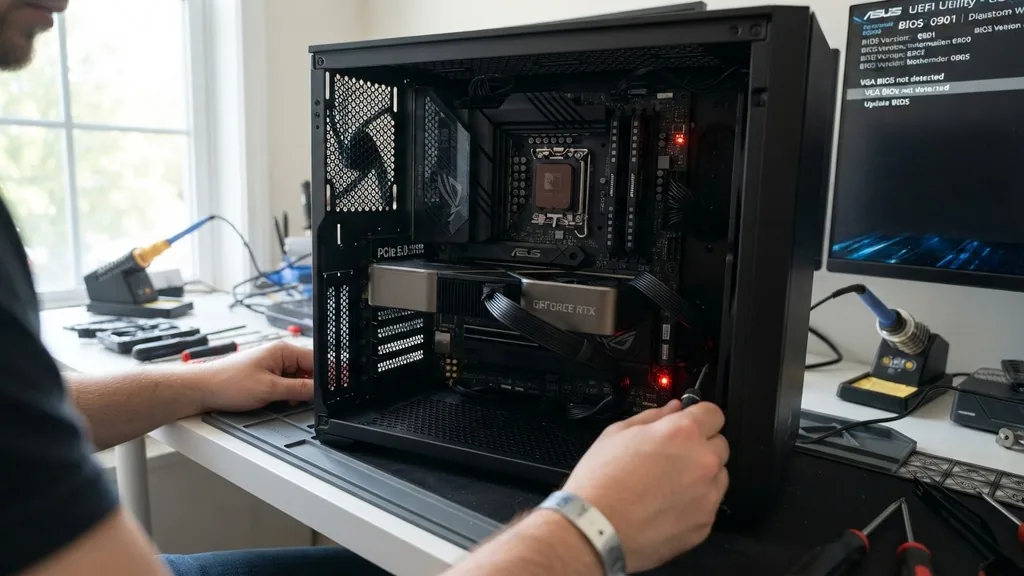
A failure to initialize graphics can stem from a variety of hardware and software conflicts. Often, the BIOS version on your motherboard may be outdated and unable to recognize a newer graphics card correctly.
In these instances, a firmware update is required to resolve the compatibility issue. You can find detailed instructions on official graphics troubleshooting resources provided by major hardware manufacturers to ensure you are following the correct update procedures.
Other common culprits include:
- Insufficient power supply unit (PSU) wattage to handle the GPU under load.
- Corrupted BIOS settings that need to be reset via CMOS clearing.
- Damaged PCIe lanes on the motherboard or a bent pin in the CPU socket.
- Incompatible display cables that fail to support the handshake protocol of the monitor.
- Driver conflicts that only manifest during the handoff between the BIOS and the OS.
The Impact of BIOS and Firmware Settings
Sometimes, the motherboard is configured to prioritize the wrong output device. If your BIOS is set to look for an external card, but you are trying to use integrated graphics, or vice versa, the system might hang during the boot process.
Accessing the BIOS is difficult when the display won’t turn on, which is why clearing the CMOS is often the recommended first step. By resetting the motherboard to its factory default state, you force it to re-detect all connected hardware automatically.
In some high-end motherboards, there are specific settings for PCIe generation (Gen3 vs Gen4 vs Gen5). If your graphics card and your motherboard are operating on different PCIe standards, they might struggle to establish a stable link. Manually setting the PCIe speed to a lower generation in the BIOS—if you can get into it—can sometimes provide the stability needed to boot, after which you can update your BIOS to support the faster speeds natively.
Comparing Diagnostic Indicators
Most modern motherboards provide a set of four LEDs to help you identify where the boot process is failing. Understanding how these interact helps you rule out other components like RAM or the CPU.
| LED Label | What It Checks | Typical Cause of Failure |
|---|---|---|
| CPU | Processor and Socket | Bent pins or loose cooler mounting pressure. |
| DRAM | Memory Modules | Improperly seated RAM or incompatible XMP profiles. |
| VGA | Graphics Subsystem | GPU power issues or card seating. |
| BOOT | Storage/OS Drive | Missing boot partition or disconnected drive. |
When you see the VGA light, it is a specific indicator that the CPU and RAM have passed their tests. This is a positive sign in a way, as it means the core processing and memory units are likely functional. Your focus should remain strictly on the graphics card, the power cables, and the display output chain.
Addressing Topical Gaps and Advanced Issues
A frequently overlooked aspect of the VGA light is the “silent boot” issue, where the system actually boots into Windows, but the BIOS splash screen never appears because of a mismatch in display handshake protocols. Some monitors do not wake up quickly enough to catch the POST signal, or they do not support the legacy resolution that the BIOS uses to display the interface. In this case, the VGA light might stay on even though the system is technically working.
If you suspect this is happening, try a different monitor or a different cable type, such as switching from DisplayPort to HDMI. Some graphics cards have known issues with DisplayPort firmware that prevent them from showing the BIOS screen, which is a common source of the VGA LED being lit incorrectly. Updating the GPU firmware through the manufacturer’s provided utility usually resolves this specific interaction issue.
When to Consider Hardware Replacement
If you have reseated the card, tested it in a different PCIe slot, verified your power cables, cleared the CMOS, and tried a different monitor, you are approaching the end of the troubleshooting path. If the VGA light remains stubborn, the graphics card itself may have developed a hardware fault. This is particularly common if the card was purchased used or has been running at high temperatures for an extended period.
Before declaring the card dead, check for any physical damage on the PCB, such as burnt components or knocked-off capacitors. If you have access to a second PC, testing the GPU in that system is the definitive way to confirm if the card is the source of the issue.
If the card fails to display an image in a known-good system, it is time to consider a replacement. Conversely, if it works elsewhere, your motherboard’s PCIe slot may be damaged, which is a much more significant and costly hardware failure.
Frequently Asked Questions
- Does a VGA light mean my GPU is broken? Not necessarily. While it indicates the system cannot detect a graphics output, it is often caused by a loose power cable, a poorly seated card, or a simple communication error between the monitor and the PC.
- Can I ignore the VGA light if my PC boots to Windows? If your system boots into Windows and displays an image, the light is likely a false positive caused by a monitor handshake issue. Ensure your GPU firmware is updated to resolve this annoying but non-critical indicator.
- What should I do if the VGA light is white? Different motherboard manufacturers use different colors to denote status. A white VGA light is common on many boards to signify that the graphics subsystem is active or has been initialized. If your PC boots normally, a white light usually indicates normal operation.
- Will bad RAM cause the VGA light to turn on? Usually, no. If your RAM is faulty or poorly seated, the motherboard will hang on the DRAM debug LED instead. The VGA light only triggers after the DRAM and CPU checks have been successfully completed by the system.


