


Identifying your computer’s core hardware is a fundamental skill for any user looking to upgrade their system, troubleshoot performance issues, or simply ensure compatibility for new software. When you need to know how to check what motherboard i have, you do not necessarily need to reach for a screwdriver to open your chassis.
Whether you are running a custom-built desktop or a pre-assembled unit, there are several reliable software-based and physical methods to extract this information quickly. Understanding your hardware foundation allows you to update your drivers, check for BIOS compatibility, and verify if your current board supports specific hardware upgrades like faster RAM or a new CPU.
Using System Information for a Quick Identification
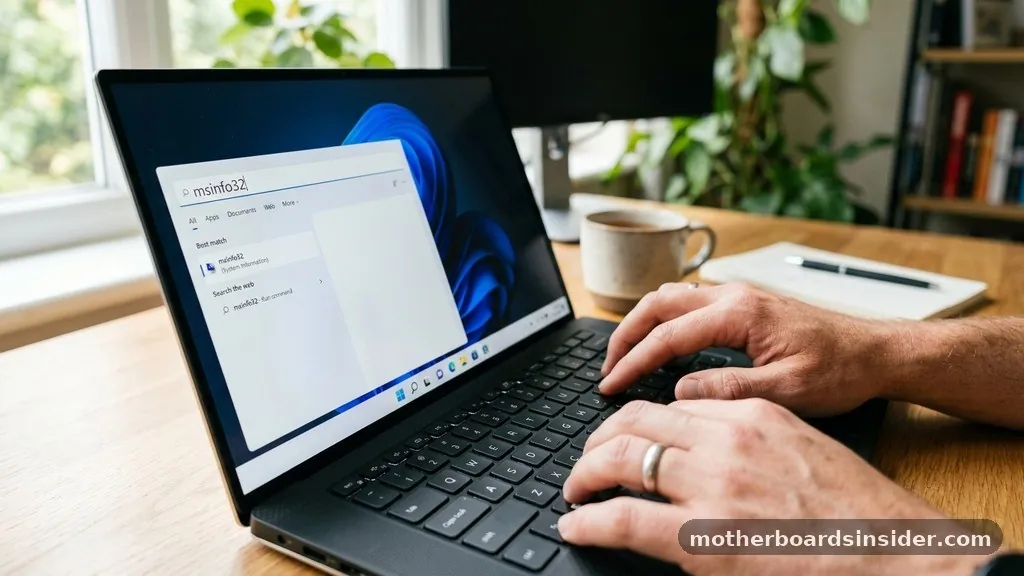
The most straightforward way to get your motherboard model on a Windows machine is by utilizing the built-in System Information tool. This utility is pre-installed on every version of Windows, making it an excellent first step for any user.
To access it, you simply need to click the search bar on your taskbar, type “msinfo32,” and press enter. This will launch a comprehensive window detailing your system summary.
Once the window opens, look for the “BaseBoard Manufacturer,” “BaseBoard Product,” and “BaseBoard Version” fields. These entries provide the exact identification you need. The “BaseBoard Product” is the specific model name, while the manufacturer field identifies the company that produced it, such as Asus, Gigabyte, or MSI.
This method check is non-invasive and does not require you to restart your computer or enter the UEFI BIOS. It is the go-to solution for most users who just need to find the name of their hardware for driver updates or technical support inquiries. If you find that the information appears as “Not Available,” it is sometimes due to a lack of proper motherboard drivers, which might indicate that you need to visit the manufacturer’s website to install the latest chipset software.
Leveraging the Command Prompt for Advanced Users
If you prefer a more technical approach or if the System Information tool is not providing the level of detail you require, the Command Prompt is a powerful alternative. This method is particularly useful for power users who want to extract the serial number or specific hardware strings directly from the Windows Management Instrumentation (WMI) database. To perform this motherboard check, press the Windows key, type “cmd,” and run it as an administrator.
In the command window, type the following command and press enter: “wmic baseboard get product,Manufacturer,version,serialnumber.” This command explicitly asks the operating system to query the hardware interface for the specific details associated with your mainboard. The result will display the manufacturer, the product name, the version, and the serial number in a clean, text-based format.
This approach is highly efficient because it bypasses the graphical interface, making it a favorite for those who prefer to keep their workflow streamlined. If you are troubleshooting a system that is struggling to boot or if you are automating hardware audits, this command line method is often more reliable than navigating through layered menus in the graphical settings.
Accessing UEFI BIOS for Hardware-Level Verification
When you want to see your hardware specifications before the operating system even loads, the UEFI BIOS is the most authoritative source. Accessing the BIOS is necessary when you are dealing with a system that refuses to boot into Windows or when you need to verify hardware settings that are independent of software drivers. To enter the BIOS, you typically need to restart your computer and repeatedly press a specific key—often F2, F12, or Del—during the initial startup sequence.
Once you are inside the BIOS interface, the motherboard information is usually located on the main dashboard or the “System Information” tab. Because modern BIOS interfaces are graphical, you can often use your mouse to navigate. This is where you will find the most accurate name motherboard data, as it is pulled directly from the firmware of the chip.
This is also the best place to check your current firmware version, which is crucial if you are planning to upgrade your CPU. If you are preparing to install a newer processor, checking the BIOS allows you to confirm if your board‘s current firmware supports the newer architecture or if a flash update is required first. Always remember to exit the BIOS without saving changes if you are just there to look, ensuring that you do not accidentally alter any critical system settings.
Inspecting Your Computer Physically
Sometimes, software-based methods fail to report accurate information, or you may be working on a machine that is completely powered down. In these instances, a physical inspection is the only way to be certain. For desktops, this involves removing the side panel of the case.
Once the interior is exposed, you can usually find the model name printed directly on the surface of the motherboard. It is often located near the CPU socket, between the PCIe slots, or along the edge of the board near the RAM DIMM slots.
If you are using a laptop, the process is significantly more difficult because the components are often tightly packed and covered by heat sinks or protective shielding. For laptops, it is almost always better to use the product serial number found on the bottom sticker to look up the specifications on the manufacturer’s support website. If you are a custom builder, you might still have the original box that the motherboard came in.
The retail packaging almost always features the model name and branding prominently. When performing a physical inspection, ensure the computer is unplugged from the power source and that you have discharged any static electricity by touching a grounded metal object, as the components are sensitive to electrostatic discharge.
Third-Party Software for Detailed Hardware Audits
If you need more than just the product name—for instance, if you need to know the chipset, the socket type, or the specific BIOS revision—third-party diagnostic tools are invaluable. Software like CPU-Z is widely regarded as the industry standard for this purpose. It provides a lightweight, portable interface that scans your hardware and presents it in a clear, tabbed format.
When you open CPU-Z, navigate to the “Mainboard” tab. Here, you will find exhaustive details, including the manufacturer, the model, the chipset, and the southbridge. This is particularly useful for identifying the specific revision of a board, as many manufacturers release multiple iterations of the same model name over time.
By using a tool like this, you ensure that you are downloading the correct drivers or compatibility patches. You can learn more about hardware specifications and standards at the National Institute of Standards and Technology, which maintains comprehensive documentation on computing technology and measurement standards. Using a trusted, lightweight utility like CPU-Z is safer than downloading unknown diagnostic scripts from the web, as it has a long-standing reputation in the PC enthusiast community for being both accurate and secure.
Comparing Identification Methods
To help you decide which approach is best for your current situation, the following table summarizes the most common methods for identifying your motherboard and their specific use cases:
| Method | Difficulty | Best For |
|---|---|---|
| System Information (msinfo32) | Easy | Quick checks while running Windows |
| Command Prompt (WMIC) | Intermediate | Power users, serial number retrieval |
| UEFI BIOS | Advanced | Troubleshooting boot issues, firmware checks |
| Physical Inspection | Hard | Non-booting systems, confirming exact revisions |
| Third-Party Tools (CPU-Z) | Easy | Detailed technical specifications |
Addressing Common Hurdles and Topical Gaps
One common issue users face is when the motherboard name appears as “To be filled by O.E.M.” or “System Board.” This typically happens with pre-built computers from companies like Dell, HP, or Lenovo.
In these cases, the motherboard is proprietary, meaning it was designed specifically for that chassis and does not follow standard retail naming conventions. If you encounter this, your best bet is to search for the specific model of your computer (e.g., “Dell Optiplex 7000 specs”) rather than trying to find the motherboard model itself.
Another gap in common knowledge is the difference between the motherboard model and the chipset. While the model tells you the specific board, the chipset tells you the underlying technology that governs how the CPU communicates with the rest of the system. Knowing the chipset is often more important than the board name when it comes to understanding performance limitations or compatibility with newer storage standards like NVMe.
If you are ever unsure whether your system is an ATX, Micro-ATX, or Mini-ITX form factor, the model name will almost always reveal this in its technical documentation. Simply searching your model number plus the word “manual” will lead you to the manufacturer’s PDF, which will explicitly state the form factor and all supported hardware configurations.
Tips for Maintaining Hardware Records
Keeping track of your hardware specifications can save you hours of frustration in the future. Many users find it helpful to maintain a simple digital document or a physical folder containing the manuals and receipts for their components.
If you are a gamer or a creator, you might change your GPU or add more storage drives frequently. Knowing your motherboard’s capabilities regarding PCIe lane distribution is essential for these upgrades.
- Keep a digital copy of your system specifications on a cloud drive.
- Bookmark the support page for your motherboard manufacturer.
- Save the original digital invoice for your PC build, as it often lists the exact motherboard part number.
- Periodically check for BIOS updates to ensure security and hardware compatibility.
- Label your PC case with the date of your last major hardware upgrade.
By following these habits, you transform from a passive user into an informed system owner. Maintaining a record of your hardware ensures that when a new game comes out or a critical security patch is released, you know exactly what your machine is capable of handling without having to perform a full system audit every single time.
Frequently Asked Questions
Will the BIOS tell me what motherboard I have?
Yes, the BIOS or UEFI is one of the most reliable places to find your motherboard model. Upon entering the BIOS, the information is typically listed on the main system information screen, providing the exact manufacturer and model name directly from the hardware firmware itself.
How can I check my motherboard without opening the PC?
You can easily check your motherboard without opening the computer by using built-in software like System Information (msinfo32) or the Command Prompt (using the “wmic baseboard get product” command). These methods pull hardware information directly from the operating system, requiring no physical access to the case.
How do I know if my motherboard is ATX?
To determine your motherboard’s form factor, search for your specific model name online. The manufacturer’s official support page or product manual will clearly state the form factor, such as ATX, Micro-ATX, or Mini-ITX. You can also visually estimate by counting the number of expansion slots and mounting holes.
Does checking the motherboard affect my warranty?
No, using software tools like System Information or third-party diagnostic utilities will not affect your warranty. However, opening your computer case for a physical inspection can sometimes void a warranty on pre-built systems from certain manufacturers, so always check your specific warranty terms before removing any protective case seals.
In summary, knowing your motherboard is the key to managing your computer’s health and longevity. Whether you are using the Windows command line, navigating the BIOS, or performing a physical check, you now have the tools to identify your hardware with confidence.
Remember that your motherboard is the central nervous system of your PC; treating it with the right information ensures that every upgrade, driver installation, and troubleshooting session goes as smoothly as possible. By documenting your system details and utilizing the resources provided by manufacturers, you can maintain a high-performing machine for years to come.


