

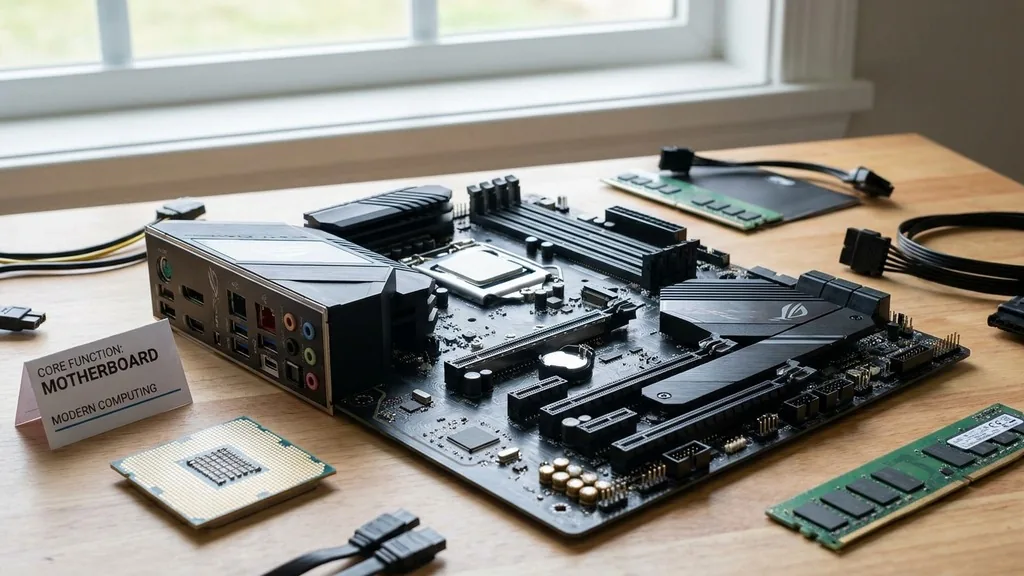
A motherboard acts as the primary communication hub for every piece of hardware inside your computer. While the processor often receives the glory for raw speed, it would be entirely useless without this intricate circuit board to facilitate connections.
Think of it as the central nervous system of your machine, ensuring that electricity and data reach their intended destinations with millisecond precision. Without this foundation, your high-end graphics card, fast memory modules, and storage drives would have no way to talk to one another or receive the power they need to function.
The Core Function of the Motherboard in Modern Computing
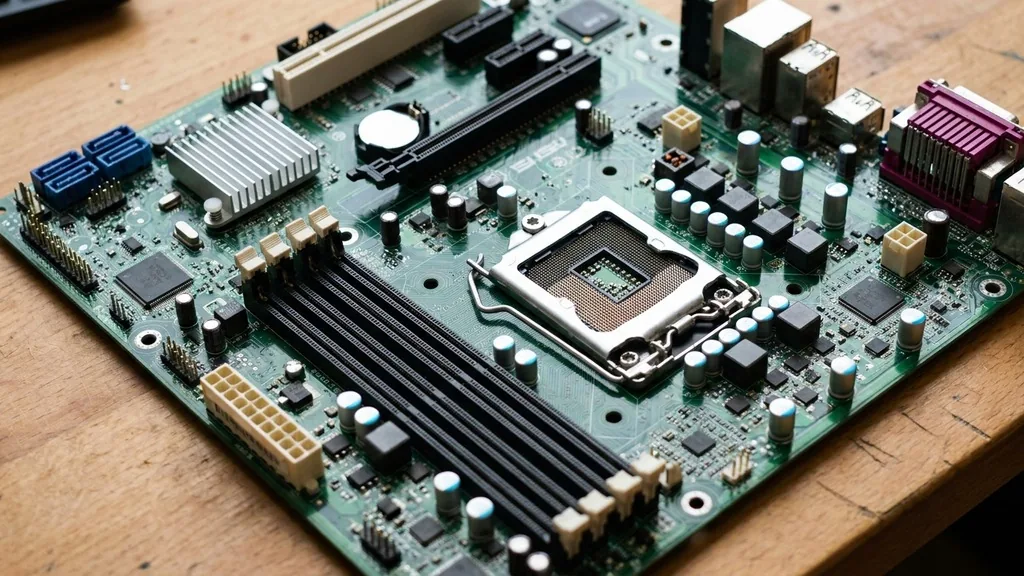
A motherboard is used for hosting and connecting all the vital components of a computer, acting as the physical platform that allows them to interact. It provides the electrical pathways, known as traces, that carry signals between the central processing unit, memory, storage devices, and various peripheral devices. By managing these traffic patterns, the board ensures that the system operates as a cohesive unit rather than a collection of disparate parts.
Beyond simple connectivity, the board also serves as the distribution center for power. The power supply unit connects directly to the motherboard, which then regulates and distributes that voltage to the CPU, memory, and expansion slots.
It also houses the BIOS or UEFI firmware, which is the low-level software that initializes the hardware during the startup process before the operating system takes control. Without this essential hardware bridge, you would simply have a collection of electronic components with no way to synchronize their activities.
How the Motherboard Facilitates Component Communication
The motherboard facilitates communication by acting as the primary highway for data transfer between the CPU and all other hardware. When you type on a keyboard or click a mouse, those signals travel through the board to the processor.
The processor then sends instructions back through the motherboard to the screen, storage, or audio output. This constant exchange is managed by the chipset, a set of controllers on the motherboard that dictates how data flows across the system.
Data pathways, or buses, are embedded within the layers of the printed circuit board. These microscopic copper traces connect the CPU socket directly to the memory slots and the primary PCIe lanes.
Because high-speed components like modern graphics cards require massive bandwidth, the board must be engineered to handle these signals without interference or data loss. High-quality motherboards use multiple layers of fiberglass and copper to isolate these signals, ensuring that the integrity of your data remains intact even during heavy computational loads.
Understanding Motherboard Form Factors and Compatibility
The physical size and layout of a motherboard are defined by its form factor, which dictates which cases it fits into and how many components it can hold. The most common standard for desktop PCs is the ATX form factor, which provides a balance of size and expandability. Smaller boards, such as Micro-ATX or Mini-ITX, are designed for compact builds where space is at a premium, though they often sacrifice some expansion slots to achieve their smaller footprint.
Choosing the right form factor is critical because it determines the physical limitations of your build. If you purchase a case designed for a Mini-ITX board, you cannot fit a full-sized ATX board inside.
Furthermore, the form factor influences the placement of mounting holes, which must align with the standoffs inside your computer chassis. You can learn more about the technical specifications of these standards through the official Intel motherboard support documentation to ensure your parts are compatible before you begin assembly.
| Form Factor | Typical Size (mm) | Primary Use Case | Expansion Potential |
|---|---|---|---|
| ATX | 305 x 244 | Standard Desktop / Gaming | High |
| Micro-ATX | 244 x 244 | Budget / Office Builds | Moderate |
| Mini-ITX | 170 x 170 | Small Form Factor (SFF) | Low |
The Role of Slots and Expansion Capabilities
Expansion slots allow you to customize your computer by adding specialized hardware that wasn’t included in the original build. The most recognizable of these is the PCIe (Peripheral Component Interconnect Express) slot, which is primarily used for graphics cards.
However, these slots are versatile; they can also house network interface cards, high-speed storage controllers, or specialized sound cards. By providing these slots, the motherboard ensures that your computer can evolve as your needs change.
Memory slots, or DIMM slots, provide the interface for your system’s RAM. These slots are connected directly to the CPU’s memory controller to ensure the fastest possible access to temporary data.
The number of slots available on your board limits how much memory you can install, which in turn limits the number of applications you can keep open simultaneously. When you upgrade your system, you are essentially leveraging the expansion capabilities built into the board by the manufacturer.
Power Delivery and Voltage Regulation
A motherboard is used for distributing stable electrical power to every component through its Voltage Regulator Module (VRM). While the power supply provides the raw electricity, the VRM cleans and modulates that power to meet the specific requirements of the CPU and other sensitive chips.
This is a vital task because components like the processor are incredibly sensitive to voltage fluctuations. If the power delivery is unstable, the entire system can crash or, in extreme cases, suffer permanent hardware damage.
High-performance boards often feature more robust VRMs with high-quality capacitors and chokes. This is particularly important for enthusiasts who engage in overclocking, which pushes the CPU to operate at higher speeds and voltages than factory specifications. A board with a superior power delivery system can handle these increased loads without overheating, ensuring that the system remains stable even when the hardware is pushed to its absolute limits.
The BIOS and UEFI: The Board’s Internal Operating System
The BIOS (Basic Input/Output System) or the more modern UEFI (Unified Extensible Firmware Interface) is firmware stored on a small chip on the motherboard. When you press the power button, this firmware is the very first thing to run.
It performs a Power-On Self-Test (POST) to verify that all essential hardware—such as the memory, storage, and CPU—is present and functioning correctly. If a component is faulty, the motherboard will often communicate this through a series of beeps or diagnostic LED codes.
Beyond basic startup tasks, the UEFI provides a user interface that allows you to configure low-level settings. You can use this menu to adjust memory speeds, change the boot priority for your storage drives, or monitor system temperatures.
Because this software is embedded directly into the motherboard, it is independent of your operating system. This allows you to perform system maintenance and troubleshooting even if your primary Windows or Linux installation is completely broken or unbootable.
Managing Integrated Features and Connectivity
Modern motherboards come with a vast array of integrated features that were once handled by separate expansion cards. Most boards now include built-in high-definition audio, multiple USB ports, Ethernet networking, and often Wi-Fi and Bluetooth capabilities. These integrated features reduce the cost and complexity of building a computer, as you no longer need to purchase individual cards for sound or networking unless you have specific, professional-grade requirements.
The rear I/O panel of a motherboard is the interface between your internal components and the outside world. It provides the physical ports for your peripherals, such as monitors, keyboards, mice, and external drives.
The variety and speed of these ports—ranging from standard USB 2.0 to ultra-fast USB 4.0 or Thunderbolt—are determined by the board’s chipset. When selecting a board, it is important to consider how many devices you plan to connect, as the I/O panel essentially defines the external connectivity limit of your machine.
Troubleshooting and Diagnostic Indicators
When a computer refuses to start, the motherboard is often the first place to look for diagnostic information. Modern boards frequently include onboard diagnostic LEDs or a small digital display that shows error codes.
These codes correspond to specific hardware failures, such as a loose memory stick or a misaligned CPU. By interpreting these signals, you can quickly identify whether a problem is caused by a faulty component or a simple connection error.
If your board lacks these advanced indicators, it may still use a small speaker to emit “beep codes.” These patterns of long and short beeps are a universal language used by motherboard manufacturers to signal which part of the boot process has failed.
Understanding these diagnostic tools is one of the most useful skills for any PC builder. It transforms a frustrating “black screen” situation into a manageable technical problem that can be solved with a systematic approach to hardware verification.
Addressing Topical Gaps: Common Misconceptions
Many users wonder if the motherboard is the “brain” of the computer. It is not; the CPU is the brain, while the motherboard is more akin to the circulatory and nervous systems combined. Another common question is whether a computer can run without one.
The answer is a definitive no, as every piece of hardware must physically plug into the board to receive power and data. Without the board, your components are just expensive, inert silicon and metal.
Some users also ask if it is worth replacing a motherboard on an older computer. Generally, this is only advisable if you are performing a significant upgrade or if the board has failed and you have a specific, compatible replacement available.
Because motherboards are tied to specific CPU socket generations, you cannot simply swap a new board into an old machine; you would likely need to replace the processor and memory as well. Treat the motherboard as the foundation of your build, and always plan your upgrades around its compatibility constraints.
Frequently Asked Questions
- Can a computer function without a motherboard? No, every computer requires a motherboard to act as the central hub for power and data communication. It is the physical framework that connects the CPU, memory, and storage, allowing them to interact and form a working system.
- Is the motherboard responsible for computer speed? The motherboard itself does not process data, but it dictates the bandwidth available to your components. A high-quality board ensures your CPU and memory can communicate at their maximum rated speeds without bottlenecks, which is crucial for optimal performance.
- Should I upgrade my motherboard if I want better performance? Upgrading a motherboard usually requires a new CPU, as sockets change frequently. You should only replace the board if you are upgrading your processor or if you need more features, such as additional expansion slots or faster connectivity options.
- Where is the motherboard located inside the PC? The motherboard is mounted to the side or back panel of the computer case using standoffs. It is positioned so that the rear I/O panel faces the back of the case and the internal components are easily accessible for cooling and connectivity.


