

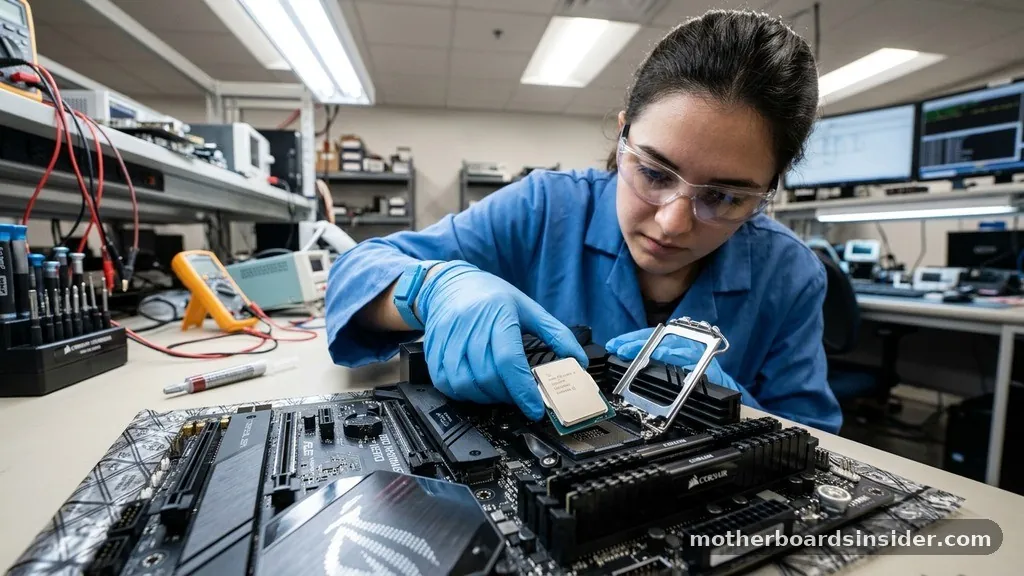
A motherboard acts as the central nervous system of any modern computer. It is the primary printed circuit board that connects all the vital hardware components, allowing them to communicate and function as a cohesive system.
If you imagine a computer as a city, the motherboard is the sprawling network of roads, power lines, and data highways that ensure every building—from the CPU to the storage drives—receives the resources it needs to operate. Without this critical interface, your high-end processor would be nothing more than a disconnected piece of silicon, unable to send or receive information.
Understanding what this board does requires moving beyond the surface-level view of a green or black slab of circuitry. It is a highly engineered piece of tech that manages electrical currents, regulates communication signals, and provides physical mounting points for nearly every other part of your machine. Whether you are building a budget-friendly office PC or a high-performance gaming rig, the choice of the main board impacts your current performance and your future upgrade path.
The Fundamental Role of the Motherboard in a Computer
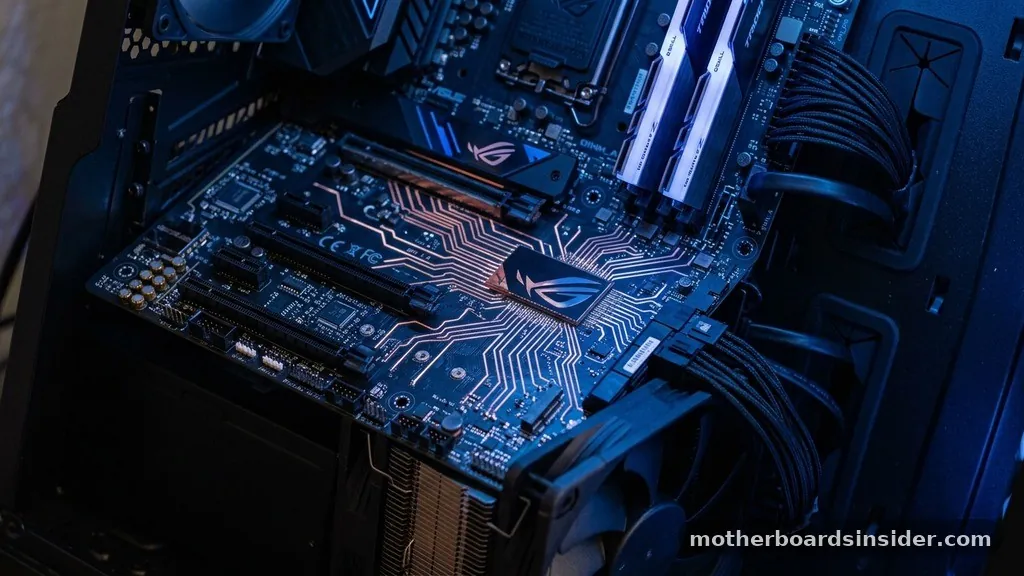
At its core, the motherboard serves as the backbone for the entire computer. Its primary responsibility is to provide the physical and electrical infrastructure that lets different components talk to one another.
The CPU, which acts as the brain, needs a way to send instructions to the RAM and receive data from your hard drive or SSD. The motherboard provides the pathways—often called “traces”—that carry these signals at incredible speeds.
Furthermore, it acts as a power distribution center. Your power supply unit (PSU) plugs directly into the motherboard, which then routes electricity to the processor, the graphics card, and various other internal devices. It includes sophisticated voltage regulator modules (VRMs) that step down the raw power from your PSU into the precise, stable voltages that sensitive microchips require.
If a board fails to regulate this power correctly, the entire system becomes unstable, leading to crashes, blue screens, or permanent hardware damage. By acting as both a data bridge and a power distributor, the motherboard ensures that every part of your machine operates in harmony.
Communication and Data Flow Between Hardware Components
One of the most complex tasks performed by the board is managing data traffic. Think of it as an air traffic controller for electrical impulses.
When you click your mouse or open a file, the motherboard facilitates the high-speed transfer of data across its various slots and buses. This communication happens across the chipset, a set of controllers on the board that manages data flow between the processor, memory, and peripheral devices.
Modern motherboards use high-speed standards to ensure that there is no bottleneck in the communication process. For example, the PCIe (Peripheral Component Interconnect Express) lanes are essentially dedicated expressways for high-bandwidth devices like graphics cards and NVMe solid-state drives.
By providing these direct lanes, the board minimizes latency, ensuring that your processor can access data from storage or memory almost instantaneously. This seamless integration is what allows a modern computer to handle millions of operations per second without stuttering.
Supporting Internal Components and Memory Expansion
The motherboard is physically designed to accommodate specific hardware standards, often referred to as the form factor. The most common of these is ATX, which defines the physical dimensions and the layout of the mounting holes and ports. Beyond just holding things in place, the board provides the specific sockets and slots required for your main components.
The memory slots (DIMM slots) are a perfect example of this. When you insert your RAM, the motherboard creates a direct, multi-channel electrical connection between the memory modules and the CPU. This allows the processor to load and retrieve temporary data at incredible speeds.
Similarly, the expansion slots, such as the aforementioned PCIe slots, allow you to add specialized cards like sound cards, network interface cards, or additional storage controllers. This modularity is what makes a desktop computer so versatile, as it allows users to tailor their machines to specific tasks by simply swapping out or adding new hardware.
Power Management and Voltage Regulation
A frequently overlooked aspect of the motherboard’s function is its role in power regulation. Your computer’s power supply provides a steady stream of electricity, but your processor and other sensitive chips require very specific, low-voltage power to function safely. The motherboard uses a series of capacitors, chokes, and MOSFETs—collectively known as the VRM—to clean and regulate this electricity.
If you are interested in the technical specifications of how these components are standardized, you can visit the Intel technical resources page to learn more about the engineering standards governing modern computing architectures. This regulation is vital because it prevents power spikes from frying your expensive chips.
In high-performance systems, the quality of the motherboard’s VRM is a critical factor for stability, especially when users attempt to “overclock” their processors, which pushes the hardware to run at speeds faster than the manufacturer’s base settings. A better board with a robust power delivery system will always provide a more stable foundation for such high-demand operations.
The BIOS and UEFI: The Software Foundation
Beyond the physical hardware, the motherboard stores the essential firmware that starts your computer: the BIOS (Basic Input/Output System) or the more modern UEFI (Unified Extensible Firmware Interface). This software is embedded on a chip on the board and acts as the very first thing that runs when you press the power button.
The primary role of the UEFI is to perform the “Power-On Self-Test” (POST). During this phase, the board checks to ensure that the CPU is present, the RAM is working, and the basic storage devices are connected. If any major component is missing or faulty, the motherboard will often signal this through a series of beeps or diagnostic LED codes.
Once the test is passed, the UEFI hands control over to your operating system (like Windows or Linux). It also provides the interface that allows you to configure hardware settings, such as boot priority, fan speeds, and memory timings, effectively giving you control over the hardware level of your system before the OS even loads.
Connectivity: Ports and Peripheral Integration
The rear of your computer, where you plug in your monitor, keyboard, mouse, and internet cable, is directly connected to the motherboard. These ports are the main gateway for communication between your internal hardware and the outside world. Whether it is a USB-C port for fast data transfer, an HDMI port for video output, or an Ethernet jack for networking, these interfaces are built directly onto or wired into the motherboard.
In addition to the external ports, the board provides internal headers. These are the pins that connect to the front of your computer case, allowing the power button, the reset button, and the front-panel USB ports to function.
Without these connections, your case would just be an empty box. The motherboard essentially bridges the gap between the internal components doing the heavy lifting and the user who needs to interact with the machine daily.
Comparing Different Motherboard Form Factors
The physical size and layout of a board are dictated by its form factor. Choosing the right one depends on the size of your case and your need for expansion. The following table highlights the most common sizes and their typical use cases:
| Form Factor | Size | Best Used For |
|---|---|---|
| ATX | Standard (12 x 9.6 in) | Full-size towers, gaming, and workstations |
| Micro-ATX | Compact (9.6 x 9.6 in) | Budget builds and small-to-medium cases |
| Mini-ITX | Very Small (6.7 x 6.7 in) | Ultra-compact PCs and home theater systems |
Each of these boards offers a different balance between physical footprint and capability. An ATX board will typically offer more PCIe slots and memory slots, making it ideal for users who plan on adding multiple cards or upgrading their RAM later. Conversely, a Mini-ITX board is perfect for a minimalist setup, though it may limit your ability to add extra internal devices due to physical space constraints.
Troubleshooting Common Motherboard Issues
Because the motherboard is the central hub, it is also the first place to look when a computer won’t start. Some common issues include:
- Dead Motherboard: Often caused by power surges or capacitor failure, leading to a system that shows no signs of life.
- POST Errors: If the computer turns on but the screen remains black, the board is likely failing the self-test; checking diagnostic LEDs or beep codes is the first step in troubleshooting.
- Loose Connections: Sometimes, the board is fine, but a cable from the power supply or a piece of RAM has vibrated loose, causing the system to fail.
- BIOS/UEFI Corruption: A failed firmware update can render the board unbootable, though many modern boards include a “BIOS Flashback” feature to recover from this.
- Overheating: If the motherboard’s chipset or VRMs overheat, the system may throttle performance or shut down entirely to protect the hardware.
When you suspect a motherboard issue, the best approach is a systematic one. Start by checking all power cables, then reseat the RAM and graphics card.
If the machine still fails to boot, consult the manual for the specific beep codes or LED indicators provided by the manufacturer. These diagnostic tools are designed specifically to help users identify which component is causing the bottleneck.
Answering Common Topical Gaps
There are several persistent questions regarding the role of the motherboard that often cause confusion for new builders. One common query is whether the motherboard impacts performance. While the board itself does not perform calculations like the CPU, it dictates the ceiling for that performance.
A “bottlenecked” motherboard might prevent your processor from reaching its full boost clock speed or restrict the bandwidth of your high-speed RAM. Therefore, while it isn’t the “brain,” it is the “nervous system” that determines how well the brain can actually function.
Another frequent question is: “Can a PC work without a motherboard?” The answer is a definitive no.
Because the motherboard is the physical structure that connects the processor, memory, and power, it is the fundamental requirement for any PC. Even in a smartphone, which uses a highly integrated “logic board,” that board functions exactly like a motherboard, serving as the central connection point for the processor, storage, and screen.
Finally, users often ask if it is worth replacing a motherboard. Generally, a motherboard is the hardest component to replace because it requires stripping the entire computer down to its individual parts.
It is usually only worth replacing if the current board is broken or if you are performing a significant upgrade that requires a new CPU socket type. Because the socket on a motherboard is usually tied to a specific generation of processors, you rarely upgrade just the motherboard without also upgrading the processor and potentially the memory.
Frequently Asked Questions
Does a motherboard make your computer faster?
A motherboard itself doesn’t calculate data, so it doesn’t directly increase raw speed. However, a high-quality board enables better performance by supporting faster RAM, allowing for stable CPU overclocking, and providing high-bandwidth PCIe lanes that prevent bottlenecks for your graphics card and storage drives.
How can I tell if my motherboard is bad?
Common signs include the computer failing to boot, random system crashes, USB ports not responding, or specific diagnostic LEDs lighting up on the board. If the system shows no power despite a working power supply, the motherboard has likely suffered a catastrophic hardware failure.
Is it worth replacing a PC motherboard?
It is usually only worth replacing if your current board is faulty or if you are upgrading your CPU to a newer generation that requires a different socket. Because replacing a board requires rebuilding the entire system, it is rarely done just for a performance boost.
What does a motherboard look like?
It is a large, rectangular circuit board, usually dark in color, filled with various slots for memory and expansion cards, a large square socket for the processor, and an array of capacitors, heatsinks, and ports along the edges. It is the largest component inside your computer case.
In conclusion, the motherboard is far more than just a mounting surface for other parts. It is the essential infrastructure that defines the capability, stability, and future expandability of your computer.
By managing power, facilitating high-speed data communication, and providing a gateway for all your peripherals, it ensures that your hardware functions as one cohesive system. Whether you are a casual user or a professional builder, recognizing the importance of this foundational component is key to understanding how your machine truly works.


