

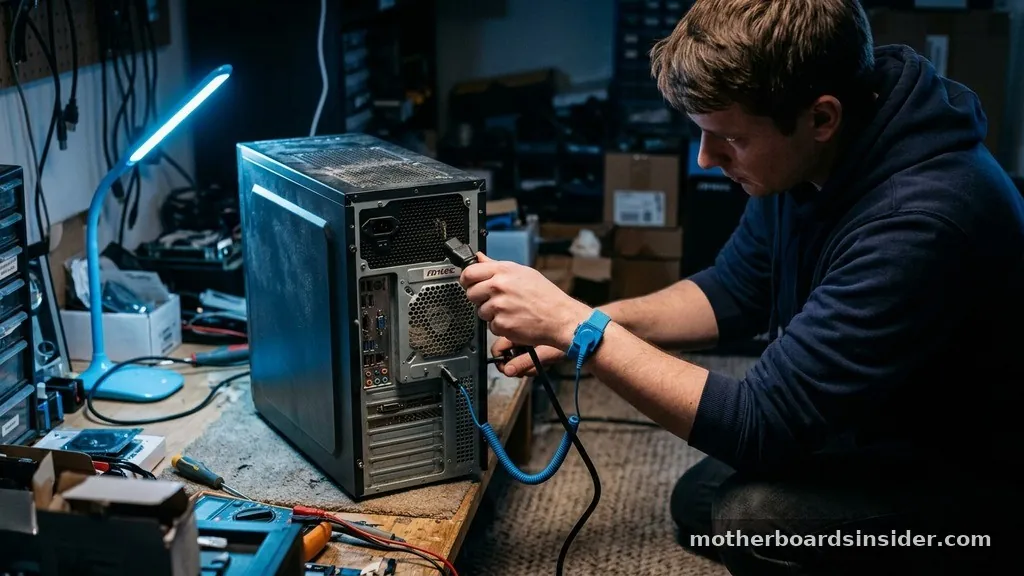
Successfully upgrading or troubleshooting your computer often requires knowing how to remove a GPU from a motherboard without damaging sensitive internal components. Whether you are swapping out an aging card for the latest model or simply performing routine maintenance on your gaming rig, the process is straightforward provided you exercise patience and follow the correct sequence.
Because modern graphics cards are both large and firmly secured, rushing the procedure can lead to broken retention clips or bent pins, which are costly mistakes to fix. By taking a methodical approach, you can ensure that your hardware remains safe throughout the transition.
Preparing Your Workstation and Safety Protocols
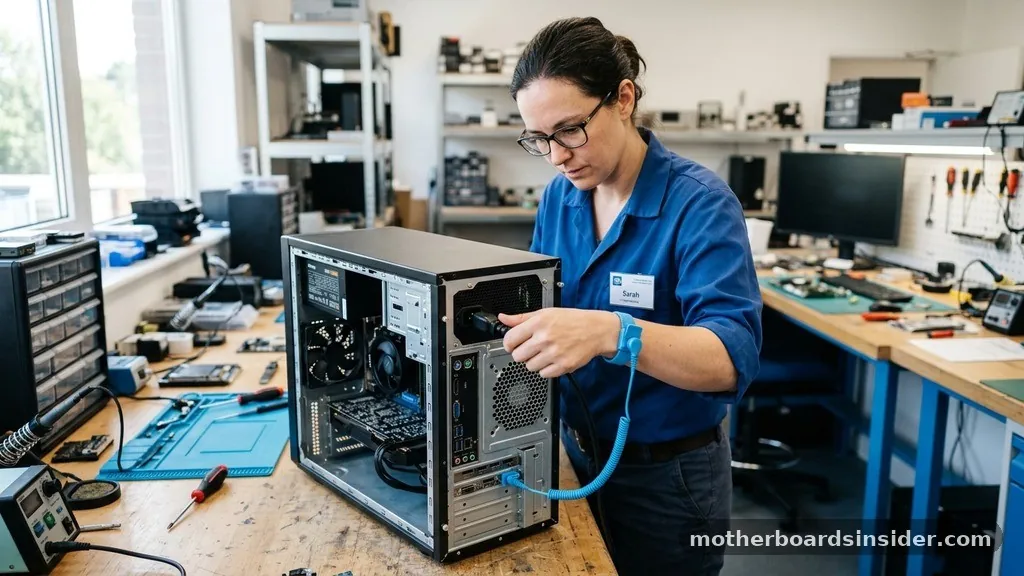
Before you even touch the internal components of your PC, you must prioritize safety and preparation. The most critical step is to eliminate any chance of electrical discharge. You should begin by turning off your computer completely and flipping the power switch on your power supply unit (PSU) to the “off” position.
Unplug the power cable from the wall outlet and the back of the case. It is also wise to press the power button on the front of your computer case a few times while it is unplugged; this helps drain any residual charge lingering in the capacitors of your motherboard and power supply.
Next, find a clean, well-lit, and static-free workspace. Avoid working on carpets, as they are notorious for generating static electricity that can fry sensitive hardware. A wooden or laminate desk is an ideal surface.
You should also ensure you have the right tools on hand, specifically a standard Phillips-head screwdriver. In many modern builds, the GPU is held in place by screws that anchor the bracket to the chassis.
Having a magnetic screwdriver can be a lifesaver, as it prevents tiny screws from falling into the dark crevices of your case. Taking a few minutes to organize your workspace ensures that the actual removal process goes smoothly and keeps your hardware secure.
Disconnecting Power Cables and External Inputs
Once your system is powered down and stable, your next move is to disconnect all physical connections linked to the graphics card. GPUs are power-hungry components, and almost all modern high-performance cards require dedicated power directly from the PSU. Look at the side or the back of your card to identify the PCIe power cables, which might be 6-pin, 8-pin, or even a newer 12VHPWR connector.
To remove these, grip the connector housing firmly—not the wires themselves—and press the small locking tab located on the side of the plastic plug. With the tab depressed, gently pull the cable away from the GPU. If the cable feels stuck, wiggle it slightly from side to side rather than pulling with excessive force.
Once the power cables are disconnected and set aside, turn your attention to the video output ports at the back of the case. Unplug any HDMI, DisplayPort, or DVI cables that lead to your monitors. By clearing these cables out of the way, you gain better access to the rear bracket of the card, which is essential for the next phase of the removal.
Locating and Removing Chassis Screws
The graphics card is anchored to the PC case by the metal mounting bracket located at the rear of the motherboard. This bracket provides structural support for the heavy weight of the card, preventing it from sagging or putting excessive strain on the PCIe slot. To access these screws, you will likely need to remove a small metal cover or plate that hides the screw heads.
Using your Phillips-head screwdriver, carefully loosen and remove the screws securing the GPU bracket to the case frame. Keep these screws in a safe, designated spot—like a small bowl or a magnetic tray—so they do not get lost. It is important to note that some cases feature thumbscrews, which can be removed by hand, while others may use a locking mechanism that slides or snaps into place.
If you encounter resistance, do not force it. Ensure that every screw holding the bracket to the chassis has been completely removed. Once these are out, the card will still be held firmly in the motherboard by the PCIe retention clip, which acts as the final safety mechanism.
Managing the PCIe Slot Retention Clip
The most common point of failure when removing a GPU is the PCIe retention clip. This small plastic lever, located at the back end of the PCIe slot on the motherboard, is designed to lock the card into the slot so it doesn’t vibrate or shift during operation. Many beginners overlook this clip, attempting to pull the card straight out, which can result in the plastic latch snapping off or the slot itself being damaged.
To release the card, reach into the gap between the motherboard and the bottom of the GPU. You may need a flashlight to see the clip clearly, especially if you have a large air cooler or a massive card. Depending on the design of your motherboard, the latch might be a small tab you push down, or a lever you pull to the side.
Press the latch firmly until you hear a soft “click” or feel it release its grip. Keep the latch held in that open position while you prepare to lift the card. If you are struggling to reach it, a long, thin, non-conductive object like a plastic spudger or even a clean, dry popsicle stick can provide the leverage needed to nudge the clip without scratching the motherboard surface.
Extracting the Graphics Card Safely
With the chassis screws removed and the PCIe retention clip disengaged, the card is ready to be pulled from the motherboard. Stand directly behind your case or look down into it from the top.
Place your hands on both ends of the card and pull it straight upward, perpendicular to the motherboard. It is vital to pull evenly; if you lift one side significantly higher than the other, the card could get stuck or put undue stress on the PCIe connector pins.
If the card does not move, stop immediately. Double-check that you have removed all the screws from the bracket and that the retention clip is fully depressed. Sometimes, the GPU might feel “stuck” due to a tight fit in the case’s rear slot or a slightly stubborn PCIe interface.
Gentle, firm pressure is the key. Avoid jerking the card or using excessive force.
As the card clears the PCIe slot, be mindful of any internal cables—such as fan headers or SATA cables—that might catch on the underside of the card. Once the card is free, place it on a non-conductive surface, such as the original box or an anti-static mat, to protect the delicate gold contacts.
Troubleshooting Stuck Hardware and Common Obstacles
Sometimes, despite your best efforts, a GPU simply refuses to budge. This can happen if the card is wedged tightly against the case bracket or if the PCIe latch is obstructed by a bulky CPU cooler. If you find yourself in this situation, take a deep breath and reassess the physical constraints of your build.
Common Challenges During GPU Removal
- Obstructed Latch: If a large CPU heatsink blocks your finger, use a thin plastic tool to push the latch.
- Bent Bracket: If the metal bracket at the back of the case is bent, it might snag on the chassis. Use pliers to gently straighten the metal before pulling.
- Stuck Card: If the card is firmly seated, wiggle it very gently in a back-and-forth motion while keeping the latch open.
- Cables in the Way: Ensure no stray power wires are caught underneath the card’s cooling fans.
If the card feels truly locked, verify that there isn’t a secondary mounting point you missed. Some high-end builds utilize a GPU support bracket or a vertical mount kit.
These add-ons often have their own set of screws that must be removed separately from the standard chassis bracket. Never use brute force, as the motherboard is a complex piece of hardware with fine traces that can easily be damaged beyond repair.
Comparing Removal Methods by Hardware Type
Different form factors and mounting configurations require slightly different approaches. The table below outlines how common hardware variables affect the removal process.
| Hardware Configuration | Primary Consideration | Removal Difficulty |
|---|---|---|
| Standard ATX Desktop | Rear bracket screws and PCIe latch | Easy |
| Small Form Factor (SFF) | Tight cable management and limited space | Moderate |
| Vertical GPU Mount | Riser cable connection and secondary frame | Moderate |
| Prebuilt Systems | Proprietary locking mechanisms or hidden clips | High |
Understanding your specific build type is essential. For instance, in a prebuilt system from a major manufacturer, the manufacturer might use proprietary clips that look different from standard motherboard components.
If you are ever unsure, consult the manual that came with your motherboard or case. For deeper insights into hardware standards, you can refer to the PCI-SIG specifications to understand the physical design requirements of these interfaces.
Addressing Topical Gaps: Software and System Considerations
While the physical removal of the hardware is the primary concern, you must also consider the digital side of the operation. Before you remove an old GPU to replace it with a new one, it is highly recommended to uninstall the existing graphics drivers. Using a tool like Display Driver Uninstaller (DDU) ensures that no residual files remain, which can cause conflicts with your new card’s drivers.
Additionally, if you are moving from one brand (like NVIDIA) to another (like AMD), failing to clean the old drivers can lead to system instability, crashes, or poor performance in your favorite game. Once the card is removed and the new one is installed, you will need to enter the BIOS if you encounter any display issues during the initial boot. Sometimes, the motherboard might default to integrated graphics if the new card isn’t detected correctly.
Checking your BIOS settings ensures that the PCIe slot is correctly configured for the new hardware. Remember that a new GPU installation is not complete until the latest drivers are downloaded and installed from the manufacturer’s official website, ensuring your machine runs at peak efficiency.
FAQ: Common Questions About Removing Your GPU
Is it possible to damage my motherboard while removing the GPU?
Yes, it is possible if you use excessive force or fail to release the PCIe retention clip. Always ensure the clip is fully disengaged before pulling the card. If you feel significant resistance, stop and re-examine the mounting screws and the retention mechanism to avoid bending the slot.
Do I need to uninstall my graphics drivers before removing the card?
While you can physically remove the card without uninstalling drivers, it is highly recommended to do so, especially if you are switching brands or upgrading. Removing old drivers prevents software conflicts and ensures the new card functions optimally once installed in your system.
What should I do if the GPU is stuck in the slot?
First, check for any hidden screws or support brackets you might have missed. Ensure the PCIe retention clip is fully open. If it remains stuck, gently wiggle the card from end to end while keeping the latch depressed. Never pull straight up with force if it feels locked.
Is it safe to touch the electrical contacts on the GPU?
You should avoid touching the gold-plated pins on the bottom of the GPU. Oils from your skin can cause corrosion over time. Always hold the card by the plastic shroud, the cooling fans, or the metal backplate to keep the electrical contacts clean and free from debris.
In conclusion, knowing how to remove a GPU from a motherboard is an essential skill for any PC enthusiast. By focusing on the physical release of the retention clip, carefully unscrewing the rear mounting bracket, and ensuring the system is completely powered down, you can perform hardware swaps with confidence.
Always remember that patience is your best tool; if something feels wrong, pause and investigate the obstruction rather than forcing the hardware. With these steps in mind, you are well-equipped to maintain your system, upgrade your components, and keep your gaming rig performing at its absolute best for years to come.


