

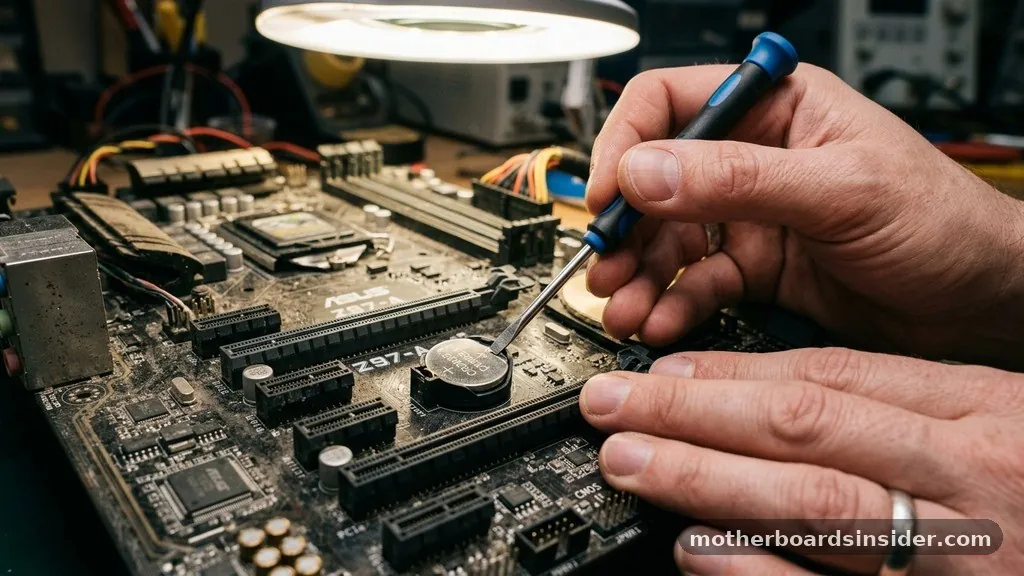
When your computer refuses to boot, displays erratic behavior, or fails to recognize hardware components, learning how to reset motherboard settings is often the most effective troubleshooting step. A motherboard reset, technically known as clearing the Complementary Metal-Oxide-Semiconductor or CMOS, effectively reverts your BIOS settings to their factory defaults.
This process wipes away corrupted configurations, overclocking mishaps, or incompatible hardware settings that might be preventing your system from operating correctly. By returning the firmware to its original state, you essentially provide your machine with a clean slate, allowing the hardware to re-initialize and communicate properly with your operating system.
Understanding the Role of CMOS and BIOS
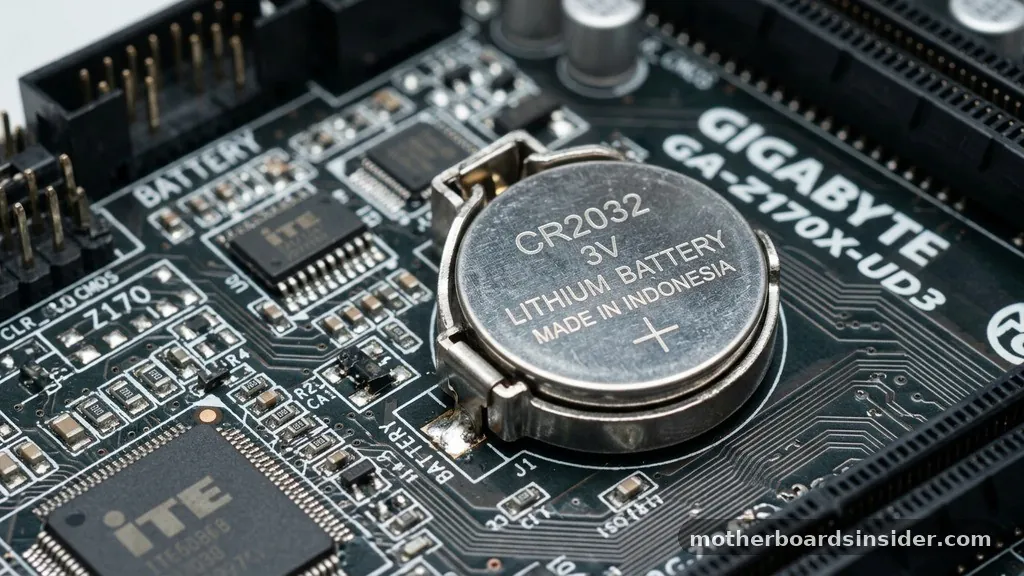
The motherboard acts as the central nervous system of your computer, and the BIOS (Basic Input/Output System) is the firmware that initiates the boot process. The CMOS is a small, volatile memory chip on the motherboard that stores vital configuration data, including system time, date, and hardware settings. This chip is powered by a small coin-shaped CMOS battery, which ensures that even when your computer is disconnected from a power source, the stored information remains intact.
When you enter the BIOS menu, you are modifying these settings. Over time, improper adjustments—such as aggressive memory timings, incorrect voltage settings for the CPU, or mismatched storage controller modes—can lead to a “no-post” scenario where the computer powers on but fails to show anything on the screen.
Resetting the CMOS clears this volatile memory, forcing the motherboard to re-detect all connected hardware and revert to stable, default values. It is a fundamental skill for anyone performing custom PC builds or troubleshooting legacy hardware issues.
Safety Precautions Before You Begin
Before you touch any internal components, safety must be your top priority. Static electricity can damage sensitive electronic components, so it is crucial to ground yourself by touching a metal part of the computer case or using an anti-static wrist strap.
First, you must unplug the power cord from the wall outlet. Never attempt to reset the CMOS while the system is drawing electricity from the power supply, as this creates a risk of electrical shock or short-circuiting the motherboard circuitry.
Once the power is cut, wait for at least 30 to 60 seconds to allow any residual energy trapped in the capacitors to dissipate. This “power drain” is essential because modern power supplies can hold a charge for a short duration even after being disconnected.
If you are working in a cramped space, ensure you have adequate lighting and a magnetic screwdriver to manage any small screws you might need to remove. Keeping your workspace clear of clutter prevents accidental damage to fragile pins or connectors while you access the motherboard.
The Battery Removal Method
The most common and universally understood way to reset a motherboard is by removing the CMOS battery. This is a simple, non-destructive method that works on almost every desktop motherboard manufactured in the last three decades.
Locate the CR2032 coin-cell battery, which is usually situated near the center or bottom of the board. Gently push the small metal clip holding the battery in place, and it will pop up slightly, allowing you to remove it easily.
Leave the battery out for at least five minutes. During this time, the lack of power to the CMOS chip causes it to lose its stored data. If you want to accelerate the process, you can hold down the computer’s power button for ten to fifteen seconds while the battery is removed; this helps drain any remaining energy from the motherboard’s circuits.
Once the time has passed, place the battery back into its slot, ensuring it is seated firmly. Reconnect your power cable, and attempt to boot the system. You will likely be prompted to enter the BIOS to reset your date and time settings, as these are the first things lost during a reset.
Using the Jumper Pins
Many modern motherboards include a dedicated set of headers specifically for resetting the CMOS. These are often labeled as JBAT1, CLR_CMOS, or simply CLRTC. This method is generally faster than the battery removal approach and does not require you to extract any components.
You will typically see two pins protruding from the board. To trigger the reset, you need to create a short circuit between these pins, which effectively drains the CMOS memory instantly.
To perform this, ensure the system is completely powered down and unplugged. Use a conductive object, such as a metal screwdriver, to bridge the connection between the two pins. Hold the metal tip against both pins for approximately 10 to 15 seconds.
If your motherboard came with a plastic jumper cap, you can slide it over the pins to bridge them. After the designated time, remove the screwdriver or the jumper cap and return it to its original position (if applicable). This action forces the firmware to revert to its factory state immediately upon the next power cycle.
The Dedicated CMOS Button
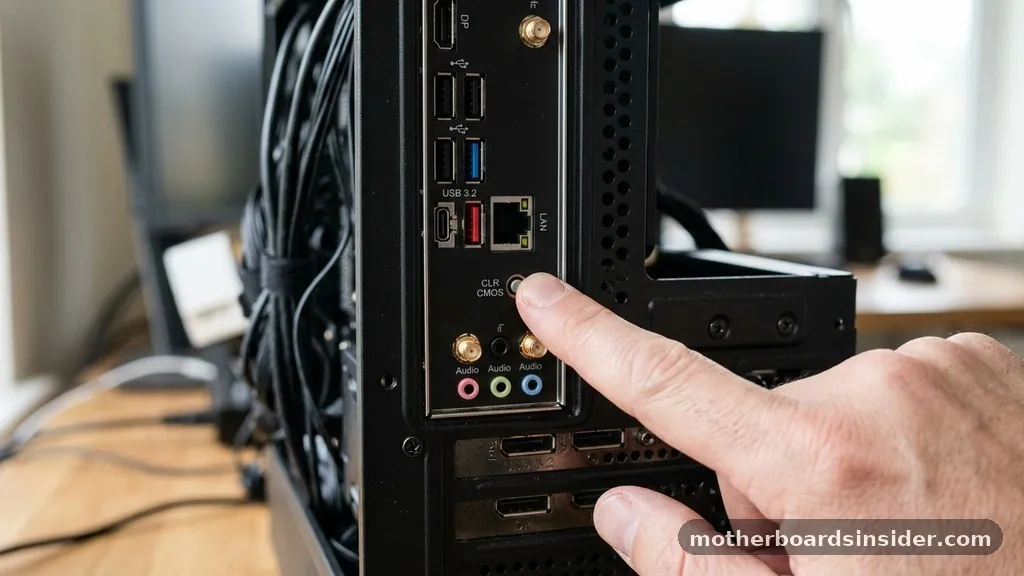
High-end and enthusiast-grade motherboards often simplify this process further by providing a physical CMOS button located on the rear I/O panel. This is a massive convenience for users who frequently tweak their system performance, as it avoids the need to open the side panel and dig around the internal components. If you have a board with this feature, the procedure is incredibly straightforward:
1. Power down the computer completely.
2. Ensure the system is disconnected from the power cord.
3.
Locate the button on the back of the case (often near the USB ports).
4. Press and hold the button for about 5 to 10 seconds.
5. Release the button and reconnect your power source.
This button is wired directly to the BIOS circuitry to bypass the need for manual jumper manipulation. It is a highly reliable way to recover from a “black screen” boot failure caused by unstable overclocking settings. For more information on hardware standards and motherboard specifications, you can refer to the official documentation provided by the Intel support center regarding BIOS recovery.
Comparing Reset Methods
Choosing the right method depends on your hardware configuration and accessibility. Some cases are designed in a way that makes reaching the battery nearly impossible without removing the graphics card.
In such instances, the jumper or button method is far superior. The following table outlines the differences between these approaches to help you decide which is best for your situation.
| Method | Ease of Use | Accessibility | Best For |
|---|---|---|---|
| Battery Removal | Moderate | High (requires side panel removal) | Standard troubleshooting |
| Jumper Pins | Moderate | Low (requires internal access) | When battery is blocked |
| CMOS Button | Excellent | Very High (external access) | Enthusiast boards |
Troubleshooting Common Failure Scenarios
Sometimes, a simple CMOS reset does not fix the issue. If your computer still fails to boot after you have cleared the settings, you may be dealing with a deeper hardware failure. One common issue is faulty memory.
Try removing your RAM sticks and reseating them one at a time. If you have two sticks, test the system with only one stick installed in the primary slot. This helps rule out a defective module that might be preventing the system from passing the Power-On Self-Test (POST).
Another potential culprit is a dead CMOS battery. These batteries typically last five to ten years, but if your computer is older, the battery may no longer hold enough charge to keep the CMOS settings alive. If you find that your date and time settings reset to the year 2000 every time you unplug your PC, it is time to replace the CR2032 battery with a fresh one.
This is a cheap and easy fix that solves many recurring BIOS-related bugs. Always ensure you are using a high-quality replacement battery to avoid premature failure.
Addressing Topical Gaps: Resetting Without Display
A frequently asked question is how to perform a reset when you cannot see the screen. If your monitor remains black, you cannot enter the BIOS menu to “load optimized defaults.”
In this case, you must rely entirely on the physical hardware methods described above (battery, jumper, or button). Once you have physically reset the CMOS, the motherboard will automatically attempt to re-initialize all hardware.
If the system still does not display anything, try disconnecting all non-essential peripherals. Unplug USB devices, secondary hard drives, and extra expansion cards. Leave only the CPU, one stick of RAM, and the power supply connected.
If the motherboard has integrated graphics, remove your dedicated GPU and plug your monitor directly into the motherboard’s HDMI or DisplayPort output. This “barebones” configuration allows the system to boot without competing with potentially faulty hardware drivers or conflicting device settings.
Frequently Asked Questions
What happens if I reset my motherboard?
Resetting your motherboard clears all custom BIOS settings, such as overclocking profiles, fan curves, and boot order, returning them to factory defaults. Your personal files on your hard drive remain untouched, but you may need to reconfigure system time and storage settings to ensure a smooth boot.
Can I reset CMOS without removing the battery?
Yes. You can use the CLRTC jumper pins on the motherboard or a dedicated CMOS button if your board features one. These methods are often more convenient than removing the battery, especially if the battery is positioned under a large graphics card or other components.
How do I know if the reset worked?
After resetting, the computer should perform a “cold boot,” where it may restart itself once or twice. Upon successfully entering the BIOS, you will see a message stating that the CMOS settings have been cleared or that the configuration has been reset to default values.
Does resetting the motherboard delete my data?
No, resetting the motherboard does not affect the data stored on your hard drives or SSDs. The CMOS memory is separate from your primary storage. Your operating system, documents, and installed applications will remain perfectly intact after a CMOS reset.
Conclusion
Learning how to reset motherboard configurations is an essential skill for any PC user. Whether you are dealing with a simple boot error or a complex hardware conflict, the ability to clear the CMOS provides a reliable path back to a functional system. By following the steps outlined—whether through battery removal, jumper manipulation, or using a dedicated reset button—you can resolve most firmware-related issues effectively.
Remember to always prioritize safety by disconnecting the power, and don’t be afraid to perform a “barebones” test if the initial reset does not yield immediate results. With these techniques in your toolkit, you can maintain your system’s stability and performance for years to come.


