

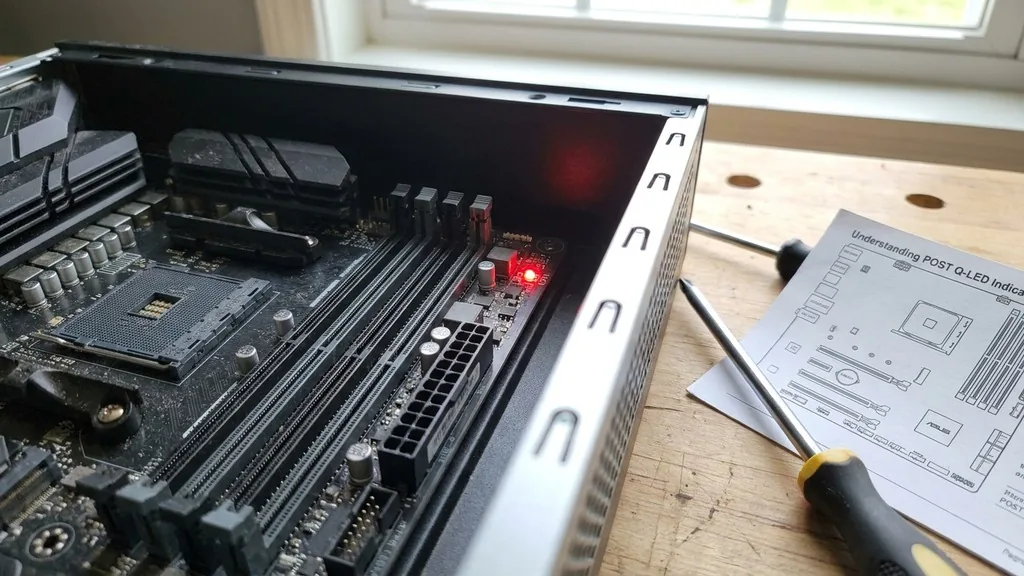
Finding a sudden, ominous glow emanating from the depths of your PC case can be a heart-stopping moment for any enthusiast. When you ask yourself why is there a red light on my motherboard, the answer is rarely a simple one-size-fits-all explanation. Modern motherboards are sophisticated pieces of hardware designed to communicate their status through a series of tiny, often overlooked LEDs.
These lights are not usually there to look cool; they are diagnostic tools. They serve as the first line of defense during the boot process, acting as silent sentinels that monitor the health of your critical components before the operating system even begins to load.
Understanding POST and Q-LED Indicators
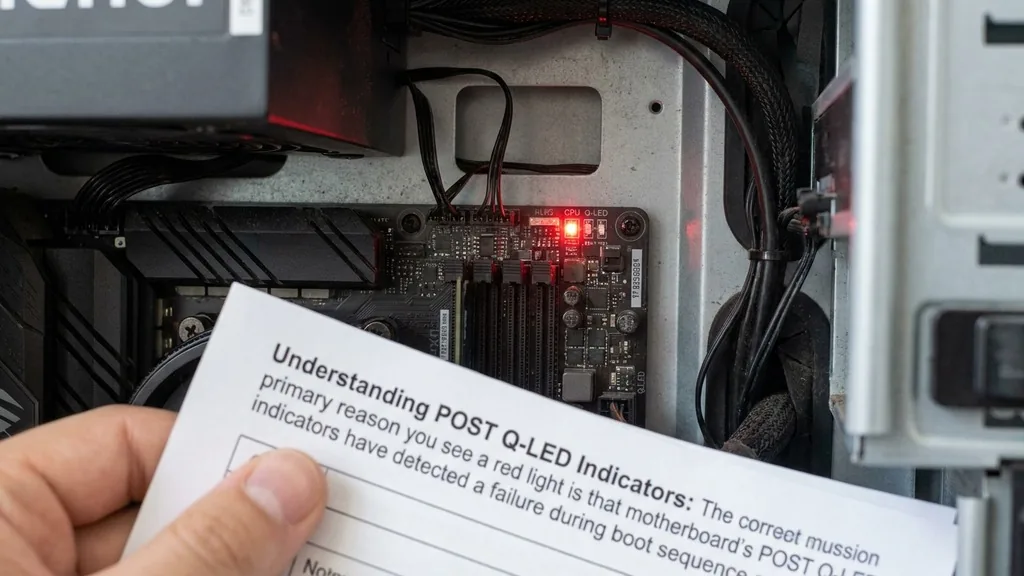
The primary reason you see a red light is that the motherboard’s POST/Q-LED indicators have detected a failure during the boot sequence. POST, or Power-On Self-Test, is the series of checks a computer performs immediately after you press the power button.
During this phase, the motherboard verifies that the CPU, memory, graphics card, and storage devices are functional. If the system encounters a problem, it halts the boot process and lights up a specific LED to signal exactly where the bottleneck lies.
These LEDs are typically grouped together near the 24-pin power connector or the RAM slots. Manufacturers like ASUS, MSI, and Gigabyte use these lights to save users from the frustration of guessing why a system won’t display an image.
By identifying which component has triggered the light, you can skip the tedious process of trial-and-error troubleshooting. If the light remains illuminated, it means the hardware initialization for that specific component failed, preventing the system from moving on to the next step of the boot sequence.
The CPU Debug Light Explained
A red light specifically labeled “CPU” indicates that the motherboard is struggling to communicate with or power the processor. This is often the most anxiety-inducing error, but it is not always fatal.
If you see this light, it means the system failed to complete the CPU phase of the BIOS POST sequence. This could be due to a loose power cable, a bent pin in the CPU socket, or even an outdated BIOS version that doesn’t recognize your specific processor model.
Before assuming the worst, check the power supply connections. The 8-pin or 4+4-pin EPS connector located near the top left of the motherboard provides dedicated power to the CPU. If this cable is not seated firmly, the motherboard will lack the necessary voltage to initialize the processor.
Furthermore, if you recently installed a new CPU, ensure that your motherboard’s BIOS is compatible. You can find more information on hardware compatibility and firmware requirements at the official Intel support portal to verify if your specific processor generation requires a BIOS update to function correctly.
Troubleshooting DRAM Errors and RAM Seating
If the red light is positioned next to the “DRAM” label, you are likely facing a DRAM error. This is one of the most common issues in PC building. RAM is notoriously sensitive to how it is installed.
Even a microscopic layer of dust or a slightly offset module can prevent the system from detecting the memory. The motherboard’s memory controller requires a stable connection to all pins to initialize the sticks. If one stick is faulty or improperly seated, the entire boot process will stall at the memory check.
To resolve this, power down your PC and remove the memory sticks entirely. Use a soft cloth or a specialized contact cleaner to wipe the gold contacts on the RAM modules. Re-insert them into the slots, ensuring you hear a distinct “click” on both sides of the DIMM slot.
If you are using two sticks of RAM, try booting with only one module installed in the primary slot. This helps determine if one specific stick is dead or if a particular motherboard slot has failed. Testing each stick individually in different slots is the standard procedure to isolate the culprit.
Resolving VGA Light Issues
The VGA light signals a problem with your graphics card. This light usually stays on if the motherboard cannot detect a GPU or if the GPU is not receiving sufficient power. If your processor does not have integrated graphics, a failure here will result in a black screen, leaving you with no way to enter the BIOS.
First, ensure your graphics card is pushed all the way into the PCIe slot. You should hear the locking tab click into place.
Many modern graphics cards require additional power from the power supply unit. Check that your PCIe power cables are fully inserted into the graphics card. If you are using a daisy-chained cable (one cable splitting into two connectors), try using two separate cables from the power supply instead.
This provides a cleaner, more consistent flow of electricity to the GPU. Additionally, verify that your monitor is plugged into the graphics card output, not the motherboard’s I/O panel. If the system is still failing to display, try reseating the card in a different PCIe slot if your motherboard supports it.
The BOOT LED and Storage Failures
When the BOOT LED remains lit, it means the motherboard has successfully passed the CPU, RAM, and VGA checks, but it cannot find a bootable device. This does not necessarily mean your hard drive or SSD is broken; it simply means the BIOS does not see a valid operating system to load. This often happens after a BIOS reset, where the boot order might have reverted to default, causing the system to look for a drive that isn’t the primary one.
Check your storage cables if you are using SATA drives. A loose data cable or a failing power cable can cause the drive to go undetected. If you are using an M.2 NVMe SSD, ensure it is screwed down correctly.
If the drive is installed but not showing up in the boot menu, you may need to enter the BIOS by tapping the Delete or F2 key during startup to manually adjust the boot priority. If the drive is entirely absent from the BIOS menu, it may be a sign of a failed drive controller or a dead SSD.
| Indicator Light | Likely Component | Primary Troubleshooting Step |
|---|---|---|
| CPU LED | Processor | Check 8-pin power and CPU socket pins |
| DRAM LED | Memory (RAM) | Reseat RAM and test individual sticks |
| VGA LED | Graphics Card | Verify PCIe seating and power cables |
| BOOT LED | Storage/OS | Check boot order and drive connections |
Addressing BIOS and CMOS Battery Issues
Sometimes, the red light isn’t caused by a hardware failure at all, but by a corrupted or incorrect BIOS configuration. The CMOS battery, a small coin-shaped battery on the motherboard, maintains the settings stored in the BIOS even when the computer is unplugged. If this battery is dying, or if you have made an unstable change to your overclocking settings, the motherboard might get stuck in a boot loop, triggering a diagnostic light.
To clear these settings, you can perform a CMOS reset. Locate the CR2032 battery on the motherboard, remove it for about thirty seconds, and then place it back in. This will revert all BIOS settings to their factory defaults.
If you have a jumper on your board labeled “CLR_CMOS,” you can also short those pins with a screwdriver to achieve the same result. This is a highly effective way to clear out “ghost” errors that prevent the system from completing its initialization. Once cleared, the motherboard will attempt to re-detect all hardware from scratch.
Preventing Static Discharge and Physical Damage
When you are troubleshooting these lights, you must be extremely careful about static discharge. Even a small spark of static electricity can permanently damage sensitive traces on the motherboard or fry a memory controller.
Always touch a grounded metal object before handling your components. If possible, work on a non-conductive surface like a wooden table rather than a carpeted floor.
Avoid touching the gold pins on the CPU or the underside of the motherboard. When reseating components, apply firm but even pressure. If you feel like you have to force a component into place, stop and check for obstructions.
A screw dropped behind the motherboard or a stray piece of wire can cause a short circuit, which will trigger various error lights inconsistently. Keeping your workspace clean and organized is just as important as the actual technical steps you take to fix the hardware.
Topical Gaps: What If the Light Blinks or Stays On?
Many users wonder if a blinking light means something different than a solid one. Usually, a blinking light indicates that the motherboard is currently scanning that specific component. If it blinks and then moves to the next light (e.g., blinks at CPU then switches to DRAM), the system is working perfectly.
The red light is only a concern if it stays illuminated indefinitely. If it stops at a specific light, that is the exact component failing to pass the check.
Another common gap in knowledge involves motherboard error codes. Some high-end boards feature a two-digit LED display instead of just simple lights. These codes provide much more granular information.
If your board has this, consult your motherboard manual to look up the exact code. A code like “55” almost always points to a memory initialization error, while a code like “A2” often points to a storage device issue. Always refer to the manual for your specific model, as these codes are not universal across all brands and revisions.
Frequently Asked Questions
- What does it mean if the red light turns on and then turns off? This is typically a normal part of the boot process. It indicates that the motherboard has successfully checked the component and moved on to the next one. You should only be concerned if the light remains solid and the system fails to boot.
- Can a weak power supply cause a red light on my motherboard? Yes, an insufficient or failing power supply unit is a frequent cause of diagnostic lights. If the PSU cannot provide steady voltage to the CPU or GPU during the power-on spike, the motherboard will flag the component as failing because it did not respond correctly.
- Do all motherboards have these diagnostic lights? No, diagnostic lights are more common on mid-range and high-end motherboards. Budget-friendly or older boards may not have these indicators, making troubleshooting significantly harder. If your board lacks these, you would need to use a motherboard speaker to listen for beep codes to diagnose the issue.
- Should I update my BIOS if I have a red light? If the red light persists despite trying all physical troubleshooting steps, updating the BIOS might be the solution, especially if you have a newer CPU on an older motherboard. However, you can only do this if you can successfully reach the BIOS menu.


