


Identifying the specific hardware inside your computer is a common hurdle, especially when you are looking to upgrade components or troubleshoot performance issues. Whether you are a gamer looking to swap out a GPU or a professional needing to verify compatibility for a RAM expansion, knowing exactly what kind of motherboard do I have is the first step in the process. Because the motherboard acts as the backbone of your system, connecting the processor, memory, and storage, its specifications dictate what upgrades are possible.
Fortunately, you do not need to be a hardware engineer or open up your computer case to find this information. Several built-in software tools and simple command-line prompts can provide these details in seconds, saving you from the physical labor of dismantling your PC.
Using Windows System Information for Quick Identification
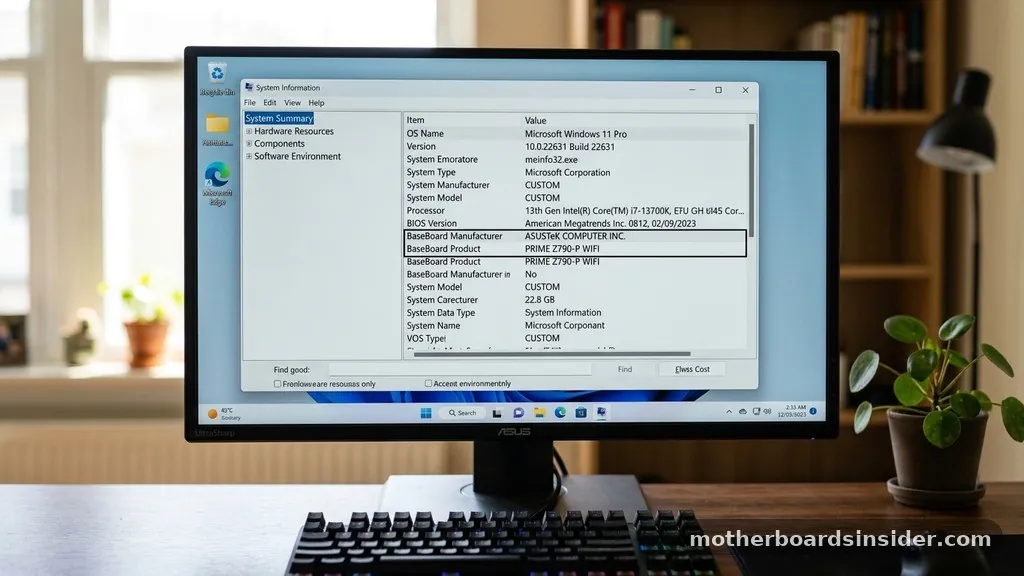
For most users running a modern operating system, the quickest way to find your hardware details is through the built-in System Information utility. This tool gathers data directly from the registry and hardware drivers to present a comprehensive snapshot of your system configuration. To access this, you simply need to open the Start menu and type “msinfo32” or “System Information” into the search bar.
Once the window opens, ensure you are on the “System Summary” page, which is the default view. Within this list, scroll down until you find the fields labeled “BaseBoard Manufacturer,” “BaseBoard Product,” and “BaseBoard Version.”
These three fields provide the exact information you need. The “BaseBoard Product” is the specific model name of your mainboard, while the “BaseBoard Manufacturer” tells you which company—such as ASUS, MSI, Gigabyte, or ASRock—produced it. This method is highly effective because it pulls data directly from the motherboard’s firmware.
If you are looking to update your drivers or confirm compatibility for a new CPU, this is the most reliable place to start. It works regardless of whether you are on Windows 10 or Windows 11, providing a consistent user interface that avoids the need for third-party software.
Leveraging the Command Prompt for Advanced Users
If you prefer a more technical approach or find yourself in an environment where the graphical user interface is unresponsive, the Windows Command Prompt (CMD) is an incredibly powerful tool. By utilizing the Windows Management Instrumentation Command-line (WMIC), you can query your system for specific hardware attributes without navigating through menus.
To do this, open the Command Prompt by typing “cmd” into your search bar, right-clicking it, and selecting “Run as administrator.” Once the black console window appears, type the following command and press enter: “wmic baseboard get product,Manufacturer,version,serialnumber”.
This command instructs the operating system to retrieve the specific data points associated with the baseboard entity. You will receive a clean, text-based output displaying the manufacturer and the specific board model. This method is particularly useful for system administrators or power users who need to script hardware inventory tasks.
If the output returns “To be filled by O.E.M.,” it often indicates a pre-built computer from a company like Dell, HP, or Lenovo, which may use proprietary naming schemes. In such cases, the manufacturer’s support website is usually your best resource for finding the original specifications of that specific board.
Third-Party Diagnostic Tools for Detailed Hardware Data
While built-in Windows tools are excellent for basic identification, they sometimes lack the granular detail required for high-end troubleshooting. This is where specialized software comes into play.
One of the industry-standard utilities for this purpose is CPU-Z by CPUID, a lightweight and free application that provides an exhaustive look at your system’s architecture. Once you download and run this program, it populates a tabbed interface with real-time data about your CPU, cache, memory, and motherboard.
By navigating to the “Mainboard” tab in CPU-Z, you can see the exact model, chipset, and BIOS version currently installed on your system. This tool is invaluable because it often identifies the specific revision of a motherboard, which can be critical when dealing with hardware compatibility issues.
For instance, some motherboard revisions support newer processors only after a firmware update, and CPU-Z will show you the exact version you are running. This level of detail is often missing from basic system reports, making it the preferred choice for enthusiasts, overclockers, and those performing significant hardware upgrades.
Accessing UEFI and BIOS for Hardware Verification
If your operating system fails to boot or you are building a new machine, the BIOS (Basic Input/Output System) or the more modern UEFI (Unified Extensible Firmware Interface) is the most authoritative source of truth. Since this interface sits beneath the operating system, it communicates directly with the hardware controller. To access this, you typically need to restart your computer and repeatedly press a specific key—usually Delete, F2, F10, or F12—during the initial boot sequence before the Windows logo appears.
Once you are inside the BIOS/UEFI menu, the motherboard model is almost always displayed on the main dashboard or the “System Information” tab. This is where you can also see the exact BIOS version and date.
If you are preparing to update your firmware, this is the most secure way to verify your current version to ensure you download the correct update file from the manufacturer. Because the BIOS environment is hardware-specific, it provides the most accurate data about the physical board, free from any potential software-level misreporting that could occur within an operating system.
Understanding the Difference Between Motherboard Models
It is common to confuse the motherboard model with the chipset or the brand name. To clarify, the brand (e.g., MSI) is the manufacturer, while the model (e.g., B550-A Pro) represents the specific board design.
The chipset is the underlying architecture that defines which CPUs the board supports and how many lanes of PCIe bandwidth are available. Understanding these distinctions is crucial when you are trying to find the right drivers or support documentation on a manufacturer’s official site.
| Component | Description | Importance |
|---|---|---|
| Manufacturer | Company that produced the board | Determines where to find official support |
| Model Number | The specific design and feature set | Critical for BIOS updates and manual lookups |
| Chipset | The logic controller on the board | Defines compatibility with CPUs and RAM |
| BIOS Version | The firmware currently running | Essential for stability and hardware support |
By keeping these categories in mind, you can navigate technical documents with much greater ease. When you search for “what kind of motherboard do i have,” you are really looking for this hierarchy of information. Having the exact model number allows you to access the specific manual, which will detail everything from RAM slot configurations to the number of available SATA headers for storage expansion.
How to Identify Motherboard Models on Apple Computers
If you are using an Apple computer, the process is fundamentally different because Apple uses proprietary hardware designs that are not categorized by typical “motherboard” names as seen in the PC world. Instead, you look for the “Model Identifier” or the specific Mac model name.
You can find this by clicking the Apple menu in the top-left corner of your screen and selecting “About This Mac.” This window provides the model name (e.g., MacBook Air M2, 2022) and the serial number.
If you need deeper information, such as the logic board part number, you can use the “System Report” found within the “About This Mac” menu. Navigate to the “Hardware” section to see details about your machine’s architecture.
Because Apple maintains tight control over their hardware, you generally do not need to worry about motherboard compatibility in the same way PC users do. Upgrades are rarely possible for the logic board, so identifying it is primarily useful for obtaining specific repair parts or verifying warranty status through the Apple support portal.
Physical Inspection as a Last Resort
Sometimes, software and BIOS methods might fail, particularly if the motherboard is faulty or the system is completely disassembled. In such scenarios, a physical inspection is necessary.
You will need to open the side panel of your computer case and look directly at the surface of the printed circuit board (PCB). Manufacturers almost always print the model name and number in large, white lettering directly on the board, often near the CPU socket or between the PCIe slots.
If you are comfortable with this, ensure the computer is powered down and unplugged before opening the chassis. Always touch a metal part of the case to discharge any static electricity. Use a flashlight to get a clear view of the board, as some labels can be obscured by cooling fans or large GPU heat sinks.
Writing down the model number exactly as it appears—including any suffixes like “Wi-Fi” or “Pro”—is essential. Once you have the physical model name, you can search for it on the manufacturer’s website to find the digital manual, which will provide a map of all components on the board.
Common Questions and Troubleshooting Tips
When dealing with hardware identification, you might encounter situations where the information is hidden or unclear. Below are common inquiries that users face when trying to identify their mainboard.
- Why does my system say “To be filled by O.E.M.”? This happens when the motherboard manufacturer (like Gigabyte) sold the board to a pre-built PC company (like Dell), who then customized the BIOS. In this case, you must check the PC manufacturer’s support site using the serial number of the computer itself.
- Can I check my motherboard model without turning on the computer? Yes, you can check the physical label printed on the board itself, or check the original invoice or receipt from when you purchased the computer or the individual component.
- Does the motherboard model change if I update the BIOS? No, the model remains the same, but the BIOS version string will change. Always keep track of your model name, as that is the constant identifier for your hardware.
- Is the motherboard model the same as the serial number? No. The model identifies the type of board, while the serial number is a unique string of characters assigned to your specific unit for warranty tracking and manufacturing logs.
Addressing these points ensures that you aren’t misled by generic system labels. For instance, if you are planning to add a new M.2 NVMe SSD, knowing your specific model allows you to verify if your board supports the necessary PCIe generation, preventing you from buying hardware that is either incompatible or underutilized by your current setup.
Conclusion
Determining what kind of motherboard you have is a straightforward task when you know where to look. Whether you choose the ease of the Windows System Information utility, the precision of the Command Prompt, the depth of CPU-Z, or a physical inspection, you have multiple pathways to find the data you need. Remember that your motherboard is the foundation of your computer; keeping track of its specific model and revision is the most effective way to ensure your system remains upgradeable, stable, and performing at its peak.
By following these steps, you can confidently manage your hardware, troubleshoot issues, and make informed decisions about your computer’s future without needing to be an expert in hardware architecture. Always prioritize using official manufacturer resources once you have identified your model, as they provide the most accurate drivers, manuals, and compatibility lists for your specific hardware configuration.


