

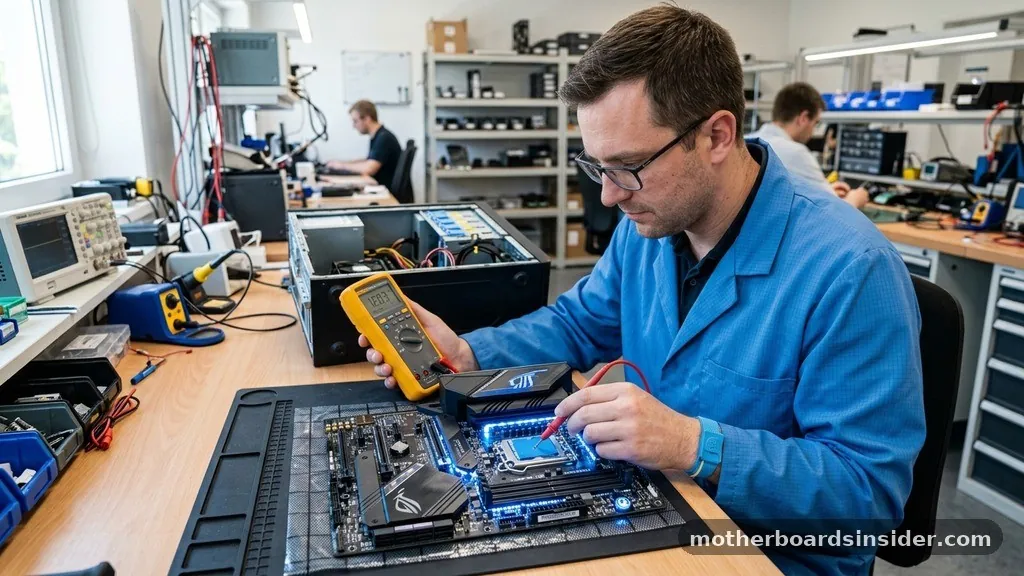
When your computer fails to boot or exhibits erratic behavior, isolating the cause can be a daunting task. Understanding how to test a motherboard is a critical skill for any enthusiast or technician, as the mainboard serves as the central nervous system for every component in your system. Whether you are dealing with a complete power failure, intermittent crashes, or unrecognized hardware, systematically verifying the health of your board saves time, money, and unnecessary component replacements.
Symptoms of Motherboard Failure and Initial Assessment
Before you dive into complex testing procedures, it is essential to recognize the common signs that point toward motherboard issues. Often, users mistake a failing power supply or a loose RAM stick for a dead board.
A true motherboard failure often manifests as a system that refuses to turn on entirely, or one that enters a “boot loop” where the fans spin for a second before shutting down. Other indicators include the absence of a display signal, persistent blue screen errors that occur even after a fresh OS install, or specific hardware ports—like USB or SATA controllers—suddenly ceasing to function.
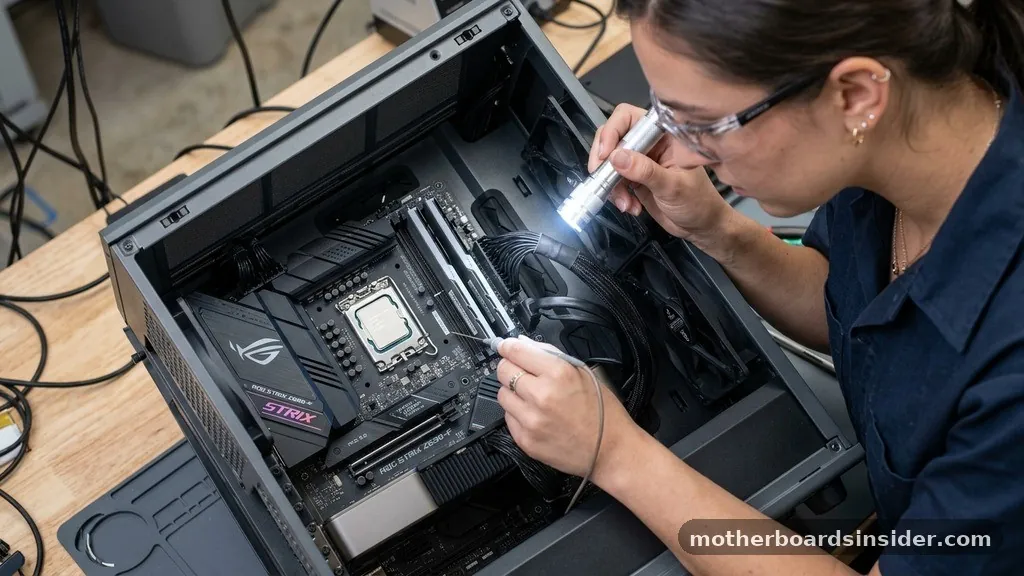
To start your assessment, perform a visual inspection. Look for physical damage such as scorched traces near the VRM or MOSFET components. A common culprit in older systems is a bulging or leaking electrolytic capacitor, which may indicate that the board can no longer provide stable power to the CPU or other vital subsystems.
Always ensure you are working in a safe environment; use an anti-static mat or touch a grounded metal surface to prevent electrostatic discharge from damaging sensitive integrated circuits. Even a minor spark can compromise the delicate pathways of the board.
The Breadboarding Technique for Component Isolation
The most effective way to test a motherboard without interference from external devices is a process known as breadboarding. This involves removing the motherboard from the computer case and placing it on a non-conductive surface, such as the original cardboard box it came in. By stripping the system down to the bare essentials, you eliminate the possibility that a faulty case power button, a grounded standoff, or a short circuit caused by an accessory is the root of your problem.
For the breadboarding test, you only need the motherboard, the CPU with its cooler, one stick of RAM, and the ATX power supply. If your board has integrated graphics, you do not even need a dedicated GPU during this initial stage. Connect the 24-pin power cable and the 4/8-pin CPU power cable.
Use a screwdriver to momentarily bridge the two pins on the front panel headers corresponding to the power switch. If the board powers on and reaches the BIOS or displays a splash screen, you have confirmed that the motherboard itself is functional, and the issue likely lies with your case, wiring, or other peripherals you removed.
Utilizing POST Codes and Debug LEDs
Most modern mid-to-high-end motherboards come equipped with built-in diagnostic tools that simplify the troubleshooting process significantly. A debug LED is a small two-digit alphanumeric display on the board that cycles through codes as the system performs its power-on self-test (POST).
If the process hangs at a specific code, you can consult your motherboard manual to identify exactly where the startup sequence failed. For example, a code might point directly to a memory initialization failure or a missing graphics card.
If your board lacks a digital display, it might utilize a system speaker to emit beep codes. These sequences of long and short beeps are an audible language used by the BIOS to communicate hardware status. A single short beep usually indicates a successful POST, whereas a series of beeps indicates a specific hardware fault.
If you have neither a debug LED nor a speaker, you may need to purchase a diagnostic card that plugs into a peripheral component interconnect (PCIe) slot. These cards provide the same diagnostic functionality for boards that lack built-in reporting features, making them an invaluable tool for professional technicians.
Testing Voltage Rails with a Multimeter
For those who want to verify that the board is receiving and distributing power correctly, using a multimeter is the gold standard. You can test the voltage rails of your power supply while it is connected to the motherboard to ensure that the 3.3V, 5V, and 12V lines are within acceptable tolerances. If you suspect the power supply is the issue, you can also use a dedicated PSU tester to verify the output before concluding that the motherboard is at fault.
When using a multimeter to check the board itself, you are looking for circuit continuity or proper voltage delivery to the CPU socket. This is an advanced technique that requires a schematic of the board. You can measure the voltage across the MOSFETs to see if they are successfully stepping down the 12V input to the lower voltages required by the processor.
If you find zero voltage at the CPU, it is a strong indicator that the power delivery system on the motherboard has failed. Always exercise extreme caution when probing a live board to avoid accidental shorts between pins, which could permanently destroy the circuitry.
Common Troubleshooting Table
The following table summarizes common issues encountered during motherboard testing and their likely causes. Use this as a quick reference when you notice specific patterns of failure.
| Symptom | Potential Cause | Diagnostic Action |
|---|---|---|
| No power, no fans | PSU or Dead Board | Test PSU with tester or bridge test |
| Powers on, no display | RAM or GPU failure | Reseat RAM, check beep codes |
| Boot loops | Overheating or BIOS issue | Check thermal paste and CPU cooler |
| USB ports dead | Chipset failure | Check device manager or BIOS settings |
Managing BIOS and CMOS Settings
Sometimes, a motherboard is not physically broken but is suffering from a corrupted configuration. The CMOS battery maintains the system time and BIOS settings when the computer is unplugged. If this battery is dead or weak, the motherboard may fail to POST because it cannot store the necessary hardware initialization parameters.
Try removing the battery for 30 seconds to reset the BIOS to factory defaults, then reinsert it. This is a simple, non-invasive step that resolves a surprising number of “dead motherboard” cases.
Furthermore, ensure that your BIOS version is compatible with your CPU. If you recently upgraded your processor, the motherboard might require a firmware update to recognize the newer chip. If the board is too old to support the processor, it will simply refuse to boot.
You can find more details on hardware compatibility via the official support documentation provided by major hardware manufacturers. Always verify the compatibility list before assuming the motherboard is defective, as a mismatched CPU and chipset is a common point of confusion for builders.
Addressing Short Circuits and Grounding Issues
A frequent cause of motherboard failure is improper installation, specifically regarding motherboard standoffs. These small brass spacers elevate the board from the metal chassis.
If a standoff is placed in the wrong position, it can touch a solder point on the back of the board, causing a short circuit. This prevents the system from booting and can even trigger the power supply’s safety mechanism to shut down immediately upon pressing the power button.
Always double-check that your standoffs match the mounting holes of your specific motherboard form factor. Similarly, check the front panel headers to ensure they are connected to the correct pins. Plugging a power switch cable into a reset switch pin or a LED pin will cause erratic behavior.
If you suspect a short, remove the board from the case and test it on a non-conductive surface. If it boots outside the case but not inside, you have confirmed that your case is causing a short or a grounding issue.
Topical Gaps: Testing Without a CPU
A common question is whether it is possible to test a motherboard without a CPU installed. Generally, you cannot reach the BIOS or perform a full POST without a processor, as the CPU is the primary “brain” that executes the instructions necessary to initialize the system.
However, on some high-end motherboards, you can use a “BIOS Flashback” feature. This allows you to update the BIOS from a USB drive without a CPU or RAM installed.
If your board supports this, the flashing light sequence on the BIOS button can act as a primitive test. If the board accepts the update, it confirms that the power circuitry and the BIOS chip are receiving power and functioning at a basic level.
If the board is completely unresponsive to the BIOS Flashback process, it is a strong indicator of a failure in the power management controller or the BIOS chip itself. While this is not a comprehensive test, it provides a way to verify the board’s “vital signs” without needing a full build.
Conclusion and Best Practices
Testing a motherboard requires a methodical approach that prioritizes isolation. By moving from simple visual inspections to breadboarding and using diagnostic tools like debug LEDs or a multimeter, you can systematically rule out other components until only the motherboard remains. Remember that the majority of “motherboard failures” are actually related to power supply issues, loose memory modules, or incorrect BIOS settings.
Always prioritize safety by managing static electricity and ensuring your workspace is free of clutter. When in doubt, start with the basics: clear the CMOS, reseat your RAM, and ensure your ATX power supply is providing clean, consistent power. By following these structured steps, you can confidently determine whether your board is truly at the end of its life or if it simply needs a minor adjustment to return to full functionality.
Frequently Asked Questions
Can I test a motherboard with a multimeter while it is turned on?
Yes, you can measure voltage rails while the board is powered, but it is risky. You must be extremely careful not to touch two pins simultaneously with the probe, as this will create a short circuit and likely destroy the motherboard or the power supply immediately.
What does it mean if my motherboard has a red light on?
A red light on a modern motherboard is usually a debug LED indicating a specific hardware fault. Check the labeling next to the light; it often says “CPU,” “DRAM,” “VGA,” or “BOOT.” This tells you exactly which component is failing the power-on self-test process.
Is it possible to repair a motherboard with a short circuit?
Repairing a motherboard is difficult and requires advanced micro-soldering skills. If the short is caused by a blown capacitor or a fried MOSFET, a professional can sometimes replace the component, but for most users, replacing the motherboard is more cost-effective and reliable than attempting a repair.
How do I know if my motherboard battery is dead?
If your computer frequently loses the system time, resets its date to a default year, or asks you to “Press F1 to enter setup” every time you turn it on, the CMOS battery is likely exhausted and needs to be replaced with a new CR2032 lithium cell.


