

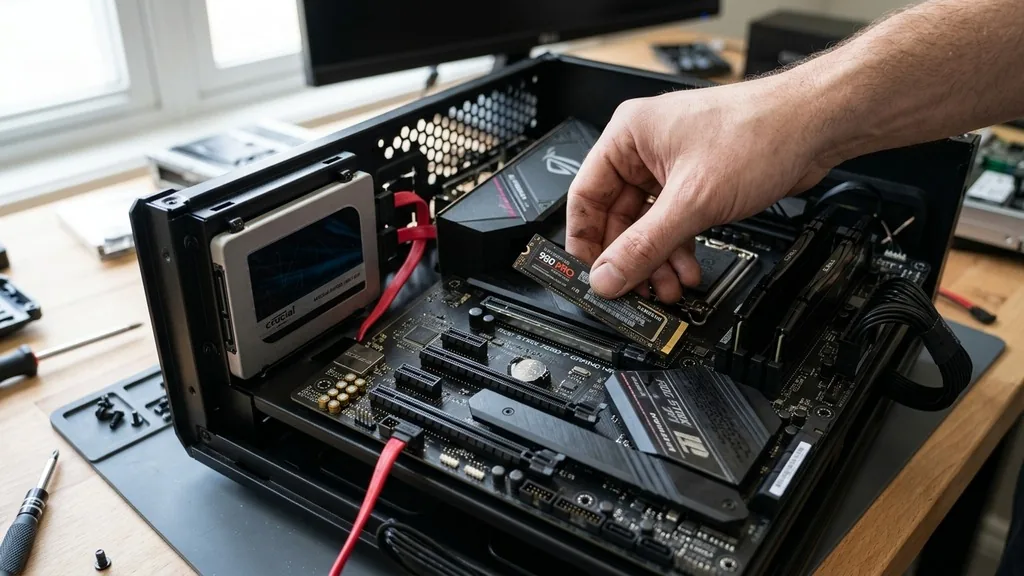
Upgrading your computer with a solid-state drive is one of the most effective ways to boost your system‘s overall responsiveness. When you learn how to connect an SSD to a motherboard, you are essentially providing your operating system and applications with the high-speed data access they crave. Whether you are dealing with a compact M.2 NVMe stick or a traditional 2.5-inch SATA drive, the process is straightforward, provided you follow the correct sequence and safety protocols.
Understanding Different SSD Form Factors and Interfaces
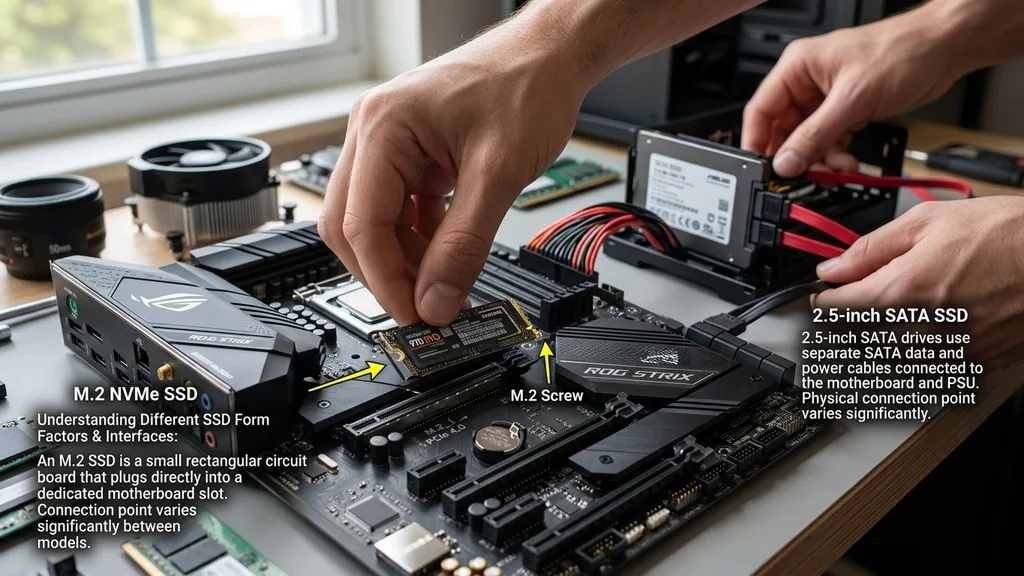
The first step in connecting an SSD is identifying exactly which type of drive you have, as the physical connection point varies significantly between models. Most modern storage devices fall into two primary categories: M.2 NVMe drives and 2.5-inch SATA drives. An M.2 SSD is a small, rectangular circuit board that plugs directly into a dedicated slot on your motherboard, while a 2.5-inch SATA SSD resembles a miniature hard drive and requires both a data cable and a power cable.
Compatibility is the most critical factor here. Before purchasing or attempting to install a drive, consult your motherboard manual to verify which slots are available. Some older motherboards may lack M.2 slots entirely, forcing you to rely on SATA connectivity.
Conversely, high-end boards often feature multiple M.2 slots, some of which might share bandwidth with your SATA ports. Knowing your hardware’s limitations prevents the frustration of realizing your new drive isn’t physically compatible with your existing setup.
Preparing Your PC for Hardware Installation
Before you open your PC case, you need to ensure the system is completely powered down and safe to work on. Start by shutting down your computer through the operating system, then flip the power supply switch on the back of the tower to the “off” position. Unplug the power cable from the wall or your surge protector to eliminate any residual electrical current.
Static electricity is a silent killer of delicate electronic components. Before touching any internal parts, discharge your body’s static buildup by touching a metal part of the PC case or wearing an anti-static wrist strap. Once you have cleared your workspace, remove the side panel of your computer case.
If you are working on a laptop, you will need to remove the bottom chassis cover, which often involves unscrewed fasteners hidden under rubber feet or stickers. Always keep your screws organized in a tray so you don’t lose them during the process.
Installing an M.2 NVMe SSD
An M.2 drive is the easiest to install because it doesn’t require extra cables, but it does require precision. Locate the M.2 slot on your motherboard, which is usually a small, horizontal connector near the CPU socket or tucked between PCIe slots. If your motherboard has a pre-installed heat sink, you will need to unscrew it first.
Once the slot is clear, align the notch on the SSD’s gold-plated connector with the key in the motherboard slot. Insert the drive at a 30-degree angle, pushing it firmly but gently until it is fully seated. The drive will naturally spring up slightly.
Press the other end of the SSD down toward the motherboard standoff and secure it with the tiny mounting screw that came with your motherboard. If you are using a heat sink, remember to peel the protective plastic film off the thermal pad before reattaching it, as that film acts as an insulator and can lead to overheating.
Connecting a 2.5-inch SATA SSD
If you are using a 2.5-inch SATA SSD, the process involves managing cables rather than seating a circuit board. These drives require two distinct connections: a SATA data cable that runs to the motherboard and a SATA power connector that comes from your power supply unit.
First, mount the SSD in one of your case’s drive bays or secure it to a dedicated bracket. Once the drive is physically fixed in place, connect one end of a SATA data cable to the smaller L-shaped port on the back of the drive, and the other end to an available SATA port on your motherboard.
Next, find the flat, wider SATA power cable coming from your power supply and plug it into the corresponding larger port on the SSD. If your power supply doesn’t have an extra SATA power connector, you may need an adapter, though it is generally safer to use the native cables provided by the PSU manufacturer.
Verifying Hardware Connections and BIOS Detection
Once everything is plugged in, it is time to verify that your system recognizes the new hardware. Reattach your case panel, reconnect the power cable, and turn the computer on. Immediately start tapping the BIOS key—usually Delete, F2, or F12—to enter the system firmware interface.
Navigate to the “Storage” or “Boot” menu within the BIOS. You should see your new drive listed alongside your existing storage devices. If it doesn’t appear, turn off the computer and check your connections.
A loose SATA cable or an improperly seated M.2 drive is the most common cause of failure. If the drive is visible, you are ready to move on to the software configuration, which involves initializing the drive within Windows so that it can actually store files.
Optimizing SSD Performance Settings
Simply connecting the drive isn’t always enough to get the best performance. In the BIOS, you should ensure that your SATA controller is set to AHCI mode rather than IDE, as AHCI is required for modern SSDs to utilize features like Native Command Queuing and TRIM. For NVMe drives, verify that the PCIe lane speed is set to the maximum supported by your motherboard.
Furthermore, if you are using your new SSD as a boot drive, you must set the boot priority in the BIOS. Move your new drive to the top of the boot list so the system knows to load the operating system from this faster storage medium.
Taking a few minutes to adjust these settings ensures that you aren’t bottlenecking your high-speed drive with legacy motherboard configurations. You can find more technical details on standard interface protocols at the International Organization for Standardization website if you are curious about the technical specifications of these connections.
Managing Data and Initializing the Drive
Once you boot into your operating system, the drive won’t appear in “My Computer” or “File Explorer” immediately because it hasn’t been initialized or partitioned. Right-click the Start button in Windows and select “Disk Management.” A window will pop up asking you to initialize the new disk; select GPT (GUID Partition Table) for modern systems as it supports larger drive sizes and faster boot times.
After initialization, the drive will appear as “Unallocated Space.” Right-click this space and select “New Simple Volume.” Follow the wizard to assign a drive letter and format the drive with the NTFS file system.
Once this process completes, your SSD will finally appear as a usable drive in your file explorer. You can now begin migrating your files or installing applications to take advantage of the faster read and write speeds.
Troubleshooting Common Installation Issues
Even with the best preparation, things can go wrong. If you find your motherboard isn’t recognizing the drive, start by checking if your M.2 slot shares bandwidth with a SATA port. Many motherboards disable specific SATA ports when an M.2 drive is installed, meaning you might need to move your other hard drives to different SATA headers on the motherboard.
Another frequent issue is a drive that shows up in the BIOS but not in Windows. This almost always points to an initialization issue or a missing driver.
Ensure your chipset drivers are up to date, as modern NVMe drives sometimes require specific NVMe drivers provided by the motherboard manufacturer. If you are still having trouble, try testing the drive in a different M.2 slot or using a different SATA cable to rule out faulty hardware.
| SSD Type | Connection Method | Typical Speed | Best Use Case |
|---|---|---|---|
| NVMe M.2 | Direct to Motherboard | 3,500 – 7,000+ MB/s | OS Boot, Gaming, Video Editing |
| SATA 2.5″ | Data + Power Cables | Up to 560 MB/s | Bulk Storage, Older Systems |
| SATA M.2 | Direct to Motherboard | Up to 560 MB/s | Compact Builds, Light Work |
Frequently Asked Questions
- Why won’t my motherboard recognize my new SSD? Check your BIOS/UEFI settings to ensure the slot is enabled. If it’s an M.2 drive, verify that your motherboard supports the specific key type (NVMe vs. SATA). Also, ensure the drive is fully seated in the slot and the mounting screw is secure.
- Do I need to install drivers after connecting the SSD? Generally, no. Windows 10 and 11 include native drivers for almost all modern SSDs. However, if you are using a high-performance NVMe drive, installing the manufacturer’s specific software or drivers can sometimes provide better monitoring tools and performance optimizations.
- Can I use an SSD on an older motherboard without an M.2 slot? Yes, you can use a 2.5-inch SATA SSD, which connects via the standard SATA ports found on almost all motherboards. If you specifically want an M.2 drive, you can purchase a PCIe-to-M.2 adapter card, though you might not be able to boot from it on very old systems.
- What happens if I plug my SSD into the wrong SATA port? Most motherboards have different tiers of SATA ports. Some are controlled by the chipset, while others might be controlled by third-party controllers. It is always best to use the ports labeled as “SATA 0” or “SATA 1” for your primary boot drive to ensure the fastest initialization.
Installing storage is a fundamental skill for any computer enthusiast. By following these steps, you ensure that your hardware is not only connected correctly but also configured for maximum efficiency. Whether you are aiming for faster load times in your favorite gaming titles or simply trying to extend the lifespan of an older system, the transition to flash-based storage is always worth the effort.
Always remember to handle your components with care, keep your workspace clean, and double-check your connections before closing your computer case. With the drive properly installed and initialized, you will immediately notice the difference in how your system handles data and executes tasks.


