


Identifying your hardware configuration is a fundamental skill for anyone looking to upgrade their PC, troubleshoot performance issues, or ensure driver compatibility. Knowing exactly how to find out your motherboard model prevents the frustration of ordering incompatible components like RAM, CPUs, or cooling solutions. Whether you are building a custom rig or simply maintaining a pre-built machine, your motherboard serves as the central nervous system of your computer, connecting every critical component from the processor to the storage drives.
Using Windows System Information for Quick Identification
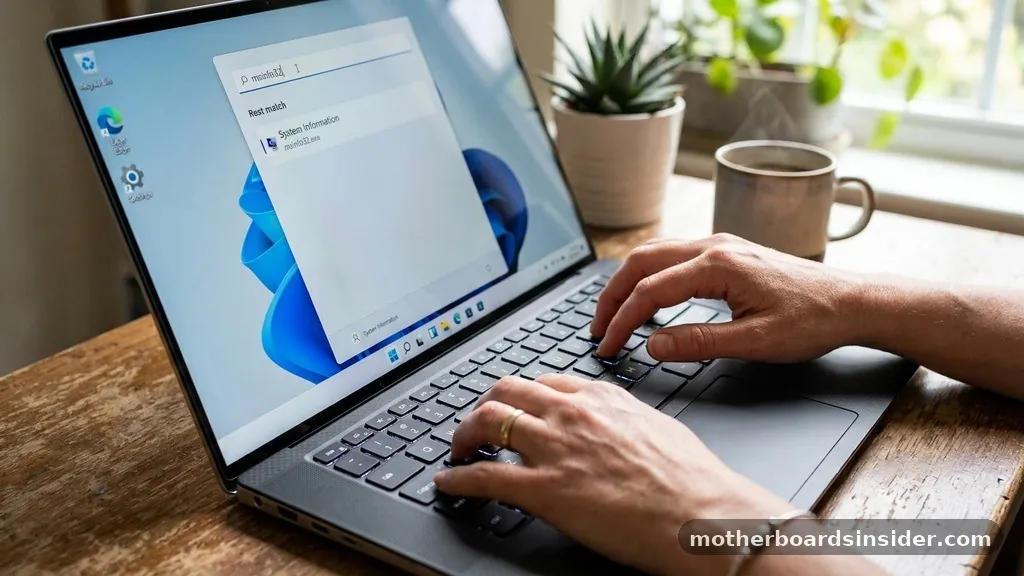
The most straightforward method to identify your system hardware on a Windows computer is through the built-in System Information tool. This utility provides a snapshot of your PC’s specifications without requiring any third-party software.
To access this, press the Windows key on your keyboard, type “msinfo32,” and press Enter. This action opens the System Information window, which acts as a comprehensive database for your machine’s core components.
Once the window is open, ensure you are on the “System Summary” tab. Look for the entries labeled “BaseBoard Manufacturer” and “BaseBoard Product.” These fields provide the exact brand and model of your board.
If these fields say “Not Available” or display generic information, it often indicates a pre-built computer from an OEM like Dell or HP, where the manufacturer uses proprietary board designs. In such cases, the information is still technically accurate for driver updates, but it may not match the naming conventions found on retail boards sold by companies like ASUS or MSI. This tool is highly reliable because it pulls data directly from the Windows Management Instrumentation (WMI) interface, ensuring the information is sourced straight from the hardware’s own reporting protocols.
Leveraging the Command Prompt for Advanced Users
For those who prefer a more direct approach or are troubleshooting a system where the graphical interface might be slow, the Command Prompt (CMD) is an incredibly powerful tool. By using the Windows Management Instrumentation Command-line (WMIC), you can bypass menus and get the precise string of data you need in seconds. Click the Start button, type “cmd,” and open the Command Prompt as an administrator to ensure you have the necessary permissions to query system hardware.
Once the terminal is open, type the following command and press Enter: wmic baseboard get product,Manufacturer,version,serialnumber. This command instructs the operating system to query the motherboard’s firmware for specific details. The output will present the manufacturer name, the specific model name, the board version, and the serial number in a clean table format.
This method is particularly useful if you are scripting or if you need to copy and paste the information into a support ticket for a technician. Because this data is pulled directly from the SMBIOS (System Management BIOS), it is generally the most accurate way to verify exactly what is installed inside your chassis without needing to open the side panel.
Third-Party Diagnostic Tools for Detailed Hardware Insights
When the standard Windows utilities provide incomplete or ambiguous data, third-party software becomes essential. One of the most respected and widely used tools in the enthusiast community is CPU-Z by CPUID.
This lightweight application is designed to provide granular details about your CPU, cache, memory, and motherboard. Unlike the basic Windows tools, CPU-Z often surfaces additional information such as the chipset, the Southbridge, and the current BIOS version, which are crucial when you are planning a firmware update or verifying if your board supports a specific generation of processors.
To use this, simply download and run the installer or the portable version. Once the application opens, navigate to the “Mainboard” tab. Here, you will see a detailed breakdown of the manufacturer, model, and the version of your board.
You will also see the BIOS information, including the date and the specific revision level. This is exceptionally helpful if you are trying to determine if your current board is compatible with a new CPU, as manufacturers often release BIOS updates to support newer, more power-efficient, or faster processors. Using such a tool is standard practice for PC builders and gamers who need to keep their systems optimized and up-to-date with the latest hardware standards.
Checking the BIOS or UEFI Interface Directly
Sometimes, you may find yourself in a situation where the operating system won’t boot, or you simply want to verify your hardware before installing an OS. In these instances, you can access the BIOS (Basic Input/Output System) or the more modern UEFI (Unified Extensible Firmware Interface). To enter this environment, restart your computer and repeatedly press the designated key—usually Delete, F2, F10, or F12—immediately after the power light turns on, before the Windows logo appears.
Once inside the BIOS or UEFI menu, the motherboard model is typically displayed prominently on the main landing page or under a section titled “System Information” or “Main.” The interface is often graphical in modern boards, allowing you to use your mouse to navigate through the menus. This method is the “ground truth” for your computer because the information is read directly from the board’s own onboard storage.
If you need to check your BIOS version to see if an update is required, this is the safest place to look. It is also where you can confirm that all other hardware, such as RAM sticks and storage drives, is being correctly detected and initialized by the board before the OS takes over.
Physical Inspection of the Motherboard
If software methods fail or are unavailable, a manual, physical inspection of the board is the most reliable fallback. This requires shutting down your computer, unplugging the power cable, and opening the side panel of your case.
Once you have access to the internals, look for the model name printed directly on the PCB (Printed Circuit Board). Manufacturers almost always silkscreen the model name and number in a clear font, often near the CPU socket, between the PCIe slots, or near the RAM slots.
While doing this, it is worth noting a few safety and maintenance tips. Always touch a grounded metal object before touching the interior components to discharge any static electricity. If the board is covered in dust, you might need to use a clean cloth or a can of compressed air to make the text legible.
In some cases, the model name might be hidden beneath a heat sink or a shroud, but it is rarely obscured entirely. If you have a large GPU installed, you might need to remove it to get a clear view of the board’s surface. This physical check is the ultimate confirmation, especially if you are dealing with a motherboard that has been modified or repaired, as the software might be reporting generic information that doesn’t match the physical hardware.
Understanding Motherboard Naming Conventions
Understanding how manufacturers name their motherboards can help you identify them more easily. Most board names are a combination of the chipset, the brand, and the specific feature set.
For example, a board might be named “Z790-A Gaming WiFi.” The “Z790” tells you the chipset—which dictates the CPU compatibility and feature set—while the “-A” often denotes a specific tier within that manufacturer’s lineup.
| Naming Component | What It Indicates |
|---|---|
| Chipset (e.g., B650, Z790) | CPU socket compatibility and feature limits |
| Form Factor (e.g., ATX, mATX) | Physical size and expansion capacity |
| Suffix (e.g., WiFi, Pro, Gaming) | Specific built-in features and target audience |
Knowing these conventions helps you quickly parse the data you find. If you see “B650” in your system info, you immediately know it is an AMD-based board designed for their AM5 socket.
Recognizing these patterns allows you to skip the guesswork and quickly find the right drivers or support pages on the manufacturer’s website. It also helps you understand the limitations of your system, such as whether your board supports overclocking or multiple graphics cards, simply by looking at the chipset designation.
Troubleshooting Common Identification Issues
Occasionally, users encounter issues where the computer fails to report the motherboard model correctly. This is most common with pre-built systems from major manufacturers like Dell, HP, or Lenovo.
These companies often commission custom motherboards from third-party manufacturers (like Foxconn or Pegatron) that do not have public-facing consumer support pages. If your system reports a generic name, you should look for the “System Model” or “Serial Number” instead.
If you are struggling to find the model, try searching for the serial number of the computer itself on the manufacturer’s support portal. Most major brands have a “detect my product” feature on their websites that uses your serial number to pull up the exact specifications of your machine, including the motherboard model. Another common issue is that the BIOS or OS reports the board as “To be filled by O.E.M.”
This usually happens if the motherboard was replaced under warranty and the technician failed to update the DMI (Desktop Management Interface) information in the firmware. In such cases, the physical inspection method described earlier is your only reliable option.
Why Knowing Your Motherboard Matters
Ultimately, having a clear record of your motherboard model is about longevity and performance. Whether you are looking to download the latest chipset drivers, install a faster M.2 NVMe SSD, or upgrade your RAM, you need to know the specific capabilities of your board. Using the wrong drivers can lead to system instability, while attempting to install hardware that isn’t supported by your chipset can result in a PC that simply won’t boot.
- Driver updates: Ensure you have the latest LAN, audio, and chipset drivers from the manufacturer’s official site.
- CPU upgrades: Verify socket compatibility before buying a new processor.
- RAM expansion: Check the maximum supported speed and capacity for your specific board.
- BIOS maintenance: Keep your system secure and stable with regular firmware updates.
- Troubleshooting: Gain better insight into hardware-level errors and system crashes.
By maintaining this knowledge, you empower yourself to be a more capable PC user. You won’t have to rely on guesswork or generic software that might be wrong, and you will be able to maximize the lifespan of your machine. Whether you are using the command line, looking at the physical board, or checking your BIOS, the ability to identify your hardware is a cornerstone of effective PC maintenance.
Frequently Asked Questions
Will the BIOS tell me what motherboard I have?
Yes, the BIOS or UEFI interface is one of the most reliable places to find your motherboard model. Upon entering the BIOS setup, you will typically see the manufacturer and model name displayed on the main dashboard or within a dedicated system information menu.
Can I find my motherboard model without opening the PC?
Absolutely. You can use Windows tools like System Information (msinfo32), the Command Prompt (wmic command), or third-party software like CPU-Z to identify your motherboard model without needing to open the computer case or touch any internal hardware components.
Why does my PC show a generic name for the motherboard?
If your system displays a generic name or “To be filled by O.E.M.,” it is likely because you are using a pre-built computer from a major manufacturer. These companies often use proprietary boards that do not have public retail names, or the DMI information was not set during a repair.
Is it necessary to update my motherboard drivers?
Yes, updating your motherboard drivers is important for system stability and performance. It ensures that components like your processor, memory, and onboard controllers communicate correctly with the operating system, often fixing bugs and improving compatibility with newer software and hardware peripherals.
The process of identifying your hardware is a straightforward task that provides immense value. By using the methods outlined—ranging from built-in Windows utilities to a physical inspection of the board—you can confidently manage your computer’s health. Whether you are a casual user or an enthusiast, knowing exactly what is under the hood ensures you can make informed decisions about upgrades, maintenance, and troubleshooting, keeping your machine running smoothly for years to come.


