

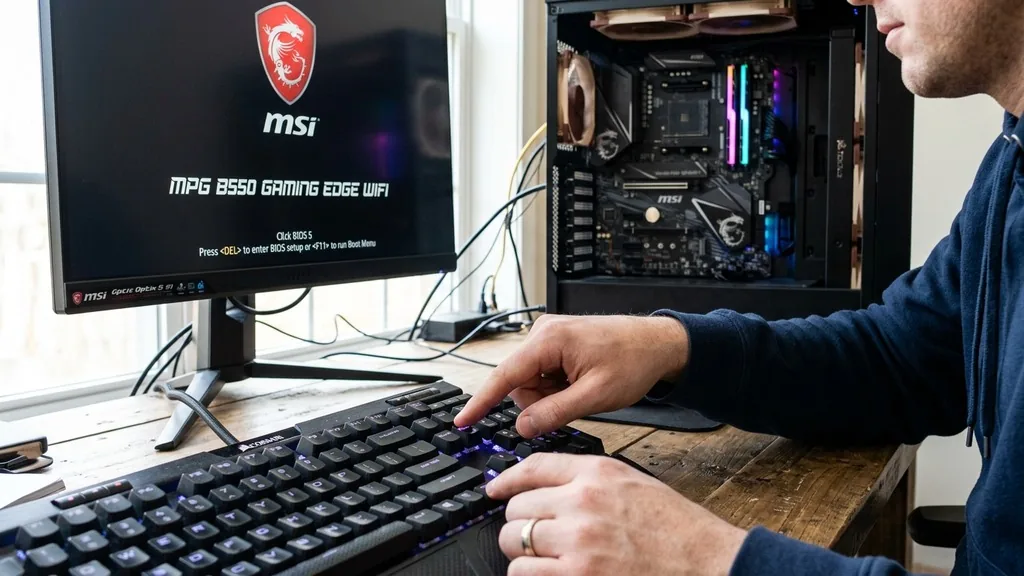
Accessing the firmware environment on your computer is the first step toward customizing performance, managing hardware, or troubleshooting connectivity issues. When you need to learn how to enter BIOS on MSI motherboard hardware, the process is usually triggered by a specific keyboard command during the initial power-on sequence.
Because modern systems boot extremely quickly, timing this input correctly is the most common hurdle for users. Whether you are building a new PC or upgrading an existing one, understanding the interface is essential for effective system management.
The Standard Method: Using the Delete Key
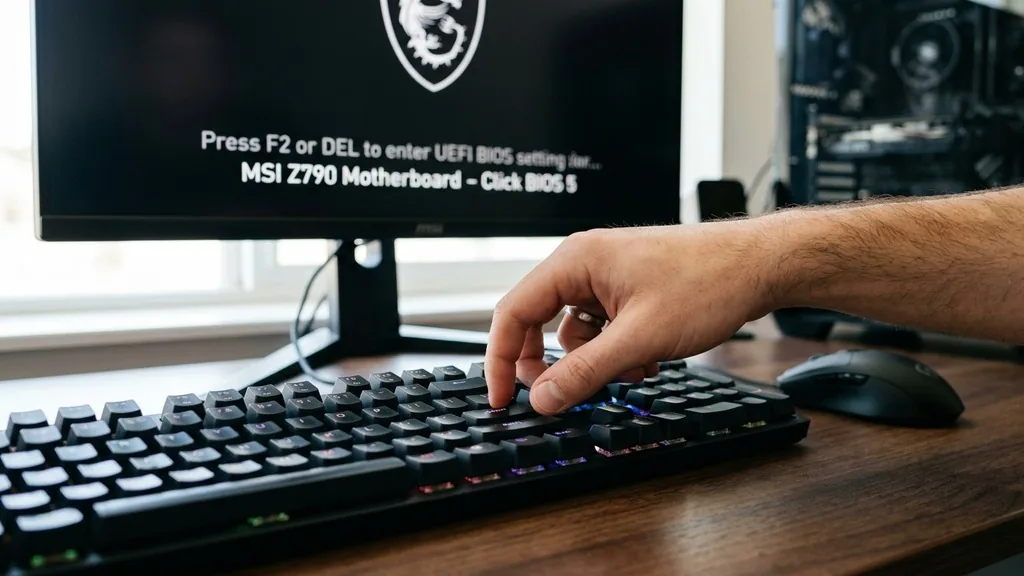
To enter the BIOS on an MSI motherboard, you must press the “Delete” (Del) key repeatedly immediately after powering on your computer. This action interrupts the standard boot sequence and forces the system to load the UEFI firmware interface instead of the Windows operating system.
Most MSI motherboards are designed to recognize the Delete key as the primary interrupt signal for the firmware. As soon as you press the power button on your PC case, begin tapping the Delete key on your keyboard rhythmically. Do not hold the key down, as this can sometimes cause a keyboard error or delay the registration of the command.
You should continue this tapping motion until the graphical BIOS screen appears on your monitor. If the computer proceeds to the Windows login screen, you have missed the window of opportunity.
Simply restart the machine and try the process again with a slightly faster start to your key presses. If you are using a wireless keyboard, ensure it is connected to a USB 2.0 port if possible, as some older BIOS versions may not initialize USB 3.0 drivers until the operating system loads.
Accessing BIOS Through Windows Advanced Startup
If you find that your computer boots too fast for you to register the keyboard interrupt, or if your keyboard is not being detected in time, you can trigger the BIOS from within Windows. This is often the most reliable method for users running Windows 10 or Windows 11.
To use this method, navigate to the “Settings” menu in Windows and select “Update & Security” or “System.” From there, go to “Recovery” and look for the “Advanced startup” section. Clicking the “Restart now” button will reboot your computer into a special blue-screen menu.
Once the menu appears, select “Troubleshoot,” then “Advanced options,” and finally “UEFI Firmware Settings.” When you click the “Restart” button on that final screen, your MSI system will automatically enter the BIOS environment without requiring you to time a key press. This bypasses the need for physical timing and ensures you reach the management interface every time, regardless of how fast your solid-state drive processes the boot sequence.
Understanding the MSI Click BIOS Interface
Once you successfully enter the BIOS on an MSI motherboard, you will be greeted by the Click BIOS interface. This graphical environment is designed to be intuitive, allowing you to manage your hardware settings using either a mouse or your keyboard.
The interface is typically divided into two modes: “EZ Mode” and “Advanced Mode.” EZ Mode provides a snapshot of your system status, including CPU temperature, memory frequency, fan speeds, and the boot priority order. This is perfect for quick adjustments, such as enabling XMP (Extreme Memory Profile) for your RAM or changing the boot device.
If you need to perform deeper configuration, pressing the F7 key toggles the system into Advanced Mode. This area contains granular control over voltage, overclocking, chipset features, and security parameters. It is important to note that changes made here directly affect how your hardware operates.
Always save your settings by pressing F10 before exiting to ensure your modifications are applied to the next startup cycle. If you feel overwhelmed, you can usually press F6 to load optimized defaults, which resets the system to its factory-tested, stable configuration.
Common Troubleshooting Steps for BIOS Entry
If you are struggling to access the BIOS, several factors might be interfering with the process. The most common culprit is “Fast Boot,” a feature in Windows that minimizes the time the computer spends checking for peripheral input during startup.
When Fast Boot is enabled, the system bypasses the keyboard initialization phase to get to the desktop as quickly as possible. Disabling this in your power management settings can make it significantly easier to hit the correct key. Another issue involves the connection type of your keyboard.
Bluetooth keyboards often fail to connect until the operating system drivers are loaded, making them useless for entering the firmware. If you cannot reach the settings, switch to a wired USB keyboard for the duration of your configuration.
Also, verify that your monitor is plugged into the correct display output. If you have a dedicated graphics card, ensure the cable is plugged into the GPU and not the motherboard’s integrated HDMI port, as the BIOS splash screen sometimes only displays on the primary output.
| Method | Best Use Case | Difficulty Level |
|---|---|---|
| Delete Key | Standard power-on sequence | Low (requires timing) |
| Windows Recovery | Fast boot issues | Medium (multi-step) |
| Clear CMOS | Forgotten BIOS password | High (physical hardware) |
Managing Security and Secure Boot
Modern motherboards include a variety of security features designed to protect your data. When you enter the BIOS, you will find a dedicated section for security, which includes options for setting a supervisor password and managing Secure Boot.
Secure Boot is a fundamental security standard that ensures your PC boots using only software that is trusted by the hardware manufacturer. This prevents malicious code from loading during the boot process. While this is essential for running Windows 11, it can sometimes interfere with booting from external Linux USB drives or older hardware configurations.
Within the MSI BIOS interface, you can toggle Secure Boot on or off, or manage your platform keys. Always exercise caution when modifying these settings. If you disable security features without a specific purpose, you may leave your system vulnerable to unauthorized access or boot-level malware.
For general users, keeping these settings at their default values is usually the safest approach. If you are setting up a custom encryption environment or experimenting with different operating systems, ensure you understand the implications of key management before proceeding.
Hardware Management and Overclocking
One of the primary reasons power users seek to enter the BIOS on an MSI motherboard is to manage system performance. The BIOS provides full access to the underlying hardware parameters, allowing you to optimize your CPU and memory for better results.
The “OC” or “Overclocking” section is where you can adjust the CPU multiplier, base clock, and voltage settings. For most users, the most useful feature here is the XMP or A-XMP profile. Modern RAM is often sold with a high-performance specification, but it runs at a base speed by default to ensure compatibility.
Enabling the XMP profile tells the motherboard to automatically apply the manufacturer’s rated speed and voltage, providing a significant boost to system memory performance without requiring manual tuning. Beyond memory, you can also manage fan curves in the “Hardware Monitor” section.
This allows you to create custom cooling profiles based on temperature thresholds, ensuring your PC stays quiet during light tasks and cool during intense gaming sessions. For more detailed documentation on hardware standards, you can visit the International Organization for Standardization to understand the technical specifications that govern modern computing components.
Clearing the CMOS for BIOS Recovery
There are rare occasions where a setting change within the BIOS causes the system to become unstable or fail to boot entirely. If your motherboard refuses to enter the BIOS or fails to post, you may need to perform a CMOS clear.
The CMOS (Complementary Metal-Oxide-Semiconductor) is a small amount of memory on the motherboard that stores your BIOS settings, including the date, time, and hardware configuration. By clearing this memory, you force the motherboard to reset to its factory defaults. You can achieve this in two ways.
The first is by locating the small coin-shaped battery (CR2032) on the motherboard, removing it for about thirty seconds, and then replacing it. The second, more convenient way is to use the “Clear CMOS” jumper or button if your specific MSI board includes one. This is typically located near the bottom edge of the board.
With the power supply unplugged, you can use a screwdriver to bridge the two pins or press the dedicated button to reset the board. This is the ultimate “fail-safe” when you are locked out of your system settings.
Understanding MSI Systems and Laptop BIOS
While the process for desktops is straightforward, entering the BIOS on MSI laptops can sometimes require a different approach. Because laptop keyboards are integrated directly into the system, the timing for the interrupt key remains consistent, but the physical key itself can vary.
On most MSI gaming laptops, the Delete key remains the standard entry point. However, some models use the F2 or F11 keys for boot menus or BIOS entry. If you are unsure which key your specific laptop model uses, look for a brief message on the screen during the initial boot-up phase that says “Press [Key] to enter setup.”
If you miss it, you can always rely on the Windows Advanced Startup method described earlier, which works identically on laptops and desktops. Laptop BIOS interfaces are often slightly more restricted than their desktop counterparts, focusing more on power management and battery health rather than extreme overclocking. Always ensure your laptop is plugged into a power adapter when performing BIOS updates or significant configuration changes, as a power failure during a firmware write can result in a “bricked” system that requires professional repair.
Frequently Asked Questions
- What key do I press to enter BIOS on an MSI motherboard? The primary key to enter the BIOS is the “Delete” (Del) key. Press it repeatedly immediately after you turn on your computer until the BIOS screen appears. If that does not work, some systems may use F2 or F11.
- Can I access the BIOS if I cannot get to the desktop? Yes, if your computer fails to boot into Windows, the system will often display an error or a prompt to enter the BIOS. If it gets stuck in a loop, you may need to clear your CMOS to reset the settings to factory defaults.
- What if my keyboard doesn’t register the key press? This usually happens because the system boots too fast. Try using a wired USB keyboard instead of a wireless one. If that fails, you can try entering the BIOS via the Windows Advanced Startup menu by holding Shift while clicking “Restart” in the power menu.
- Is it safe to change settings in the BIOS? It is safe to change basic settings like boot order or fan speeds. However, be cautious when changing voltage or CPU clock settings, as incorrect values can make your system unstable or prevent it from booting. Always save your changes before exiting to ensure they take effect.
Entering the BIOS is a fundamental skill for anyone who owns or builds an MSI-based PC. By mastering the Delete key interrupt and the Windows recovery method, you ensure that you can always manage your hardware effectively. Whether you are optimizing your memory with XMP, securing your system with boot passwords, or troubleshooting a startup issue, the BIOS remains the most powerful tool at your disposal.
Remember to move methodically, keep your firmware updated, and always have a clear plan before modifying critical system parameters. With these steps, you are well-equipped to manage your MSI system with confidence and precision, ensuring it runs exactly how you intend it to.


