


Building or upgrading a computer is a rewarding endeavor, but it hinges on one critical technical requirement: ensuring your processor and motherboard are compatible. Many enthusiasts assume that if a CPU physically fits into a socket, it will work, but this is a dangerous misconception that can lead to system instability, boot failures, or even hardware damage. Learning how to check CPU compatibility with motherboard hardware is the most important step in any build process to avoid costly mistakes.
Understanding the CPU Socket and Chipset Relationship
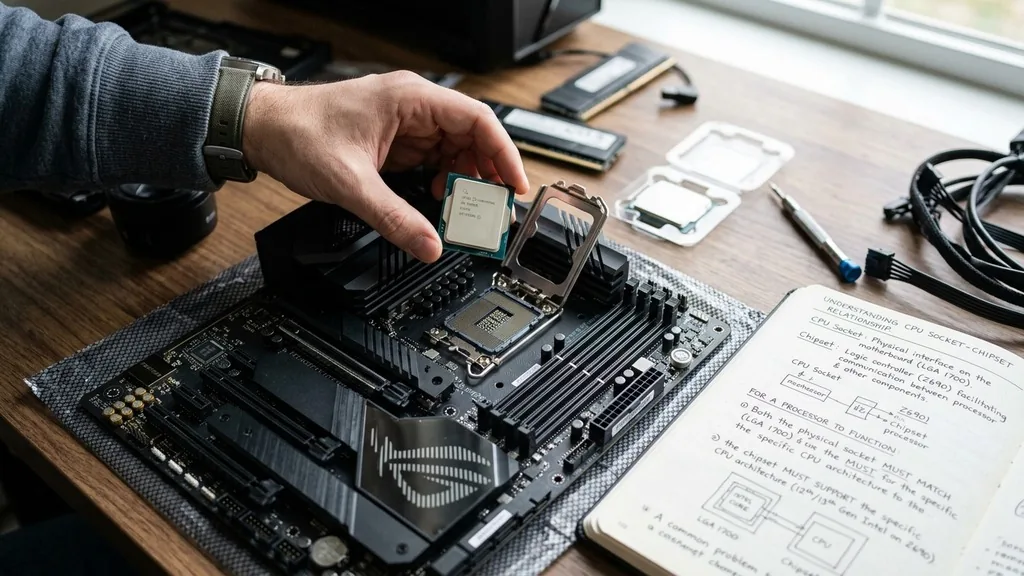
The CPU socket is the physical interface on the motherboard, while the chipset is the logic controller that facilitates communication between the processor and other system components. For a processor to function, both the physical socket must match and the chipset must support the specific CPU architecture.
A common point of confusion for the average user is the difference between a socket type and a chipset. Think of the socket as the physical slot where the processor sits, and the chipset as the translator that allows the CPU to speak to your RAM, storage, and graphics card. Even if a processor physically drops into a socket, the motherboard’s BIOS might not contain the microcode necessary to initialize that specific silicon.
Consequently, checking compatibility requires looking beyond the physical shape of the CPU. You must verify that the motherboard’s specific chipset version is officially documented to support the CPU model you intend to install. This is why manufacturers provide a Qualified Vendor List or a CPU Support List on their official product pages.
Using Manufacturer Support Pages for Accuracy
The most reliable way to verify hardware synergy is by visiting the motherboard manufacturer’s official support website. Every reputable motherboard vendor, such as ASUS, MSI, Gigabyte, or ASRock, maintains a dedicated page for every model they produce.
To find this information, you need the exact model name of your motherboard. You can find this printed on the PCB, or via software tools like CPU-Z. Once you reach the support page, look for a tab labeled “Support,” “CPU Support,” or “Compatibility.”
This page will display a table listing every CPU that the board supports, often accompanied by the minimum BIOS version required to run that specific chip. If your current BIOS version is older than the one listed, you will need to perform a BIOS update before the new processor will be recognized. Always prioritize these manufacturer-provided lists over third-party forums or speculative advice, as they represent the definitive authority on what your hardware can handle.
The Role of BIOS Versions in Compatibility
A motherboard might support a specific CPU, but only if it runs a sufficiently updated BIOS. When manufacturers release new processor generations, they often issue a BIOS update to add support for the new architecture to existing motherboards.
If you are upgrading an older motherboard with a newer CPU, this is the most common hurdle. You might install the chip, press the power button, and find that the system refuses to post or display any image. This behavior usually indicates that the motherboard is physically compatible but lacks the software instructions to recognize the processor.
In such cases, you may need to install an older, supported CPU to boot the system long enough to update the BIOS. Some modern motherboards feature a “BIOS Flashback” button, which allows you to update the firmware using a USB drive without even needing a CPU installed. Knowing whether your motherboard supports this feature can save you from a major headache during an upgrade.
Hardware Compatibility Comparison Table
When selecting parts, it is helpful to visualize how different generations and sockets interact. The following table provides a high-level overview of common socket types and the compatibility logic you should apply when planning a build.
| Component Type | Compatibility Factor | Where to Verify |
|---|---|---|
| CPU Socket | Physical fitment | Motherboard Technical Specifications |
| Chipset | System architecture support | Manufacturer CPU Support List |
| BIOS Version | Microcode for specific CPU models | Motherboard Support/Download Page |
| TDP (Thermal Design Power) | Power delivery and cooling | Motherboard VRM Specs/Cooler TDP |
Why Physical Socket Matching Is Not Enough
It is a frequent mistake to assume that if a CPU has the same number of pins as a motherboard socket, they are compatible. While physical alignment is a prerequisite, it is not a guarantee of functionality. For example, some Intel sockets have shared physical layouts across generations, yet the chipsets are electronically incompatible.
Trying to force a CPU into an incompatible socket can bend pins, permanently damaging the motherboard. Even if the processor sits in the socket, the electrical signaling pathways or the memory controller might be configured differently. This is why you must always cross-reference the specific model numbers.
A motherboard might support an Intel Core i5-12600K but not necessarily the i5-13600K, even if both utilize the same LGA1700 socket, unless the BIOS has been updated to accommodate the newer chip’s requirements. Always check the official compatibility list to see if a specific processor is explicitly marked as “Supported.”
Checking Compatibility with Online Tools
If you are planning a new build from scratch, using an automated compatibility checker is a highly efficient way to avoid errors. Websites like PCPartPicker are industry standards for this purpose. These tools maintain a massive database of hardware specifications and automatically flag conflicts as you add items to your virtual build.
When you select a motherboard, the tool filters out CPUs that do not match the socket or chipset. If you select a CPU first, it will narrow down the list of compatible motherboards accordingly. While these tools are incredibly accurate and save a significant amount of time, they should still be treated as a secondary verification method.
Always double-check your final selection against the manufacturer’s technical documentation. These sites are excellent for identifying broad compatibility issues, such as RAM speed limitations or physical size constraints in a computer case, which are often overlooked when focusing solely on the CPU and motherboard pairing.
Addressing Power Delivery and Thermal Constraints
Even if a CPU is technically compatible with a motherboard’s socket and BIOS, you must consider the electrical and thermal load. High-end processors consume significant amounts of power, which must be delivered through the motherboard’s Voltage Regulator Modules (VRMs).
If you pair a high-TDP processor with an entry-level motherboard, the VRMs may overheat under heavy workloads. This causes the motherboard to throttle the CPU’s performance to prevent failure, effectively negating the benefit of your high-end processor. In extreme cases, it can cause the system to shut down unexpectedly or lead to long-term hardware degradation.
When checking compatibility, look at the motherboard’s power phase design. If you are using a power-hungry flagship CPU, ensure your motherboard has adequate VRM cooling (heatsinks) to handle the sustained current. This isn’t just about whether the computer turns on; it is about whether your system can perform reliably under real-world conditions without thermal throttling or hardware instability.
Topical Gaps: What Happens When Things Go Wrong?
Many guides fail to address what to do when a system fails to boot after assembly. If you have confirmed compatibility on paper but the system won’t start, the issue is often a “hidden” incompatibility or a simple assembly error.
First, verify that you have seated the CPU correctly in the socket. With modern LGA sockets, it is very easy to bend pins if the chip is not aligned perfectly. Second, ensure you have connected all necessary power cables.
Most modern motherboards require an 8-pin or 4-pin CPU power cable in addition to the standard 24-pin motherboard connector. If this is unplugged, the system will not post. Third, clear the CMOS memory.
Sometimes, residual settings from a previous configuration or a factory test can prevent a new CPU from initializing properly. Removing the small CR2032 battery from the motherboard for a minute and then replacing it will reset the BIOS to default settings, which often clears up mysterious boot issues. If the system still fails to post, consider whether you have a “Dead on Arrival” component, which, while rare, is a possibility that should be investigated once all other compatibility checks are exhausted.
Best Practices for Future-Proofing Your Build
When you are buying a motherboard, you are essentially buying into a platform. To make future upgrades easier, consider the lifespan of the socket. Some platforms are at the end of their lifecycle, meaning no new, more powerful CPUs will be released for that specific socket.
Investing in a platform that has just been released provides more room for future upgrades. For example, choosing a motherboard that supports the latest RAM standards, such as DDR5, may be more expensive now, but it ensures that you won’t have to replace your motherboard and RAM if you decide to upgrade your CPU in three years. Furthermore, check the manufacturer’s history of socket support.
Some manufacturers tend to keep a socket relevant for two or three generations of processors, while others may change the socket with every new release. By researching the roadmap of your chosen platform, you can make an informed decision that saves you money in the long run. Always balance the immediate need for performance with the long-term goal of building a system that can be incrementally improved.
Frequently Asked Questions
- Does a CPU ever become compatible with a motherboard through a software update? Yes, manufacturers frequently release BIOS updates that add support for new CPU generations to existing motherboards. Always check the support page for your specific motherboard model to see if a newer BIOS version is required for the processor you want to install.
- Can I use a CPU that is not on the manufacturer’s support list? It is not recommended. If a CPU is not on the official support list, the motherboard likely lacks the BIOS microcode to communicate with it, or the power delivery system may be insufficient. You will likely face boot failures, system instability, or potential hardware damage.
- How do I find my current BIOS version? You can check your BIOS version by entering the BIOS menu during startup—usually by pressing Del or F2—or by using system information tools like System Information in Windows or CPU-Z. This tells you if you need to update before installing a new CPU.
- Is physical fitment enough to guarantee compatibility? No, physical fitment is only the first step. Even if a processor fits into the socket, the chipset, BIOS microcode, and power delivery requirements must also match. Always verify compatibility using the official CPU support list provided on the motherboard manufacturer’s website.


