

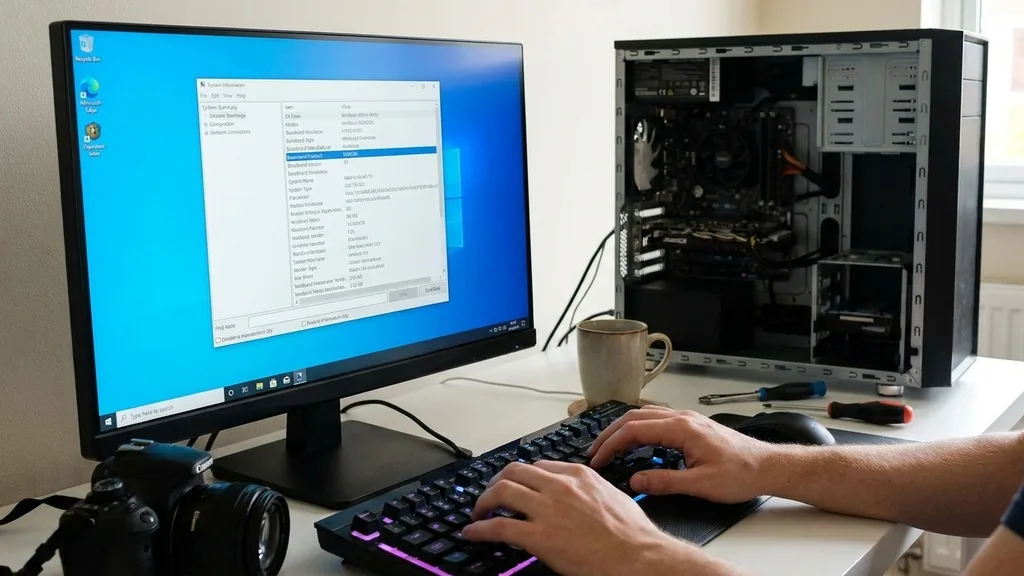
Identifying the specific hardware inside your computer is a fundamental skill for any user, whether you are planning a memory upgrade, troubleshooting a driver conflict, or verifying the specifications of a pre-built machine. The motherboard acts as the central nervous system of your PC, connecting the processor, storage, and graphics card into one cohesive unit.
Knowing exactly which board you have ensures that you select compatible components and download the correct firmware updates. Fortunately, you do not need to be a hardware engineer or dismantle your computer to discover this information.
Using Built-in Windows Tools to Identify Your Motherboard
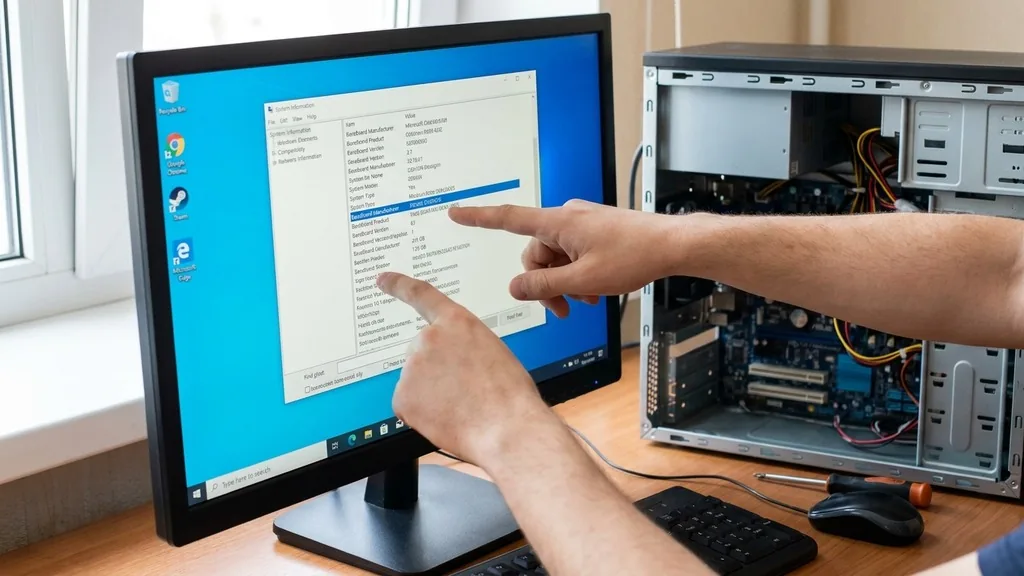
The most direct way to check your PC motherboard is by utilizing the built-in system information tools provided by the Windows operating system. These utilities aggregate data directly from the BIOS and the hardware controllers, offering an accurate read of your system’s identity without requiring third-party software.
To access this data, you can use the System Information utility. Simply press the Windows key, type “msinfo32,” and hit Enter. A window will appear containing a comprehensive list of your system components.
Look for the rows labeled “BaseBoard Manufacturer,” “BaseBoard Product,” and “BaseBoard Version.” The “BaseBoard Product” entry corresponds to your motherboard model, while the manufacturer field identifies the company that produced the board, such as ASUS, MSI, or Gigabyte.
Alternatively, you can use the Command Prompt for a faster, text-based output. Open the Command Prompt by typing “cmd” in the search bar, then execute the following command: “wmic baseboard get product,Manufacturer,version,serialnumber”.
This will immediately display the exact model and manufacturer details in the console window. This method is particularly useful for power users who prefer a lightweight, scriptable approach to gathering hardware information.
Checking the Motherboard via UEFI BIOS
If you need to verify your hardware before the operating system even loads, or if you suspect your Windows installation is corrupted, the UEFI BIOS is your most reliable source of truth. The BIOS (Basic Input/Output System) or the more modern UEFI (Unified Extensible Firmware Interface) is the low-level software that initializes your hardware during the boot process.
To enter the BIOS, restart your computer and immediately begin tapping the designated function key—usually F2, F12, or the Delete key—as soon as the splash screen appears. Once inside, you will typically find a “System Information” or “Main” tab on the landing screen. This interface will display the motherboard model, the current BIOS version, and the amount of RAM installed.
Accessing the BIOS is especially helpful if you are diagnosing a system that fails to boot into Windows. If you can reach the BIOS screen, you know that your motherboard is at least partially functional, which helps narrow down whether your issues are hardware-related or stem from a software configuration error.
Always note the BIOS version displayed here; if you are looking to update your firmware, this serves as your baseline. You can visit the official Intel support page for a deeper look at how firmware and board chipsets interact.
Physical Inspection of the Motherboard
Sometimes, software utilities fail to retrieve the model name due to custom OEM branding or missing drivers. In these cases, a physical inspection of the board is the most definitive method. This process requires you to open your computer case, which should always be done while the power is completely disconnected and you have discharged any static electricity from your body.
Once the side panel is removed, look for the model name printed directly onto the surface of the printed circuit board. Manufacturers almost always silkscreen the model name near the CPU socket, between the PCIe slots, or along the edge of the board near the RAM DIMM slots. If you have a large graphics card obscuring the view, you may need to use a flashlight or a small mirror to see behind the components.
If the board is covered in dust, you might need to use a soft brush or a can of compressed air to clear the area, as the text can be small and faint. While you are inside the case, take the opportunity to verify other components as well. Identifying the board physically is the only way to confirm its physical revision number, which can be crucial if a manufacturer released multiple versions of the same model with different feature sets.
Identifying Motherboard Specifications with Third-Party Software
If you prefer a more user-friendly interface that aggregates all your system information into a single, clean dashboard, third-party diagnostic software is an excellent choice. Tools like CPU-Z or HWInfo are industry standards for enthusiasts and technicians alike. These utilities scan your system components in real-time and present the data in categorized tabs.
CPU-Z, for instance, has a dedicated “Mainboard” tab. When you open this tab, you will see fields for the manufacturer, the model, the chipset, and the BIOS version. This is often more convenient than the Windows System Information utility because it provides additional context, such as the current operating frequency of your RAM and the specific stepping of your processor.
These applications are generally free, lightweight, and do not require complex installation procedures. They are particularly useful when you need to share your system specifications with a support forum or a technician. By exporting a text report from these tools, you can easily provide a complete snapshot of your hardware configuration, including the motherboard’s exact part number and the current BIOS date, which are essential for troubleshooting compatibility issues.
Understanding the Role of the Motherboard Serial Number
While the model name tells you what type of board you have, the serial number is unique to your specific unit. This is critical for warranty claims and tracking manufacturing batches. If you are dealing with a faulty component and need to contact the manufacturer for a replacement, they will almost always ask for this identifier.
You can often find the serial number on the same sticker that lists the motherboard model, usually located near the 24-pin power connector or on the back of the board. If the board is already installed and you cannot see the sticker, the Command Prompt method mentioned earlier—using the “wmic” command—should display it for you.
Keep in mind that some budget or OEM boards might not have a serial number programmed into the BIOS, in which case you must rely on the physical sticker. It is good practice to record this number and keep it in a safe place, such as a digital document or a physical file folder with your computer’s purchase receipt. Having this information readily available saves significant time if you ever need to process an RMA (Return Merchandise Authorization) or verify your hardware’s authenticity.
Common Troubleshooting Scenarios for Motherboard Checks
Knowing how to check your motherboard is most useful when things go wrong. Whether you are dealing with a failure to POST (Power-On Self-Test) or a mysterious system crash, the motherboard is often the first place to look. Below is a table comparing common scenarios where checking your board details becomes necessary.
| Scenario | Why You Need Model Data | Best Method |
|---|---|---|
| RAM Upgrade | Verify slot capacity and frequency compatibility | Software (CPU-Z) |
| BIOS Update | Ensure the firmware file matches the exact board version | BIOS Menu |
| Driver Issues | Find the correct chipset or audio drivers | System Information (msinfo32) |
| Warranty Claim | Confirm purchase date and serial number | Physical Sticker |
When you are troubleshooting a “No Power” situation, checking the motherboard involves more than just reading the model name. You should look for physical indicators of damage, such as swollen capacitors or burnt traces on the PCB. If the computer is completely dead, check the motherboard manual for the location of the “Clear CMOS” jumper or the battery; removing the CMOS battery for thirty seconds can often reset a stubborn BIOS configuration that is preventing the system from booting.
Addressing Topical Gaps: Motherboards in Laptops vs. Desktops
One common area of confusion is the difference between checking a motherboard in a custom-built desktop versus a pre-built laptop. In a desktop, the motherboard is a distinct component that you can swap, upgrade, or replace. In a laptop, the motherboard is usually proprietary, designed specifically for that chassis, and often includes soldered components like the CPU or RAM.
Because laptop motherboards are custom-built by the laptop manufacturer (like Dell, HP, or Lenovo), the “Manufacturer” field in your system information will often show the laptop brand rather than a traditional motherboard company like MSI or Gigabyte. For laptops, identifying the motherboard model is usually less about the board itself and more about identifying the laptop’s specific “Service Tag” or “Product Number.”
If you are trying to find drivers for a laptop, do not search for the motherboard manufacturer. Instead, input your laptop’s serial number into the manufacturer’s support website. This will pull up the exact specifications for your unit, including the motherboard revision, which ensures you get the correct drivers for your specific internal hardware configuration.
Essential Tips for Managing Motherboard Information
Maintaining an accurate record of your hardware is a proactive habit. When you first set up a new computer, take a screenshot of your System Information utility and save it in a cloud-based folder. This simple act ensures that you have the reference material you need if the computer ever fails to turn on.
Additionally, be aware of the “revision” number. Many manufacturers release “Rev 1.0,” “Rev 1.1,” and so on. These revisions often contain minor hardware changes, such as improved power delivery components or different USB controller chips.
If you are downloading BIOS updates, always ensure the revision number of the file you are downloading matches the revision number printed on your physical board. Using the wrong BIOS file can “brick” your board, rendering it unusable.
Finally, consider the following checklist when you are preparing to perform any maintenance on your motherboard:
- Always back up your important data before performing a BIOS update or hardware change.
- Use an anti-static wrist strap if you are opening the case to touch internal components.
- Verify that your power supply unit (PSU) is unplugged and the power button has been held for five seconds to drain remaining electricity.
- Keep your motherboard manual in a digital format; most manufacturers provide these as PDFs on their websites.
- If you are upgrading the CPU, check the motherboard manufacturer’s “CPU Support List” to confirm the new processor is compatible with your current BIOS version.
By following these practices, you transform from a casual user into an informed manager of your own hardware. The motherboard is the foundation of your system, and understanding how to identify, verify, and maintain it is a cornerstone of responsible PC ownership. Whether you are performing a simple check for a driver update or diagnosing a complex hardware failure, the methods outlined here provide a reliable pathway to the information you need.
FAQ
- Can I check my motherboard model without turning on the PC? Yes, you can check the motherboard model without turning on the PC by opening the computer case and looking for the model name printed directly on the circuit board. It is often found near the CPU socket or the RAM slots.
- Will the BIOS show me my motherboard model? Yes, the BIOS or UEFI interface is one of the most reliable places to find your motherboard model. Upon entering the BIOS, look for the “System Information,” “Main,” or “About” tab, which will list the specific board model and current firmware version.
- Why does my motherboard manufacturer show as the laptop brand? This is common in laptops because they use proprietary boards designed specifically for their internal chassis. In these cases, it is more effective to search for your laptop’s serial number or service tag on the manufacturer’s official support website to find hardware details.
- Is it safe to use third-party tools to check my motherboard? Yes, reputable third-party tools like CPU-Z or HWInfo are safe and widely used by professionals. They read data directly from the system hardware and provide a clear, accurate report of your motherboard model, chipset, and BIOS information without interfering with your system.


