

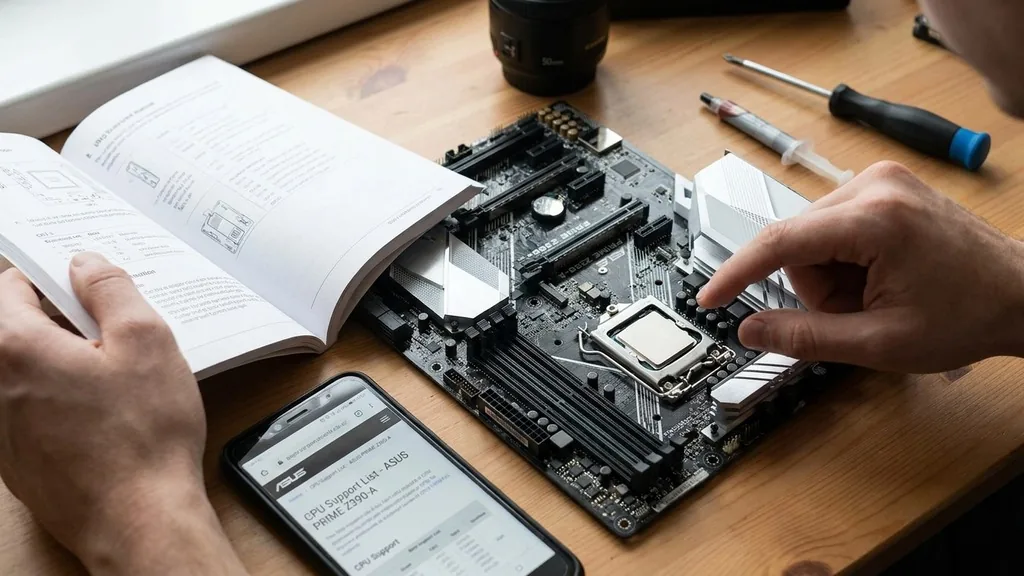
Determining what CPU is compatible with my motherboard is the most critical step in any PC upgrade or custom build. If you mismatch these two components, your system simply won’t boot, or worse, you could physically damage the hardware.
Compatibility isn’t just about the physical fit; it is governed by a complex set of electrical and logical standards that dictate how your processor communicates with the rest of your system. Understanding these requirements ensures you don’t waste money on a processor that sits in a drawer because it doesn’t fit your board.
Identifying Your Motherboard Model Number
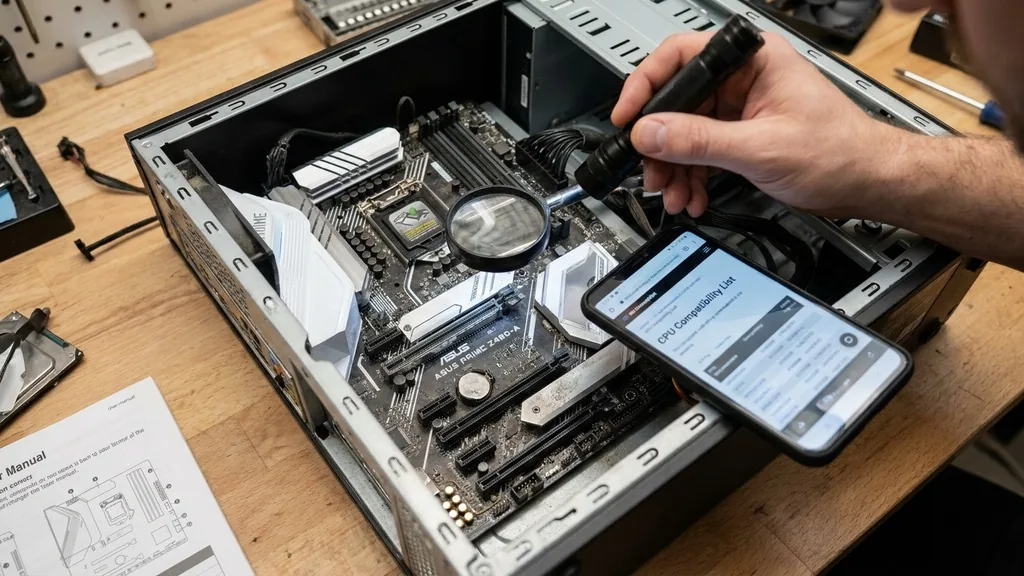
To figure out what CPU is compatible with my motherboard, you first need to identify exactly what hardware you are currently using. You cannot rely on guesswork or general assumptions about the brand. The most accurate way to find your motherboard model number is through your operating system or physical inspection.
If you are running Windows, you can open the System Information app by typing “msinfo32” into the search bar. Look for the “BaseBoard Product” field, which will list your specific motherboard manufacturer and model.
If your computer isn’t booting or you prefer a physical inspection, you can open your computer case and look for the model name printed directly on the PCB. Manufacturers like ASUS, Gigabyte, MSI, and ASRock usually print this information clearly near the RAM slots or the PCIe lanes.
Once you have this string of characters—such as “B650M-A” or “Z790-P”—you have the key to unlocking the entire technical history of your board. Never assume that a board with a similar name from the same manufacturer shares the same compatibility, as different revisions often support different processor generations.
Understanding Socket Types and Physical Fit
The most fundamental requirement for CPU compatibility is the socket type. The socket is the physical interface on the motherboard where the processor sits. Intel and AMD have distinct designs that are not interchangeable.
For instance, Intel currently utilizes LGA (Land Grid Array) sockets, where the pins are located on the motherboard itself. AMD has historically used PGA (Pin Grid Array) sockets where the pins are on the CPU, though they have transitioned to LGA with their newer platforms.
If you attempt to force a processor into a socket that doesn’t match its design, you will bend the pins and likely destroy both the CPU and the motherboard. Common modern examples include Intel’s LGA 1700, which houses 12th, 13th, and 14th generation processors, and AMD’s AM4 or AM5 sockets. You must match the socket name exactly.
If your board is designed for an AM4 chip, it cannot physically accept an AM5 chip, even if they share the same manufacturer. Always cross-reference the socket name listed on your motherboard box or manual with the specifications of the CPU you intend to purchase.
The Role of the Chipset in Compatibility
Even if a CPU physically fits into the socket, it will not function unless the motherboard chipset supports it. The chipset acts as the traffic controller for your motherboard, managing communication between the processor, RAM, and storage.
A specific socket might house several different chipsets, and each chipset has its own set of rules regarding which processors it can talk to. For example, an entry-level chipset might be physically compatible with a high-end processor but lack the necessary hardware pathways or power delivery to run it effectively.
When researching what CPU is compatible with my motherboard, check the chipset compatibility list provided by the motherboard manufacturer. A B660 chipset, for instance, might support the same physical socket as a Z690 chipset, but the Z-series boards often offer more features like overclocking support that the B-series boards lack. If you put a high-performance chip into a budget chipset board, you might find that the system works, but your performance is throttled because the chipset cannot handle the data throughput or thermal load required by that specific processor model.
Checking the Official CPU Support List
The most reliable resource for determining compatibility is the official CPU support list provided by the manufacturer. Every motherboard manufacturer maintains a dedicated webpage for every model they sell. This page includes a “Support” or “Compatibility” tab where they list every single processor that has been verified to work with that specific board.
This list is the ultimate source of truth. If your desired processor isn’t on that list, do not assume it will work, even if the socket and chipset seem correct.
These lists often include a “Validated Since BIOS” column. This is crucial because it tells you the minimum version of the motherboard’s firmware required to recognize the processor. If you buy a brand-new CPU, your motherboard might have been manufactured before that CPU was released.
In such cases, the board won’t recognize the chip until you perform a firmware update. Always check this list before clicking the buy button to avoid the frustration of an unbootable system. You can find comprehensive documentation for your hardware at the official Intel support website for processor specifications and guidance.
The Importance of BIOS Updates
A BIOS update is often the bridge between an older motherboard and a newer CPU. Manufacturers frequently release updates to their firmware to improve system stability, security, and, most importantly, support for newer processor architectures. If you have confirmed that your socket and chipset are correct but your computer still won’t post, your BIOS version is likely too old to recognize the newer CPU.
Many modern motherboards offer a feature called “BIOS Flashback,” which allows you to update the firmware using a USB drive without needing a CPU installed. If your board does not have this feature, you will need an older, compatible CPU to boot the computer, enter the BIOS, and perform the update before swapping in the new, unsupported processor.
This process can be intimidating for beginners, but it is a standard procedure in the PC building community. Always follow the manufacturer’s instructions to the letter, as an interrupted BIOS update can “brick” your motherboard, rendering it useless.
Understanding Power Delivery and VRM Compatibility
Beyond the socket and chipset, you must consider the VRM (Voltage Regulator Module) compatibility of your motherboard. The VRM is responsible for converting the power from your power supply into the stable, lower voltage required by your CPU.
High-performance processors require significantly more power than entry-level ones, especially under heavy loads. If your motherboard has a weak VRM setup, it may struggle to provide the necessary power to a top-tier CPU.
This is a common issue when users try to drop a flagship processor into a low-end motherboard. While the system might boot, the VRMs may overheat, causing the system to throttle the CPU speed to prevent damage, or even shut down entirely during intensive tasks like video rendering or gaming.
Look for reviews or technical forums that discuss your specific motherboard model and its capability to handle high-TDP (Thermal Design Power) processors. If you are planning on installing a high-wattage chip, ensure your motherboard has adequate heatsinks on the VRM components.
Comparing Common Motherboard and CPU Platforms
To make sense of the vast array of hardware, it helps to categorize them by their primary platform standards. Below is a simplified table showing how different generations and sockets relate to each other. Note that these are broad categories; always verify your specific model.
| Platform | Socket Type | Common Chipsets | Supported Generations |
|---|---|---|---|
| Intel LGA 1700 | LGA 1700 | H610, B660, Z690, B760, Z790 | 12th, 13th, 14th Gen |
| AMD AM4 | AM4 | A320, B450, X470, B550, X570 | Ryzen 1000 through 5000 |
| AMD AM5 | AM5 | A620, B650, X670 | Ryzen 7000, 8000, 9000 |
This table demonstrates that while some platforms have long lifespans, others are more restrictive. For example, the AM4 platform had an incredibly long life, supporting several generations of processors, which made it a favorite for upgraders. In contrast, Intel platforms tend to change sockets every two generations, which is a vital factor to consider when deciding whether to upgrade your CPU or build an entirely new system.
Utilizing Compatibility Tools and Community Resources
You don’t have to navigate the technical specifications alone. Several tools exist to simplify the process of checking compatibility. Websites like PCPartPicker are invaluable for both beginners and veterans.
By inputting your current motherboard model, the site will automatically filter out incompatible processors, showing you only the chips that will work with your existing setup. It also checks for other potential bottlenecks, such as whether your RAM generation is compatible with the new CPU or if your power supply can handle the load.
In addition to these tools, forums and community-driven databases are excellent for finding real-world experience. If you are struggling to find information about a specific, older, or obscure motherboard, searching for the model name along with “CPU support list” on tech forums will often yield threads where other users have attempted the same upgrade. Just remember to verify any user-provided information against the official manufacturer’s website, as community advice can occasionally be outdated or based on unofficial “hacks” that may not work for every user.
Common Pitfalls to Avoid
When researching what CPU is compatible with my motherboard, avoid these common mistakes that lead to wasted time and money:
- Assuming a socket match is enough: Always verify the chipset and BIOS support requirements.
- Ignoring RAM generation: Newer CPUs often require DDR5, while older boards may only support DDR4; you cannot mix these.
- Overlooking power supply limitations: A new, high-performance CPU might draw more power than your current power supply unit (PSU) can provide.
- Neglecting TDP ratings: Ensure your cooling solution and motherboard VRMs can handle the heat and power of a high-end chip.
- Buying based on name similarity: A “Pro” version of a board might have different compatibility than the “Standard” or “Plus” version.
Taking the time to double-check these factors prevents the most frequent causes of failed upgrades. It is far better to spend an extra hour reading technical specifications than to spend two weeks waiting for a return and refund because you purchased an incompatible component. Always prioritize the manufacturer’s official documentation over third-party advice when possible.
Frequently Asked Questions
- Does my CPU have to be compatible with my motherboard? Yes, the CPU and motherboard must be compatible in terms of socket type, chipset, and BIOS firmware. If they do not match, the system will not boot, and you risk physically damaging the delicate pins on the motherboard or the processor itself during installation.
- Is every CPU compatible with every motherboard? No, CPUs are not universal. Intel and AMD use different architectures and sockets, and even within the same brand, different generations often require different sockets and chipsets. You must verify that your specific motherboard supports the exact processor model you intend to install.
- How can I tell what CPU I can upgrade to? The best way is to visit the manufacturer’s website for your specific motherboard model and look for the “CPU Support List” or “Qualified Vendor List.” This document lists every processor that has been tested and confirmed to work with your board, along with the required BIOS version.
- What if my BIOS version is too old for my new CPU? If your board is too old to recognize the new CPU, you must update the BIOS. If your board supports USB BIOS Flashback, you can update it without a CPU. Otherwise, you will need to install an older, compatible CPU first to boot the system and perform the update.


