

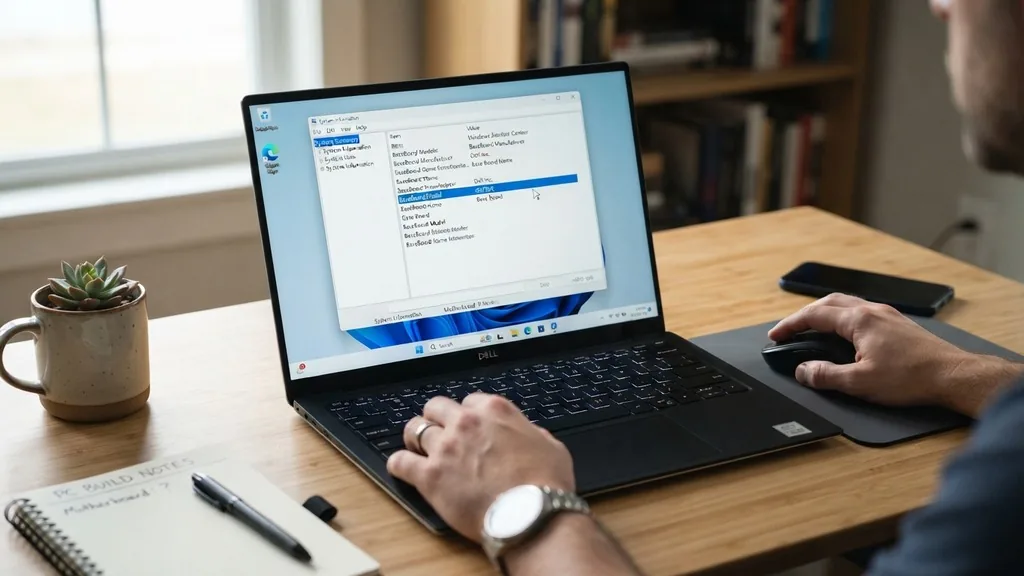
Identifying your hardware is a fundamental skill for any computer user who needs to upgrade components, update drivers, or troubleshoot stability issues. If you are wondering how to check what my motherboard is, you have several reliable methods at your disposal.
Whether you are running a modern Windows 11 machine or an older system, finding your motherboard model does not require opening your case or possessing technical expertise. You can extract this data directly from your operating system or by inspecting the hardware itself if the computer refuses to boot.
Using Windows System Information for Quick Identification
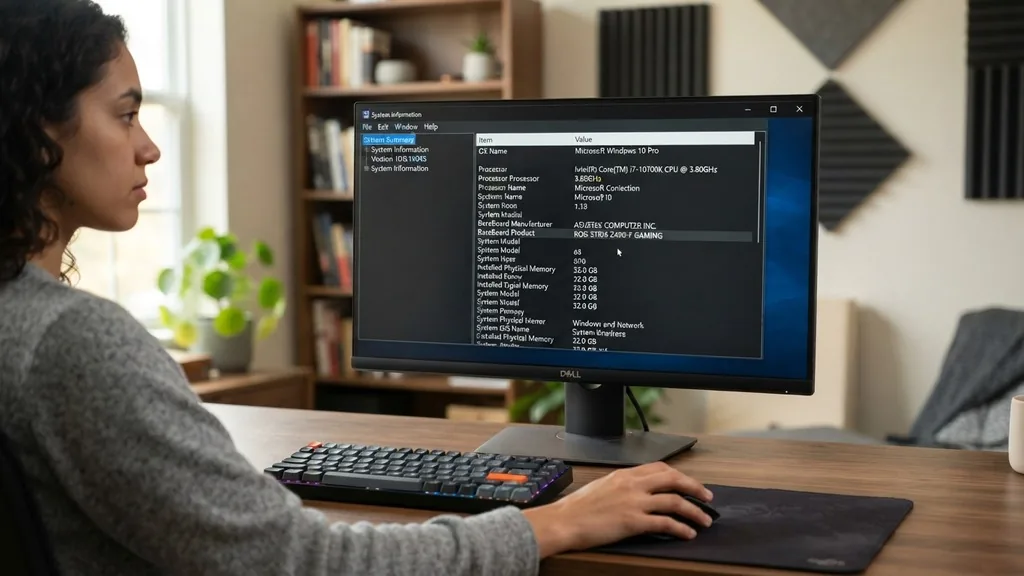
The most straightforward way to identify your hardware on a Windows machine is through the built-in System Information tool. This utility aggregates data about your processor, memory, and board manufacturer without requiring third-party software. To access this, press the Windows key, type “msinfo32” into the search bar, and hit Enter.
Once the window opens, ensure you are on the “System Summary” tab. Look specifically for the rows labeled “BaseBoard Manufacturer,” “BaseBoard Product,” and “BaseBoard Version.”
The “BaseBoard Product” entry is the specific motherboard model identifier you need. This method works across Windows 10 and 11, providing accurate data pulled directly from the SMBIOS tables of your firmware.
It is the fastest way to get the information you need for downloading specific drivers or checking compatibility for a new CPU upgrade. If you see “Not Available” in these fields, it often indicates that the motherboard is a custom OEM board from a pre-built system like a Dell or HP, which sometimes masks specific model numbers in generic software reports.
Retrieving Hardware Data via Command Prompt
For users who prefer a text-based interface or need to script the collection of system specs, the Command Prompt (CMD) is an excellent tool. This method is highly efficient because it bypasses the graphical interface entirely.
Open the Command Prompt by searching for “cmd” in the Start menu. Once the black console window appears, you can query the Windows Management Instrumentation Command-line (WMIC) to pull the board details instantly.
Type the following command and press Enter: “wmic baseboard get product,Manufacturer,version,serialnumber”. The system will immediately return the manufacturer and model name. This command is particularly useful for system administrators or power users who want to verify the board type without navigating through multiple sub-menus.
It provides a clean, concise output that is easy to read. If you are curious about the specific revision of your board, the “version” tag will often display that detail, which is crucial if you are looking for a BIOS update that applies only to specific hardware revisions.
Checking the Motherboard Model in the BIOS or UEFI
Sometimes, your operating system might fail to load, or you might want to confirm your hardware identity before installing an OS. In these cases, you should access the UEFI BIOS.
To do this, restart your computer and repeatedly press the designated key—usually Delete, F2, F10, or F12—during the initial boot sequence. The specific key is often displayed on the screen for a brief second before the Windows logo appears.
Once you are inside the BIOS or UEFI interface, the motherboard model is typically displayed on the main “System Information” or “Main” tab. This is arguably the most accurate method because it reads the information directly from the board’s firmware chip. If you cannot find it there, navigate to the “Advanced” or “Tools” menu, where manufacturers often place comprehensive system reports.
Because this happens before the OS loads, it is an essential technique for troubleshooting hardware-level issues or confirming the board’s identity when Windows fails to boot due to driver conflicts or hardware failures. You can learn more about how motherboard firmware works by visiting official technical documentation.
Physically Inspecting the Motherboard Inside the Case
If software methods fail or if you are working on a machine that has no power, physical inspection is your final option. This requires opening the side panel of your computer chassis.
Ensure the power cable is disconnected before you begin. Once the case is open, look for the model name printed directly onto the surface of the printed circuit board.
Manufacturers almost always print the model number in large, clear text, usually near the CPU socket or between the PCIe expansion slots. If you have a large graphics card obscuring the view, you might need to use a flashlight or a small mirror to read the text.
If you still cannot find it, look for a sticker on the back of the board or near the RAM slots. This physical check is the gold standard for accuracy, especially for custom-built PCs where the BIOS might show a generic name.
Comparing Identification Methods
Choosing the right method depends on your current situation and the state of your computer. While software tools are convenient, they rely on the operating system being functional. Physical checks are reliable but require more effort.
| Method | Accessibility | Reliability | Effort Required |
|---|---|---|---|
| System Information | High | High | Low |
| Command Prompt | Medium | High | Low |
| BIOS/UEFI | Medium | Very High | Medium |
| Physical Inspection | Low | Absolute | High |
Each of these approaches serves a different purpose. If you are simply checking specs for a driver update, the System Information utility is more than sufficient. However, if you are planning a complete system overhaul or dealing with a motherboard that is not reporting correctly in Windows, accessing the BIOS or performing a physical inspection is the only way to be 100% certain of the hardware you are working with.
Using Third-Party Software for Detailed Specifications
When built-in Windows tools feel too limited, third-party utilities become invaluable. Applications like CPU-Z are industry standards for enthusiasts.
These programs provide deep insights into your system, including the exact motherboard chipset, the BIOS version, and the current clock speeds of your components. Unlike the basic Windows tools, these programs often display the specific “Southbridge” or “Chipset” details, which are vital if you are trying to match a motherboard with a specific generation of processors or high-speed memory modules.
To use these tools, download the portable version of the software, run it, and navigate to the “Mainboard” tab. The information is presented in an organized format that is much easier to digest than the raw data you get from the command line.
These tools are particularly helpful for identifying “white label” or OEM boards that might not have a prominent model number printed on the PCB, as they query the hardware IDs directly from the board’s controllers. Always download such utilities from the official developer websites to ensure the safety and integrity of your system.
Addressing Common Identification Issues
One of the most frustrating aspects of identifying a motherboard is dealing with OEM systems. If you bought a pre-built computer from a major manufacturer, the motherboard model reported by software might be a proprietary string like “0K869” rather than a recognizable name like “ASUS ROG Strix.” This happens because large computer companies commission custom boards that are not sold in retail markets.
In these instances, you cannot simply look up the board on the manufacturer’s website to find a manual or driver update. Instead, you must search for the serial number or the system model on the support page of the computer manufacturer’s website (e.g., searching for a Dell Optiplex service tag).
If you are trying to replace or upgrade parts on such a machine, be aware that these boards often use non-standard power connectors or form factors, making them incompatible with standard retail cases or power supplies. Always verify the physical layout before attempting to swap any components.
Why Knowing Your Motherboard Model Matters
Understanding your motherboard hardware is not just about curiosity; it is a critical step in maintaining a healthy computer. The motherboard acts as the nervous system of your PC, connecting the CPU, RAM, storage, and graphics card. If you are planning an upgrade, knowing your board’s socket type (such as LGA 1700 or AM5) is the only way to ensure the new CPU you buy will actually fit.
Furthermore, motherboard manufacturers frequently release BIOS updates that improve system stability, enhance security, or add support for newer hardware. Without knowing your exact board model, you risk downloading the wrong firmware, which can “brick” your system and render it unusable.
This is why keeping a record of your hardware—perhaps in a text file saved in a cloud drive—is a smart habit for any PC user. It saves time during future troubleshooting and ensures you always have the right information ready when you need it most.
FAQ Section
- Can I find my motherboard model without opening the PC? Yes, you can use the built-in System Information tool by typing “msinfo32” in the Windows search bar or by using the Command Prompt command “wmic baseboard get product” to retrieve the exact model name without ever touching the hardware.
- What if Windows says my motherboard is “To be filled by O.E.M.”? This happens on many pre-built computers. When the software cannot find a specific model name, you should search for your computer’s serial number or service tag on the manufacturer’s support website to find the correct specifications and driver downloads for your specific system.
- Is the motherboard model the same as the BIOS version? No, they are different. The motherboard model identifies the hardware board itself, while the BIOS version refers to the firmware software currently running on that board. You need the motherboard model to find the correct BIOS version updates on the manufacturer’s website.
- Does every motherboard have a model number printed on it? Almost all retail motherboards have the model name printed clearly on the surface of the board, usually near the CPU socket or the PCIe slots. However, some proprietary OEM boards may only have a part number or serial number instead of a recognizable brand model name.
By following these methods, you can confidently identify your system’s hardware regardless of your technical background. Whether you are using a simple search command, checking the BIOS, or performing a physical inspection, you now have the tools to find exactly what you need.
Remember that accuracy is key when dealing with firmware and driver updates, so always verify your findings if you are planning to make significant changes to your system’s configuration. Keeping these steps in mind ensures you can manage your computer with the precision of a professional.


