

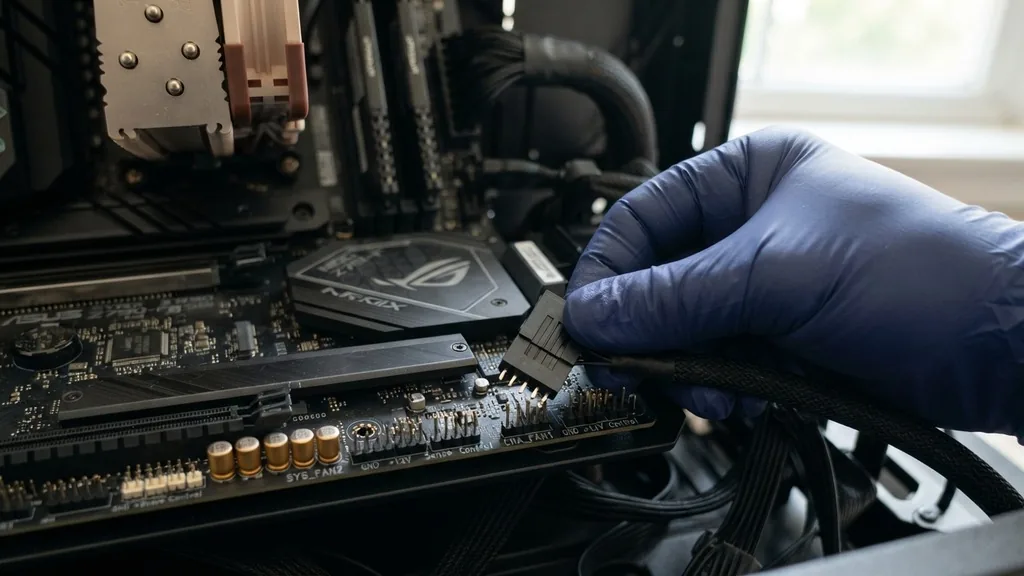
Effective cooling is the heartbeat of any high-performance computer. Learning how to connect fans to motherboard headers ensures that your system maintains optimal temperatures while providing the flexibility to control noise levels through intelligent software.
When you build or upgrade a PC, the way you manage airflow dictates the longevity of your components, particularly the CPU and graphics card. Properly routed cables and correctly seated connectors prevent common issues like overheating, erratic fan behavior, or simple mechanical failure.
By understanding the difference between various connector types and the specific headers located on your circuit board, you gain full command over your system’s thermal performance. Whether you are installing a high-end liquid cooling loop or simply adding extra intake fans to improve case airflow, the process remains rooted in identifying the right pins and matching them to the corresponding power delivery systems.
Identifying Motherboard Fan Headers
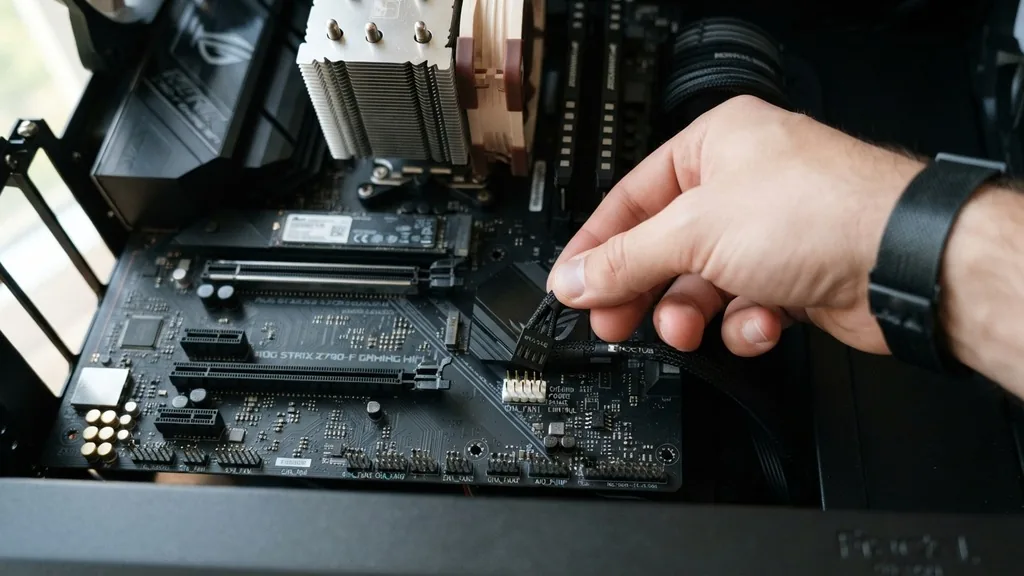
To identify motherboard fan headers, look for small plastic blocks with four pins protruding from the PCB, usually labeled near the connector itself. These headers act as the primary interface between your cooling hardware and the system’s power delivery and logic controller. Most modern boards feature a mix of headers, each serving a specific role in the cooling hierarchy.
You will typically find labels printed directly onto the board’s surface, such as CPU_FAN, CPU_OPT, or SYS_FAN. The CPU_FAN header is almost always reserved for your primary processor cooler. It is critical because the motherboard BIOS monitors this header specifically; if it detects no fan spinning, it may trigger a hardware error during startup to prevent the processor from overheating.
System fan headers (often marked as CHA_FAN or SYS_FAN) are intended for case fans. These are highly versatile and allow for custom speed curves within your operating system or BIOS settings. Always consult your motherboard manual to confirm the specific amperage limits of these headers, as plugging in high-draw industrial fans can potentially damage the motherboard circuitry if the current exceeds the manufacturer’s specified rating.
Understanding 3-Pin vs 4-Pin Fan Connectors
The primary difference between a 3-pin and 4-pin connector lies in the presence of Pulse Width Modulation (PWM) technology, which allows for precise speed control. A 3-pin fan relies on voltage regulation to change its speed; the motherboard sends less power to the fan to slow it down. While this is effective, it lacks the fine-tuned granularity of a 4-pin setup.
A 4-pin connector adds a dedicated wire for the PWM signal, which sends instructions to the fan motor to adjust speed without cutting the power supply. This makes 4-pin fans quieter and more efficient. Fortunately, the connectors are physically keyed to be backward compatible.
You can easily plug a 3-pin fan into a 4-pin header on your motherboard. The connector will only slide on one way, aligning the plastic guide rail with the slot on the header.
When you do this, the fan will function normally, though it may run at full speed unless your motherboard BIOS is specifically configured to handle voltage-based speed control for that header. Always ensure the pins are perfectly aligned before applying pressure to avoid bending the delicate metal pins on the motherboard.
Managing Cable Routing and Airflow
Strategic cable management is essential for maintaining unrestricted airflow throughout your chassis. When connecting multiple fans, you should route wires behind the motherboard tray or through designated grommets to keep the main chamber clear of obstructions. Cluttered cables act as a physical barrier to cool air, creating localized pockets of heat that can negatively impact your components.
Use zip ties or hook-and-loop fasteners to bundle cables together, keeping them tight against the chassis frame. If your fans have long cables, loop the excess wire neatly and secure it in a hidden area. This not only improves the aesthetic appeal of your build but also makes future maintenance significantly easier.
If you are struggling with limited space, consider using flat extension cables which are much easier to tuck into tight gaps compared to traditional braided sleeves. Proper routing also minimizes the risk of a fan cable catching on a spinning blade, which could damage the fan motor or cause an annoying clicking noise. For a deeper look at thermal management principles, you can refer to the Intel PC building guide to understand how airflow paths generally work in a standard ATX configuration.
Using Fan Hubs and Splitters
When your motherboard lacks enough headers for all your cooling needs, using a fan hub or a simple splitter cable provides a reliable solution. A splitter is a basic Y-shaped cable that allows you to connect two or more fans to a single motherboard header. While this is convenient, you must be careful not to overload the header.
Most motherboard fan headers are rated for 1 Amp (12W). If you attach three or four high-performance fans to a single splitter, you risk exceeding this limit, which can cause the motherboard trace to overheat or fail.
A powered fan hub is a superior choice for complex builds. These devices connect to a SATA or Molex power cable coming directly from your power supply unit, meaning they draw power for the fans from the PSU rather than the motherboard.
The hub then connects to a single motherboard header to pass through the RPM signal and receive PWM instructions. This setup ensures your motherboard remains safe from excessive current draw while granting you centralized control over all your fans simultaneously.
Configuring Fan Curves in BIOS
Once your hardware is installed, you must configure the fan curves within your BIOS to balance cooling performance with acoustic comfort. Modern motherboards provide graphical interfaces where you can map fan speed as a percentage of the maximum RPM relative to the temperature of a specific component. For instance, you might set your case fans to run at 30% speed when the CPU is under 40 degrees Celsius, ramping up to 80% once the CPU exceeds 70 degrees.
This proactive approach prevents your computer from sounding like a jet engine during light tasks like web browsing while ensuring maximum airflow during intensive gaming sessions or video rendering. Many BIOS interfaces also feature a “Smart Fan” or “Fan Tuning” utility that can automatically detect the minimum and maximum speeds of each connected fan. Running this calibration process is a great way to ensure that your fan curves are accurate and that you aren’t trying to run a fan at a speed it cannot physically support, which often results in buzzing or stalling.
Troubleshooting Common Connection Issues
If you find that your fans are not spinning or responding to settings, start by checking the physical connection. It is surprisingly common for a connector to be seated just slightly off-center, failing to make contact with the pins. Verify that the plastic guide on the fan connector aligns with the notch on the header.
If the fans spin but you cannot control their speed, you are likely using a 3-pin fan on a header that is currently set to PWM mode in the BIOS. Access your BIOS settings and toggle the control mode for that specific header to “DC” or “Voltage” mode.
Another frequent issue involves the RPM signal not being reported correctly. If you have multiple fans connected to a single splitter, only one fan should have its RPM signal wire connected to the motherboard. If all fans report their speed to the same pin, the signals will conflict, leading to erratic readings or a “CPU Fan Error” warning.
High-quality splitters are designed to handle this by omitting the tachometer wire on all but one of the connectors. If you are building your own, you might need to manually remove the signal wire from the secondary connectors.
Comparing Cooling Control Methods
Choosing the right method for your setup depends on your motherboard’s capabilities and the number of fans you intend to install. The following table illustrates the pros and cons of the most common connection strategies.
| Method | Best For | Pros | Cons |
|---|---|---|---|
| Direct Header | Single Fans | Simplest installation; native BIOS control. | Limited by motherboard header count. |
| Y-Splitter | 2 Fans | Low cost; easy to source. | Risk of overloading the header. |
| Powered Hub | 3+ Fans | Safe power draw; centralized control. | Requires extra cable management. |
Addressing Topical Gaps in Fan Connectivity
Many users often overlook the importance of the “CPU_OPT” header. This header is specifically designed for liquid cooling pumps or secondary fans on a dual-tower air cooler.
It often mirrors the behavior of the CPU_FAN header, meaning it will ramp up in unison with your primary processor fan. If you are using an AIO (All-in-One) liquid cooler, the pump should ideally be connected to this header or a dedicated “PUMP” header if your motherboard provides one.
Another gap in common knowledge is the difference between case fans and radiator fans. Radiator fans are designed with high static pressure to push air through the dense fins of a liquid cooling radiator. Case fans are typically optimized for high airflow to move large volumes of air through the chassis.
Connecting a low-pressure case fan to a radiator will result in poor cooling performance regardless of how fast the fan spins. Always check the specifications of your fans to ensure they are matched to their intended application, as this hardware mismatch is a frequent cause of thermal throttling in high-end workstations.
Best Practices for Fan Maintenance
Regular maintenance extends the life of your cooling hardware and ensures that your system stays quiet. Dust accumulation is the primary enemy of cooling efficiency. Over time, dust coats the fan blades and clogs the heatsink fins, creating insulation that traps heat.
Every few months, use a can of compressed air to blow dust out of the fans and the radiator or heatsink. Hold the fan blades steady while cleaning; spinning them too fast with compressed air can damage the bearings or generate an electrical current that could potentially harm the fan’s internal electronics.
If you notice a grinding noise coming from a fan, it usually indicates that the bearing is failing. While some high-end fans allow for lubrication, most modern case fans are sealed units. If a fan starts making significant noise, it is usually time to replace it.
Keeping your fans in good condition is a small investment of time that prevents larger, more expensive hardware failures down the line. Remember that a silent, well-managed system is the hallmark of a professional PC build.
FAQ Section
- Can I plug a 3-pin fan into a 4-pin motherboard header? Yes, you can. The connector is physically keyed to ensure it fits correctly. The fan will work, but you may need to adjust the settings in your BIOS to “DC” or “Voltage” mode to control its speed effectively.
- Do I have to plug case fans into the motherboard? You don’t have to, as you could connect them directly to your power supply using Molex or SATA adapters. However, connecting them to the motherboard is much better because it allows for automatic speed control based on your system’s real-time temperature.
- Where should I plug in my liquid cooler pump? You should plug your AIO pump into the header labeled “CPU_OPT” or “PUMP_FAN” if your motherboard has one. These headers are designed to provide constant, full voltage, which is necessary for the pump to operate at its rated performance level.
- Why does my motherboard show a CPU fan error? This usually happens because the motherboard does not detect an RPM signal from the CPU_FAN header. Ensure your CPU cooler is plugged into the correct header and that the fan is spinning freely. If you are using liquid cooling, check your BIOS to ignore the CPU fan warning.


