


Building or upgrading a computer often involves a moment of hesitation when you look at the sea of tiny pins on your circuit board and wonder exactly where to plug in fans on motherboard headers to ensure your system stays cool. Getting your cooling configuration right is essential for component longevity and system stability. Whether you are installing a high-end liquid cooler or simple case fans, identifying the correct ports is the first step toward effective thermal management.
Identifying Motherboard Fan Headers
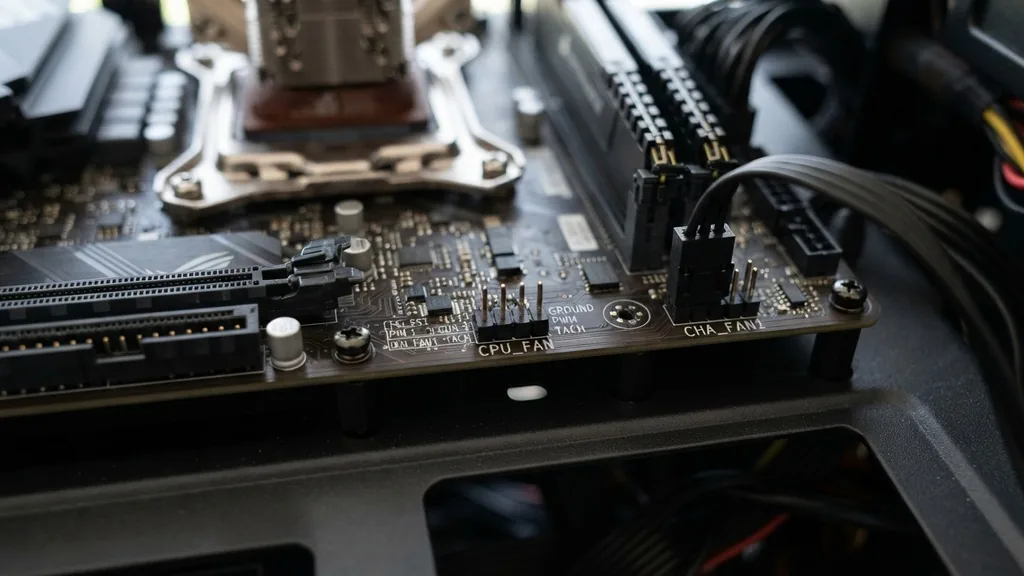
To identify motherboard fan headers, look for small, labeled plastic blocks on your board, usually with four metal pins protruding upward. These headers are almost always clearly marked with silkscreened text directly on the PCB, such as “CPU_FAN,” “SYS_FAN,” or “CHA_FAN.” The CPU_FAN header is specifically reserved for your primary processor cooler, as it communicates vital RPM monitoring data to the system to prevent overheating.
Most modern motherboards provide a mix of 3-pin and 4-pin headers. A 4-pin header is the standard for modern builds, as it supports pulse-width modulation, or PWM, allowing your software or BIOS to precisely throttle fan speeds based on real-time temperature readings.
If you have older 3-pin fans, they will typically fit onto a 4-pin header without issue, though you lose the granular speed control offered by PWM. Always consult your official motherboard manual for a map of your specific layout, as header placement varies significantly between manufacturers like ASUS, MSI, and Gigabyte.
Understanding PWM vs DC Control
PWM and DC control represent the two primary methods for managing fan speeds, with 4-pin headers utilizing PWM technology for superior efficiency. PWM fans receive a constant 12V signal but use a fourth pin to send a digital pulse signal that tells the motor exactly how fast to rotate. This allows for very low, quiet speeds without the risk of the fan failing to start.
DC control, by contrast, manages speed by varying the actual voltage sent to the fan. This is the standard for 3-pin fans. Because the voltage is lowered to slow the fan down, very low speeds can sometimes cause the fan to stall or fail to spin up from a cold boot.
Most modern motherboards include a BIOS setting to switch between “PWM” and “DC” modes for individual headers. If you find your fans are running at full speed constantly despite having a 4-pin connection, it is likely because the BIOS is incorrectly set to DC mode instead of PWM.
The Role of the CPU_FAN Header
The CPU_FAN header is the most critical connection point on your motherboard because it acts as the primary safety sensor for your processor. Most motherboards are programmed to trigger a “CPU Fan Error” during the POST (Power-On Self-Test) sequence if it detects no RPM signal from this specific port. This feature exists to prevent your processor from running without active cooling, which could cause permanent hardware damage within seconds.
If you are using an AIO (All-in-One) liquid cooler, the pump is usually connected to the CPU_FAN header to ensure the system recognizes that the cooling loop is active. Some high-end motherboards offer a dedicated “AIO_PUMP” or “W_PUMP” header.
These are designed to provide a constant, high-amperage current to run the pump at 100% speed consistently, which is necessary for liquid cooling systems. If you have an AIO, always check if your board has a specialized pump header before defaulting to the standard CPU_FAN port.
Chassis Fan Placement and SYS_FAN Headers
Chassis fan headers, typically labeled SYS_FAN or CHA_FAN, are designed to manage the airflow through your computer case. These headers are distributed around the motherboard to allow for short cable runs to front, top, and rear fans. Proper chassis fan placement is vital for creating a directional flow of air—usually cool air in from the front and warm air out through the back and top.
When deciding where to plug in fans on motherboard headers for your case, try to group fans by their physical location. If your motherboard has two headers near the top and two near the bottom, plug your top exhaust fans into the top headers and your intake fans into the bottom ones.
This mapping makes it much easier to configure custom fan curves in your BIOS later. By keeping your intake and exhaust fans on separate headers, you can create a positive pressure environment, which helps minimize dust buildup by forcing air out of the case gaps rather than sucking it in.
Connecting Multiple Fans with Splitters and Hubs
When you run out of headers, you can expand your connectivity using fan splitters or an active fan hub. A fan splitter is a simple Y-shaped cable that takes one motherboard header and splits it into two or more connections. This is perfectly safe for a small number of fans, provided you do not exceed the amperage limit of the header, which is typically 1A (12W).
For larger builds with many fans, an active fan hub is a more robust solution. Unlike a passive splitter, an active hub draws power directly from your power supply via a SATA power adapter.
It takes a single PWM signal from your motherboard and repeats that signal to all connected fans. This ensures that you don’t overload the delicate circuitry of your motherboard headers while still maintaining full control over the speed of every fan in your system.
BIOS Q-Fan Control and Custom Curves
Once your hardware is connected, your BIOS provides the interface to manage how those fans behave. Most manufacturers include a feature like “Q-Fan Control” or “Smart Fan” that allows you to map temperature thresholds to fan speeds. You can set a target temperature for your CPU and tell the fans to ramp up only when that temperature is reached.
The goal of these curves is to balance thermal performance with acoustic comfort. You want your fans to remain silent during light tasks like web browsing but ramp up aggressively during gaming or rendering sessions.
Many BIOS interfaces even allow you to set a “step-up” or “step-down” time, which prevents the fans from fluctuating wildly in speed every time there is a momentary spike in CPU usage. Taking the time to tune these settings turns a loud, distracting PC into a whisper-quiet workstation.
Common Troubleshooting Steps
If you find that your fans are not spinning or they are running at full speed constantly, the first step is to verify the physical connection. Ensure the connector is fully seated on the pins and that the plastic guide tab is correctly aligned with the notch on the header. A loose connection is the most common cause of a fan failing to spin.
| Issue | Potential Cause | Recommended Fix |
|---|---|---|
| Fan not spinning | Loose cable or bad header | Check connection and test on a different header |
| Fan at 100% speed | Incorrect BIOS mode | Switch header setting from DC to PWM in BIOS |
| Fan speed fluctuating | Aggressive fan curve | Adjust smoothing or step-up time in BIOS |
| CPU Fan Error | No RPM signal detected | Ensure cooler is plugged into CPU_FAN header |
If a fan still refuses to spin, try plugging it into a header you know is working, like the CPU_FAN header. If it spins there, the original header might be dead or disabled in the BIOS. If it doesn’t spin at all, the fan motor itself may have failed.
Addressing Topical Gaps: Advanced Considerations
Many users wonder if it matters which specific SYS_FAN header they use if they all seem identical. While most SYS_FAN headers offer identical functionality, some premium motherboards include “high-amp” headers that can handle more power for heavy-duty industrial fans or large liquid cooling pumps.
Always check the motherboard manual for the specific amperage rating of each header. If you are using standard case fans, any SYS_FAN header is interchangeable, but if you are using high-performance fans that draw significantly more power, you must ensure the header can support the load.
Another common point of confusion is the compatibility of 3-pin fans with 4-pin headers. Because the 4-pin header is keyed to accept the 3-pin connector, you can easily plug them in.
The motherboard will detect the lack of a PWM signal and automatically switch to DC voltage control mode, assuming the BIOS is set to “Auto.” If you ever notice odd behavior, manually forcing the setting to DC mode in the BIOS usually resolves any inconsistency.
Frequently Asked Questions
- Can I plug a 3-pin fan into a 4-pin motherboard header? Yes, you can. The connector is designed to fit, and the motherboard will typically detect that it is a 3-pin fan and adjust the power delivery automatically, though you will be using DC voltage control rather than PWM signals for speed adjustment.
- Do I need to plug case fans into the motherboard or the power supply? Plugging them into the motherboard is highly recommended. This allows your PC to monitor RPM speeds and automatically adjust cooling based on internal temperatures. Plugging directly into the power supply usually results in the fans running at 100% speed constantly, which is noisy and unnecessary.
- What happens if I plug a fan into the wrong header? Usually, nothing bad happens. If you plug a case fan into a CPU_FAN header, it will simply ramp up and down based on the CPU’s temperature. If you plug a CPU fan into a SYS_FAN header, the system might trigger a startup error because it cannot detect the CPU cooler’s RPM.
- How many fans can I safely connect to a single header? You should generally not exceed 1 amp of total current draw per header. Most standard case fans draw between 0.1A and 0.3A. Therefore, you can typically use a splitter to safely connect two or three standard fans to a single motherboard header without damaging the hardware.


