

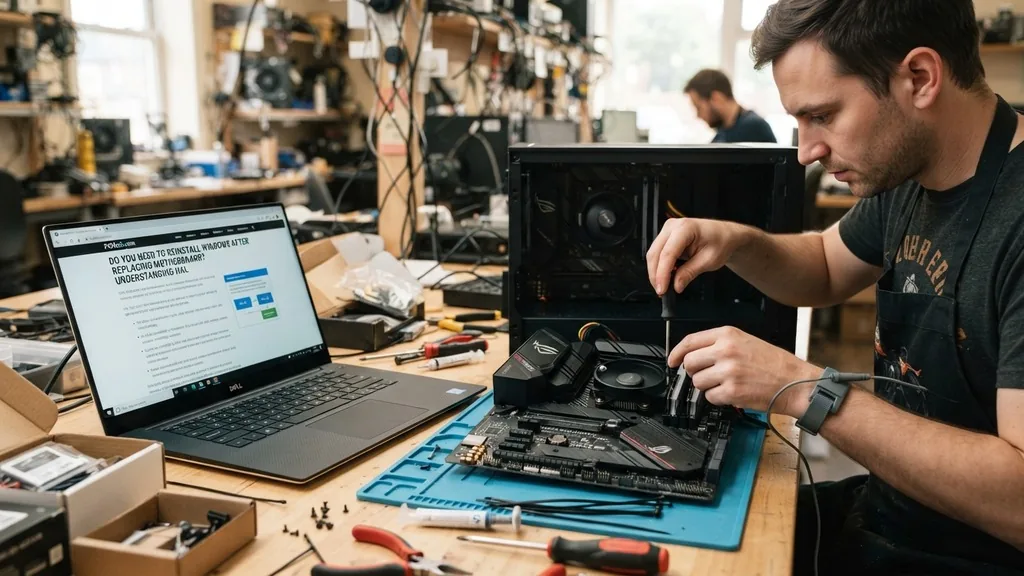
Replacing the core foundation of your computer is a significant upgrade that often leaves users wondering whether their existing operating system will survive the transition. When you swap out your mainboard, you are essentially changing the identity of the system at a low level. Many people ask, do you need to reinstall windows after replacing motherboard, and the answer is rarely a simple yes or no.
Modern versions of the operating system are remarkably resilient, but they are still tied to the specific configuration of the hardware they were initially installed on. Navigating this process successfully requires an understanding of how Windows manages drivers, licensing, and hardware identification.
Understanding the Windows Hardware Abstraction Layer
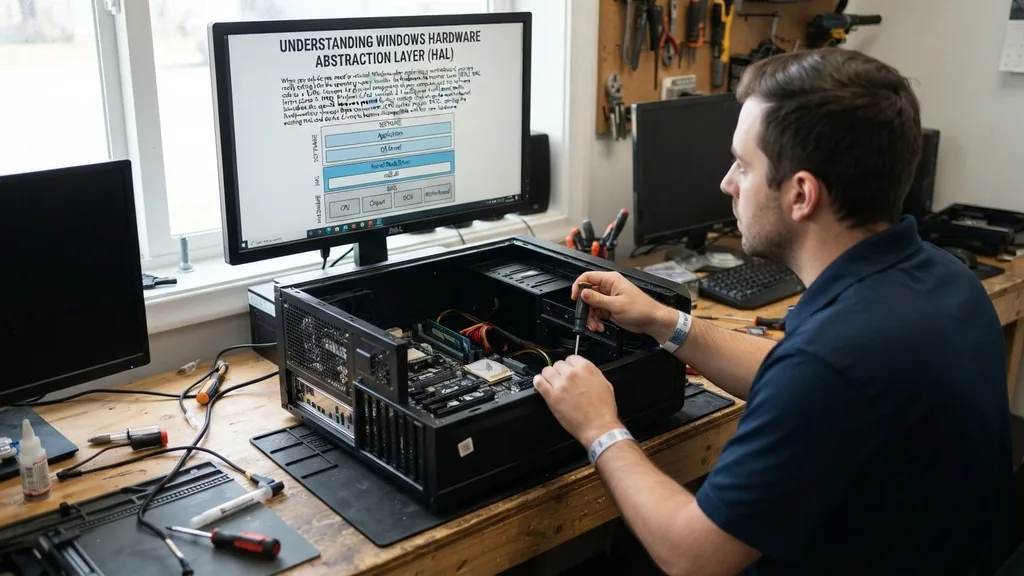
When you ask, do you need to reinstall windows after replacing motherboard, you are really asking about how the operating system handles the Hardware Abstraction Layer (HAL). The HAL acts as a buffer between the physical components of your computer and the software layers above it.
When Windows is first installed, it configures itself to communicate with your specific chipset, storage controllers, and CPU architecture. If you suddenly change the motherboard, the OS may boot up and find that the pathways it expects to use for communication are no longer there or have been fundamentally altered.
In many cases, modern Windows 10 and 11 environments can detect the change in hardware and attempt to pull in the necessary drivers automatically. This is a massive improvement over older versions of the OS, which would almost certainly trigger a “Blue Screen of Death” (BSOD) if the motherboard was swapped. However, even if the system manages to boot, you are often left with a “dirty” installation.
This means that remnants of your old drivers, chipset-specific utilities, and registry entries remain, potentially causing instability, performance bottlenecks, or random crashes that are difficult to diagnose later. While it is technically possible to avoid a fresh install, a clean slate is often the most reliable path to a stable machine.
The Licensing Dilemma and Digital Entitlements
One of the most pressing concerns for users is whether a motherboard swap invalidates their software license. Microsoft links your product key to your hardware ID, which is primarily derived from the motherboard’s serial number and BIOS information. If you replace the motherboard, the system registers this as a “new” computer.
Consequently, you may find that your copy of Windows is no longer activated. This is a common point of frustration for enthusiasts who are simply upgrading their system for better performance or gaming capabilities.
For retail versions of Windows, the license is typically transferable to a new machine, but you may need to go through the activation troubleshooter. If you are using an OEM (Original Equipment Manufacturer) license—which is what comes pre-installed on pre-built computers from companies like Dell or HP—that license is technically tied to the original motherboard for the life of the machine. Replacing the board officially terminates the license, meaning you might be required to purchase a new copy of Windows.
You can check your current activation status by navigating to the Settings menu and selecting “Activation.” Understanding the difference between retail and OEM keys is essential before you begin the physical hardware swap.
Impact on Existing Data and Storage Drives
A common misconception is that changing the motherboard will result in the immediate loss of all your files. Rest assured, your data is stored on your storage drives—your SSD or HDD—not on the motherboard itself. Replacing the mainboard will not wipe your documents, photos, or games.
However, the way those files are accessed can be disrupted. If your storage drives were configured in a RAID array that was managed by the previous motherboard’s integrated controller, you will likely lose access to that data unless the new motherboard uses the exact same storage controller architecture and can import the RAID configuration.
For most users with single-drive setups, the transition is safer. Even so, it is vital to perform a full backup of your critical files before touching any hardware. If you are moving from an older SATA-based system to a modern NVMe-based board, you may also encounter issues where the BIOS settings, such as UEFI versus Legacy BIOS modes, prevent the system from booting.
You might need to enter the BIOS and adjust these settings to match how your OS was originally installed. If you find yourself stuck, Microsoft Support provides extensive documentation on managing hardware changes and OS activation.
Hardware Compatibility and Driver Conflicts
When you move your existing drive to a new motherboard, the OS will attempt to load the drivers for the new chipset. If you are moving between different manufacturers, such as moving from an Intel-based board to an AMD-based one, the conflict is much higher.
The system will carry over registry keys and system files that are specific to the old hardware, which can create significant overhead. This is where you might see issues with your GPU performance or network connectivity.
Consider the following table to understand the impact of various hardware changes:
| Component Change | Likely OS Impact | Reinstall Necessity |
|---|---|---|
| Same Chipset/Manufacturer | Minimal | Usually unnecessary |
| Different Manufacturer (Intel/AMD) | High | Highly recommended |
| New Storage Controller/RAID | Critical | Required |
| BIOS/UEFI Mode Switch | Moderate | Depends on BIOS settings |
Even if the computer boots, you should perform a “clean-up” of the old drivers. Using specialized software to remove legacy driver packages can help, but it is rarely as effective as a fresh install. If you notice your computer is running hotter than expected or that your GPU usage is erratic, it is a clear signal that the underlying software environment is struggling to adapt to the new hardware configuration.
Best Practices for a Smooth Transition
If you decide to attempt the swap without a clean install, preparation is your best defense against system failure. Start by updating your current Windows installation to the latest version.
Ensure that you have all your important drivers downloaded and stored on a separate USB drive. It is also wise to remove any third-party antivirus software or specialized hardware-monitoring tools before you swap the board, as these often hook deep into the system and can cause conflicts during the boot-up process.
- Backup your entire drive to an external storage device.
- Ensure you have your Microsoft account credentials handy for license reactivation.
- Download the latest chipset and network drivers for your new motherboard.
- Disable BitLocker or any disk encryption, as it may lock you out if it detects a hardware change.
- Create a Windows installation media USB drive as a fallback if the boot process fails.
- Check if your new board requires specific BIOS updates to support your current CPU.
Taking these steps significantly reduces the risk of data loss and system instability. Being prepared with a Windows installation USB also means that if the system does fail to boot, you can perform a “repair upgrade” or a clean installation without needing to find another computer to create the media.
The Performance Benefits of a Fresh Installation
While it is tempting to try and save time by carrying over your old OS, there is a tangible performance benefit to a clean install. Over time, Windows collects “digital debris”—unused registry entries, temporary files, and orphaned driver fragments that slowly degrade performance.
A motherboard upgrade is the perfect excuse to clear this out. By installing Windows fresh, you ensure that every driver is installed in the correct order and that the OS is perfectly tuned for your new hardware.
A clean install also resolves hidden issues that you might have been living with for months. Perhaps your system was slow to wake from sleep, or your USB ports were occasionally dropping connections. These issues are often rooted in driver corruption that a simple OS update cannot fix.
When you start fresh, you are building on a stable foundation. You will likely find that your boot times are faster, your system is more responsive, and you have eliminated the mystery errors that often plague “migrated” installations.
Addressing Topical Gaps: When “Plug and Play” Fails
Many people encounter a specific situation where the system boots but lacks critical functionality, such as no internet access or a non-functional GPU. This happens because the generic Microsoft drivers are not sufficient to run the specific hardware on your new board.
In this scenario, you must manually install the vendor-provided drivers. If you have a Gigabyte Aorus board or a high-end ASUS ROG model, these manufacturers provide specific software suites that manage lighting, fan curves, and power delivery.
If your network adapter isn’t recognized, you won’t be able to download the necessary drivers. This is why having those drivers on a USB stick beforehand is so important. Another common gap involves the TPM (Trusted Platform Module) chip.
If your new motherboard has a different TPM version or a reset security module, Windows might refuse to boot or ask for a recovery key. You should always disable or clear the TPM in the BIOS before swapping boards if you are not prepared for encryption recovery prompts.
Making the Final Decision
Ultimately, the choice comes down to your tolerance for troubleshooting. If you enjoy tinkering with settings, registry keys, and driver packages, you can certainly try to keep your current installation.
For the average user who just wants a reliable computer, the time spent on a clean install is an investment in stability. It prevents the “what if” scenarios where you are left wondering if a software bug is actually a hardware fault.
If you have a lot of specialized software or complex configurations, the thought of reinstalling everything is daunting. However, modern cloud syncing for browsers, documents, and even some application settings makes the process much less painful than it was a decade ago.
A fresh start might feel like a chore, but it often pays for itself in the long run by providing a smoother, faster, and more reliable computing experience. Do not let the fear of a reinstall stop you from upgrading your hardware; just be prepared, be patient, and prioritize your data backups above all else.
Frequently Asked Questions
- Will my files be deleted if I don’t reinstall Windows? No, your files are stored on your storage drives, not the motherboard. However, you should always back up your data before a hardware change, as unforeseen issues with drivers or encryption could potentially make your data inaccessible if not prepared correctly.
- Will my Windows license stay active after a board swap? It depends on your license type. Retail licenses can usually be transferred to new hardware via the activation troubleshooter in settings. OEM licenses, which come with pre-built computers, are typically tied to the original motherboard and may require you to purchase a new key.
- What happens if the system doesn’t boot after the swap? If the system fails to boot, it is usually due to driver conflicts or incorrect BIOS settings. You can use a Windows installation USB to perform a repair or, if necessary, perform a clean install of the operating system to resolve the underlying conflicts.
- Do I need to update my BIOS before installing Windows? While not always required, it is highly recommended to update your BIOS to the latest version before installing Windows. This ensures that the motherboard has the best compatibility with your processor and memory, which can prevent stability issues during and after the OS installation.


