

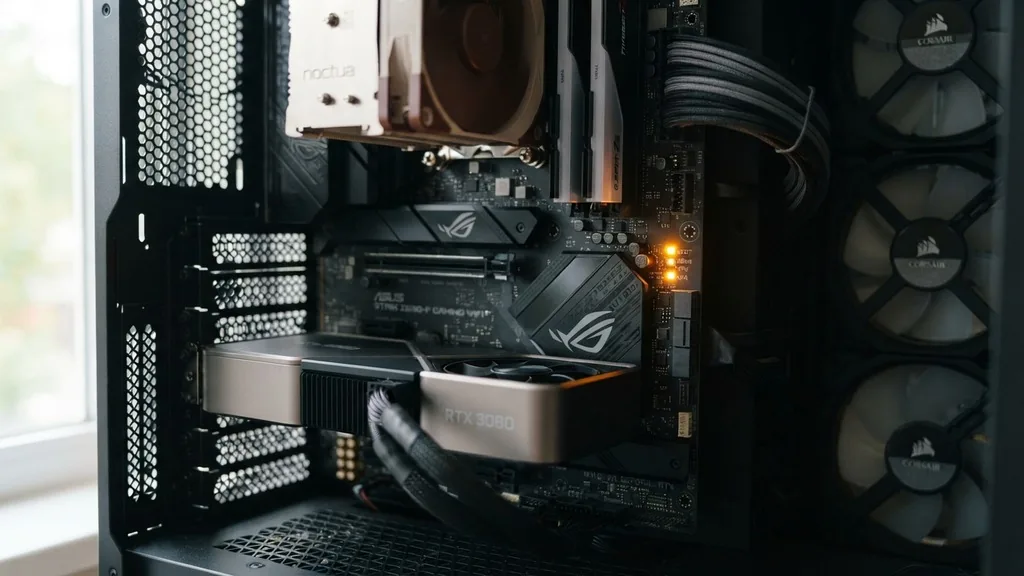
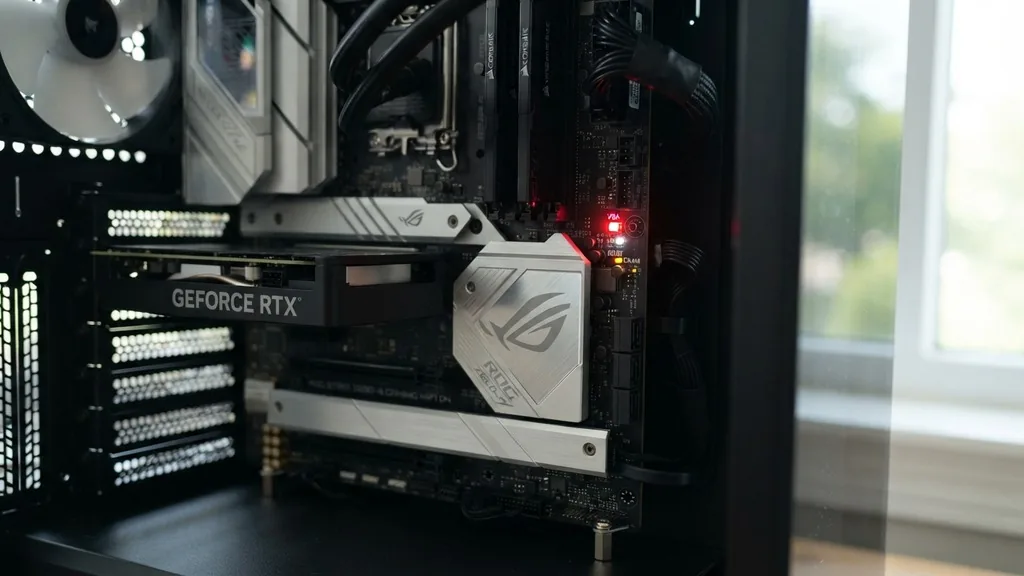
A persistent, glowing LED on your computer’s main circuit board can be a source of immediate panic for any builder. When you press the power button and notice that the VGA light remains illuminated, it signifies that your system has encountered a failure during the POST process. Specifically, the motherboard is signaling that it cannot detect or initialize the graphics card properly.
This diagnostic indicator is part of the motherboard debug LED system, designed to tell you exactly which stage of the startup sequence has stalled. If the system cannot communicate with the video hardware, it cannot send a signal to your monitor, leaving you with a black screen and no clear path forward.
Understanding the POST Process and Debug LEDs
The POST process, or Power-On Self-Test, is the series of diagnostic checks a computer performs immediately after you flip the power switch. During these few seconds, the motherboard verifies that the essential hardware components—CPU, RAM, storage, and the GPU connection—are functional and ready to operate.
If any of these components fail their check, the motherboard halts the startup sequence to prevent potential damage or data corruption. The debug LEDs are the primary communication tool for the motherboard in this state.
When you see a specific light labeled “VGA” or “VGA_LED” glowing, the motherboard is essentially saying, “I have passed the CPU and memory checks, but I cannot talk to the video output device.” This does not necessarily mean your expensive graphics card is broken. It simply means the electrical handshake required to initialize the hardware has failed.
This could be due to a loose physical connection, a lack of supplemental power, or a conflict in the system’s firmware. Understanding that this is a communication error rather than a death sentence for your hardware is the first step toward a successful repair.
Initial Physical Inspection of the Graphics Card
The most frequent culprit for a stubborn VGA light is a simple physical connection issue. Over time, or perhaps due to the weight of modern, triple-fan cooling solutions, a graphics card can sag or shift slightly within its PCIe slot.
Even a microscopic gap between the gold pins on the card and the contact points in the slot can break the data path, triggering the error. You should start by powering down your system, unplugging the power supply unit, and physically removing the card from the motherboard.
Inspect the PCIe slot for any debris, dust, or bent pins. Sometimes, a tiny piece of stray material can prevent the card from seating perfectly. Once you have confirmed the slot is clean, reinsert the card firmly.
You want to hear a distinct “click” from the retention clip at the end of the slot. If you are using a riser cable, this is a common point of failure.
Try removing the riser cable entirely and plugging the card directly into the motherboard to rule out a faulty cable. Many users find that after reseating the card, the system boots normally, proving that the hardware was simply not making proper contact.
Checking Power Supply Unit Connections
Even if the card is seated correctly, it will fail the POST check if it isn’t receiving enough electricity. High-performance GPUs require significant power, which is delivered through dedicated cables coming from the power supply unit. If these cables are loose, partially disconnected, or improperly seated, the motherboard will detect the presence of the card but fail to initialize it, resulting in that dreaded LED staying lit.
Ensure that every 6-pin or 8-pin power connector on the side of the card is pushed in all the way. Some power supply cables are modular, meaning they plug into the power supply unit itself; verify that these connections are also secure. If you are using a daisy-chained power cable—where one cable splits into two connectors—try using separate, individual cables from the power supply for each port on the GPU.
This ensures the card receives a steady, dedicated stream of current. If you have a spare power supply or spare cables, testing with those can help you isolate whether the issue lies with the delivery of power rather than the card itself.
The Role of BIOS Settings and CMOS Reset
Sometimes the issue isn’t hardware, but a configuration conflict within the motherboard’s firmware. BIOS settings can occasionally become corrupted or misconfigured, especially if you have been experimenting with overclocking or changing default display settings. If the motherboard is set to look for an integrated graphics chip that isn’t present, or if the PCIe generation settings are mismatched, the system might hang at the VGA stage.
Performing a CMOS reset is the most effective way to wipe the slate clean. This resets the BIOS to its factory-default state, clearing out any settings that might be causing the initialization error.
To do this, you can usually locate the “Clear CMOS” pins on your motherboard and bridge them with a screwdriver for a few seconds, or simply remove the small silver CR2032 battery from the board for about thirty seconds before replacing it. Once the BIOS is reset, the motherboard will attempt to re-detect all hardware from scratch, which often resolves the VGA light issue without needing to replace any components.
Troubleshooting Display Output and Cables
It is a common irony that a perfectly functioning PC might appear broken simply because of the HDMI cable or the monitor input selection. If the graphics card is working but the motherboard is not receiving a signal confirmation, the system might stall.
Ensure that your video cable is connected directly to the graphics card ports and not the motherboard’s I/O panel. The motherboard ports are meant for CPUs with integrated graphics, and plugging into them while a dedicated card is installed can sometimes cause confusion in the boot process.
Additionally, test different ports on the back of the card. If you are using a DisplayPort cable, try swapping to an HDMI cable to see if the signal registers. If you have access to a different monitor or even a television, connect your PC to that display.
Sometimes, the monitor itself has a specific setting—like an input source lock—that prevents it from “waking up” when the PC sends the initial POST signal. If the system boots to the BIOS screen on a different display, you know your hardware is fine and the issue is likely with your primary monitor or its specific cable configuration.
Addressing RAM Seating and System Stability
While it might seem counterintuitive that memory could trigger a VGA light, the RAM seating is critical to the overall health of the boot process. If the memory modules are not seated properly, the system may fail to complete the initialization of the onboard controllers that manage communication with the PCIe lanes. In some motherboard architectures, a memory training failure can ripple through the boot sequence, causing the diagnostic LEDs to light up in an order that feels misleading.
Try removing all but one stick of RAM and testing the system. If that fails, move that stick to a different slot and try again. This process of elimination helps rule out a faulty memory module or a dead memory channel on the motherboard.
Because the CPU, RAM, and GPU must work in total concert during the POST phase, an issue in one can often manifest as an error in another. By simplifying your system to the bare minimum configuration—one stick of RAM, the CPU, and the GPU—you remove variables that could be interfering with the boot cycle.
Investigating Display Driver and Firmware Issues
If you can eventually get the system to boot, the issue might be related to a corrupt display driver or outdated GPU firmware. While the VGA light typically indicates a pre-boot failure, sometimes a “stubborn” light can persist if the system is caught in a loop of attempting to load an incompatible driver. If you have recently updated your drivers and the system started failing to boot, you may need to boot into Safe Mode and use a utility like Display Driver Uninstaller to wipe the existing drivers clean.
It is also worth checking the official website of your graphics card manufacturer to see if there is a VBIOS update for your specific model. Some older cards had issues with newer motherboard BIOS versions, and manufacturers often release firmware patches to bridge that compatibility gap.
You can learn more about how motherboard manufacturers handle these updates by visiting the official documentation at the Intel support center for comprehensive guidance on hardware compatibility and firmware maintenance. Keeping your hardware’s internal software up to date is a vital part of long-term system stability.
Summary Table of Troubleshooting Steps
To help you organize your troubleshooting workflow, use the following table to track the most likely causes and the corresponding actions you should take to clear the LED.
| Potential Cause | Action Required | Difficulty |
|---|---|---|
| Loose PCIe Seating | Remove and reinsert graphics card | Low |
| Power Delivery Failure | Check 6/8-pin PSU cables | Low |
| BIOS Configuration | Perform a CMOS reset | Medium |
| Faulty Video Cable | Swap HDMI/DisplayPort cable | Low |
| Memory Conflict | Reseat RAM sticks | Medium |
| VBIOS/Driver Error | Update firmware or reinstall drivers | High |
Addressing Topical Gaps: When All Else Fails
If you have performed a CMOS reset, reseated your GPU, verified your power cables, and tested multiple monitors, and the VGA light still refuses to turn off, you are likely looking at a hardware component failure. One common gap in existing advice is the “sometimes” VGA light issue.
Some users report that the light turns on intermittently, or only after the PC has been asleep. This is often a sign of a failing power supply unit that can no longer provide a stable voltage during the “wake” cycle, or a capacitor on the graphics card that is losing its ability to hold a charge.
If you have access to another PC, the most definitive test is to swap your graphics card into that machine. If the card causes the other PC to trigger a VGA light, you have confirmed that the graphics card itself is faulty.
If the card works perfectly in the other machine, then your motherboard’s PCIe slot may be damaged or the motherboard’s chipset is failing to initialize the PCIe lanes. In rare cases, the CPU itself can be the culprit; since the CPU manages the primary PCIe lanes in most modern systems, a bent pin in the CPU socket can prevent the GPU from ever being detected, regardless of how many times you swap the card.
Frequently Asked Questions
- Can a bad power supply cause a VGA light? Yes, if your power supply unit is failing or cannot provide enough wattage to the graphics card during the boot sequence, the motherboard will fail to detect the GPU, resulting in a persistent VGA light.
- What does a red light on the motherboard mean? A red light usually indicates a critical hardware failure. When it is labeled “VGA,” it specifically points to an issue with the graphics card or its connection, requiring you to check the card’s seating and power cables.
- Does the VGA light always mean the GPU is dead? No, it rarely means the card is dead. It usually indicates a communication error. Most cases are solved by simply reseating the card, checking power cables, or resetting the motherboard’s BIOS through a CMOS clear.
- Is it safe to leave the PC on with the VGA light? It is not recommended. If the light is on, the computer has failed its diagnostic test and will not load an operating system. Leaving it on provides no benefit and may mask other hardware issues.
Troubleshooting a motherboard error can be a frustrating experience, but the debug LED system is actually your greatest asset. By methodically working through the physical connections, power delivery, and BIOS settings, you can isolate the problem without resorting to expensive replacement parts. Most of the time, the solution is much simpler than a failed piece of hardware.
Whether it is a loose cable or a configuration setting, take the time to step through these checks one by one. You will likely find that your system is back up and running with a clear screen sooner than you expect, proving that even the most intimidating error lights are just a way for your PC to ask for a little bit of maintenance.


