

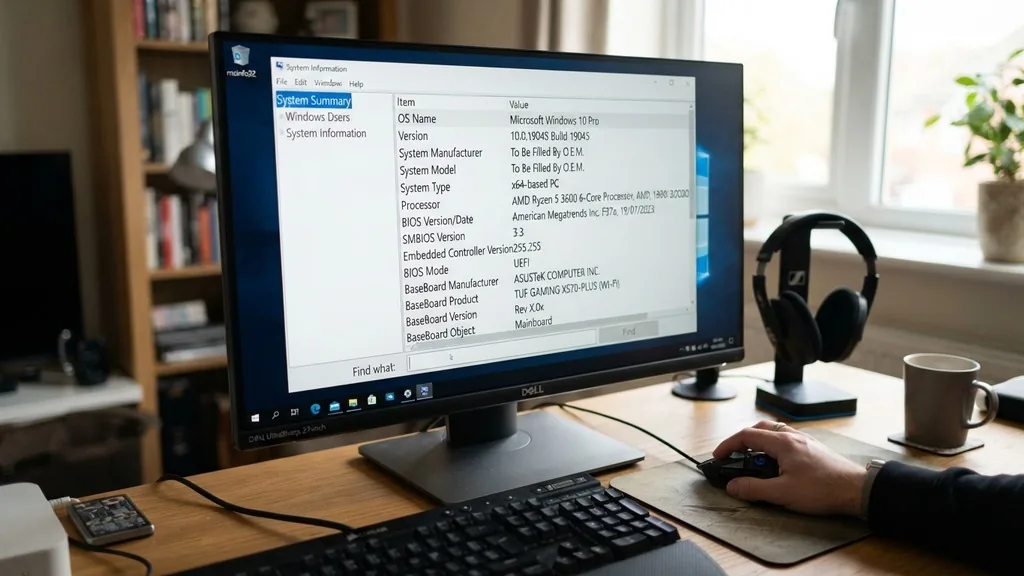
Knowing how to check motherboard Windows 10 details is a fundamental skill for any computer user who needs to upgrade hardware, troubleshoot compatibility issues, or simply manage drivers. Your motherboard, often referred to as the system board or mainboard, serves as the central nervous system of your PC, connecting every component from the CPU to the GPU and RAM.
Without knowing the exact model and manufacturer, you might struggle to find the correct updates or determine if a new graphics card or processor will fit your current setup. Fortunately, Windows 10 offers several built-in tools that allow you to retrieve this data without needing to pull your PC apart or reach for a screwdriver.
Using System Information to Find Your Motherboard
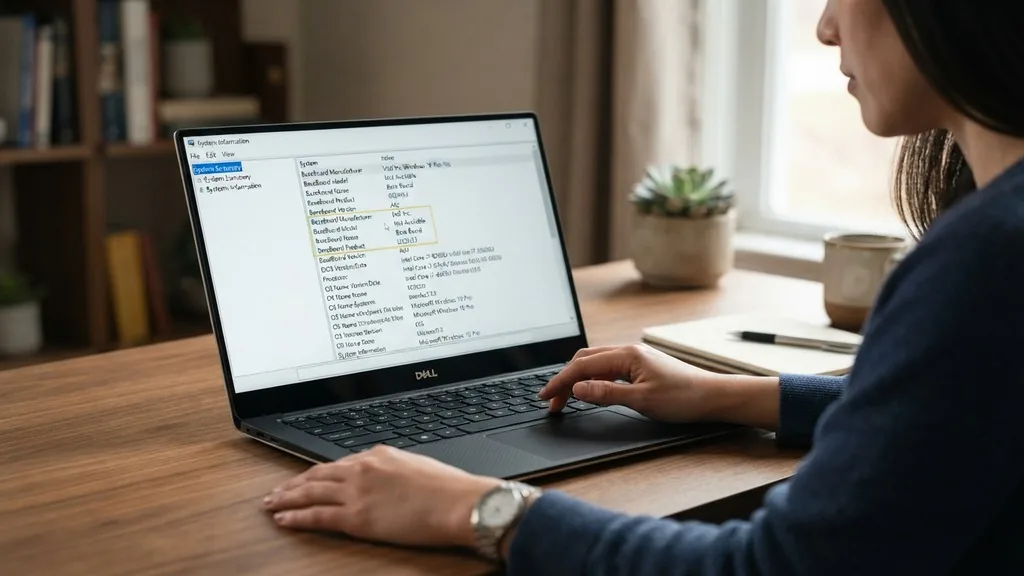
The System Information utility, or msinfo32, is the quickest way to see your motherboard details. To access this, press the Windows key, type “System Information,” and hit Enter. Once the window opens, ensure you are on the “System Summary” tab.
Look for the “BaseBoard Manufacturer” and “BaseBoard Product” fields in the right-hand pane. These two entries provide the core information you need to identify your hardware.
This method is highly effective because it pulls data directly from the Windows Management Instrumentation (WMI) interface. If you see “BaseBoard Product” listed as “Not Available,” it usually means you are using a virtual machine or the manufacturer failed to program the board’s DMI information correctly during assembly. In most standard desktop and laptop configurations, however, this tool will display the exact model name.
If you are building or upgrading, this is the first place you should look to ensure your components are compatible with your existing platform. By verifying the baseboard product, you can search for the official support page, which is essential for downloading the correct chipset and audio drivers.
Identifying Hardware via Command Prompt
For users who prefer a text-based interface or need to extract data quickly, the Command Prompt provides a precise method to check motherboard Windows 10 specifications. By utilizing the WMIC (Windows Management Instrumentation Command-line) tool, you can bypass the graphical interface entirely. Open the Command Prompt by typing “cmd” in the search bar, then right-click and select “Run as administrator.”
Type the following command and press Enter: wmic baseboard get product,Manufacturer,version,serialnumber. This command will output the specific details of your board in a clean, readable format. If you find that the output is blank, it is often because the manufacturer did not write the serial number or version string into the BIOS.
However, the “Product” (the model name) and “Manufacturer” are almost always present. This command-line approach is particularly useful for IT professionals or enthusiasts who are managing multiple machines and need to document hardware configurations quickly without navigating through multiple GUI menus. It is a powerful, lightweight way to verify your hardware identity without relying on third-party software installations.
Leveraging PowerShell for Advanced Hardware Queries
PowerShell is a more robust scripting environment than the standard Command Prompt, offering deeper access to system data. If you want to know how to check motherboard Windows 10 details using advanced scripting, PowerShell is your best tool.
Open PowerShell by searching for it in the Start menu. Similar to the WMIC method, you can query the system’s baseboard information with a simple command.
Enter the command: Get-CimInstance Win32_BaseBoard | Select-Object Product,Manufacturer,SerialNumber,Version. This will return a formatted list containing the motherboard model and manufacturer. The benefit of using PowerShell is its ability to pipe information into other formats, such as CSV or text files, which is helpful if you are documenting a fleet of computers.
If you are troubleshooting a hardware conflict, having this data in a text file allows you to compare your current motherboard version against the latest updates on the manufacturer’s website. PowerShell treats the motherboard as an object, which makes it significantly more flexible for those who need to automate system audits or perform remote diagnostics across a network.
Accessing the BIOS or UEFI Interface
Sometimes, the operating system might not report the motherboard information correctly, or you may be unable to boot into Windows. In these instances, you should enter the BIOS or UEFI firmware settings.
To do this, restart your computer and repeatedly press the designated key—usually F2, F12, Del, or Esc—as the machine powers on. Once inside the BIOS, you will typically find a “System Information” or “Main” page that lists the motherboard model, BIOS version, and sometimes the serial number.
Checking the BIOS is the most reliable method because the information is hardcoded into the firmware. Even if your Windows installation is corrupted or missing drivers, the BIOS will display your hardware specs. This is the gold standard for verifying your board’s identity before flashing a new BIOS update.
If you are unsure which key to press, check the manufacturer’s logo screen during startup; it often displays a prompt like “Press Del to enter Setup.” Once you have identified the model here, you can be certain of the hardware platform you are using, which is vital when searching for specific documentation or compatibility charts for CPU upgrades.
Comparing Methods for Motherboard Identification
Choosing the right approach depends on your technical comfort level and your current situation. Whether you are performing a simple check or deep-level troubleshooting, each method has its own set of advantages and limitations. The following table summarizes how these different approaches handle your hardware data.
| Method | Ease of Use | Reliability | Best For |
|---|---|---|---|
| System Information | High | Medium | Quick checks |
| Command Prompt | Medium | High | Scripting/Automation |
| BIOS/UEFI | Low | Very High | Hardware troubleshooting |
| Third-Party Apps | High | High | Detailed specifications |
As shown in the table, while GUI-based tools like System Information are the most accessible for casual users, command-line tools offer better reliability for system administrators. Entering the BIOS is the most time-consuming but offers the most accurate data, as it is completely independent of the operating system. You should choose the method that aligns with your immediate needs, keeping in mind that the BIOS remains the ultimate source of truth for your physical hardware identity.
Using Third-Party Software for Detailed Analysis
If the built-in Windows tools do not provide enough detail, you can turn to specialized hardware monitoring software. Applications like CPU-Z or HWInfo are industry standards for identifying system components.
CPU-Z, in particular, has a dedicated “Mainboard” tab that displays the manufacturer, model, chipset, and BIOS version. These tools often provide additional context, such as the PCIe version supported by your slots or the specific revision of your motherboard, which can be critical when hunting for compatible hardware upgrades.
When you use these utilities, you are getting data straight from the hardware buses rather than relying on Windows reports. This is particularly helpful if you have a custom-built PC where the motherboard manufacturer might have used a generic BIOS string that Windows fails to translate correctly. These programs are generally free and lightweight, making them an excellent addition to your troubleshooting toolkit.
Before downloading any software, always ensure you are getting it from a reputable source to keep your system secure. You can learn more about how hardware components interact by visiting the official Intel technical support documentation, which clarifies how chipsets and motherboards communicate with your processor.
Troubleshooting Missing Motherboard Data
Occasionally, you might find that Windows reports your motherboard as “To be filled by O.E.M.” or “Unknown.” This is common in pre-built systems from companies that use custom boards designed specifically for their chassis.
When this happens, the standard software tools will fail to provide the exact model number. In these cases, you must rely on physical inspection or the serial number printed on the board itself.
To physically check your motherboard, you will need to turn off your PC, unplug it, and remove the side panel of the case. Look for a model number silk-screened directly onto the PCB, usually located near the RAM slots or the PCIe slots. You may need a flashlight to see it clearly.
Once you find the number, cross-reference it with the manufacturer’s website. If you are using a laptop, this information is rarely accessible without significant disassembly, so instead, search for your laptop’s model number on the manufacturer’s support portal; they will have a list of all component specifications associated with that specific serial number. Never force open a laptop chassis unless you are comfortable with hardware repair, as it can void your warranty.
Addressing Topical Gaps in Motherboard Identification
One common gap in existing guides is the distinction between the motherboard model and the BIOS version. Many users confuse the two, leading them to download the wrong drivers.
Your motherboard model (e.g., ASUS ROG Strix B550-F) identifies the physical hardware, while the BIOS version (e.g., 2407) identifies the software running on the motherboard’s chip. When you check your motherboard, always prioritize the model name for driver searches.
Another common point of confusion is the difference between a “Baseboard” and a “Motherboard.” In Windows terminology, these are synonymous. If you are looking for drivers, you will almost always search for “Motherboard Drivers” rather than “Baseboard Drivers.”
Additionally, users often ask if they can change their motherboard without reinstalling Windows. While Windows 10 is quite resilient, changing your motherboard often requires a new product key or at least a reactivation, as the digital license is often tied to the motherboard’s hardware ID. Always back up your data before attempting a physical motherboard swap, as the change in chipset will require a clean installation of drivers to ensure system stability and performance.
Finalizing Your Hardware Audit
Learning to identify your system board is a step toward becoming more self-sufficient with your technology. Whether you are checking for compatibility before buying a new SSD, updating your BIOS to support a newer processor, or simply curious about what is under the hood, the tools available in Windows 10 are more than capable of providing the answers. Start with System Information for a quick look, move to the Command Prompt if you need precision, and don’t be afraid to open your case if the software comes up empty.
Remember that your motherboard is the foundation of your entire experience. By keeping its drivers updated and understanding its limitations, you can extend the life of your PC significantly. Always document your findings, especially if you are running a custom build.
Keeping a simple text file with your motherboard model, serial number, and current BIOS version can save you hours of frustration when a future update or upgrade becomes necessary. With the skills outlined here, you are now equipped to handle any hardware identification task with confidence and ease.
Frequently Asked Questions
- How do I know if my motherboard is failing? If you experience random crashes, “Blue Screen of Death” errors, or the computer fails to boot while the power supply is working, your motherboard may be failing. Check for bulging capacitors or burning smells on the board during a physical inspection.
- Can I check my motherboard model without opening the PC? Yes, you can use the System Information app, the Command Prompt with the WMIC command, or PowerShell to retrieve your motherboard model and manufacturer details without ever needing to touch the physical hardware or open your computer case.
- Does the motherboard model matter for Windows updates? Generally, no. Windows Update handles generic drivers for most components. However, for specialized features like high-end audio, networking, or chipset-specific power management, downloading the latest drivers directly from your motherboard manufacturer’s website is always recommended for optimal system performance.


