

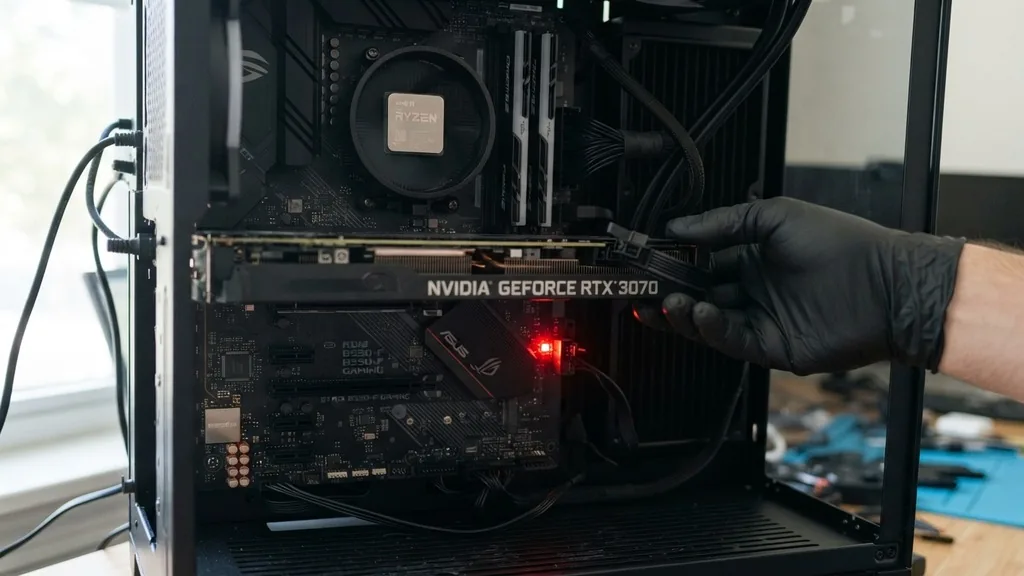
Seeing a glowing LED on your motherboard after you press the power button can be an anxiety-inducing experience, especially when your monitor remains frustratingly black. If you are wondering how to fix VGA light on motherboard errors, you are likely dealing with a communication breakdown between your system’s core components.
This light is part of the POST (Power-On Self-Test) diagnostic sequence, specifically designed to alert you that the system has failed to detect a functioning graphics card or that the display output initialization has hit a wall. While it often points toward the GPU, the root cause can range from simple loose cables to complex firmware configurations.
Understanding the VGA Diagnostic LED
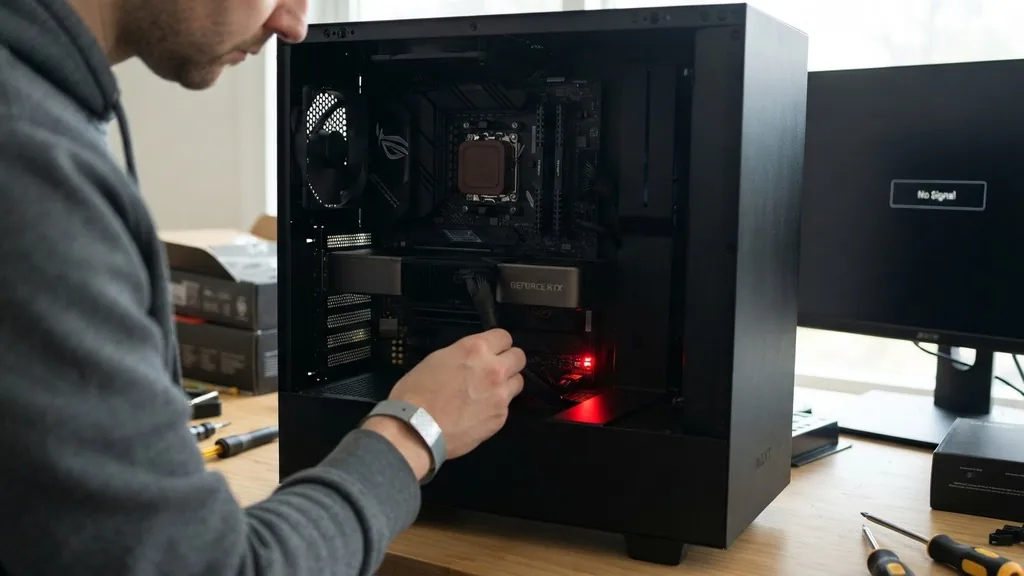
The VGA light on a motherboard serves as a visual indicator that the BIOS has encountered a problem during the initialization phase of your graphics hardware. When you switch on your PC, the motherboard cycles through a series of checks, usually involving the CPU, DRAM, VGA, and BOOT devices.
If the process hangs on the VGA indicator, it means the system cannot successfully handshake with the graphics processing unit. This does not necessarily mean your expensive hardware is dead; it simply means the motherboard cannot see or communicate with it properly at the current moment.
Most modern motherboards, especially those from manufacturers like ASUS, MSI, and Gigabyte, include these Q-LEDs or debug LEDs to help users bypass the “black screen” guessing game. A steady light indicates an active error, while a flashing or cycling light often suggests the system is currently trying to initialize the device.
When troubleshooting, it is vital to remember that the motherboard is acting as a gatekeeper. If it doesn’t receive a signal back from the PCIe slot or the connected graphics card, it halts the boot process to protect the system from potential electrical damage or further instability.
Initial Physical Inspection and Cable Connections
The most common reason for a VGA error is surprisingly simple: a physical connection that has come loose during transport, thermal expansion, or improper installation. Before you start diving into BIOS settings or software updates, perform a tactile check of all hardware connections.
Ensure that the HDMI or DisplayPort cable is plugged firmly into the GPU’s output port rather than the motherboard’s I/O panel. A common mistake for many users is accidentally connecting their monitor to the integrated graphics port on the motherboard, which is often disabled when a dedicated GPU is detected.
Beyond the display cable, you must verify the power delivery to the graphics card itself. Modern cards often require one or more 6-pin or 8-pin PCIe power cables directly from the power supply unit. If these are not seated correctly or are partially unplugged, the card may have enough power to light up its RGB LEDs but lack the necessary current to initialize the BIOS display buffer.
Unplug these cables and re-insert them until you hear a distinct click. If you are using custom sleeved cable extensions, remove them entirely to see if they are the source of a faulty connection.
Reseating the Graphics Card
If the cables are secure, the next logical step is to remove and reseat the graphics card within the PCIe slot. Over time, or due to the heavy weight of modern cooling shrouds, a GPU can sag or shift slightly, causing the gold contact pins to lose perfect electrical contact with the motherboard’s slot.
Power down your system, flip the switch on your power supply, and unplug the cord from the wall. Discharge any static electricity by touching a grounded metal object before touching the internal components.
Depress the PCIe locking tab at the back of the slot, gently pull the card out, and inspect the gold contacts for any dust or debris. You can use a clean, dry microfiber cloth to wipe the contacts. Reinsert the card firmly back into the slot until the locking tab clicks into place.
This process re-establishes the data lane connection between the card and the CPU. Sometimes, simply clearing the slot of accumulated dust can resolve the issue, as even microscopic particles can interfere with the high-speed data transfer required for video output.
Power Supply Unit and Voltage Stability
A failing or insufficient power supply unit (PSU) is a frequent culprit behind persistent VGA errors. If your PSU cannot provide stable, clean voltage to the PCIe rails during the initial power-on phase, the GPU will fail to initialize.
This is particularly common if you have recently upgraded your graphics card to a more power-hungry model without ensuring your PSU has enough wattage to handle the transient power spikes. If your system is older, the capacitors inside the unit may be degrading, leading to unstable output that causes the motherboard to flag a VGA error.
To determine if the PSU is the bottleneck, you can reference the official power supply guidelines provided by Intel to calculate if your current hardware configuration exceeds your unit’s safe operating limits. If you have access to a secondary, known-good power supply, consider swapping it in temporarily.
If the system boots successfully with the alternative PSU, you have confirmed that your original unit is likely failing or inadequate for your current build. Do not ignore this, as a failing power supply can cause long-term damage to your motherboard and storage drives.
BIOS Settings and Firmware Conflicts
Sometimes, the issue is not hardware-related but rather a configuration mismatch within the BIOS. If your system is set to prioritize integrated graphics, or if the PCIe generation settings (Gen 3 vs. Gen 4) are causing a compatibility conflict, you will see a VGA light.
Resetting the CMOS is the most effective way to revert these settings to factory defaults. This clears the temporary memory where the BIOS stores hardware configurations, forcing the motherboard to re-detect all connected peripherals from scratch.
To clear the CMOS, you can usually find a two-pin header on the motherboard labeled JBAT1 or CLRTC. Shorting these pins with a screwdriver for about 10 seconds while the PC is unplugged will reset the board. Alternatively, remove the small CR2032 coin-cell battery from the motherboard for a few minutes.
Once replaced, the BIOS will revert to its default state. This often resolves “false” VGA light errors caused by corrupted BIOS settings that were preventing the system from correctly identifying the GPU during the boot sequence.
Troubleshooting PCIe Slot Issues
Motherboards often feature multiple PCIe x16 slots, though they may operate at different speeds (e.g., x16, x8, or x4). If your primary top slot is damaged or experiencing a controller failure, the motherboard will fail to register the GPU, triggering the VGA light.
Try moving your graphics card to the second PCIe slot if your motherboard supports it. While this might result in lower bandwidth performance, it is an excellent diagnostic test to determine if the primary slot is physically faulty.
If the card works in the second slot, you have successfully isolated the issue to the first slot or the CPU’s PCIe lanes. If it still fails in the second slot, the problem is more likely the graphics card itself. Furthermore, inspect the motherboard for bent pins or debris inside the PCIe slot.
Use a bright flashlight to look deep into the connector. If you see bent pins, the board may require professional repair or replacement, as this is a physical failure that cannot be solved through software or configuration changes.
Addressing Compatibility and Driver Factors
It is worth considering whether your specific combination of hardware is compatible. For instance, some older motherboards require a BIOS update to support newer GPU architectures.
If you recently purchased a new graphics card and installed it into an aging system, the motherboard might not recognize the new hardware ID, resulting in a VGA light. In such cases, you might need to temporarily use an older GPU to boot the system, update the BIOS to the latest version, and then reinstall the new card.
Drivers, while usually only relevant once the operating system loads, can occasionally cause issues if the firmware on the GPU is incompatible with the motherboard’s UEFI settings. Ensure that your “CSM” (Compatibility Support Module) setting in the BIOS is toggled appropriately. Many modern systems prefer UEFI mode, but if you are using an older GPU, enabling CSM might be necessary to bridge the gap between legacy hardware and modern motherboard firmware.
Hardware Component Comparison Table
When diagnosing a VGA light, it is helpful to understand which components are most likely to fail based on their role in the boot process. Use the table below to categorize your troubleshooting steps.
| Component | Common Failure Mode | Diagnostic Action |
|---|---|---|
| Graphics Card (GPU) | Poor contact or dead hardware | Reseat card; test in another PC |
| PCIe Slot | Physical damage or lane failure | Use secondary slot; inspect for bent pins |
| Power Supply (PSU) | Insufficient voltage/amperage | Check power cables; test with known-good PSU |
| BIOS/UEFI | Corrupted settings/outdated firmware | Clear CMOS; update BIOS version |
Resolving Persistent VGA Light Errors
If you have tried reseating the card, clearing the CMOS, and checking all cables, and the VGA light remains, you must consider the possibility of a hardware defect. At this stage, the most definitive way to identify the culprit is through a process of elimination using parts from another machine. If you have a friend with a computer, ask to borrow their GPU for a few minutes.
If their card works in your system, your GPU is unfortunately dead or malfunctioning. If their card also triggers the VGA light, the issue lies with your motherboard or power supply.
It is also important to consider the “VGA light but works fine” scenario. Occasionally, a motherboard may show a VGA light during the POST process, but the system proceeds to boot normally into Windows.
This is often a minor bug in the motherboard’s firmware where the diagnostic LED does not turn off correctly once the display is initialized. If your system is stable, benchmarks are normal, and you have no crashes, you may choose to ignore the light, though updating your motherboard’s BIOS to the latest version is still recommended to resolve the cosmetic bug.
FAQ: Common VGA Light Questions
- What does the VGA light on my motherboard mean? It indicates that the motherboard’s BIOS has failed to initialize the graphics card during the boot process. This usually means the system cannot detect the card, the card is not receiving power, or there is a communication error between the two.
- Why is the VGA light on even though my GPU works fine? This is typically a BIOS firmware bug. If your system boots into Windows without issues, the GPU is likely functioning correctly. Check the manufacturer’s website for a BIOS update to see if they have released a patch for the LED behavior.
- Can bad RAM cause a VGA light? While the RAM has its own diagnostic light (usually DRAM), memory instability can sometimes cause the system to hang at the VGA stage. If the CPU cannot access memory, it may fail to load the video drivers or initialize the GPU properly during the boot cycle.
- How do I fix a VGA light after installing a new GPU? Start by clearing your CMOS to force the motherboard to re-detect the new hardware. Ensure your monitor is plugged directly into the new GPU and that all necessary PCIe power cables are fully inserted into the card’s power connectors.
Taking a methodical approach is the key to solving this issue. By isolating the graphics card, the motherboard slots, and the power supply, you can systematically rule out the simple fixes before deciding if expensive hardware replacement is necessary.
Always prioritize safety, ensure the power is disconnected before handling components, and take your time during the inspection process. Most of the time, the solution is just a loose connection away.


