

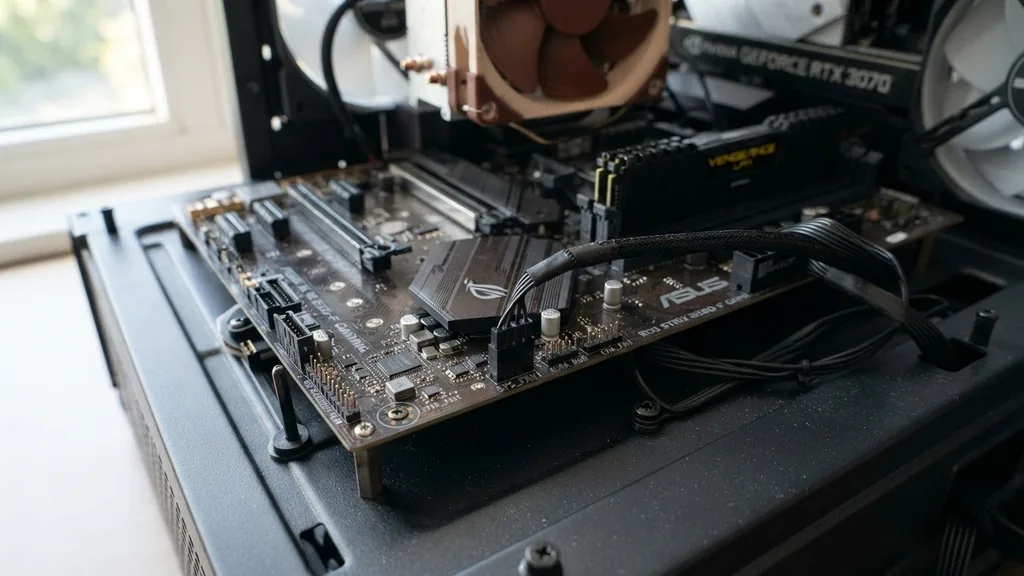
When you pop the side panel off your computer case and peer down at the motherboard, you are greeted by a sea of headers, capacitors, and sockets. Among the most critical components for maintaining the health of your rig are the fan headers.
If you have ever wondered what is sys fan on motherboard, you are essentially looking at the primary interface for managing case airflow. These headers act as the bridge between your system’s hardware and the cooling fans that prevent your components from overheating during intense workloads.
A sys fan—short for system fan—is a dedicated connector on your circuit board designed to provide power and control signals to the cooling fans installed in your computer chassis. Unlike the CPU fan header, which is specifically calibrated to respond to the temperatures of your processor, the system fan headers are versatile.
They allow you to maintain an organized thermal environment by ensuring that air is circulated efficiently across the entire interior of the case. Understanding these connectors is the first step toward optimizing your PC’s acoustic profile and thermal performance.
Defining the Sys Fan Header and Its Primary Function
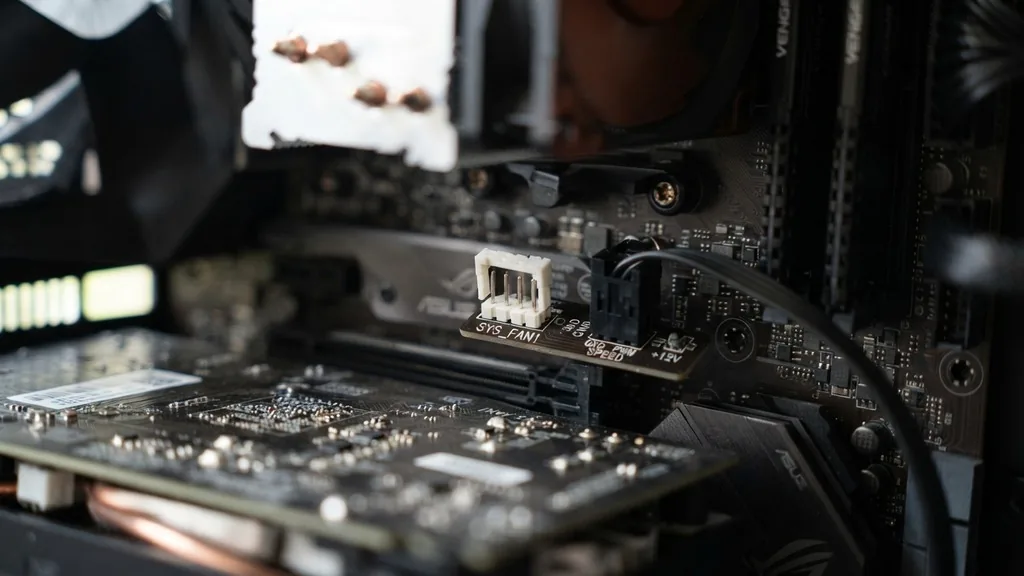
A sys fan header is a small, typically three- or four-pin block on the motherboard that supplies electricity and management signals to case fans. The primary function of these headers is to facilitate airflow, which is necessary to remove the ambient heat generated by the GPU, RAM, and storage drives. Without these headers, your components would rely solely on passive cooling, which is rarely sufficient for modern, high-performance systems.
When you connect a fan to a sys fan header, you are establishing a direct link to the motherboard’s power delivery system. The motherboard monitors the speed of the connected fan—provided it is a four-pin model—and can adjust that speed based on real-time data gathered from various thermal sensors. This ensures that when you are playing a demanding game or rendering video, the fans spin faster to push more air, and when you are simply browsing the web, they slow down to keep your computer quiet.
Manufacturers often label these as SYS_FAN1, SYS_FAN2, or CHA_FAN. Regardless of the specific naming convention used by brands like MSI, Gigabyte, or ASUS, they all serve the exact same purpose.
They are non-CPU-specific headers that provide a controlled voltage or pulse-width modulation (PWM) signal to manage fan speed. By distributing these headers across the motherboard, engineers allow for a more balanced distribution of cooling throughout the chassis.
The Difference Between 3-Pin and 4-Pin Connectors
If you are investigating what is sys fan on motherboard, you will inevitably encounter the distinction between three-pin and four-pin fan connectors. This is not just a physical difference; it is a fundamental shift in how the fan is controlled. A three-pin fan relies on voltage regulation to control speed.
The motherboard lowers the voltage supplied to the fan to slow it down and increases it to speed it up. This method is effective but can be less precise than modern alternatives.
A four-pin fan, on the other hand, utilizes Pulse Width Modulation, commonly referred to as PWM. In this setup, the four pins are designated as follows: Ground, 12V Power, Tachometer (for speed reporting), and the PWM control signal.
Because the PWM signal sends rapid on-off pulses to the motor, the fan can be controlled with much greater accuracy, even at very low speeds. This makes four-pin fans the standard for anyone looking to build a quiet, efficient system.
Most modern motherboards are backward compatible. You can plug a three-pin fan into a four-pin sys fan header, and the motherboard will usually detect it automatically.
However, you will need to enter your BIOS settings to tell the motherboard to use “DC mode” or “Voltage mode” instead of “PWM mode” for that specific header. If you leave it on PWM mode while using a three-pin fan, the fan might run at full speed constantly, creating unnecessary noise, or it might not spin at all.
Locating and Identifying Fan Headers on Your Board
Locating these headers is usually straightforward, as they are strategically placed around the edges of the board to make cable management easier. If you are building a new rig, you will want to identify these headers before you start mounting your fans. Consult your motherboard manual, as it will contain a detailed map showing the exact location of every SYS_FAN and CHA_FAN header.
If you have lost your physical manual, you can find the digital version on the manufacturer’s website. For example, if you are using an MSI motherboard, their support page will provide a high-resolution diagram of your specific model.
Look for headers near the bottom, top, or right-hand side of the board. These are the most common locations because they provide the shortest path for cables coming from the front, rear, or top of the case.
Key Differences in Fan Header Types
The following table provides a quick reference for common fan header configurations you might find inside your computer:
| Header Type | Pin Count | Primary Control Method | Typical Use Case |
|---|---|---|---|
| CPU_FAN | 4-Pin | PWM | CPU Cooler |
| SYS_FAN | 3 or 4-Pin | Voltage or PWM | Case Airflow |
| PUMP_FAN | 4-Pin | PWM/Fixed Voltage | Liquid Cooling Pump |
Managing Fan Speeds Through the BIOS
Once your fans are connected to the sys fan headers, the real magic happens in the BIOS. Modern motherboards offer sophisticated fan curves that allow you to define exactly how your fans should behave based on temperature thresholds.
You can access the BIOS by tapping the Delete or F2 key during the initial boot sequence. Once inside, look for a tab labeled “Hardware Monitor,” “Smart Fan,” or “Fan Control.”
In this menu, you can map out a curve. For instance, you might decide that your system fans should run at 30% speed when the system is idling and ramp up to 75% once the CPU temperature crosses 60 degrees Celsius.
This level of customization is what separates a generic computer from a refined, optimized machine. By using this data to inform your cooling strategy, you can achieve a perfect balance between thermal performance and acoustic comfort.
Some motherboards also allow you to tie the speed of a sys fan to the temperature of the GPU or the motherboard’s chipset rather than just the CPU. This is particularly useful if your GPU generates a lot of heat that accumulates in the case. By increasing the speed of the intake fans based on GPU temperature, you can exhaust that hot air more effectively, keeping the entire rig running cooler under load.
Common Troubleshooting Tips for Sys Fan Issues
Sometimes, things do not go according to plan. You might connect a fan, turn on your computer, and see a “CPU Fan Error” or a “System Fan Not Detected” message on your screen. This is a common error, and it is usually easy to fix.
First, ensure the connector is fully seated. It is surprisingly easy for a fan header to be slightly loose, preventing the tachometer signal from reaching the motherboard.
If the header is connected properly, check your BIOS settings. As mentioned earlier, if you are using a three-pin fan on a four-pin header, the BIOS might be trying to send a PWM signal that the fan does not understand.
Switching the control mode to “DC” or “Voltage” in the BIOS is the solution in 90% of these cases. If the fan still refuses to spin, try plugging it into a different sys fan header on the board to rule out a faulty motherboard connector.
Another point to consider is the total power draw. While most sys fan headers are rated for 1 Amp (12W), some high-performance fans, especially those with aggressive lighting or multiple motors, can draw more power. If you are daisy-chaining several high-speed fans onto a single header using a splitter, you risk overloading the circuit.
Always check the power rating of your fans and the limit of your motherboard header to avoid damaging the board. For more technical details on hardware standards, you can refer to the 4-pin PWM fan specification provided by industry experts.
Integrating Multiple Fans with Splitters and Hubs
When you have more fans than you have sys fan headers, you might feel stuck. However, you don’t necessarily need to upgrade your motherboard. Fan splitters and powered hubs are excellent tools for managing multiple fans from a single header.
A simple Y-splitter allows you to connect two fans to one header. The motherboard will read the speed of only one of those fans (the one with the full pin count), and both fans will receive the same speed signal.
If you are running three or more fans from a single header, a powered fan hub is a better choice. Unlike a simple splitter, a hub draws power directly from your power supply unit (PSU) via a SATA or Molex connector.
The motherboard header is then used only to send the PWM control signal. This prevents the motherboard from being overwhelmed by the power requirements of multiple fans while still giving you centralized control over their speed.
Using a hub is an effective way to keep your cable management clean. Instead of running four or five individual fan wires across your motherboard, you can route them all to a hub hidden behind the motherboard tray. This not only makes your rig look professional but also improves airflow by reducing the amount of clutter inside the main chamber of the case.
Optimizing Airflow Patterns for Better Performance
Knowing what is sys fan on motherboard is only half the battle; knowing how to arrange your fans is the other half. The most common configuration is a “front-to-back” airflow pattern.
This involves mounting fans at the front of the case to pull cool, fresh air in, and fans at the rear or top to exhaust the hot air out. This creates a directional flow that moves heat away from your high-temperature components like the CPU and GPU.
You should aim for “positive pressure” in your case. This means you have more intake fans than exhaust fans.
Positive pressure helps keep dust out of your system, as air is forced out through the gaps in the case rather than being sucked in through unfiltered vents. If you have a specific sys fan header dedicated to a bottom-mounted intake fan, make sure that fan is pushing air directly toward your graphics card.
Remember that air behaves like water; it follows the path of least resistance. If you have too many fans, they can actually fight each other, creating turbulence that traps heat rather than moving it.
Experiment with your fan curves to ensure that your intake fans are providing enough volume to offset the heat being generated. You will find that even a small adjustment to your sys fan settings can lead to a significant drop in component temperatures.
Addressing Topical Gaps and Advanced Concepts
A common question is whether you can use a sys fan header for a liquid cooling pump. While some motherboards have a dedicated “PUMP” header, a sys fan header can often be used if the pump is PWM-controlled.
However, you must ensure that your pump’s power draw does not exceed the header’s limit. Many users make the mistake of assuming all headers are equal, but a pump often requires a constant, high current that could be risky for a standard header.
Another gap in many discussions is the impact of software-based control. Many users prefer to use software like MSI Center or third-party utilities to manage their fans from within Windows.
This is a great way to monitor your system in real-time and make adjustments without needing to restart and enter the BIOS. However, relying solely on software can be problematic if the application crashes or fails to launch on startup.
Using the BIOS to set your “base” fan curve—a safe, permanent configuration—is always the best practice. Then, use software only for temporary adjustments, such as setting a “gaming profile” that cranks up the fans while you are active. This ensures that even if your software fails, your hardware remains protected by the base settings hard-coded into the motherboard.
Frequently Asked Questions
- Can I plug a case fan into the CPU fan header? Yes, you can. However, the fan will be controlled by the CPU temperature. If you do this, ensure your BIOS is configured to handle the specific fan type, or you may receive a warning that no CPU fan is detected.
- Why does my sys fan spin at full speed all the time? This usually happens because the BIOS is set to “Full Speed” or “Disabled” for that header. Enter the BIOS fan control menu and set the control mode to PWM or DC, then apply a custom fan curve to regulate the speed.
- Does it matter which sys fan header I use? Generally, no. All sys fan headers are functionally identical. You should choose the header that is physically closest to your fan to ensure the cable reaches comfortably without being pulled tight or requiring an extension cable.
- What happens if I plug a fan into the wrong header? Nothing bad will happen. The worst case is that the fan will not be controlled correctly, or the motherboard might report an error if it doesn’t detect a fan where it expects one. You can safely experiment with different headers.


