

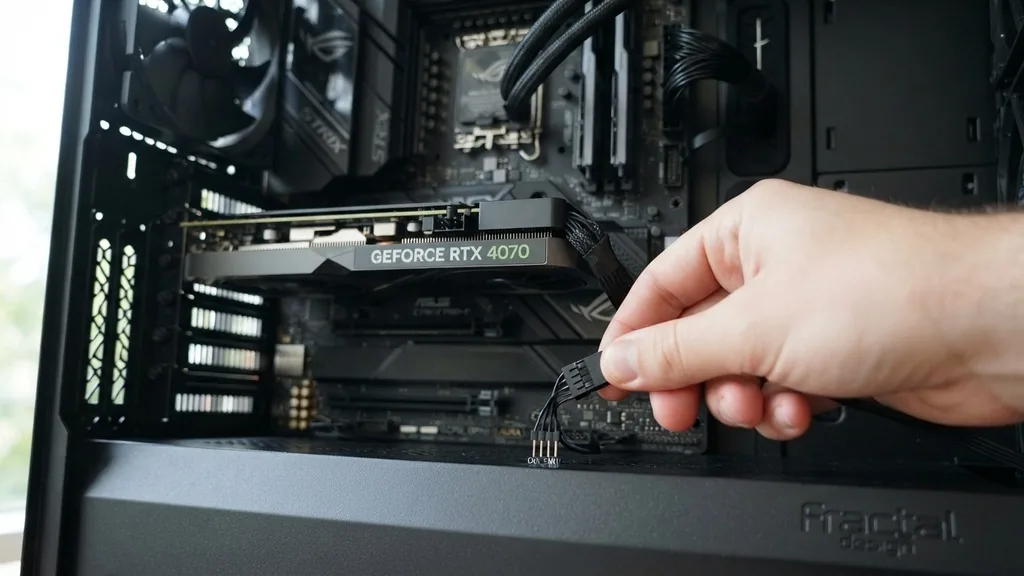
Building or upgrading a computer often leaves enthusiasts staring at the printed circuit board, wondering exactly where to plug in case fans on motherboard headers to ensure optimal performance. While the process seems straightforward, the variety of headers—labeled differently across manufacturers—can cause confusion.
Proper installation is critical for maintaining healthy internal temperatures, preventing thermal throttling, and ensuring your components have a long, stable lifespan. By correctly identifying the available connections, you can leverage your system’s built-in cooling intelligence, allowing for automated speed adjustments based on real-time heat levels.
Identifying the Correct Motherboard Fan Headers
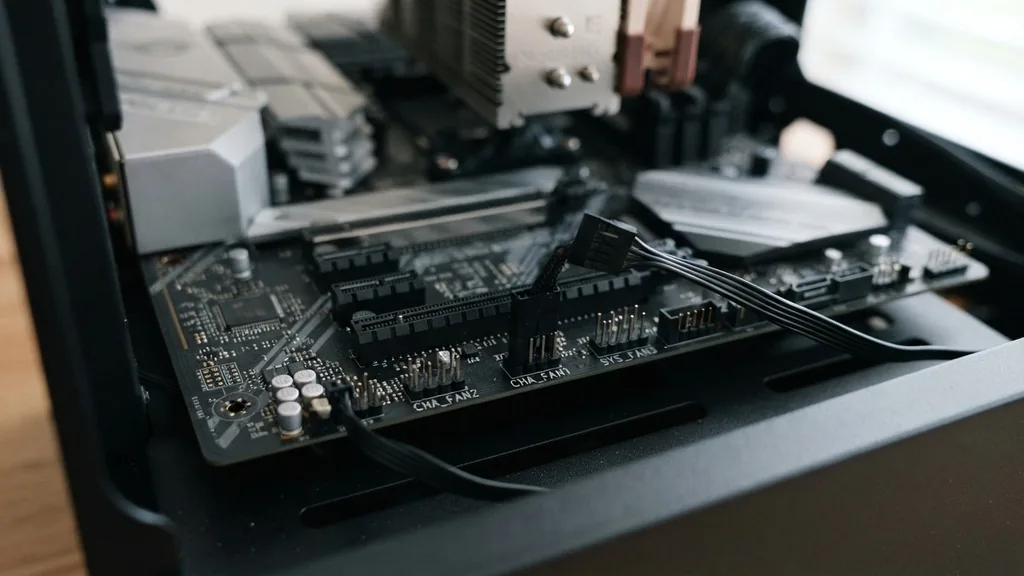
The correct place to connect your case fans is any header labeled as a chassis fan port, typically marked as SYS_FAN, CHA_FAN, or CASE_FAN on your board’s surface. These headers are specifically designed to power and control the fans that manage the internal airflow of your computer case.
It is vital to distinguish these from the CPU_FAN header, which is exclusively reserved for the cooling fan attached to your processor’s heatsink or radiator. The CPU header is managed by the BIOS to ramp up speed aggressively as the processor temperature rises, whereas chassis headers usually follow a more balanced, case-wide cooling curve.
Most modern motherboards include several of these headers distributed around the perimeter of the board to allow for clean cable management. If you are struggling to locate them, consult your motherboard manual.
The manual provides a detailed layout map, clearly identifying the location and pin configuration of every header on the board. Always prioritize these onboard headers over direct power supply connections whenever possible, as motherboard-controlled fans can be monitored and adjusted through software, providing a much higher degree of control over your system’s noise and cooling profile.
Understanding the Difference Between 3-Pin and 4-Pin Connectors
You will frequently encounter two main types of fan connectors: 3-pin and 4-pin. Understanding the technical distinction is key to knowing how your motherboard will interact with the fan.
A 4-pin header supports PWM (Pulse Width Modulation), which allows the motherboard to send a specific signal to the fan to adjust its speed precisely without varying the voltage. A 3-pin connector, on the other hand, relies on voltage regulation to control speed; the motherboard lowers or increases the electrical current supplied to the fan to make it spin faster or slower.
Fortunately, these standards are physically compatible. You can plug a 3-pin fan into a 4-pin header, and it will function perfectly. The header will simply detect the lack of a PWM signal and switch to DC voltage control automatically.
However, when plugging a 3-pin fan into a 4-pin slot, ensure you align the plastic guide rail on the fan connector with the tab on the motherboard header to ensure the pins are seated correctly. You will notice that the fourth pin on the header remains exposed, which is perfectly normal and does not indicate an installation error.
| Connector Type | Speed Control Method | Pin Count | Performance Benefit |
|---|---|---|---|
| PWM Fan | Digital Signal (PWM) | 4-Pin | Precise, quiet, and efficient |
| DC Fan | Voltage Regulation | 3-Pin | Simple, reliable, cost-effective |
Managing Fan Limits and Using Splitters
If your case has more fans than your motherboard has available headers, you are not necessarily out of luck. Many users turn to a fan splitter to connect two or even three fans to a single SYS_FAN header. While this is a common and effective solution, you must be mindful of the electrical load.
Motherboard headers are rated for a specific amperage—usually 1 amp per header. If you pull too much power from a single port by daisy-chaining too many high-performance fans, you risk damaging the fan controller on your motherboard.
For most standard case fans, connecting two fans to a single header via a quality splitter is perfectly safe. However, if you are planning to run three or more fans from one spot, you should look into a powered fan hub.
A hub connects to a single motherboard header for the speed signal but draws its primary power directly from the power supply via a SATA power adapter. This setup ensures that your motherboard’s delicate circuits are protected from over-current while still allowing you to monitor and control the RPM monitoring for all connected fans through the BIOS.
Configuring BIOS Fan Control for Optimal Airflow
Once you have physically plugged in your fans, the next step is ensuring they are actually doing their job through BIOS fan control. Upon booting your computer, press the designated key (usually Delete or F2) to enter the BIOS interface. Look for a section often labeled as “Monitor,” “Hardware Monitor,” or “Smart Fan.”
Here, you can define custom curves that dictate how fast your fans should spin based on temperature thresholds. This is the heart of airflow optimization, as it allows your system to remain virtually silent during light tasks like web browsing while ramping up to full speed during heavy gaming or rendering sessions.
In this menu, you should also verify that the motherboard has correctly identified the fan type. Most modern boards have an “Auto” setting that detects whether a fan is 3-pin or 4-pin, but if you notice a fan running at 100% constantly or not spinning at all, you may need to manually toggle the setting between “PWM” and “DC” mode. Setting this correctly allows the board to apply the right control method, preventing unnecessary noise and potentially extending the lifespan of your cooling hardware.
Addressing Common Topical Gaps
Many users ask about the risks of daisy-chaining fans or whether plugging a fan into the wrong header will cause immediate failure. One common misconception is that a chassis fan port can only run at full speed. In reality, almost all modern motherboards provide full speed-control capabilities for every fan header on the board.
Another frequently overlooked detail is the physical clearance required for connectors. When building in tight cases, ensure that your fan cables are routed behind the motherboard tray to prevent them from interfering with the blades of the fans themselves, which can cause vibrations or permanent motor damage over time.
Another point of confusion involves ARGB (Addressable RGB) lighting. It is essential to distinguish between a fan’s power cable and its lighting cable. While the fan motor connects to a SYS_FAN header, the light-emitting diodes require an ARGB header to sync with your motherboard’s software.
These are physically different connectors; trying to force an ARGB plug into a fan header will not work and can damage the lighting controller. Always check your official motherboard technical documentation to identify the specific pinout for these headers, as they often carry different voltages—typically 5V for ARGB versus 12V for standard RGB.
The Impact of Fan Placement on Cooling Efficiency
Knowing where to plug in your fans is only half the battle; knowing where to place them is the other. Your goal should be to create a balanced flow of air that moves cool air in from the front and bottom, and pushes hot air out through the back and top.
If you have limited headers, prioritize your exhaust fans first. A system that cannot vent hot air effectively will suffer from heat soak, where components warm up the air inside the case, creating a cycle of diminishing returns for your cooling efforts.
When you have multiple intake fans, try to keep their speed slightly lower than your exhaust fans to maintain a “negative pressure” or “neutral pressure” environment. This helps prevent dust buildup by forcing air to enter only through filtered intakes.
If you are using a fan hub, you can easily group your intake fans on one header and your exhaust fans on another, allowing for granular control. This level of customization ensures that you aren’t just moving air, but directing it specifically over the components that need it most, such as the graphics card and the storage drives.
Troubleshooting Common Fan Installation Issues
Sometimes, despite following all instructions, a fan may behave unexpectedly. If a fan is not spinning, first check the physical connection to ensure it is seated firmly on the pins. It is surprisingly easy to offset the connector by one pin, which will result in no power reaching the fan.
If the connection is secure but the fan is still dead, test it by plugging it into a different chassis fan port. If it works in a different port, the issue lies with the original header configuration in the BIOS.
If a fan is spinning at maximum speed and won’t slow down, it is almost certainly a conflict between the fan type and the header mode. As mentioned previously, if a 3-pin fan is running at full speed, the motherboard may be trying to send a PWM signal to a fan that doesn’t understand it.
Manually forcing the header into “DC” or “Voltage” mode in the BIOS will usually solve this immediately. Conversely, if you have a 4-pin PWM fan that is erratic, ensure it is set to “PWM” mode rather than “Auto” to ensure the motherboard sends the correct digital control signal consistently.
Maintenance and Long-Term Reliability
Once you have everything set up, your fans will likely run for thousands of hours. However, they are mechanical devices and will eventually accumulate dust, which can unbalance the blades and put strain on the bearing.
Every six to twelve months, it is a good practice to use compressed air to clean out the fan blades and the radiator or heatsink fins. If you notice a rattling sound, it is often a sign that the bearing is failing or that the fan is loose in its mount.
When replacing a fan, take the opportunity to revisit your cable management. Use zip ties or velcro straps to bundle excess wire length, keeping the path clear for air to move without obstruction.
A clean build isn’t just about aesthetics; it is about performance. By keeping the interior free of tangled cables and ensuring that every fan is correctly plugged into a functional SYS_FAN header, you ensure that your investment in high-quality hardware is protected by a cooling system that works exactly as intended, keeping your temperatures low and your system stable for years to come.
Frequently Asked Questions
- Can I plug a 3-pin fan into a 4-pin motherboard header? Yes, you can safely plug a 3-pin fan into a 4-pin header. The fan will fit over three of the four pins, and the motherboard will automatically detect the fan type and adjust the speed using voltage regulation instead of the PWM signal.
- What happens if I plug my case fan into the CPU_FAN header? While it will technically work, it is not recommended. The CPU_FAN header is specifically designed to adjust speed based on processor temperature. If you plug a case fan there, its speed will fluctuate wildly based on your CPU load, which can be noisy and inefficient for case cooling.
- How many fans can I safely connect to one motherboard header? Generally, you should not exceed 1 amp of total current draw per header. Most standard fans use about 0.1 to 0.3 amps, meaning you can safely use a 2-way or 3-way splitter, but for more than that, a powered fan hub connected to a SATA cable is necessary.
- Is it better to connect fans to the motherboard or the power supply? Connecting to the motherboard is superior because it allows for automatic speed control via BIOS or software. Connecting directly to the power supply via a molex or SATA adapter usually forces the fans to run at 100% speed constantly, which is loud and unnecessary for most tasks.


