

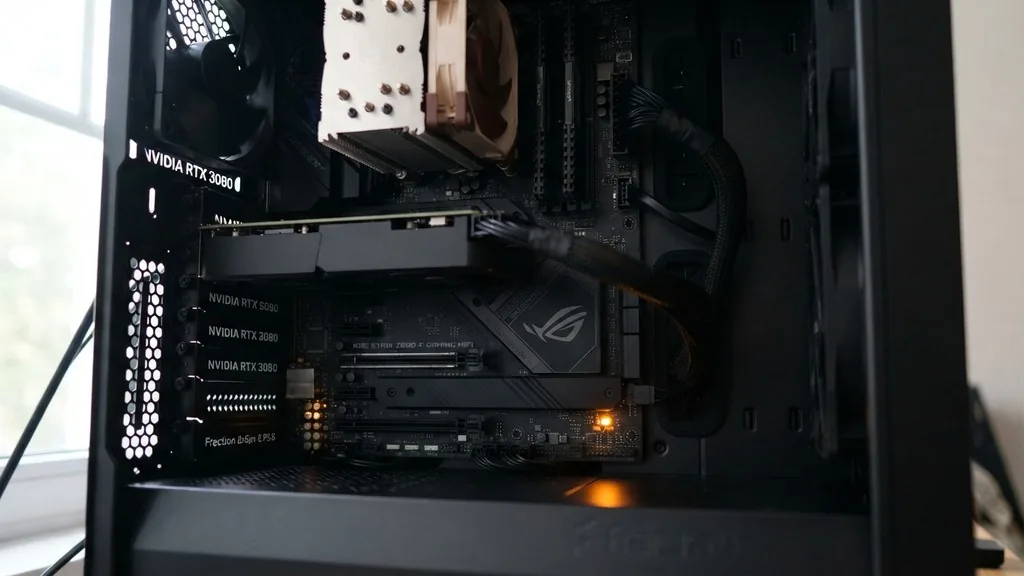
It is a sinking feeling to press the power button on your desktop, only to be met with total silence. You see the faint glow of an LED on your motherboard, signaling that the board is receiving juice, yet the fans don’t spin, the screen remains black, and the machine refuses to boot.
When your PC won’t turn on but motherboard light is on, you are dealing with a classic diagnostic challenge where the power delivery system is partially functional, but the signal to initiate the boot sequence is failing. This scenario often points toward a breakdown in communication between the power supply, the motherboard, and the secondary components like your CPU or RAM.
Understanding the Power Distribution Hierarchy
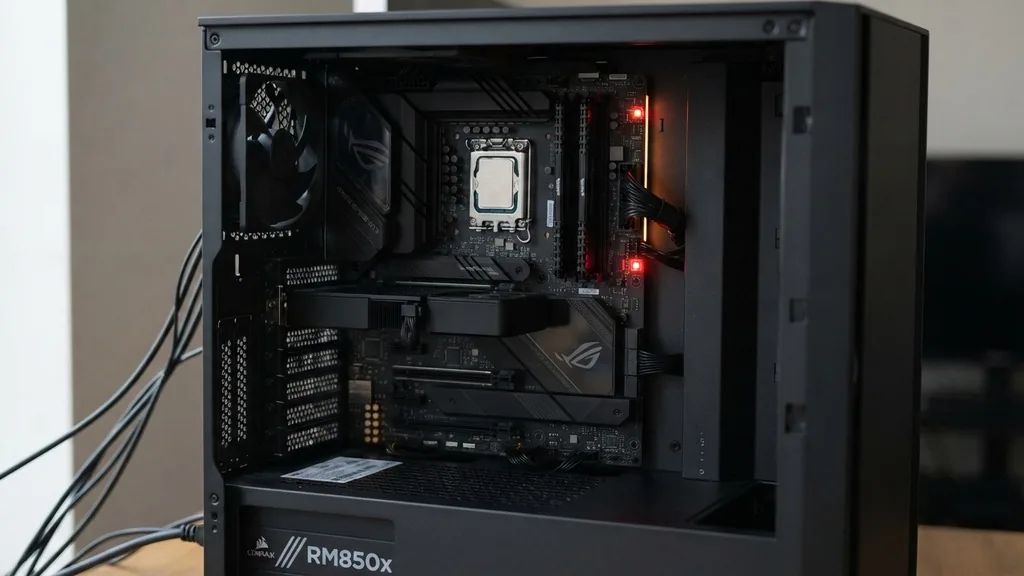
When your motherboard shows a light, it proves that the power supply (PSU) is successfully providing standby power, often referred to as +5VSB. This voltage is responsible for keeping the board’s management chip alive so it can listen for the power button signal. If the system fails to move beyond this state, the issue usually lies in the handoff between the standby power and the main power rails (the 12V, 5V, and 3.3V lines) that actually run your processor and graphics cards.
The motherboard acts as the central nervous system of your computer. Even if it has standby power, it needs a “Power Good” signal from the PSU to confirm that all voltages are stable before it allows the CPU to begin its startup routine.
If the PSU is faulty, it might provide enough power for an LED but fail to provide the consistent, clean current required for the system to POST (Power-On Self-Test). Identifying whether this is a component failure or a loose connection is the primary goal of your troubleshooting process.
Performing a Basic Power Cycle and Reset
The simplest way to address a system that refuses to boot is to perform a full power drain. Sometimes, the motherboard’s CMOS chip or power management IC enters a locked state due to a static electricity buildup or a minor electrical glitch. To clear this, completely disconnect the power cable from the back of the PSU.
Once it is unplugged, hold down the physical power button on your case for at least 30 to 60 seconds. This forces the capacitors on the motherboard and inside the PSU to discharge any remaining energy.
After the discharge, plug the power cable directly into a wall outlet rather than a power strip or surge protector. If the system starts, you know your power strip was likely the culprit.
This step is a common fix for many users because it resets the internal state of the hardware without requiring you to open the chassis. If you still see the motherboard light but nothing happens, you have successfully ruled out a simple power glitch and can move on to more involved hardware checks.
Inspecting Internal Cable Connections
Loose cables are surprisingly common, especially if the computer was moved recently. Even if a connector looks firmly seated, vibration or heat cycles can cause pins to lose solid contact.
Focus your attention on the two main power connectors: the 24-pin ATX cable and the 8-pin (or 4+4 pin) CPU power cable located near the processor socket. These are the primary lifelines for your system.
Remove the 24-pin connector by pressing the locking tab firmly and pulling straight out. Inspect the plastic housing for any signs of melting or discoloration, which could indicate a short circuit or a loose pin creating excess heat. Reconnect it, ensuring you hear a distinct “click.”
Do the same for the CPU power cable. If you have modular power supply cables, check the other end where the wires meet the PSU itself, as these can also become loose over time. A faulty connection here is a frequent reason why a computer fails to progress past the initial standby light.
Testing the Power Button and Front Panel Headers
Your case’s power button is essentially a momentary switch. It sends a short electrical signal to the motherboard header to tell the system to “start.”
If this switch is broken or the wire has snapped, the motherboard will sit there with its standby light on, waiting for a signal that never arrives. You can test this by manually jumping the power pins on the motherboard.
Consult your motherboard manual to identify the “PWR_SW” or “Power Switch” pins on the front panel header. These are usually two small pins grouped with the reset switch and LED pins. Using a flathead screwdriver, gently touch both pins simultaneously for a brief second to create a bridge.
If the computer boots, your case’s power button is the source of the problem. This is a highly effective way to isolate the case hardware from the core internal components.
Isolating Faulty RAM and Peripheral Cards
A malfunctioning RAM stick is a leading cause of a PC failing to boot while the motherboard remains powered. If the motherboard cannot initialize the memory, it will often hang before it can even spin up the fans or show a display. To test this, remove all but one stick of RAM.
Try booting with that single stick in different slots. If that fails, try the other stick in various slots.
Beyond RAM, other cards can short out the system. If you have a dedicated graphics card, remove it and see if the system responds—assuming your CPU has integrated graphics. If the machine boots without the GPU, the graphics card might be drawing too much power or causing a short circuit, preventing the system from reaching the POST stage.
| Component | Common Symptom | Troubleshooting Action |
|---|---|---|
| Power Supply | Standby light on, zero response | Perform paperclip test or use PSU tester |
| RAM | Lights on, no boot, fans spin briefly | Reseat or test sticks individually |
| Graphics Card | Lights on, no display, system hangs | Remove card, test with integrated video |
| CPU | Lights on, no fan movement | Check 8-pin power and socket seating |
Verifying the Power Supply Unit Health
If you have tried the steps above and the system still refuses to start, the PSU itself is the prime suspect. Even if it provides standby power, the main rails might be dead.
You can perform a “paperclip test” on the 24-pin connector to see if the PSU fan spins when you manually bridge the green wire (Power On) to any black wire (Ground). Please exercise caution here, as you are working with live electricity.
If the fan inside the PSU does not spin during this test, the unit has failed. However, keep in mind that some modern power supplies have a “zero RPM” mode where the fan won’t spin until a certain load or temperature is reached, so a lack of fan movement doesn’t always confirm a dead unit. For a more definitive answer, you would need a multimeter to measure the voltage on the pins while the unit is jumpered, or you can check the official documentation at Intel’s support resources to learn about standard ATX power specifications.
Addressing Motherboard Short Circuits
Sometimes the motherboard is perfectly fine, but it is being prevented from starting because it is touching the computer case. This is known as a short circuit. If a screw has fallen behind the motherboard, or if the standoffs that elevate the board off the metal case are missing or misaligned, the board will detect the short and refuse to power on for safety reasons.
To rule this out, you may need to perform a “breadboard” test. This involves taking the motherboard out of the case and placing it on a non-conductive surface, such as the cardboard box it came in. Connect only the absolute essentials: the CPU, one stick of RAM, and the power cables.
If the system boots up while sitting on the cardboard, you have a short circuit in your case. You will need to inspect the standoffs and ensure no rogue screws are hiding behind the motherboard tray.
Topical Gaps: Why Some Lights Are Always On
A common point of confusion is why the motherboard light stays on even when the PC is off. Many modern boards feature “Always-On” LED lighting or status indicators for features like BIOS flashback, network activity, or audio shielding.
These lights are powered by the 5VSB rail, which remains active as long as the PSU is plugged into a wall. It does not necessarily indicate that the board is “working” or that it is ready to boot.
Another gap is the distinction between a “soft” failure and a “hard” failure. A soft failure might be a corrupted BIOS that prevents the system from completing the POST sequence, often solvable by resetting the CMOS battery. A hard failure is a physical component death, such as a blown capacitor or a fried voltage regulator module (VRM).
If you see a specific diagnostic LED on your motherboard—often labeled CPU, DRAM, VGA, or BOOT—this is a massive clue. If the CPU LED is lit, the board is telling you exactly where the problem is. Always check your motherboard manual for the meaning of these specific debug lights, as they are your best friend during a system crash.
Final Steps and Professional Assessment
If you have exhausted all these steps—cleared the power, reseated RAM, tested the PSU, and checked for shorts—you are likely facing a motherboard or CPU failure. These components are difficult to test without spare parts. If you have a friend who can lend you a spare power supply or a compatible processor, that is the best way to confirm which part has died.
If you do not have spare parts, it may be time to consult a professional repair shop. They have specialized diagnostic equipment, such as post-code readers and power supply testers, that can pinpoint a faulty rail or a dead voltage regulator in minutes.
While it is frustrating when a computer fails, approaching the problem methodically ensures you don’t replace expensive parts unnecessarily. Start with the easiest, non-invasive steps first, and work your way down to the core hardware.
Frequently Asked Questions
- Why does my motherboard light stay on if the PC is off? This is normal. Most motherboards provide standby power (5VSB) to the board even when the computer is shut down. This allows the system to respond to power button presses, wake-on-LAN commands, or keep internal LED lighting active. It does not mean the system is failing.
- Can a failing power supply cause a motherboard light but no boot? Yes, absolutely. A power supply has multiple voltage rails. If the standby rail is working, the motherboard light will glow. However, if the main 12V rail—which powers the CPU and GPU—is faulty, the system will never receive the signal to complete the boot process.
- What should I do if the motherboard debug light is on? Look for a label next to the light, such as CPU, DRAM, or VGA. This is a built-in diagnostic indicator. If the DRAM light is on, focus on your RAM sticks. If the CPU light is on, check your processor seating and the 8-pin power cable.
- Is it safe to leave the PC plugged in after a failure? If you suspect a short circuit or a faulty power supply, it is best to unplug the machine from the wall. Leaving a damaged PSU plugged in can potentially lead to further electrical damage to your motherboard or other components due to voltage spikes or instability.


