

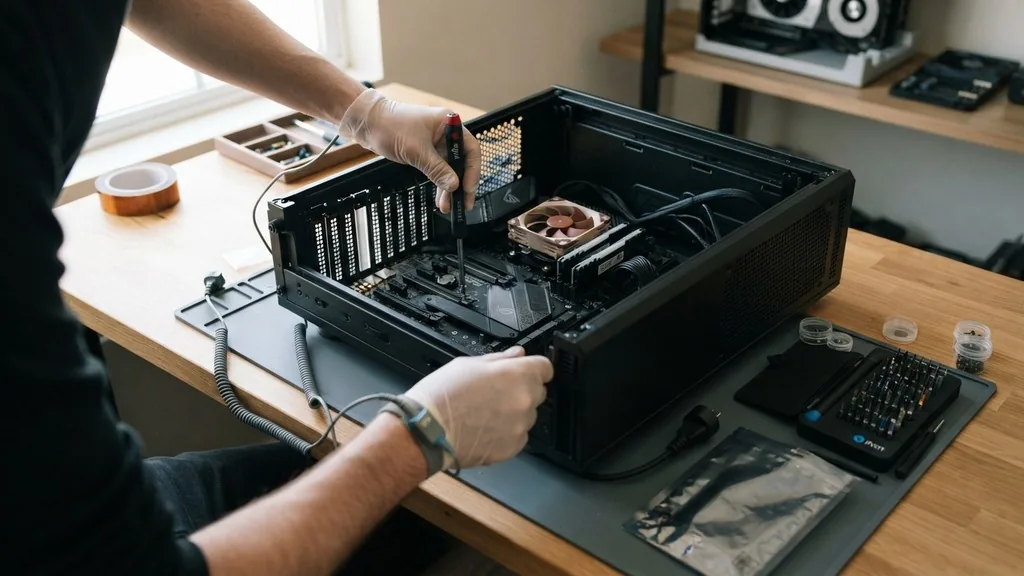
Removing a motherboard from a desktop PC is a task that often intimidates users, yet it is a fundamental skill for anyone looking to upgrade their hardware, troubleshoot system-wide failures, or migrate components to a new chassis. Because the motherboard acts as the central nervous system for your entire computer, connecting every critical component from the CPU to the storage drives, the process requires patience, organization, and a methodical approach. You are essentially dismantling the core architecture of your machine, so taking the time to understand the physical layout and the sequence of removal is essential to ensuring that your parts remain undamaged during the transition.
Preparing Your Workspace and Preventing Static Damage
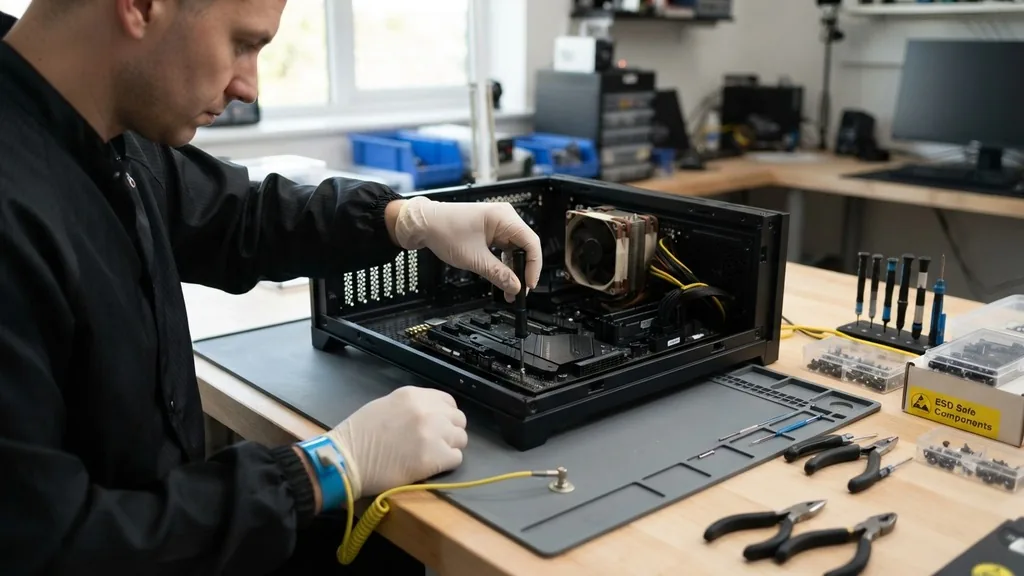
To safely remove a motherboard, you must first create a clean, well-lit workspace and take necessary precautions against static electricity. ESD (electrostatic discharge) is the silent killer of sensitive electronic components, as even a tiny spark invisible to the human eye can permanently fry the delicate circuitry on your PCB. Before you touch any internal components, ensure your PC is completely unplugged from the power outlet.
Press the power button on the case several times to drain any residual charge stored in the capacitors. It is highly recommended that you use an ESD wrist strap to ground yourself to the chassis, which keeps your electrical potential equal to that of the computer parts.
If you don’t have a wrist strap, touch a large, unpainted metal object like the PC case frame frequently to discharge yourself. Clear off a large table or desk where you can lay the case down on its side. Organize your tools, specifically a high-quality magnetic Phillips head screwdriver, which will be your primary implement for the duration of the removal process.
Keeping a small bowl or magnetic tray nearby to hold the various screws is vital; nothing is more frustrating than losing a tiny screw inside a carpeted room. By preparing your environment, you eliminate the risk of accidental drops or lost hardware that could delay your project.
Removing Peripherals and Internal Expansion Cards
Before you touch the motherboard itself, you must clear the area by removing all expansion cards and cables. Start by disconnecting all external cables from the back panel, including the power cable, monitor cables, and USB peripherals. Once the case is open, focus on the GPU, which is typically the largest and most obstructive component.
Unscrew the retention bracket on the back of the chassis and press the small plastic release tab on the PCIe slot to safely slide the card out. Be gentle; if it doesn’t move easily, ensure you have fully removed all the screws securing it to the case.
Next, address the other components that might interfere with your access. If you have any PCIe sound cards, network cards, or capture cards, remove them using the same method as the GPU. Organize the cables you have unplugged, such as the SATA cables connecting your hard drives or SSDs, to keep them out of your way.
If your RAM modules are positioned in a way that blocks access to the mounting screws near the top of the board, you may choose to remove them now, although it is not strictly necessary unless they impede your physical movement. Removing these auxiliary parts reduces the weight and complexity of the board, making it much safer to handle when it comes time to unscrew the motherboard from the tray.
Managing Power Cables and Internal Connectors
The motherboard is tethered to the power supply unit via several distinct cables that must be disconnected before the board can be lifted. The most prominent of these is the 24-pin ATX power connector, usually located on the right-hand side of the board. This cable can be quite stiff and difficult to remove; wiggle it slightly from side to side while pressing the locking tab to release it.
Do not pull directly on the wires, as you risk damaging the connection points. Next, locate the 8-pin EPS connector, which typically resides at the top left corner of the motherboard near the CPU socket. This cable provides power to the processor and often has a very tight clip that requires a firm, steady press.
Beyond the main power cables, you will encounter a variety of smaller headers. These include the front panel connectors for your power button, reset switch, and LED indicators, as well as the HD audio and USB headers. It is helpful to take a quick photo of these connections before unplugging them so you can easily map them out when you eventually perform a reinstallation.
Once all these cables are disconnected, bundle them together and tuck them to the side of the chassis so they do not snag on the motherboard as you lift it out. Ensuring that every single cable is free is a critical step; even one forgotten cable can cause you to pull on the board unnecessarily, potentially damaging a delicate header.
Dealing with the CPU Cooler and Thermal Paste
Depending on the size of your CPU cooler and the clearance inside your case, you may need to remove the cooler before the motherboard can be extracted. Large air coolers can often block the mounting screws located at the top of the motherboard, while some liquid cooling blocks might be permanently attached to the chassis.
If you are using a stock cooler with push-pins, they are generally easy to disengage by rotating them and pulling upward. If you are using a more complex aftermarket cooler with a backplate, ensure you support the backplate from behind the motherboard tray if the case opening is large enough.
When removing the cooler, be mindful of the thermal paste, which acts as a heat-conductive bridge between the CPU and the heat sink. If the paste is old and dried, it can create a strong suction effect. Gently twist the cooler back and forth to break the seal before pulling it away from the processor.
Avoid pulling straight up with force, as you risk pulling the CPU out of its socket, which can bend the delicate pins on the processor or the motherboard socket. Once the cooler is off, set it aside on a non-conductive surface. If you are not replacing the processor, protect the CPU socket with its plastic cover to prevent accidental damage to the pins while the board is being handled.
Unscrewing the Motherboard from the Chassis
With all cables and obstructive components removed, you are finally ready to unscrew the motherboard from the motherboard tray. Most standard ATX or Micro-ATX boards are secured by six to nine screws.
These screws typically fasten into standoff screws, which are small brass pillars that elevate the motherboard slightly above the metal tray to prevent short-circuiting. Use your Phillips head screwdriver to carefully remove each screw, placing them in your magnetic tray immediately.
It is wise to remove the screws in a cross-pattern, similar to how you would remove lug nuts from a car tire, to ensure that the pressure is released evenly across the board. Once the screws are removed, try to lift the motherboard gently. If it feels stuck, do not force it.
Check the back panel to ensure the I/O shield is not catching on the board or that a stray cable hasn’t snagged underneath. The board should feel loose and ready to lift. If you encounter resistance, look for a hidden screw that you might have missed near the center or bottom of the board, which is sometimes obscured by wires or drive cages.
The I/O Shield and Chassis Clearance
One of the most overlooked aspects of removing a motherboard is the I/O shield, the thin metal plate that surrounds the ports on the back of your computer. In many older or budget-friendly cases, this shield is a separate, snap-in component.
When you pull the motherboard out, be aware that the I/O shield might stay attached to the case or fall out unexpectedly. If it stays in the case, it can sometimes scrape against the motherboard ports as you move it, so be careful to pull the board away from the back of the case horizontally before tilting it.
If your motherboard has an integrated I/O shield—a feature common on higher-end enthusiast boards—it is permanently attached to the rear of the board. This makes the removal process slightly easier because you don’t have to worry about a loose piece of metal flapping around. However, it also means the board might be slightly wider or heavier at the rear.
When lifting, hold the board by its edges, avoiding the components and circuitry on the surface. Lift it straight up and out of the chassis, keeping it level to avoid bumping the standoff screws against the back of the PCB.
Table: Common Motherboard Screw Types and Handling
To assist with your organization, the following table summarizes the common hardware you will encounter during the removal process and how to handle them.
| Component | Mounting Hardware | Handling Tip |
|---|---|---|
| Motherboard | Phillips Head Screws | Use a magnetic driver; do not overtighten during reinstallation. |
| Standoff Screws | Brass Pillars | Ensure they stay in the case tray; do not lose these. |
| GPU | Thumbscrews or Phillips | Always press the PCIe release tab before pulling. |
| CPU Cooler | Retention Screws/Clips | Twist gently to break the thermal paste seal. |
Troubleshooting Common Removal Challenges
Even for experienced builders, the process of removing a motherboard can occasionally hit a snag. One of the most common issues is a stripped screw head. If a screw refuses to turn, do not force it, as you will only damage the head further.
Instead, try using a rubber band between the screwdriver tip and the screw head to provide extra grip, or use a pair of needle-nose pliers to grab the outer edge of the screw if it is slightly raised. If the screw is truly stuck, you may need to apply a tiny amount of penetrating oil, though this is rare in a PC environment and should be done with extreme caution to avoid getting oil on the electronics.
Another common problem is the “snagged cable” issue. If you are lifting the board and feel a distinct tension, stop immediately. It is likely that a cable has become wedged between the motherboard tray and the back of the board, or that a zip tie you forgot to cut is still holding a cable to the chassis.
Take a flashlight and inspect the underside of the board. Never use force to overcome tension; if the board isn’t moving, there is a physical obstruction. Finally, ensure that you have fully disengaged the I/O shield, as it often has small metal tabs that can catch on the motherboard’s ports, requiring you to push the board slightly toward the front of the case before lifting.
Managing Components After Removal
Once the motherboard is out of the PC case, you need to store it safely. Do not place the motherboard directly onto a conductive surface like a metal table or a carpeted floor.
Ideally, place it on top of the anti-static bag that the motherboard came in, or on a clean, dry cardboard box. If you intend to keep the CPU and RAM modules attached, handle the entire assembly by the edges, keeping it horizontal to prevent the weight of the cooler or other components from putting stress on the PCB.
If you are upgrading, this is the perfect time to clean the board. Use a can of compressed air to blow out dust from the PCIe slots, DIMM slots, and the CPU socket.
If you notice dust buildup on the chipset heatsinks or the VRM (voltage regulator module) cooling fins, a soft-bristled brush can help dislodge the debris. By keeping the board clean and storing it in a safe, non-conductive environment, you ensure that it remains in perfect working condition, whether you are planning to sell it, reuse it in a different build, or simply keep it as a backup for future troubleshooting.
Frequently Asked Questions
- Is it easy to swap out a motherboard? It is a moderate task that requires patience and organization. If you are comfortable unplugging cables and using a screwdriver, you can successfully remove and replace a motherboard. The main challenge is cable management and ensuring all components are properly seated upon reinstallation.
- How do you pull up your motherboard? Once all screws are removed, lift the board gently by its edges. Ensure no cables are snagged underneath and that the I/O shield is not catching on the ports. Lift the board straight up and away from the chassis to avoid damaging the standoff screws.
- How long does it take to swap out a motherboard? For an experienced builder, the process takes about 30 to 60 minutes. For a beginner, it may take 2 hours or more, especially if you take the time to document your cable routing and clean your components during the transition process.
- Do I need to reinstall Windows after changing a motherboard? If you are using Windows 10 or 11, the operating system is often able to adapt to new hardware drivers automatically. However, it is highly recommended to perform a clean install to avoid driver conflicts and ensure optimal system stability with your new hardware configuration.


