

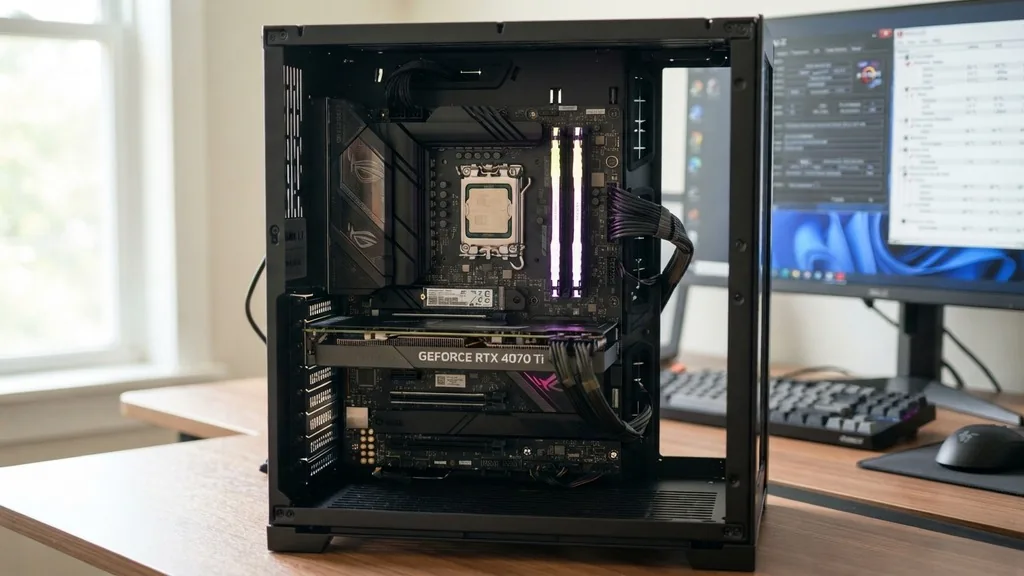
The motherboard serves as the central nervous system of any desktop or laptop computer. Without this complex piece of circuitry, your hardware components would be nothing more than isolated parts unable to communicate or function as a cohesive unit.
At its most basic level, the motherboard acts as the bridge that connects the processor, memory, storage drives, and graphics card, allowing them to exchange data at incredible speeds. When you press the power button on your machine, it is the motherboard that initiates the boot sequence, checks that all attached parts are operational, and hands control over to the operating system.
The Core Functional Role of the Motherboard
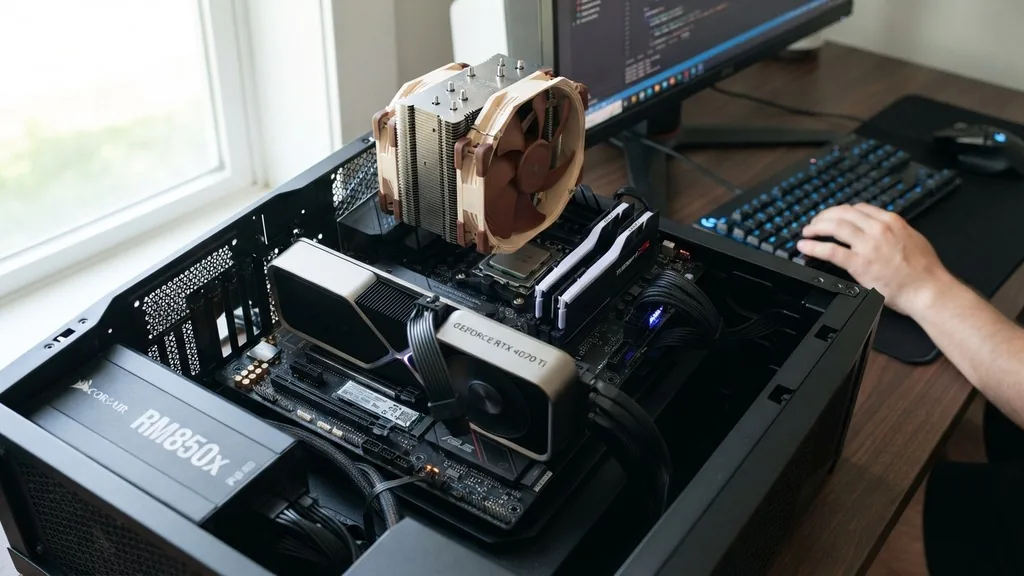
The motherboard provides the physical and electrical foundation upon which your entire computer system is built. It facilitates communication between all hardware components by housing the bus lines, which act as high-speed highways for electronic signals. When you input a command via your keyboard or load a file from your hard drive, the motherboard ensures that the relevant data reaches the CPU and returns to your monitor or storage device without delay.
Think of the board as a massive, intricate city layout. The CPU serves as the brain, the memory acts as the short-term working space, and the storage drives represent the long-term archives. The motherboard is the infrastructure—the roads, the power grid, and the communication cables that keep the city running.
Without this infrastructure, the CPU would have no way to access the memory, and the storage drives would have no way to send data to the processor. Because every component must be physically plugged into or soldered onto the board, it dictates the physical layout and the limitations of what your computer can eventually achieve.
Power Distribution and Voltage Regulation
A critical function of the motherboard is to receive electricity from the power supply unit (PSU) and distribute it safely to every other component. The PSU converts raw alternating current from your wall outlet into a stable direct current, but it is the motherboard that manages how that power is delivered. It utilizes complex circuitry, including capacitors and voltage regulator modules (VRMs), to ensure that the CPU and other sensitive parts receive the precise, stable voltage they require to operate without frying under load.
If the motherboard fails to regulate this power correctly, the entire system can become unstable, leading to random crashes, blue screens, or permanent hardware damage. Modern boards often include sophisticated cooling solutions like heat sinks over the VRMs to prevent overheating during intense tasks, such as video rendering or high-end gaming. This power management capability is why you cannot simply swap motherboards between different generations of processors; the power delivery requirements for a modern CPU are vastly different from those of chips produced a decade ago.
Facilitating Communication via the Chipset
The chipset is a collection of controllers on the motherboard that manages data flow between the processor, memory, and peripheral devices. While the CPU does the heavy lifting of processing instructions, the chipset acts as the traffic controller, deciding which data takes priority and ensuring that various components don’t clash while sending information. This is where the concept of the Northbridge and Southbridge originated, though in modern systems, many of these functions have been integrated directly into the CPU itself.
The chipset determines what kind of features your board supports, such as how many USB ports you can have, whether the board supports overclocking, and how many storage drives can be connected via SATA or NVMe interfaces. When you choose a motherboard, you are essentially choosing the chipset’s capabilities.
A high-end board with a premium chipset will typically offer more expansion options, faster data transfer rates, and better stability than a budget-friendly alternative. Understanding the relationship between the CPU and the chipset is essential for anyone looking to build or upgrade a computer, as they must be compatible for the system to function.
Expansion Slots and Hardware Flexibility
One of the most defining features of a desktop computer is its modularity, and this is made possible by the expansion slots located on the motherboard. The most recognizable of these is the PCIe slot, which is primarily used for graphics cards. These slots allow you to customize your computer based on your specific needs, whether you are a gamer requiring a powerful GPU or a professional needing a specialized capture card or high-speed networking card.
Beyond PCIe slots, boards also feature DIMM slots for system memory (RAM). These slots provide a direct, high-bandwidth connection between the memory modules and the CPU. The physical design of these slots is standardized, allowing users to upgrade their memory capacity years after the initial purchase.
This modularity is a massive advantage over many laptops, where components are often soldered directly to the board, making upgrades impossible. By providing these slots, the motherboard allows a computer to evolve alongside changing technology, extending the lifespan of the entire system significantly.
Data Transfer and Peripheral Connectivity
Beyond the internal components, the motherboard is responsible for managing how your computer talks to the outside world. The rear I/O panel, which you see on the back of your computer case, is integrated into the motherboard.
This panel houses the ports for your mouse, keyboard, audio devices, and monitors. Through the onboard controllers, the motherboard processes the signals from these peripherals and translates them into data that the CPU can understand.
This connectivity also includes the internal headers that allow you to plug in front-panel USB ports, audio jacks, and power buttons located on your computer case. Without these headers, you would have no way to interact with your computer from the front of the chassis.
Furthermore, the motherboard supports various storage interfaces, such as M.2 slots for lightning-fast NVMe solid-state drives. As storage technology has advanced, motherboards have been updated to support these faster protocols, ensuring that your computer can keep up with modern demands for high-speed file access and rapid system boot times.
Standardization and Form Factors
Motherboards follow specific physical standards known as form factors, which ensure that a board will fit inside a standardized computer case. The most common of these is the ATX (Advanced Technology eXtended) standard. This standardization is what allows you to buy a case from one manufacturer and a motherboard from another while being confident that the mounting holes and the rear I/O panel will align perfectly.
Other common form factors include Micro-ATX and Mini-ITX. These smaller boards are designed for compact, space-saving builds, though they often come with fewer expansion slots and fewer ports compared to their full-sized ATX counterparts. Understanding these form factors is vital when planning a build, as a massive E-ATX board will physically not fit into a small Mini-ITX case.
This standardization has been a crucial aspect of the personal computer industry, fostering a massive ecosystem of interchangeable parts that allows for endless customization. You can find more detailed technical specifications on board standards through the official Intel hardware documentation.
BIOS and UEFI: The Foundation of Control
The motherboard contains a specialized chip that stores the BIOS (Basic Input/Output System) or the more modern UEFI (Unified Extensible Firmware Interface). This firmware is the first code that runs when you power on your computer. It performs a self-check of all hardware—a process known as POST (Power-On Self-Test)—to ensure that the memory, storage, and CPU are functioning correctly before it hands over control to your operating system, like Windows or Linux.
The UEFI is more than just a boot manager; it is a comprehensive interface that allows you to configure low-level hardware settings. Within the UEFI menu, you can monitor internal temperatures, adjust fan speeds, enable or disable onboard components, and even overclock your CPU or memory. Because this firmware lives on the motherboard, it is independent of your operating system.
If your Windows installation becomes corrupted, you can still access the UEFI to troubleshoot hardware issues or reconfigure your drive boot order. The stability and user-friendliness of the UEFI are major factors in how easy a particular board is to use and maintain over its long operational life.
Comparison of Common Motherboard Form Factors
To better understand how these boards differ in physical size and capability, we can look at the most common standards currently in use. Each size serves a specific purpose, ranging from compact media centers to massive high-performance workstations.
| Form Factor | Dimensions | Common Use Case | Expansion Slots |
|---|---|---|---|
| ATX | 12 x 9.6 inches | Standard Desktop PCs | Up to 7 |
| Micro-ATX | 9.6 x 9.6 inches | Budget/Mid-range builds | Up to 4 |
| Mini-ITX | 6.7 x 6.7 inches | Small form factor/HTPC | 1 |
The table above illustrates the trade-offs involved in choosing a board. While the ATX standard provides the most room for multiple graphics cards and additional storage controllers, the Mini-ITX format is the go-to choice for those who prioritize a clean, minimal desk setup. Choosing the right form factor is a balance between the space you have available and the performance you require from your machine.
Answering Common Questions About Motherboard Functionality
Many users have lingering questions regarding the necessity and longevity of these boards. Below are some of the most frequent inquiries addressed to help clarify the role of the motherboard in a modern PC.
- Can a PC work without a motherboard? No, a computer cannot function without a motherboard. It is the central hub that connects every single component, from the processor to the power supply. Without it, there is no way for electricity to be distributed or for data to be routed between parts.
- Is it worth replacing a motherboard? Replacing a motherboard is often a significant undertaking because it usually requires removing the CPU and cooler. It is generally only worth replacing if the current one has failed or if you are upgrading to a new CPU architecture that is not compatible with your existing socket.
- What is the lifespan of a motherboard? A high-quality board can easily last 7 to 10 years or more. Because there are no moving parts, the primary causes of failure are usually capacitor degradation or physical damage. However, most people choose to replace their board after 5 years to gain access to faster CPU sockets and modern features.
- Is the motherboard the brain of the computer? No, the CPU is the brain. The motherboard is the nervous system. While the CPU performs the calculations, the motherboard provides the communication pathways and power distribution that allow the CPU to receive instructions and send out results to your other hardware.
As technology continues to advance, the motherboard remains the constant backbone of the computing experience. While we often focus on the raw speed of the processor or the frame rates of a graphics card, none of that power would be usable without the precision engineering found on the motherboard.
By understanding how this component manages power, communication, and expansion, you gain a much better appreciation for the complexity of the machine sitting on your desk. Whether you are building a budget office PC or a powerful gaming rig, the choice of your board is the most critical decision you will make, as it sets the ceiling for what your computer can do today and what it can become in the future.


