

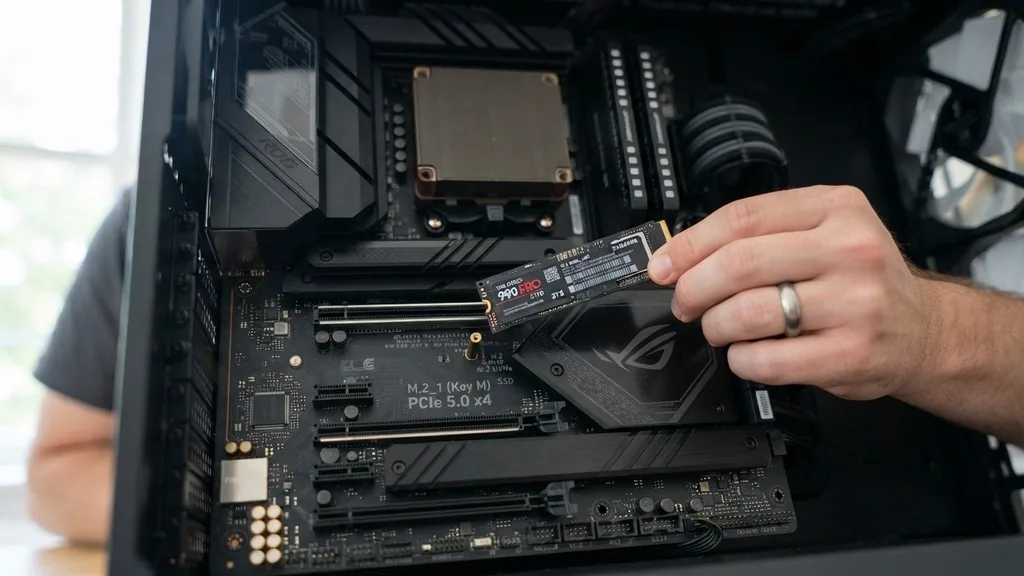
Knowing where to install an SSD on your motherboard is the first step toward faster boot times and more responsive software. Whether you are building a custom PC from scratch or upgrading an aging system, identifying the correct physical interface is essential for performance. Modern motherboards offer multiple storage options, and choosing the wrong one can lead to bottlenecks or physical compatibility issues.
Identifying the Correct M.2 Slot for NVMe Drives
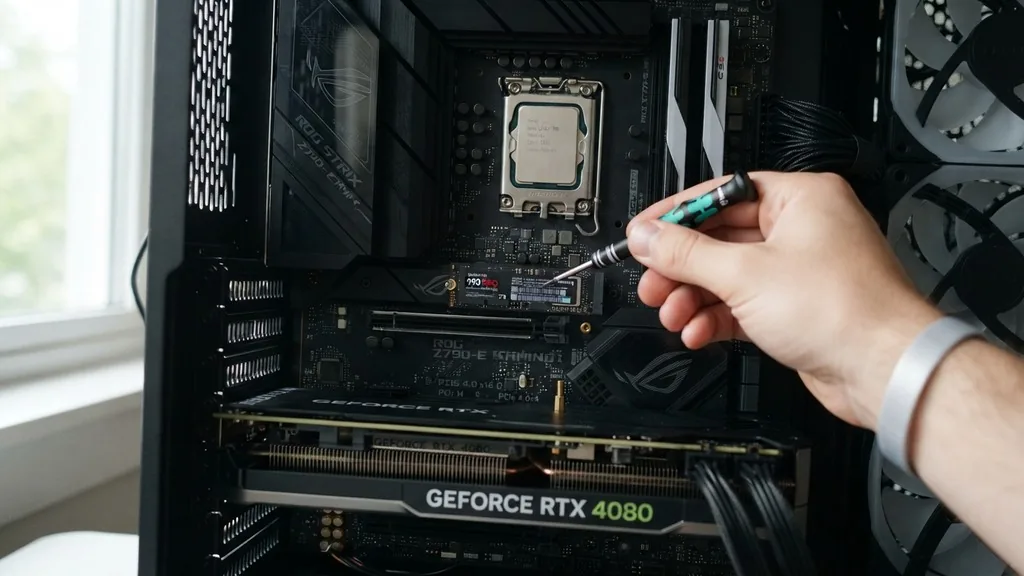
The most common question for modern builders involves finding the M.2 slot. To find where to install an SSD on your motherboard for an NVMe drive, look for the small, rectangular horizontal slots usually positioned near the CPU socket or below the PCIe expansion lanes.
These slots are designed specifically for M.2 form factor drives. Many motherboards feature multiple M.2 slots, but they are not always identical in terms of performance.
The primary M.2 slot, often labeled M.2_1, is usually wired directly to the CPU’s PCIe lanes. This provides the shortest electrical path for data, ensuring your operating system drive achieves maximum read and write speeds.
If you install your primary boot drive in a secondary slot that shares bandwidth with other components, you might notice slightly slower performance or, in some cases, a conflict with other devices like secondary graphics cards. Always check your motherboard manual to identify which slot supports the latest PCIe generation, such as Gen 4 or Gen 5, as these deliver the highest throughput for modern storage.
Understanding SATA SSD Connections
If you are using a 2.5-inch SATA SSD, the installation process differs significantly from M.2 modules. These drives require two distinct physical connections: one for data and one for power.
To install a SATA SSD, you need to locate the SATA ports on the edge of your motherboard, which are typically arranged in a block. You will then connect a SATA data cable from the drive to the motherboard and a SATA power cable from your power supply unit to the drive.
Unlike M.2 drives, which plug directly into the board, SATA drives are usually mounted in a drive bay elsewhere in your PC case. This means you need to manage cables carefully to ensure good airflow. While SATA SSDs are slower than their NVMe counterparts, they are still a massive upgrade from traditional mechanical hard drives.
When choosing a port, refer to your motherboard’s documentation. Some boards disable specific SATA ports if you have an M.2 drive installed, so it is important to understand how your motherboard allocates its resources before you finalize your build.
The Role of PCIe Expansion Cards
Sometimes, you might run out of M.2 slots on your motherboard. In this scenario, you can install an M.2 SSD using a PCIe expansion card.
This card plugs into the same slot as a graphics card, allowing you to add more high-speed storage to a system that otherwise lacks the physical space. This is a common solution for professionals who need large amounts of fast storage for video editing or 3D rendering.
When using a PCIe adapter card, ensure your motherboard has an available PCIe slot with enough lanes to support the drive’s speed. A x4 slot is ideal for most NVMe drives.
If you place the card in a slot that only supports x1 speeds, you will artificially limit the drive’s capabilities. This method is highly effective, but it does take up physical space inside the chassis, so you must consider the internal layout of your PC case to ensure that the card doesn’t block airflow to your GPU or other sensitive components.
Installing the M.2 Screw and Heat Sink
Once you have identified the correct slot, the physical installation requires a steady hand. Most M.2 drives are secured using a single, tiny screw.
If your motherboard comes with a pre-installed M.2 heat sink, you will need to unscrew that first, place the drive into the slot at a 30-degree angle, and then gently press it down until it aligns with the standoff. After the drive is flat against the board, you replace the heat sink or screw to lock it in place.
It is common for builders to lose the tiny M.2 screw, as they are notoriously easy to drop. Many modern motherboards now include tool-less latches, which are much easier to manage. If your board requires a screw, make sure it is not too tight.
You want the drive to be held firmly in place without putting undue stress on the PCB. If your SSD came with a thermal pad, ensure you remove the protective plastic film before pressing the heat sink down; otherwise, the drive may overheat during heavy data transfers. You can find more information on hardware standards at the International Organization for Standardization to understand how these interfaces are categorized.
Comparing Storage Interface Performance
Choosing the right location depends on the type of drive you have. The table below outlines the basic differences between the common interfaces you will encounter when building or upgrading.
| Interface Type | Connection Method | Typical Speed |
|---|---|---|
| NVMe M.2 (Gen 4/5) | Direct to Motherboard | Very Fast (Up to 10GB/s+) |
| SATA 2.5-inch | Cable to Motherboard | Standard (Up to 600MB/s) |
| PCIe Add-in Card | Expansion Slot | Fast (Depends on Lanes) |
Each of these options serves a different purpose. NVMe is for high-performance needs like gaming and professional applications, while SATA is excellent for bulk storage or reviving older computers. Understanding these distinctions helps you decide where to place your hardware to get the best return on your investment.
Addressing Common Installation Pitfalls
The most frequent mistake users make is installing the SSD into a slot that isn’t compatible with the drive type. Some M.2 slots only support SATA-based M.2 sticks, while others support only NVMe.
If you try to force an NVMe drive into a SATA-only slot, the system will not recognize the drive. Always read the silkscreen labels on your motherboard carefully; they often indicate what type of protocol the slot supports.
Another common issue is improper BIOS configuration. Even after you successfully physically install the drive, it might not appear in your operating system until you enable the relevant M.2 or SATA port in the BIOS. Sometimes, you may need to set the storage mode to AHCI or NVMe mode to ensure full compatibility.
If the drive isn’t showing up, don’t panic. Check your BIOS settings first, as this is where most “missing drive” problems are resolved. Ensuring your system firmware is up to date can also resolve compatibility issues with newer, high-capacity drives.
Managing Cables and Airflow Efficiency
Where you install your SSD significantly impacts the thermal performance of your system. SSDs, particularly fast NVMe drives, can get quite hot during sustained operations.
If you install an M.2 drive directly beneath your graphics card, it will likely absorb heat exhausted by the GPU. While most modern drives have thermal throttling protections, consistent heat can reduce the lifespan of the flash memory components over time.
If your motherboard has multiple M.2 slots, try to prioritize the one with the best airflow or the one that comes with a dedicated heat sink. For SATA drives, avoid bunching cables together in a way that blocks the intake fans.
Good cable management isn’t just about aesthetics; it is about ensuring that air can move freely across the motherboard and the storage components. By keeping your SSDs cool, you ensure that they maintain peak performance during long gaming sessions or heavy file transfers.
Optimizing Drive Selection for Motherboard Compatibility
Before purchasing an SSD, verify your motherboard’s specifications to see what it supports. Some older boards do not have an M.2 slot at all, requiring you to use a PCIe adapter or a SATA SSD.
Others might have an M.2 slot but only support older PCIe 3.0 speeds. Installing a cutting-edge PCIe 5.0 drive into a 3.0 slot is a waste of money because the drive will be capped at the slower speed.
Consider your primary use case. If you are a casual user, the speed difference between a top-tier NVMe drive and a mid-range one is often imperceptible. However, for professional video editing, the fastest drive you can fit into your primary M.2 slot is worth the extra cost.
Always check the physical length support as well. Most slots support 2280 form factor drives, but some specialized small-form-factor motherboards might only accommodate shorter 2242 or 2260 drives. Knowing these specifications prevents the frustration of buying a component that physically won’t fit or perform to its potential.
Frequently Asked Questions
- Does it matter which M.2 slot I use? Yes, the primary slot is usually wired directly to the CPU and offers the best performance. Secondary slots often share bandwidth with other components and may be slightly slower or restricted by the motherboard’s architecture.
- Where does the SSD show up if it is not in the BIOS? If your drive is missing, check the BIOS settings to ensure the specific M.2 or SATA port is enabled. Also, verify that the drive is seated correctly in the slot and that your motherboard firmware is current.
- Which SATA port should I use for a 2.5-inch SSD? You can use any available SATA port, but check your manual. Sometimes ports are numbered by priority, and certain ports may be disabled if you have installed an M.2 drive, as they share the same data pathways.
- Do I need a screw for every M.2 installation? Most M.2 drives require a screw to prevent them from popping out of the slot. However, many newer motherboards feature tool-less plastic latches that securely hold the drive in place without needing a screwdriver.


