

Troubleshooting a motherboard is often the most intimidating task for any computer enthusiast or technician. Because the motherboard acts as the central nervous system of your machine, connecting the CPU, RAM, storage, and peripherals, any failure here can manifest as a total system blackout.
When your computer refuses to turn on, displays a black screen, or crashes randomly, the motherboard is frequently the primary suspect. By systematically isolating components and evaluating the electrical and logical integrity of the board, you can determine whether you are dealing with a simple connection error or a catastrophic hardware failure.
Identifying Common Symptoms of Motherboard Failure
The most reliable way to identify motherboard failure is to observe the system’s power-on behavior and look for specific error codes or patterns. When a board is failing, it often communicates through visual cues rather than direct error messages.
If you press the power button and nothing happens—no fans spin, no lights flicker, and there is no sound—the issue is likely related to power delivery. However, if the fans spin but there is no display on your monitor, the problem might be a POST (Power-On Self-Test) failure.
Many modern motherboards include diagnostic LEDs or a small numerical display that cycles through codes during the boot process. If these lights remain stuck on a specific code, consult your manual to see exactly which component is failing the check. Another common symptom is the “boot loop,” where the system turns on for a few seconds, shuts down, and restarts indefinitely.
This often points to a corrupted BIOS, a short circuit, or failing voltage regulation modules (VRMs) on the board. Pay attention to any odd smells, such as burning plastic, which suggests a physical component has fried, necessitating an immediate power-down to prevent further damage.
Performing a Minimal Hardware Boot
A minimal hardware boot is the most effective way to rule out peripheral interference when you need to troubleshoot a motherboard. This process involves stripping the system down to the bare essentials required to reach the BIOS screen.
Start by disconnecting all non-essential hardware, including secondary hard drives, optical drives, sound cards, and USB devices. Even a faulty keyboard or a shorted-out USB port can prevent a motherboard from completing its initialization, leading you to believe the board itself is dead.
Once the chassis is stripped, ensure you are left with only the motherboard, the CPU with its cooler attached, one stick of RAM, and the power supply unit. If your CPU has integrated graphics, use the video output on the back of the motherboard; if not, keep your graphics card installed. Attempt to boot the machine in this state.
If the system posts, you know the motherboard is functional. You can then add components back one by one, testing after each addition, until you identify the specific piece of hardware causing the conflict. This methodical approach saves hours of guesswork and prevents unnecessary replacements.
Inspecting Physical Damage and Capacitors
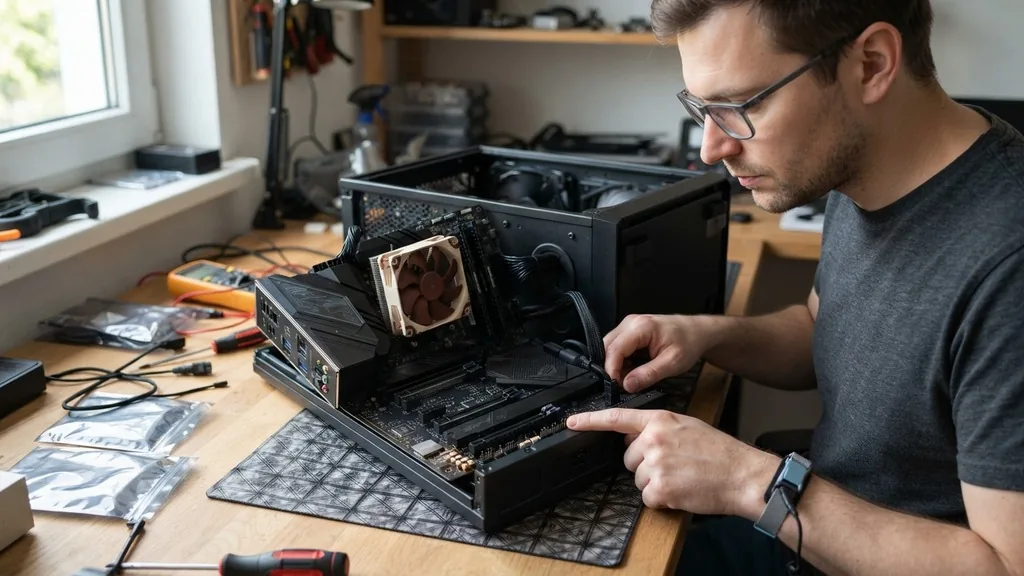
Physical inspection is a step that many skip, yet it remains one of the most effective ways to diagnose a board that has reached the end of its lifespan. Carefully remove the motherboard from the case and place it on a non-conductive surface, such as the cardboard box it came in. Use a flashlight to inspect the surface of the board for any signs of physical trauma.
Look for burnt traces, scorched components, or bent pins in the CPU socket. These physical defects are often the result of power surges or improper installation.
Pay close attention to the capacitors, which are the small cylindrical components scattered across the board. On older motherboards, these were prone to bulging or leaking, which is a classic sign of failure. While modern solid-state capacitors are much more durable, they can still fail under extreme heat or poor airflow.
If you notice any fluid leaking from a capacitor or the top of the component appearing rounded instead of flat, the motherboard has likely sustained permanent damage. While expert technicians can sometimes replace these, for most users, this is a clear indication that the board needs to be replaced. For more details on hardware standards, you can refer to the National Institute of Standards and Technology for guidance on electronic component reliability.
Testing Power Supply and Voltage Stability
The motherboard relies entirely on the power supply unit (PSU) to distribute electricity to its various subsystems. If the PSU is failing, it may provide unstable voltage, causing the motherboard to shut down to protect itself.
To troubleshoot this, you need to verify that the 24-pin main connector and the 8-pin CPU power connector are firmly seated. Loose connections are a surprisingly common cause of intermittent system crashes and failure to boot.
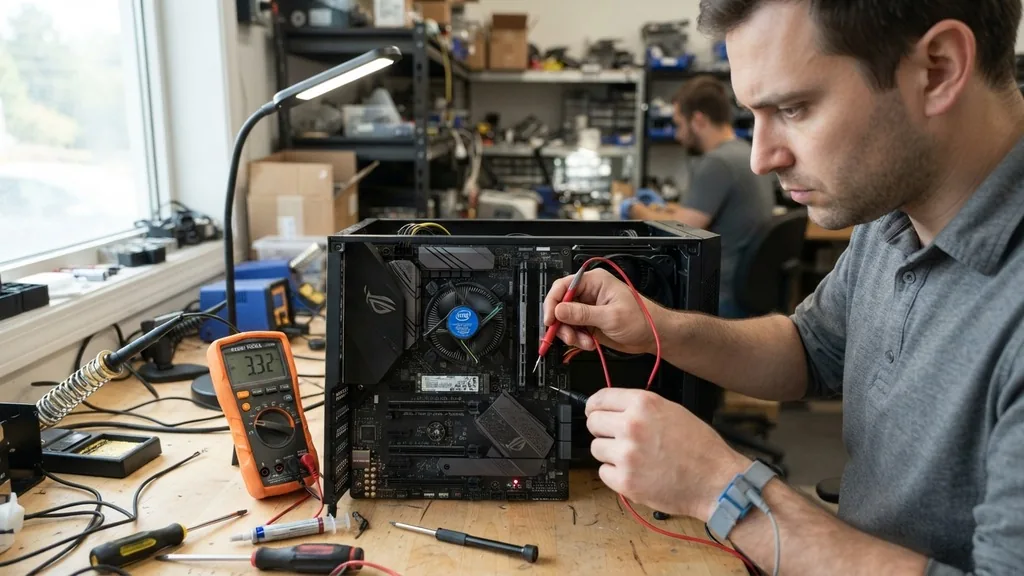
If you have access to a multimeter, you can check the output of the PSU rails while the system is powered on. Ensure the 12V, 5V, and 3.3V lines are within the acceptable tolerance ranges specified by the ATX standard. Even if the PSU seems to be providing power, it might be failing under load.
If you suspect the power supply is the culprit, the best test is to swap it with a known-working unit from another computer. If the motherboard boots perfectly with a different PSU, you have successfully isolated the issue to the power delivery system rather than the motherboard itself. Never attempt to open or repair a power supply yourself, as internal capacitors can hold a lethal charge.
Clearing the CMOS and BIOS Settings
Sometimes, a motherboard is perfectly healthy, but its internal settings have become corrupted or are incompatible with the installed hardware. This is where the BIOS (Basic Input/Output System) or UEFI (Unified Extensible Firmware Interface) comes into play.
If you have recently changed hardware or updated your settings, a simple configuration error might be preventing the system from booting. Clearing the CMOS (Complementary Metal-Oxide-Semiconductor) resets these settings to the factory defaults.
To clear the CMOS, you can usually find a small coin-cell battery on the motherboard. With the power disconnected, remove the battery for about sixty seconds before reinserting it. Alternatively, many modern motherboards feature a dedicated “Clear CMOS” button or a pair of pins you can short with a screwdriver.
After resetting, the system will force a fresh hardware detection cycle upon the next boot. If the motherboard fails to post even after a hard reset, the BIOS chip itself might be corrupted. Some high-end motherboards include a “BIOS Flashback” feature that allows you to update or restore the firmware from a USB drive even if the computer cannot enter the BIOS menu.
| Symptom | Likely Cause | Recommended Action |
|---|---|---|
| No lights or fan movement | PSU failure or loose cables | Check power connections |
| Fans spin but no display | RAM or GPU seating issues | Reseat memory and graphics |
| System loops at startup | Corrupted BIOS or settings | Clear CMOS/Reset BIOS |
| Random crashes in Windows | Overheating or driver conflict | Check CPU temps and drivers |
Addressing RAM and CPU Integration Issues
The motherboard acts as the bridge between your CPU and memory, and any communication error between these three components will result in a failure to boot. RAM is a frequent point of failure. If you are experiencing boot issues, try testing with only one stick of RAM in the primary slot.
If that fails, move it to a different slot. Dust or debris in the DIMM slots can also interfere with the electrical contact, so using a can of compressed air to clean the slots can sometimes resolve persistent issues.
Similarly, the CPU must be seated correctly in its socket. If you recently installed the processor, check for bent pins in the socket (for Intel) or on the CPU itself (for older AMD). Even a single bent pin can prevent the motherboard from initializing the memory controller, leading to a “No POST” scenario.
Ensure the CPU cooler is mounted with even pressure. Uneven mounting can cause the processor to lose contact with some of the pins on one side of the socket, leading to strange, erratic behavior that is difficult to diagnose without removing the cooler entirely to inspect the installation.
Managing Overheating and Airflow
Heat is the silent killer of electronic components. While the CPU and GPU have their own cooling solutions, the motherboard contains several components—such as the chipset and the VRMs—that also generate significant heat.
If these components overheat, the board may throttle performance or trigger an emergency shutdown to prevent permanent damage. If your computer crashes while performing heavy tasks, check your system temperatures using software monitoring tools.
Ensure that your case has adequate airflow. If the motherboard is covered in a thick layer of dust, it acts as an insulator, trapping heat against the PCB. Use compressed air to clean the board regularly, paying extra attention to the heatsinks covering the VRMs.
If you are running high-performance hardware, check that your case fans are configured for a proper intake and exhaust flow. A motherboard that works fine at idle but crashes under load is almost always suffering from either a power delivery issue or an overheating chipset. Improving thermal management is a straightforward way to extend the life of your board.
Topical Gaps: Troubleshooting Integrated Components
A common area where most guides fail is explaining how to troubleshoot integrated components like onboard audio, network controllers, or USB hubs. If your motherboard boots into the operating system but specific features are missing, the issue is likely a driver conflict or a disabled setting in the BIOS.
First, check the Device Manager in your OS to see if the hardware is recognized. If it shows an error code, reinstalling the latest drivers from the manufacturer’s website is the standard fix.
If the integrated hardware is not even appearing in the Device Manager, check the BIOS settings. Many motherboards allow you to disable onboard audio, LAN, or Wi-Fi to save resources. If these settings were accidentally toggled off, the hardware will remain invisible to the operating system.
In rare cases, the onboard controller itself may have failed. If you have exhausted all software fixes and the hardware remains dead, you can often bypass the issue by installing a dedicated PCIe expansion card, such as a network interface card or a USB controller, which provides the functionality your motherboard can no longer support.
Frequently Asked Questions
- How do I know if my motherboard is completely dead? If you have tested the power supply, reseated all components, and cleared the CMOS, but the board still shows no signs of life, it is likely dead. A motherboard that provides no fan spin, no LED activity, and no POST codes is usually beyond repair.
- Can I fix a faulty motherboard? Generally, no. While a professional with micro-soldering equipment can sometimes replace blown capacitors or damaged ports, the cost of labor often exceeds the price of a new board. For most users, replacing the motherboard is the most practical and reliable solution.
- Does a motherboard failure cause data loss? Usually, no. Your data is stored on your hard drive or SSD, not the motherboard. If your motherboard fails, you can simply plug your storage drives into a new, compatible motherboard, and your operating system and files should be accessible immediately.
- Why does my motherboard keep restarting? Frequent restarts are often caused by unstable power delivery, a failing power supply, or the system hitting a thermal limit. Start by checking your power supply health and ensuring your CPU cooler is properly seated and clean to prevent overheating shutdowns.


