

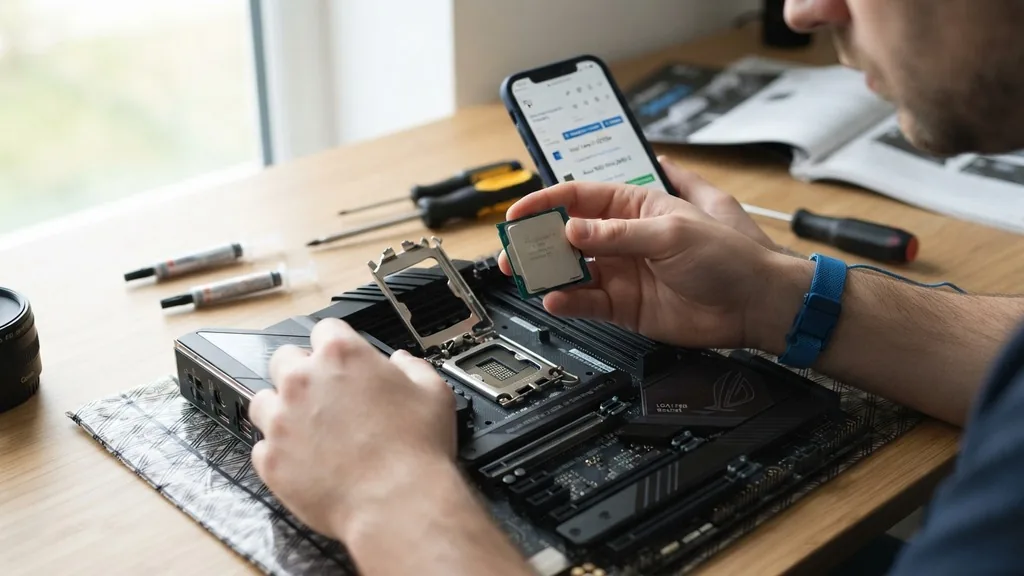
Building a custom computer is a rewarding endeavor, but it requires precise planning to ensure every component works in harmony. The most critical decision you will make is selecting a processor and a mainboard that can actually communicate with one another. If you are wondering how to know if motherboard is compatible with cpu, you have likely realized that these parts are not universal.
A physical mismatch can lead to bent pins, while a software-level incompatibility will simply result in a computer that refuses to post or boot. Understanding the relationship between these two components is the difference between a successful build and a frustrating afternoon of troubleshooting.
Understanding the CPU Socket Architecture
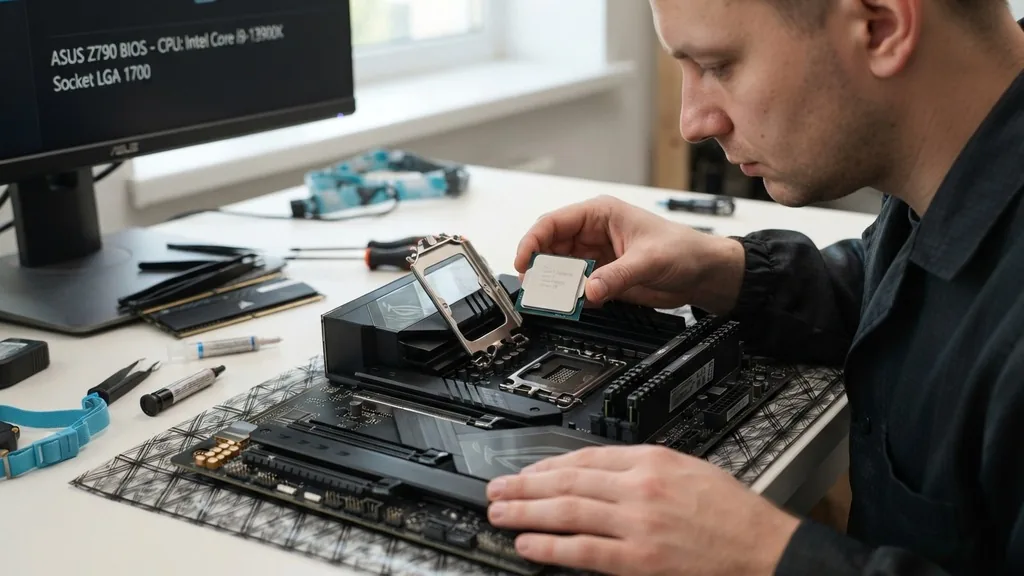
The most fundamental way to determine if a motherboard supports a specific processor is by checking the CPU socket. This is the physical interface on the motherboard where the chip sits.
Manufacturers like Intel and AMD develop specific socket designs for different generations of chips. You cannot, for example, place an older processor into a newer socket because the pin layout, physical dimensions, and electrical requirements will not align.
When you look at a motherboard specification sheet, the socket is usually listed prominently. For instance, you might see terms like LGA 1700 or AM5. The LGA (Land Grid Array) style is common for Intel boards, where the pins are located on the motherboard itself.
Conversely, many AMD boards utilize the PGA (Pin Grid Array) or the newer LGA style, where the processor pins or contact pads are designed specifically for that socket’s tension arm mechanism. Always verify that the socket name on the CPU box matches the socket name listed on the motherboard manufacturer’s product page. If these two labels do not match exactly, the components are physically incompatible and should never be forced together.
The Role of the Motherboard Chipset
Even if a processor fits physically into the socket, it may not function due to the chipset. The chipset acts as the traffic controller for your motherboard, managing communication between the processor, memory, storage, and expansion cards. A motherboard might have the correct socket for a processor but possess a chipset that is too old to recognize the newer architecture of that chip.
Think of the chipset as the translator between your CPU and the rest of the system. If the chipset is outdated, it will lack the necessary microcode or electrical pathways to “talk” to your processor. This is why you often see motherboards released in series, such as the B650 or Z790 series.
These series are designed to support specific generations of CPUs. Manufacturers often release BIOS updates to expand compatibility, but a motherboard with an older chipset may still require a “donor” CPU to boot up and perform that update. Always check the official support list on the manufacturer’s website to see which chipsets are validated for your specific processor.
Verifying Compatibility via BIOS and UEFI
A common pitfall for the modern builder involves the BIOS (Basic Input/Output System) or the newer UEFI (Unified Extensible Firmware Interface). Even if your motherboard has the correct socket and the correct chipset, the firmware might be running an older version that does not contain the instructions for your specific CPU. This is particularly common when buying a motherboard that has been sitting on a store shelf for several months while a newer generation of processors has been released.
Most motherboard manufacturers provide a CPU Support List on their official websites. This list is the gold standard for compatibility. It will show you exactly which processors are supported and, crucially, which minimum BIOS version is required for each.
If your board shipped with an earlier version, the system will not recognize the new CPU. If you encounter this, you may need to use a feature like “BIOS Flashback,” which allows you to update the firmware using a USB drive without needing a functional processor installed. Always check this list before finalizing your purchase to avoid the headache of a “no-post” scenario.
Using Online Compatibility Tools
If you are feeling overwhelmed by technical specifications, you can leverage online tools designed to simplify the selection process. Websites like PCPartPicker are invaluable resources for builders. By inputting your desired CPU, these tools automatically filter out motherboards that are not compatible, effectively removing the guesswork from your build.
These tools maintain databases that correlate socket types, chipsets, and even physical form factors. They also provide warnings if a BIOS update is likely required for a specific pairing. While these tools are incredibly accurate, they should be used as a secondary verification method rather than a replacement for reading the manufacturer’s documentation.
Always verify the findings of a compatibility tool against the official motherboard support page. This ensures that you have the most up-to-date information, as manufacturer support lists change frequently when new microcode updates are released for existing boards.
Form Factor and Physical Constraints
While the socket and chipset determine electrical and logical compatibility, you must also consider the form factor. A motherboard comes in various sizes, such as ATX, Micro-ATX, and Mini-ITX. While the form factor does not dictate whether a CPU will work, it dictates whether your build will actually fit inside your chosen case and whether you will have enough room for cooling solutions.
If you choose a high-end, power-hungry CPU, you will need a motherboard with a robust VRM (Voltage Regulator Module) cooling system. Smaller motherboards, like Mini-ITX boards, might have cramped layouts that make installing large aftermarket CPU coolers difficult or impossible.
Ensure that your motherboard’s physical size matches your case specifications and that the board has the necessary clearance to accommodate the thermal requirements of your processor. A powerful CPU on a budget-tier motherboard with poor cooling can lead to thermal throttling, where the processor slows itself down to prevent overheating, effectively wasting the performance you paid for.
Comparing Intel and AMD Platforms
When deciding between the two major processor manufacturers, you are essentially choosing two different ecosystems. Intel and AMD utilize completely different socket architectures and chipset protocols.
You cannot mix and match an Intel processor with an AMD motherboard, or vice versa. This seems obvious to experienced builders, but it is a common point of confusion for beginners.
| Feature | Intel Platform | AMD Platform |
|---|---|---|
| Primary Socket | LGA 1700 / LGA 1851 | AM4 / AM5 |
| Architecture | Core series (i3, i5, i7, i9) | Ryzen series (3, 5, 7, 9) |
| Upgradability | Usually 2 generations per socket | Often longer socket longevity |
| Memory Support | DDR4 or DDR5 (board dependent) | DDR5 (AM5) or DDR4 (AM4) |
The table above illustrates the general divide between the two. When you commit to a platform, you are also committing to a roadmap of future upgrades.
AMD’s AM4 socket, for example, enjoyed an exceptionally long lifespan, allowing users to upgrade from early Ryzen chips to much newer versions without changing their motherboard. Intel tends to change sockets more frequently, which can limit your future upgrade path but often brings newer technologies to the platform sooner.
Common Pitfalls and How to Avoid Them
Even with careful planning, mistakes happen. One of the most frequent errors is assuming that a “compatible” socket means the processor will work out of the box. As previously discussed, the BIOS version is often the silent killer of custom builds.
Another common mistake is ignoring the power delivery requirements of high-core-count processors. If you pair a flagship CPU with an entry-level motherboard, the motherboard’s power delivery system might struggle to supply consistent voltage, leading to system instability or even hardware damage.
- Always check the manufacturer’s CPU support list before buying.
- Ensure your power supply unit (PSU) has the correct CPU power connectors (EPS cables).
- Verify that your RAM type (DDR4 vs DDR5) matches the motherboard’s requirements.
- Check for clearance issues between your CPU cooler and the motherboard’s heatsinks.
- Read the motherboard manual for specific RAM slot population rules.
Taking the time to verify these points will save you hours of troubleshooting. It is far easier to research compatibility for thirty minutes before buying than to spend three hours disassembling a build because the system refuses to boot.
Topical Gaps: Addressing Memory and PCIe Lanes
Beyond the CPU and motherboard connection, there are two often-overlooked factors that influence compatibility: memory and PCIe lanes. While these don’t prevent a CPU from working with a motherboard, they can severely limit your performance.
The memory controller is built into the CPU, but the motherboard determines which speed and type of RAM you can use. If your CPU supports high-frequency memory but your motherboard is capped at a lower speed, you are leaving performance on the table.
Furthermore, consider the PCIe lanes. The processor provides a set number of lanes for your graphics card and NVMe storage. The motherboard chipset provides additional lanes for other peripherals.
If you are building a workstation with multiple high-speed storage drives or capture cards, ensure that your motherboard and CPU combination provides enough lanes to run everything at full speed. Some lower-end motherboards share bandwidth between slots, meaning that if you use a secondary M.2 drive, it might disable one of your SATA ports or throttle your graphics card. Checking the block diagram in your motherboard manual will reveal how these lanes are distributed, ensuring your build is balanced for your specific needs.
Finalizing Your Hardware Selection
Selecting the right components requires a systematic approach. Start by choosing your processor based on your performance needs, then identify the socket type it requires. From there, select a motherboard that uses that socket, has the appropriate chipset for your desired features, and is confirmed to support your CPU via the manufacturer’s support list.
Remember that the motherboard is the foundation of your computer. While it might be tempting to save money on the board to spend more on the CPU, a well-matched motherboard ensures stability, longevity, and the ability to upgrade in the future.
Once you have confirmed the socket, the chipset, the BIOS requirements, and the physical form factor, you can move forward with your build confidently. Building a PC is a skill that improves with every iteration, and understanding the nuances of compatibility is the first step toward becoming a truly proficient enthusiast.
Frequently Asked Questions
- Can any CPU fit any motherboard? No, processors and motherboards must share the same socket type and be compatible with the same chipset. If the physical pins or pads do not align with the socket, the components will not fit, and attempting to force them will cause permanent damage to the hardware.
- Do I need to update the BIOS for a new CPU? Often, yes. If you are using a newer processor on a motherboard that was released before that processor, you may need to perform a BIOS update. Check the manufacturer’s website for the “CPU Support List” to see the minimum required BIOS version for your specific chip.
- How do I find my motherboard’s model number? You can find this by checking the physical label on the motherboard itself, or by using software like CPU-Z. If the computer is already running, you can open the System Information app in Windows to see the baseboard manufacturer and product name listed clearly.
- What happens if I use incompatible parts? In most cases, the computer simply will not turn on or will display a “no signal” error. Because the CPU and motherboard cannot communicate, the POST (Power-On Self-Test) process fails. In rare instances of forcing parts together, you may physically bend pins or short out electrical circuits.


