

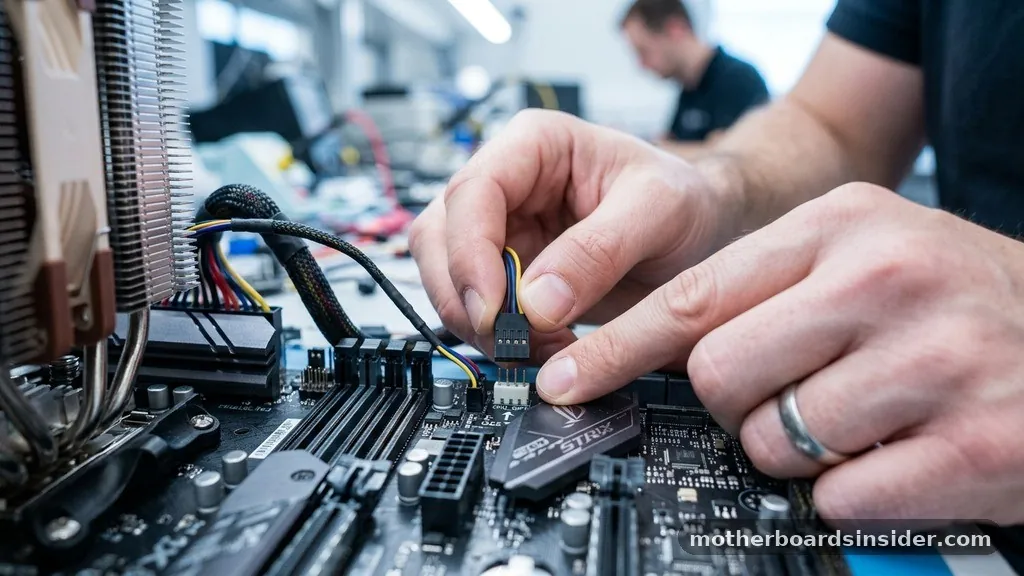
When building or upgrading a custom PC, you will inevitably find yourself scanning the surface of your motherboard looking for the correct fan header for your cooling hardware. Among the standard labels like SYS_FAN or CPU_FAN, you will often encounter a specific port labeled CPU OPT.
This label stands for “CPU Optional,” and its primary purpose is to provide an additional connection point for cooling systems that need to work in tandem with your primary processor cooler. Understanding exactly how this header functions is vital for maintaining optimal thermal performance and ensuring your system components operate within safe temperature thresholds.
At its core, the CPU OPT header is a specialized power delivery port designed to mirror the behavior of the main CPU fan header. Because it is physically and electrically linked to the primary header, the motherboard treats both ports as a single control unit.
If you plug a fan or a pump into this slot, it will receive the exact same voltage or Pulse Width Modulation (PWM) signal as the fan connected to the main CPU port. This synchronization is what makes it so useful for liquid cooling setups and high-end air cooling configurations that require more than one fan to manage the heat generated by your processor.
The Technical Role of CPU OPT in Thermal Management
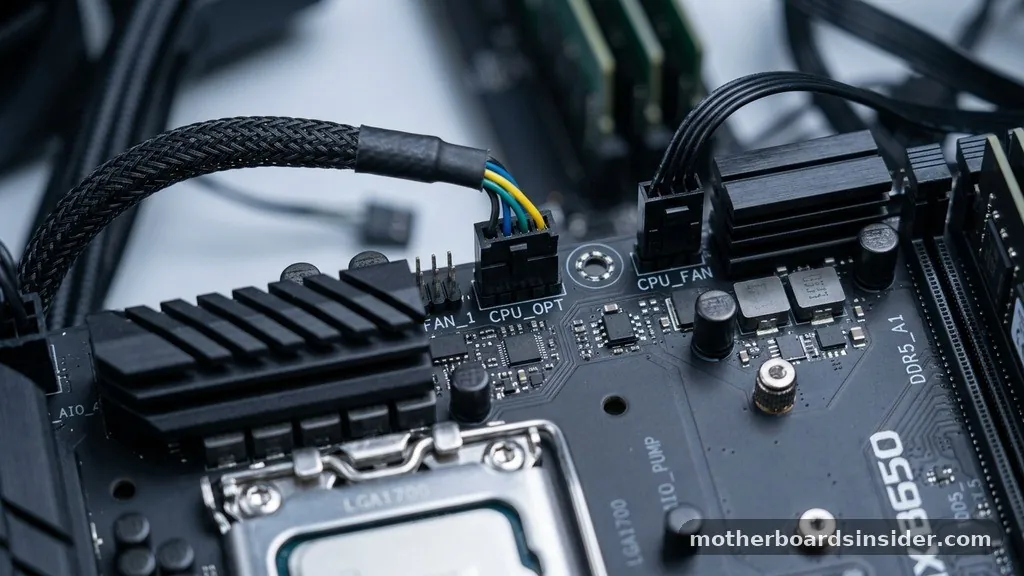
The primary function of the CPU OPT header is to facilitate the expansion of your cooling system without requiring complex BIOS reconfigurations for multiple ports. In most modern systems, the motherboard monitors the CPU temperature and adjusts the speed of the fans connected to the CPU_FAN header accordingly.
When you use the CPU OPT header, the device plugged into it—whether it be a radiator fan or an AIO pump—follows the same speed curve. This ensures that when your processor works harder and gets hotter, both your primary cooler and the supplemental device ramp up their performance simultaneously.
This synchronization is essential for maintaining consistent airflow across a heatsink or radiator. If you were to use a standard system fan header instead, the motherboard might not ramp up that fan quickly enough in response to a sudden spike in processor heat, potentially leading to thermal throttling.
By using the CPU OPT header, you guarantee that the supplemental cooling device reacts with the same urgency as the primary cooler. This is particularly important for users who have opted for a “push-pull” configuration on their liquid cooling radiators, where one fan pushes air through the fins and another pulls it out, as both need to spin at identical speeds to maximize the efficiency of the heat exchange process.
Distinguishing CPU OPT from Other Fan Headers
To keep your PC running smoothly, it is important to understand how CPU OPT differs from other headers like SYS_FAN or CHA_FAN. While the CPU-related headers are tied to the internal processor temperature sensor, system fan headers are often tied to the general ambient temperature of the motherboard or the chipset. If you were to plug a vital CPU cooler component into a CHA_FAN header, it might remain at a low, static speed even when your processor is under heavy load, because the motherboard does not perceive the processor’s heat as a signal to increase speed for that specific header.
Furthermore, many motherboards provide specific power limits for these headers. A CPU_FAN or CPU OPT header is often rated for higher amperage than a standard case fan header, which is a crucial consideration if you are planning to power an AIO pump or a high-performance industrial fan.
Always consult your motherboard manual to ensure the power draw of your device does not exceed the header’s rating. You can find detailed technical specifications for motherboard components through resources like the official Intel support documentation regarding hardware connectivity and thermal standards.
Comparing Fan Header Types
The following table summarizes the key differences in how various motherboard headers typically behave in a standard desktop environment.
| Header Type | Primary Control Source | Typical Use Case |
|---|---|---|
| CPU_FAN | CPU Temperature | Primary Processor Cooler |
| CPU_OPT | CPU Temperature (Mirrored) | Secondary Cooler / AIO Pump |
| SYS_FAN / CHA_FAN | System/Motherboard Temp | Case Airflow Fans |
| AIO_PUMP | Fixed or Custom Curve | Liquid Cooling Pumps |
Using CPU OPT for Liquid Cooling Setups
One of the most common questions builders ask is whether the CPU OPT header is the right place for an AIO pump. In many cases, the answer is yes, though it depends on the specific design of your liquid cooler.
Many all-in-one liquid coolers are designed to have the pump run at a constant speed to maintain steady flow, while the fans on the radiator are meant to speed up and slow down based on load. If your AIO pump requires a constant 12V signal, plugging it into a header that fluctuates based on a fan curve can actually be detrimental to the pump’s longevity and performance.
However, if your AIO pump is designed to be PWM-controlled, the CPU OPT header is an excellent choice. By connecting the pump here, you ensure it receives power immediately upon startup and follows the processor’s thermal profile.
If your motherboard lacks a dedicated AIO_PUMP header, the CPU-linked headers are the safest and most reliable alternatives. Always check if your pump comes with a SATA power connector; if it does, the header is only being used for the tachometer signal (speed monitoring) and PWM control, in which case the CPU OPT header is perfectly suited for the task.
Common Configuration Scenarios and Best Practices
When deciding how to manage your cooling cables, consider the physical layout of your case and the length of your fan wires. If you are using a splitter or a hub, you might be able to consolidate your connections to simplify cable management. However, there is a limit to how many fans you should connect to a single header.
Exceeding the amperage limit of a header can damage the motherboard’s power delivery circuitry. A good rule of thumb is to never connect more than two fans to a single header using a basic splitter unless you are certain the total amperage is well within the motherboard’s specified limits.
- Use CPU_FAN for your primary heatsink fan or the main radiator fan.
- Use CPU_OPT for the secondary fan in a push-pull radiator configuration.
- Use SYS_FAN headers for case fans that handle general chassis airflow.
- Check the BIOS to ensure the speed curve for CPU_FAN is correctly applied to CPU_OPT.
- Ensure all PWM fans are properly seated in their 4-pin headers to maintain speed control.
- Verify that your pump power source is compatible with the motherboard header voltage.
Troubleshooting Fan Speed and Connection Issues
Sometimes, you might find that a device connected to the CPU OPT header is not spinning or is running at an incorrect speed. The first step is to enter your BIOS or UEFI settings. Most modern motherboards have a “Hardware Monitor” or “Fan Control” section where you can view every connected fan.
If the CPU OPT header shows “0 RPM,” check the physical plug to ensure it is seated firmly. If the fan is spinning but not responding to temperature changes, verify that the control mode is set correctly—usually “PWM” for modern 4-pin fans or “DC” for older 3-pin fans.
If you have plugged a case fan into the CPU OPT header, you might notice that the fan becomes loud and aggressive, ramping up whenever the processor is under load. This is a common side effect of using a CPU-linked header for case cooling.
If your case fans are reacting to CPU heat rather than the system temperature, they will constantly fluctuate in speed, which can be distracting. In this scenario, it is best to move the fan to a CHA_FAN header where it can be managed by a more stable, system-wide temperature curve.
Addressing Topical Gaps: CPU OPT vs. Dedicated Headers
A frequent point of confusion is why some motherboards label a header “AIO_PUMP” while others only provide “CPU_FAN” and “CPU_OPT.” This often comes down to the intended market segment of the motherboard.
Entry-level boards may skip the dedicated pump headers to save space and cost, relying on the user to utilize the existing CPU headers. High-end enthusiast boards, however, often include multiple specialized headers to accommodate complex custom loops.
If you are using a custom water cooling loop, you might have a standalone pump that is not connected to the motherboard at all, instead being powered directly by the power supply unit (PSU). In this case, you might use the CPU OPT header purely for a flow meter or a secondary radiator fan.
The key takeaway is that “CPU OPT” is a versatile, secondary CPU-linked port. It is not strictly “required” for a PC to function, but it is a highly convenient tool for managing the cooling demands of modern, high-performance processors that require supplemental airflow or liquid cooling support.
The Importance of PWM and Voltage Control
The pin configuration of these headers is almost exclusively 4-pin in modern motherboards, which supports Pulse Width Modulation (PWM) control. PWM is a sophisticated method of controlling fan speed by sending a pulsed signal to the fan motor, allowing it to maintain full voltage while varying the speed. This is much more precise and efficient than the older voltage-based (DC) control, which simply reduces the voltage to the fan to slow it down.
When you use the CPU OPT header, you are utilizing this PWM signal to its full potential. Because it is tied to the CPU_FAN header, any adjustments you make to the fan curve in your BIOS—such as setting a higher “minimum speed” or a “steep ramp” for heavy workloads—will propagate to the device in the OPT header.
This allows for a unified cooling strategy where all parts of your processor’s cooling solution act in harmony. If you are using 3-pin fans, ensure that your motherboard BIOS is set to “DC Mode” for the CPU headers, otherwise, the fans might run at 100% speed constantly because the PWM signal cannot communicate with them.
Final Considerations for System Integration
Ultimately, the CPU OPT header is a bridge between your processor’s cooling requirements and your hardware’s physical capabilities. Whether you are using it to power a secondary radiator fan or an AIO pump, the goal is always to keep your processor within a safe temperature range. By keeping your cooling components organized and properly connected, you can extend the lifespan of your hardware and ensure that your system remains quiet during idle times and cool during intensive tasks.
If you find yourself with a surplus of fans and no remaining headers, consider investing in a high-quality powered fan hub rather than overloading your motherboard headers with multiple splitters. A powered hub draws electricity directly from the PSU, using a single motherboard header only for the PWM signal.
This protects your motherboard from electrical strain while still allowing you to control all your fans through the BIOS. Always prioritize the health of your motherboard by respecting the power limits of each header, and your system will reward you with years of stable, high-performance operation.
Frequently Asked Questions
Is it necessary to plug something into the CPU OPT header?
No, it is not necessary. The CPU OPT header is an optional connection point. If your CPU cooler only has one fan and you are not using an AIO pump that requires that specific header, you can leave it empty without any impact on system stability.
Can I plug a standard case fan into the CPU OPT header?
Yes, you can, but be aware that the fan will follow the CPU temperature curve. This means the case fan will speed up and slow down based on processor heat rather than internal case temperature, which may lead to unnecessary noise or inconsistent airflow throughout your chassis.
What happens if I plug my AIO pump into a regular system fan header?
If you plug an AIO pump into a system fan header, it may not receive the constant power or the correct signal it needs to operate efficiently. Some system headers default to a low speed, which could cause your processor to overheat because the liquid is not circulating at the required rate.
Does the CPU OPT header provide enough power for a pump?
Most CPU OPT headers are designed to handle the power requirements of a standard AIO pump. However, you should check your motherboard manual to ensure the header’s amperage limit is compatible with the power draw of your specific pump model to prevent potential damage to the motherboard.


