

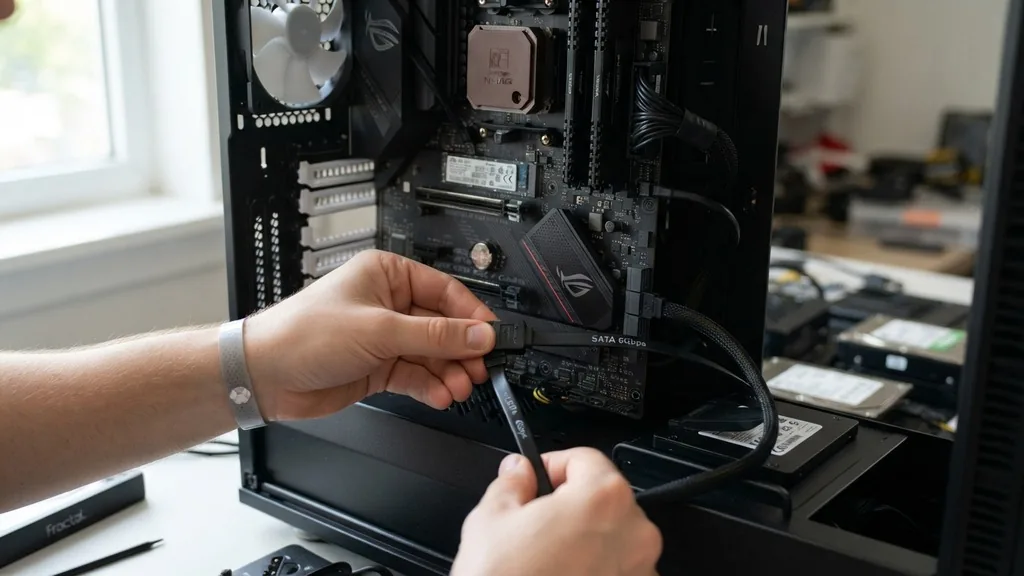
Building or upgrading a computer often brings you face-to-face with a bundle of wires, leaving you to wonder: do I need to connect a SATA cable to my motherboard? The short answer is that it depends entirely on the storage drives you are using. While modern systems have shifted toward newer standards, the Serial ATA (SATA) interface remains a cornerstone of PC storage architecture.
If you are installing a traditional hard disk drive or a 2.5-inch solid-state drive, you absolutely must bridge the gap between your storage hardware and the system board using these cables. However, if you are strictly using NVMe M.2 drives, you might find yourself with extra cables and no clear place to plug them in.
Understanding the Role of SATA Cables in Modern Computing
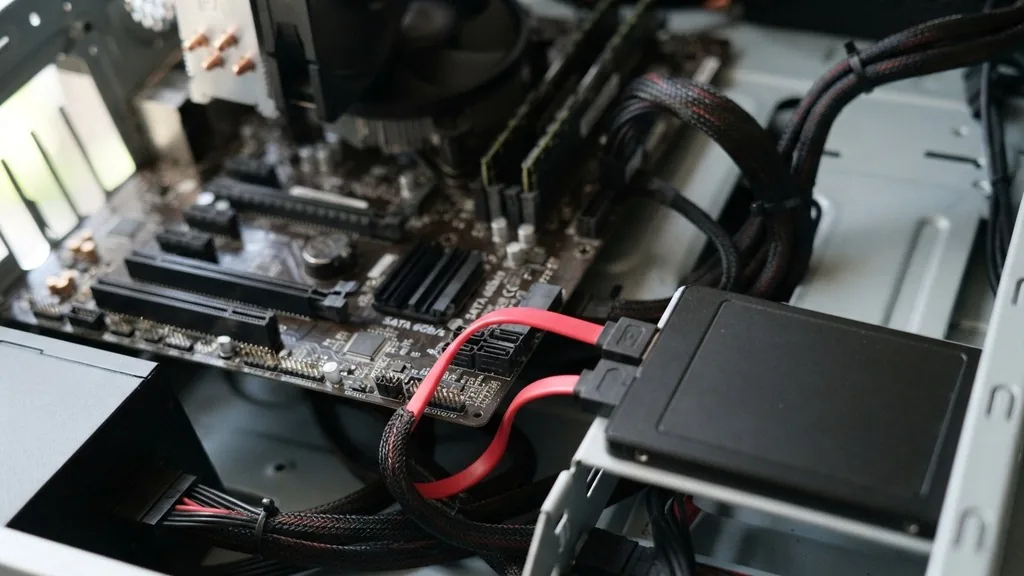
The primary function of a SATA cable is to facilitate the transfer of data between your storage device and the motherboard’s chipset. Without this physical connection, the computer cannot recognize the drive, meaning the operating system cannot read or write any files. Think of the SATA cable as a dedicated highway for information, distinct from the power supply lines.
While the power cable provides the electricity necessary for the drive to spin or operate its flash memory, the SATA cable acts as the communication lane. If you leave this cable disconnected, your drive remains invisible to the BIOS or UEFI, rendering it useless for your storage needs.
The interface has evolved significantly over the years, moving from early generations to the current standard, which is widely referred to as SATA III or SATA 6Gb/s. This speed capacity is sufficient for most mechanical hard drives and standard 2.5-inch SSDs. When you look at your motherboard, you will typically see a series of small, L-shaped ports clustered near the edge of the board.
These are the SATA headers. You must connect one end of the cable to these headers and the other to the back of your storage drive.
It is a simple, keyed connection, meaning it only fits one way. You should never force the connector, as the plastic tabs are delicate and can break if misaligned.
Identifying When You Actually Need a SATA Connection
You need to connect a SATA cable to the motherboard whenever you utilize a device that relies on the SATA protocol. This includes 3.5-inch mechanical hard drives, 2.5-inch SSDs, and optical drives like DVD or Blu-ray burners. If your build includes any of these components, the SATA data cable is mandatory.
Without it, the drive will receive power and spin up, but it will never show up in your Windows Disk Management or BIOS settings. It is a common point of confusion for beginners who plug in the power cable but forget the data link, leading to the frustrating “No Boot Device Found” error during the first power-on.
Conversely, if your computer build uses only M.2 NVMe drives, you do not need to connect a SATA cable to the motherboard. These modern drives plug directly into a dedicated M.2 slot on the motherboard, which utilizes the PCIe bus rather than the SATA interface. This design eliminates the need for cabling, resulting in a cleaner look inside your case and faster data transfer speeds.
If you are unsure about your specific hardware, check the labels on your drives. If you see “SATA” printed on the drive housing, you need a cable. If it is an M.2 stick that looks like a small piece of gum, you likely do not need a SATA cable at all.
The Difference Between Data and Power Connections
A common mistake during installation is confusing the data cable with the power cable. You actually need both to make a standard SSD or HDD function. The data cable is the thinner wire that connects the drive to the motherboard.
The power cable is a wider, multi-colored or black ribbon cable that comes directly from your power supply unit (PSU). You cannot power a drive through the motherboard via the data cable; the motherboard port is strictly for information flow. If you fail to connect the power cable, the drive will simply remain dormant, regardless of how well the data connection is seated.
To ensure a successful installation, always follow the chain of power and data. First, mount your drive securely in the drive bay or on a mounting bracket. Next, connect the power cable from your PSU.
Finally, attach the SATA data cable between the drive and the motherboard. Many power supplies feature a modular design, meaning you may need to plug the power cable into the PSU first before routing it to the drive.
This two-cable requirement is the defining characteristic of SATA-based storage. If you only provide one, the hardware will fail to initialize, and your system will not recognize the storage capacity.
SATA vs. M.2: Choosing the Right Storage Interface
The landscape of storage has shifted toward M.2, but SATA remains relevant due to its cost-to-capacity ratio. When evaluating whether you need to connect a SATA cable to the motherboard, consider the type of storage you are prioritizing. For high-speed boot drives or intensive gaming, NVMe M.2 drives are superior.
However, for massive storage of photos, videos, or backups, 3.5-inch hard drives using the SATA interface are still the most economical option. You might find yourself using a hybrid setup, where you have an M.2 drive for your operating system and a large SATA hard drive for mass storage.
For more technical details on how these interfaces differ, you can consult the SATA-IO official documentation. Understanding these technical standards helps you avoid unnecessary troubleshooting. While SATA is slower than the latest PCIe 4.0 or 5.0 M.2 drives, it is more than fast enough for general file storage and legacy applications.
If your motherboard has limited M.2 slots, connecting a SATA drive is a reliable way to expand your capacity without needing to replace your primary drive. Always verify the number of available SATA ports on your motherboard before purchasing additional drives, as some boards have as few as two, while others offer six or more.
Troubleshooting Common SATA Connection Issues
If you have connected your SATA cable to the motherboard but the drive is not appearing, there are several steps to take. First, ensure the cable is fully seated in the port. SATA connectors should click into place; if they feel loose, they might not be making a solid connection.
Second, check the BIOS settings. Sometimes, specific SATA ports are disabled by default or are shared with M.2 slots.
If you install an M.2 drive, some motherboards will automatically disable one or two SATA ports to save bandwidth. You may need to enter the BIOS to re-enable them or move your cable to a different port.
Another issue could be a faulty cable. SATA cables are notoriously fragile, especially the locking clips that keep them secured to the motherboard. If you have bent the cable at a sharp angle or pinched it while trying to close the case, the internal wiring could be compromised.
Try swapping the cable with a spare one to rule out a hardware failure. Additionally, ensure that your drive is formatted correctly.
A brand-new drive will not show up in File Explorer until you initialize it in Disk Management. This is a software-level configuration, not a hardware connection issue, but it is often mistaken for a faulty cable.
Best Practices for Cable Management and Airflow
Once you have confirmed that you need to connect a SATA cable to the motherboard, consider how you route it. A mess of cables inside your case can obstruct airflow, leading to higher temperatures for your GPU and CPU. Use the tie-down points provided by your computer case to keep the SATA cables tucked away.
Avoid sharp bends, as these can weaken the data signals over time. If you have multiple drives, group the cables together to keep the main chamber of the case clear. A tidy build is not just for aesthetics; it makes future maintenance and upgrades much easier.
When closing the case, be careful not to pinch the SATA cables against the side panel. Many cases have limited clearance behind the motherboard tray, and forcing the panel shut can crush the cables. If you are using a right-angle SATA cable, ensure it doesn’t conflict with other components like RAM slots or cooling fans.
Proper cable management also makes it easier to identify which drive is connected to which port if you ever need to change your boot order or troubleshoot a failing drive. Keeping your internal layout organized is a hallmark of a professional-grade build.
Comparison of Storage Interface Capabilities
To help you visualize why you might or might not need a SATA cable, the following table compares common storage interfaces found in modern computers. Understanding these differences will help you decide if your current hardware requires a cable connection.
| Interface Type | Needs SATA Cable? | Primary Use Case | Speed Class |
|---|---|---|---|
| SATA 3.5″ HDD | Yes | Mass Storage / Backup | Low |
| SATA 2.5″ SSD | Yes | General Storage / Gaming | Medium |
| M.2 NVMe SSD | No | OS Boot / High Performance | High |
| Optical Drive | Yes | Legacy Media Playback | Low |
As shown in the table, the requirement for a SATA cable is tied directly to the physical form factor and the protocol used by the drive. If you are building a system for high performance, you will likely lean toward M.2 options, which bypass the need for these cables entirely. However, if you are repurposing older drives or building a budget-friendly NAS, the SATA interface remains a reliable and necessary part of your configuration.
Future-Proofing Your Build and Storage Strategy
Looking ahead, the role of the SATA cable is slowly diminishing in the consumer market. Motherboard manufacturers are increasingly prioritizing M.2 slots, often providing three or four on a single board, which covers the needs of most users. If you are planning a new build, it is worth checking if you can meet all your storage needs using M.2 drives to avoid the clutter of extra cables.
However, do not be afraid to use SATA if you have a massive library of existing data. The reliability of SATA is well-proven, and the cost of replacing your entire storage library with M.2 drives is often prohibitive.
When you decide to add more storage later, keep in mind that you can always add a PCIe expansion card to provide more SATA ports if your motherboard runs out. This is a common upgrade for power users who have filled every available header on their motherboard.
By keeping your cabling organized and understanding the requirements of your specific hardware, you can maintain a system that is both functional and easy to upgrade. Remember that the “need” for a SATA cable is not a limitation but a choice based on your specific storage requirements, budget, and performance goals.
Frequently Asked Questions
- Do I need to connect a SATA cable to my motherboard if I have an M.2 SSD? No, you do not. M.2 SSDs plug directly into the motherboard via the M.2 slot and do not require any external cabling. You only need a SATA cable for 2.5-inch or 3.5-inch drives that use the SATA interface.
- What happens if I only plug in the SATA data cable but not the power cable? If you fail to connect the power cable, your drive will not receive electricity. It will not spin up or initialize, and your motherboard will not detect it. You must have both the data cable and the power cable connected for the drive to work.
- Are all SATA cables the same? Most SATA cables are functionally identical and compatible with all SATA generations. While some are labeled for SATA III speeds, they are backward compatible with older drives. Just ensure the clips are intact and the cable is not physically damaged before use.
- Can I connect a SATA cable while the computer is turned on? While SATA supports “hot-swapping,” it is highly recommended that you power off your computer before connecting or disconnecting hardware. This prevents accidental short-circuits or data corruption, ensuring your motherboard and drive remain safe during the installation process.


