

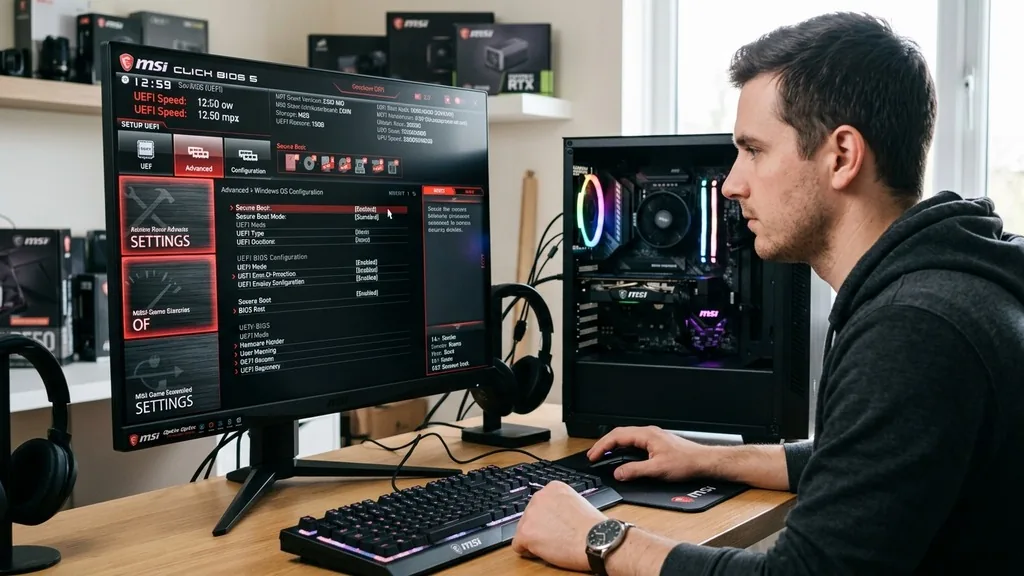
Enabling Secure Boot is a fundamental step for users looking to maximize the security of their computer, especially for those transitioning to Windows 11. If you are wondering how to enable Secure Boot on an MSI motherboard, you are likely looking to satisfy the strict hardware requirements imposed by modern operating systems. Secure Boot acts as a digital gatekeeper, ensuring that only trusted software—signed by the original equipment manufacturer—is allowed to execute during the boot process.
By preventing unauthorized firmware or malicious bootloaders from loading, it creates a foundational layer of protection for your system.
Understanding the Role of UEFI and BIOS in MSI Systems 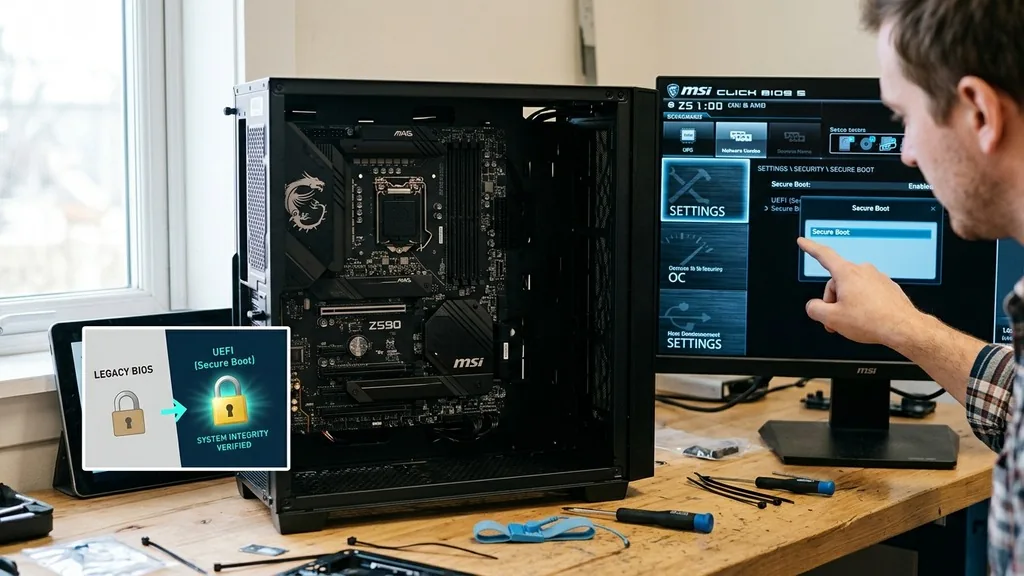
To understand why you need to enable this feature, you must first recognize that modern MSI motherboards operate using the Unified Extensible Firmware Interface, or UEFI. This is the successor to the legacy Basic Input/Output System, commonly referred to as BIOS. While many people still use the term BIOS out of habit, your MSI motherboard is almost certainly running a UEFI environment.
This environment is critical because Secure Boot is a feature exclusively tied to the UEFI architecture. It relies on cryptographic signatures to verify the integrity of the bootloader, a process that legacy BIOS cannot perform.
When you enter your MSI Click BIOS 5 interface, you are interacting with a sophisticated firmware layer that manages the hardware-to-software handshake. If your system is currently configured in a legacy mode, you will not be able to toggle Secure Boot on. This is because the security protocols required for the feature are absent in the older, less secure boot standards.
Transitioning to a modern, UEFI-compliant setup is not just about ticking a box; it is about aligning your hardware with current industry standards for data protection and system integrity.
Navigating the MSI Click BIOS 5 Interface
The MSI Click BIOS 5 is the central hub for all your motherboard settings. To begin the process of enabling Secure Boot, you must first access this interface by restarting your computer and repeatedly pressing the Delete key as the MSI logo appears on your screen.
Once inside, you might find yourself in the EZ Mode, which provides a simplified view of your system status. To gain full control over the security settings, you will need to switch to Advanced Mode, typically by pressing the F7 key on your keyboard.
Within the Advanced Mode, look for the Settings tab on the left-hand menu. This is where the core configuration options reside. You should navigate to the Advanced submenu, and then look for Windows OS Configuration.
This specific path is where MSI hides the security toggles. If you don’t see the Secure Boot option immediately, it is often because the system is currently set to use the Compatibility Support Module, or CSM. Switching this to UEFI mode is the most common prerequisite for revealing the hidden security options.
The Critical Role of the Compatibility Support Module (CSM)
Many users find themselves stuck because their motherboard is running in CSM mode.
The Compatibility Support Module is a legacy layer designed to allow older operating systems and hardware to function on modern UEFI systems. Unfortunately, CSM is fundamentally incompatible with Secure Boot.
Because CSM mimics the old BIOS environment, it bypasses the security checks that Secure Boot is designed to enforce. To enable Secure Boot on an MSI motherboard, you must disable CSM entirely.
When you switch from CSM to UEFI mode, your system forces the motherboard to interact only with modern, signed bootloaders. This is a significant change, and it may require you to convert your boot drive from the older Master Boot Record (MBR) partition style to the GUID Partition Table (GPT) format. If your drive is still formatted as MBR, Windows might fail to boot after you disable CSM.
This is a common hurdle, but it is necessary for maintaining the security standards required by Windows 11. Always ensure you have a backup of your data before making changes to your partition style or boot mode.
Transitioning Between Setup Mode and User Mode
A common point of confusion for users involves the distinction between Setup Mode and User Mode. When you first access the Secure Boot settings, you may notice that the system is in Setup Mode.
This is a default state that allows the system to install the necessary security keys. To properly secure your system, you generally want to move into User Mode. This mode signifies that the platform keys and other Secure Boot keys have been successfully installed and are actively protecting the boot sequence.
If you are stuck in Setup Mode, you might need to manually enroll the default Secure Boot keys provided by MSI. This is usually done within the Secure Boot Key Management submenu. By selecting the option to install the default factory keys, you allow the motherboard to recognize the standard signatures used by Microsoft and other major vendors.
Once these keys are loaded, the system will transition to User Mode, effectively activating the security layer. This process is essential for ensuring that your hardware is fully compliant with the latest security protocols.
Integrating TPM 2.0 for Full System Security
While Secure Boot is a vital component of a secure system, it works best in tandem with TPM 2.0, or the Trusted Platform Module. TPM 2.0 is a hardware-based security chip that stores cryptographic keys and performs integrity checks.
Many modern MSI motherboards have this feature integrated directly into the processor or the motherboard itself, often labeled as fTPM (Firmware TPM) or PTT (Platform Trust Technology). Enabling Secure Boot without also ensuring that TPM 2.0 is active leaves a significant gap in your overall security posture.
To enable this on your MSI
To enable this on your MSI motherboard, navigate back to the Settings menu in your BIOS and look for the Security or Advanced submenus. You will typically find a setting related to Trusted Computing. Ensure that the security device support is enabled and that the TPM device selection is set to Firmware TPM.
This, combined with Secure Boot, creates a robust defense against physical and remote tampering. It is worth noting that Microsoft provides official documentation regarding the Trusted Platform Module which serves as a definitive resource for understanding how these chips interact with Windows to prevent unauthorized access.
Troubleshooting Common BIOS Configuration Issues
Sometimes, even after following the steps, the Secure Boot option remains greyed out or invisible. This is usually a sign that your system is not yet “UEFI-ready.”
If you have disabled CSM and switched to UEFI mode but still cannot toggle Secure Boot, try saving your changes, exiting the BIOS, and then re-entering it. Sometimes, the firmware needs a full reboot cycle to commit the changes to the NVRAM before it can display the secondary security settings.
Another common issue involves the way your graphics card interacts with the boot process. If your GPU is very old and does not support UEFI GOP (Graphics Output Protocol), the motherboard may default back to CSM to ensure you can at least see a display.
In such cases, you may need to update the VBIOS of your graphics card or consider a hardware upgrade. Furthermore, if you are using an older RAID configuration, the BIOS might refuse to enable Secure Boot because RAID controllers often rely on legacy option ROMs that are incompatible with modern secure boot chains.
Comparing Boot Configuration Settings
To help you understand the relationship between these settings, the following table outlines the impact of different configurations on your system’s ability to boot and maintain security.
| Setting | Legacy Mode | UEFI Mode |
|---|---|---|
| CSM Support | Enabled | Disabled |
| Secure Boot | Incompatible | Fully Supported |
| Partition Style | MBR | GPT |
| Boot Speed | Standard | Optimized |
As indicated in the table, UEFI mode is the only environment that supports the full suite of modern security features. While Legacy mode provides broader compatibility with decades-old hardware, it sacrifices the protection afforded by modern firmware verification. Moving to UEFI and GPT is the modern standard for any desktop or workstation.
Best Practices for Maintaining Firmware Security
Once you have successfully enabled Secure Boot, your responsibility for maintaining system security does not end.
Firmware updates are just as important as operating system patches. MSI regularly releases BIOS updates that contain critical security patches, feature improvements, and bug fixes for the Secure Boot Key Management system. You should periodically check the MSI website for your specific motherboard model to see if a newer version of the BIOS is available.
When updating your BIOS, always use the M-Flash tool built into the MSI Click BIOS 5. This tool is the safest way to apply firmware updates. Avoid using third-party software within Windows to update your BIOS, as these methods can sometimes be interrupted by background processes.
Keeping your firmware current ensures that your Secure Boot implementation remains resilient against newly discovered vulnerabilities. Additionally, always keep your Windows installation up to date, as the operating system relies on the foundation established by your BIOS to maintain the chain of trust from the moment you press the power button.
Addressing Frequent User Questions
If you are still struggling with your configuration, look at these common points of confusion to see if they align with your current situation.
- Why is Secure Boot greyed out? This usually happens because you are in CSM mode. You must disable CSM and ensure your boot drive is formatted in the GPT partition style before the BIOS will allow you to interact with the Secure Boot settings.
- Will enabling Secure Boot delete my data? Enabling Secure Boot itself does not delete data, but changing your boot mode from Legacy to UEFI often requires converting your drive from MBR to GPT. If you do this without proper preparation, you may lose access to your files. Always back up your data first.
- How do I know if Secure Boot is active? Within Windows, press the Windows key + R, type ‘msinfo32’, and hit Enter. In the System Summary, look for the ‘Secure Boot State’ entry. It will clearly state whether it is ‘On’ or ‘Off’.
- What if my PC won’t boot after these changes? If your system fails to boot, it is likely because your OS drive is still using MBR. Enter the BIOS, re-enable CSM to restore access to your OS, back up your data, and then perform a proper conversion to GPT using the MBR2GPT tool provided by Microsoft.
Taking these steps provides a significantly higher level of protection for your machine. By transitioning to a modern, UEFI-based environment and locking down the boot process, you are effectively neutralizing a wide range of low-level threats that could otherwise compromise your operating system before it even has a chance to load.
While the initial setup requires attention to detail, the resulting system state is far more resilient and better equipped to handle the demands of modern computing and software requirements. Ensure your motherboard settings are aligned with these best practices to maintain a secure and reliable computing environment for the long term.


