

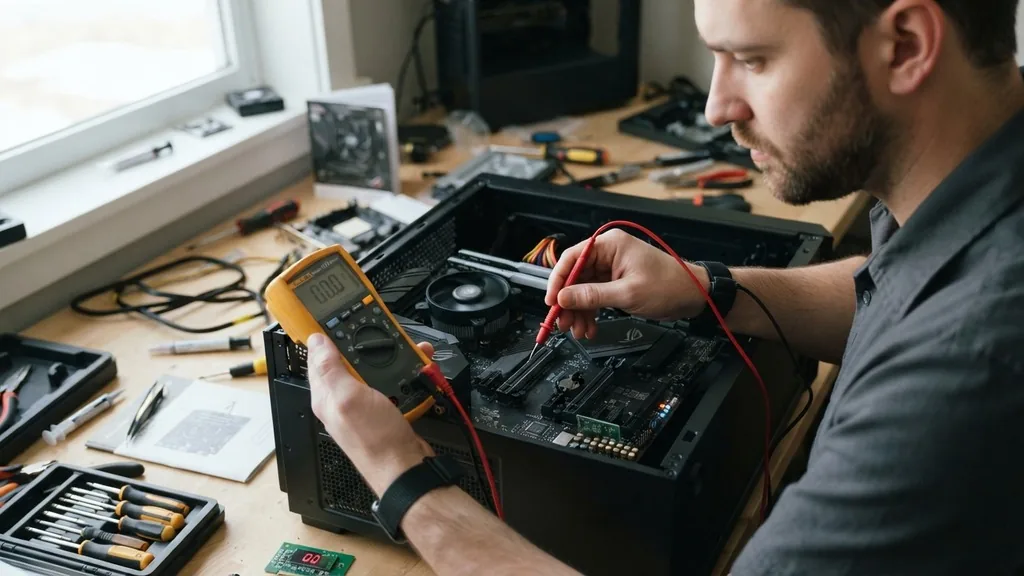
Troubleshooting a computer that refuses to turn on can be one of the most frustrating experiences for any user. When you press the power button and nothing happens, the immediate fear is often that the motherboard has failed.
Learning how to test if your motherboard is dead is a systematic process of elimination. By isolating the core components, you can determine whether the main circuit board is the culprit or if a peripheral component is simply preventing the system from booting.
Understanding the Signs of a Failing Motherboard
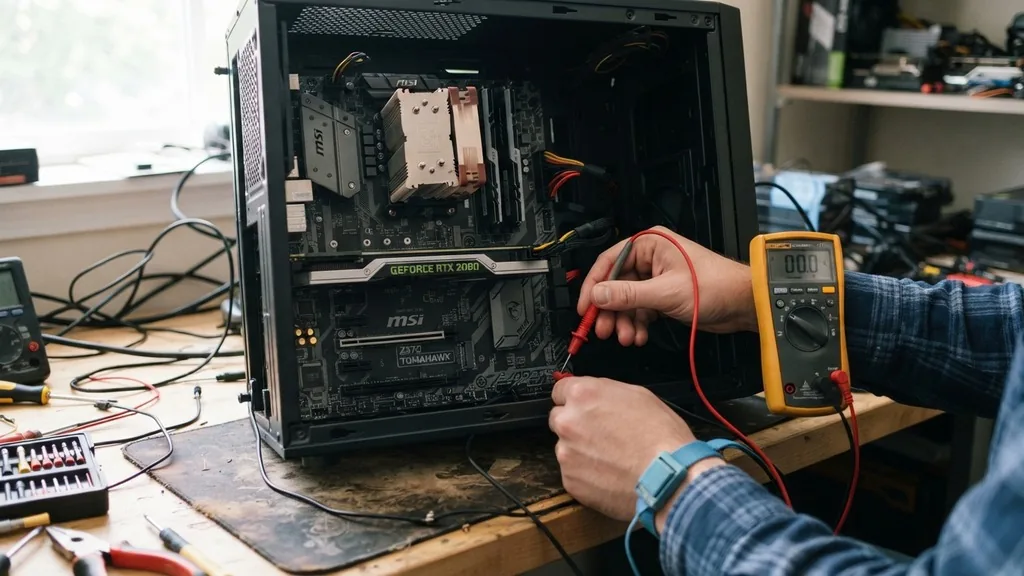
The most common sign of a dead motherboard is a complete lack of response when you press the power button. However, simply having no power isn’t a definitive diagnosis. A motherboard might be failing if you experience intermittent shutdowns, blue screen errors, or if the system fails to recognize connected hardware like hard drives or RAM modules.
When a motherboard is truly dead, it stops distributing electricity to the processor and other connected devices. You might notice that the fans don’t spin, the indicator lights on the case remain dark, and there is no audible beep code or POST (Power-On Self-Test) message on your monitor.
If the motherboard is partially functional, it may exhibit “boot loops,” where the machine tries to start, stays on for a few seconds, and then resets itself repeatedly. These symptoms suggest that the power delivery system on the board has likely suffered a catastrophic failure, possibly due to a capacitor leak or a short circuit.
Performing a Basic Power Supply Unit Check
Before you condemn the motherboard, you must verify that your Power Supply Unit (PSU) is functioning correctly. The PSU is the heart of your computer, and if it fails to provide the necessary voltage to the motherboard, the system will appear dead. A quick way to test this is to perform the “paperclip test,” though you should exercise extreme caution.
By bridging the green wire to a black wire on the 24-pin connector, you can force the PSU to turn on independently of the motherboard. If the PSU fan spins, it indicates the unit is receiving power, but it doesn’t guarantee it is providing the correct voltages.
If you have a digital multimeter, you can measure the voltage on the pins of the 24-pin ATX connector while the PSU is forced on. You are looking for stable readings of 3.3V, 5V, and 12V.
If these voltages are missing or wildly fluctuating, the PSU is likely the cause of your problems, not the motherboard. Always consult the official Intel motherboard and power supply specifications to ensure you are testing the correct pins for your specific system architecture.
Isolating Components to Rule Out Shorts
Often, a system won’t boot because a specific component is causing a short circuit, causing the motherboard to trigger a safety shutdown immediately upon receiving power. To test for this, you should strip your system down to the “bare minimum.” This means disconnecting everything except the motherboard itself, the CPU with its cooler, and a single stick of RAM.
Remove all secondary hardware, including graphics cards, mechanical hard drives, SSDs, and optical drives. Even external USB devices like printers or webcams should be unplugged. If the system boots into the BIOS or shows a screen output with only these essentials, you know the motherboard is alive.
You can then add components back one by one, testing the system after each addition, until you find the specific piece of hardware that was causing the failure. This process is tedious, but it is the most effective way to identify a faulty peripheral that is masquerading as a dead mainboard.
Inspecting for Physical Damage on the Motherboard
Visual inspection is an undervalued step in troubleshooting. Take a strong flashlight and carefully examine the surface of the motherboard.
Look for signs of physical damage, such as scorched marks, burnt components, or bulging capacitors. Capacitors are small, cylindrical components that store energy; when they age or experience a surge, their tops may bulge or leak a brown, crusty residue.
If you see any of these signs, the motherboard is likely damaged beyond simple software or configuration fixes. Additionally, check for bent pins in the CPU socket if you are using an Intel processor. Even a single bent pin can prevent the CPU from communicating with the motherboard, resulting in a system that simply refuses to start.
If the motherboard is mounted in a case, ensure that the standoffs are correctly installed. An improperly placed standoff can cause a short circuit against the back of the motherboard, which is a common but easily fixed cause of a “dead” system.
Utilizing POST Codes and Debug LEDs
Modern motherboards often include built-in diagnostic tools that make troubleshooting significantly easier. Many mid-range and high-end boards feature a small LED display (often called a Dr.
Debug LED) that shows a two-digit hexadecimal code. When the system turns on, this display cycles through various codes as it initializes different components.
If the system hangs, the code displayed on that screen corresponds to a specific failure point listed in your motherboard’s manual. For example, a code might point to a memory initialization failure or a GPU detection error. If your motherboard doesn’t have an LED display, it might use a series of beeps emitted by a small speaker connected to the motherboard header.
These “beep codes” follow a standard pattern determined by the BIOS manufacturer. By looking up these codes in your manual, you can pinpoint exactly why the motherboard is failing to reach the operating system, allowing you to focus your repair efforts on the actual source of the problem.
Testing the CMOS Battery and BIOS Settings
Sometimes, a motherboard isn’t dead, but the BIOS settings have become corrupted or the CMOS battery has died, leading to a failure to boot. The CMOS battery is a small, coin-shaped battery (usually a CR2032) located on the motherboard. It keeps the BIOS settings saved when the computer is unplugged.
If this battery is depleted, the motherboard may struggle to initialize hardware correctly. You can test this by removing the battery for about 60 seconds and then putting it back in. This will reset the BIOS to its factory default settings.
If the computer starts after this reset, the motherboard itself is likely fine, and you were simply dealing with a configuration error or a bad battery. If you find yourself needing to reset the BIOS frequently, it is a clear sign that the CMOS battery needs to be replaced, which is a very inexpensive fix compared to replacing the entire motherboard.
Comparing Potential Failure Points
When diagnosing a system, it helps to keep track of which parts are most likely to fail. The following table provides a breakdown of common symptoms and their likely sources.
| Symptom | Likely Cause | Action Required |
|---|---|---|
| No lights, no fans | Power Supply or Motherboard | Test PSU with multimeter |
| Fans spin, no video | RAM or GPU | Reseat RAM or swap GPU |
| Cycles on and off | Short circuit or CPU | Remove all peripherals |
| Error beep codes | BIOS/Hardware conflict | Consult motherboard manual |
This table highlights that a “dead” computer is rarely just a dead motherboard. By systematically addressing these categories, you can save significant money and time.
When to Consider Professional Repair or Replacement
If you have performed all the steps above—checked the power supply, stripped the system to the bare minimum, inspected for physical damage, reset the BIOS, and checked for POST codes—and the system still shows no signs of life, it is highly probable that the motherboard has suffered an internal failure. At this stage, professional repair is rarely cost-effective unless the board is a high-end or specialized model.
Motherboard repair usually involves replacing surface-mount components, which requires specialized soldering equipment and a high level of expertise. For most users, the most practical solution is to purchase a new motherboard.
Before you do, ensure the new board is compatible with your existing CPU socket type and RAM technology. If your hardware is very old, it might be more economical to upgrade the CPU, RAM, and motherboard together as a bundle, rather than trying to find a replacement board for an obsolete platform.
Common Troubleshooting Questions
- Can a dead motherboard be revived?
- Is it possible to test a motherboard without a CPU?
- How do you know if your motherboard is bricked?
- Will a dead motherboard light up at all?
Can a dead motherboard be revived?
In most cases, a truly dead motherboard cannot be revived. If the failure is due to a short circuit or a blown power delivery component, repair is difficult and expensive. However, if the “death” is caused by a corrupted BIOS or a bad CMOS battery, the board can often be recovered.
Is it possible to test a motherboard without a CPU?
No, a motherboard cannot effectively be tested without a CPU. The processor is required to execute the instructions that initiate the POST process. Without a CPU, the motherboard will not complete the initialization phase, and you will not receive any diagnostic feedback or video output.
How do you know if your motherboard is bricked?
A motherboard is considered “bricked” when its firmware (BIOS/UEFI) becomes corrupted, often during a failed update. Signs include the system powering on but showing no display, no POST beeps, and no diagnostic LEDs. Some boards have a “BIOS Flashback” feature that allows you to recover from this state.
Will a dead motherboard light up at all?
It depends on the type of failure. If the power delivery system has completely failed, you will see no lights. However, if the motherboard has power but a component like the CPU or RAM is faulty, you might see status lights or hear fans spin, even if the system never boots.


