

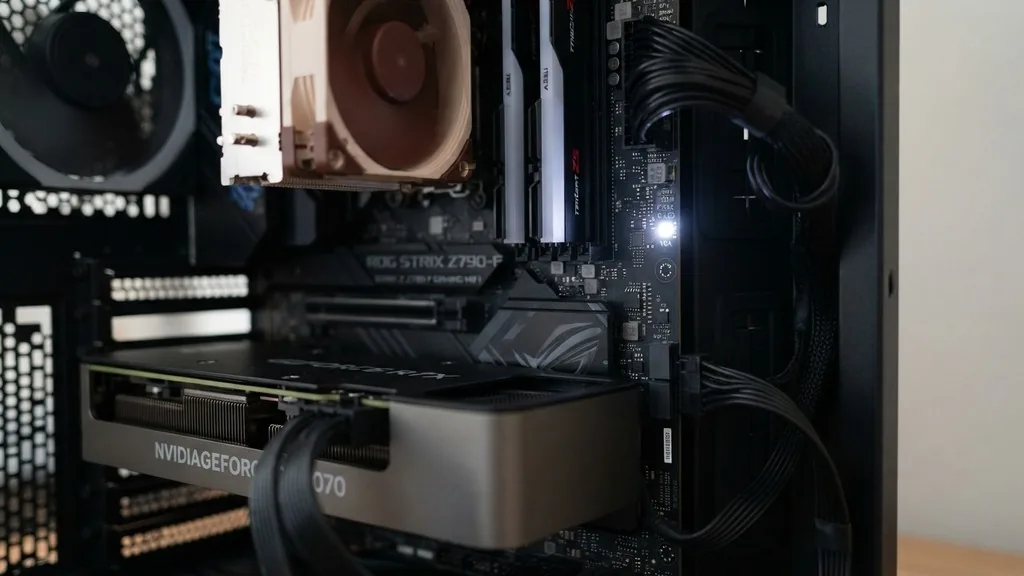
Seeing a glowing white light emanating from your motherboard when you power on your computer can be an unsettling experience, especially if your screen remains black. For many PC builders and users, this light is the first indication that something has gone wrong during the POST (Power-On Self-Test) process.
While modern motherboards are designed to be user-friendly, they often use cryptic color-coded indicators to communicate hardware health. A white light usually signifies a specific component failure, most commonly related to the graphics card, though it can vary depending on your manufacturer.
Understanding the Debug LED System
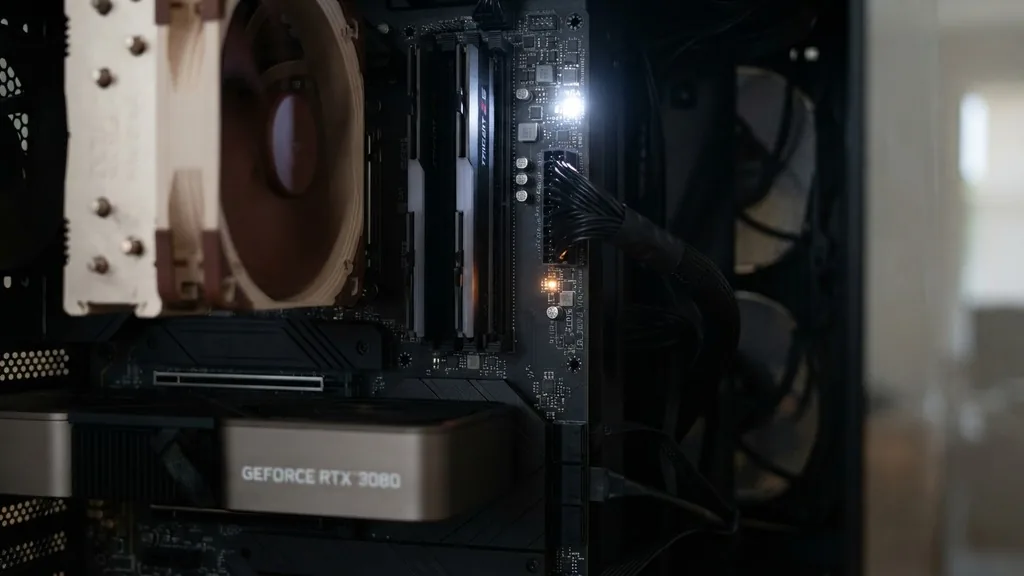
A debug LED is a specialized light on your motherboard that serves as a diagnostic tool for identifying hardware failures during the boot sequence. When you press the power button, the motherboard initiates a series of checks to ensure all essential components—CPU, memory, storage, and the graphics card—are functional. If the system encounters a problem, it stops the boot process and illuminates a specific LED to point you toward the culprit.
Most major manufacturers like ASUS, MSI, Gigabyte, and ASRock have standardized these indicators to some extent. While the colors can occasionally be customized in BIOS, the default setting for a white light is almost universally associated with a VGA (Video Graphics Array) error.
This means the motherboard is unable to detect or initialize the graphics card correctly. If you see this light, your computer is effectively telling you that it cannot see the device responsible for sending an image to your monitor.
It is important to remember that these lights are not always indicative of permanent hardware damage. Often, a loose connection or a minor seating issue is the root cause.
Before you assume that your expensive graphics card has died, you should perform a systematic check of your hardware components. The diagnostic process requires patience, as you must isolate each variable to determine why the system is stalling.
Why the Graphics Card Is the Primary Suspect
The most frequent reason for a white light on a motherboard is a communication failure between the system and the GPU. In the language of motherboard manufacturers, the white LED is the VGA light. When this light stays illuminated, the motherboard has finished checking the CPU and RAM but has failed to find a valid response from the graphics card.
This failure can stem from several technical issues. It might be a physical problem with the PCIe slot, a lack of sufficient power delivery from the power supply, or a simple case of the GPU not being fully seated. Because the GPU is a complex piece of hardware that requires both high-bandwidth data lanes and dedicated power cables, there are multiple points of failure.
If you are using a dedicated graphics card, the motherboard will ignore any integrated graphics output on the back panel by default. Therefore, if the GPU is not working, you will not receive a signal on your monitor, regardless of where you plug in your HDMI or DisplayPort cable. This creates a circular problem: you need the GPU to see the BIOS, but you need the BIOS to diagnose why the GPU isn’t working.
Troubleshooting Seating and Physical Connections
The first step in resolving a VGA-related white light is to inspect the physical seating of your graphics card. Over time, or due to improper installation, a GPU can sag or slightly shift within the PCIe slot. This movement can cause the gold contact pins to lose full electrical contact with the slot, leading to the error you are seeing.
To address this, power off your computer completely and flip the switch on your power supply unit to the off position. Discharge any static electricity by touching a grounded metal object.
Carefully remove the screws holding your graphics card to the case bracket and depress the release tab on the PCIe slot. Gently pull the card out, inspect the gold connectors for any dust or debris, and then reinsert it firmly until you hear a satisfying click.
Ensure that the card is level and that it isn’t being pulled down by the weight of the power cables. If you have a large, heavy card, consider using a GPU support bracket to prevent future sagging.
Once the card is re-seated, reconnect your power cables, turn the power supply back on, and attempt to boot the system. Often, this simple mechanical reset clears the error immediately.
Verifying Power Supply and Cable Integrity
Modern graphics cards are power-hungry components that require dedicated power from the PSU. If your motherboard shows a white light, it is possible that the GPU is receiving power through the PCIe slot, but the additional power pins—usually 6-pin or 8-pin connectors—are not providing enough current or are not connected securely.
Check that every power port on your graphics card is filled with a cable from your power supply. If you are using a modular power supply, ensure that the cables are securely plugged into the PSU side as well.
Sometimes, a cable can look connected but may have a loose pin inside the plastic housing. Try using a different set of power cables from your PSU if you have them available.
It is also worth noting that using “daisy-chain” cables—where one cable splits into two connectors—can sometimes cause stability issues with high-end GPUs. If your card requires two or three power connectors, try to use separate, individual cables for each port on the card. This ensures that the card receives consistent, stable voltage, which may resolve the white light error if the issue was related to power delivery.
The Role of BIOS and Firmware Settings
Sometimes, the white light is not a hardware failure but a configuration mismatch. For example, if your motherboard is set to “Legacy” boot mode but your GPU supports “UEFI” mode, the system might fail to initialize the card properly. This is common when upgrading an older system with a modern graphics card.
If you have access to another GPU or if your CPU has integrated graphics, you can try to boot the system using those alternatives to enter the BIOS menu. Once inside, look for settings related to CSM (Compatibility Support Module) or PCIe generation. Enabling or disabling CSM can often resolve compatibility issues between older motherboards and newer graphics cards.
Additionally, check if there is a BIOS update available for your motherboard. Manufacturers frequently release firmware patches that improve PCIe stability and compatibility with newer hardware. You can find these updates on the official website of your motherboard manufacturer.
Always be cautious when updating your BIOS, as a power loss during the process can brick your board. For more information on safe hardware practices, you can review the official hardware maintenance guidelines provided by Intel for building and troubleshooting systems.
Addressing PCIe Slot and Motherboard Issues
If re-seating the GPU and checking power cables does not work, the problem might lie with the PCIe slot itself or the motherboard’s communication pathways. If your motherboard has more than one PCIe x16 slot, try moving the graphics card to the secondary slot. While the secondary slot might have fewer electrical lanes, it is a perfect diagnostic tool to see if the primary slot is damaged.
If the system boots when the card is in the second slot, you have successfully narrowed the issue down to a faulty primary PCIe slot. If it still doesn’t boot in either slot, the problem is likely either the graphics card itself or the motherboard’s chipset. In these cases, testing the GPU in a different computer is the most definitive way to determine if the card is dead.
Inspect the motherboard for any physical damage, such as bent pins or burnt components. While rare, short circuits on the board can cause all sorts of erratic behavior, including false debug light signals. If you recently moved your computer or made changes to the internals, double-check that no stray screws or metal bits are touching the board, as these can easily create a short that triggers protection modes.
Comparing Common Motherboard Debug Indicators
It is helpful to distinguish between the different types of lights your board might display. While the white light is usually VGA, other colors indicate different types of failures. Knowing what the other colors mean can help you confirm if the white light is truly a VGA error or a misinterpretation of a different code.
| LED Color | Associated Component | Common Cause |
|---|---|---|
| Red | CPU | Incorrect seating or power failure |
| Yellow/Orange | DRAM | Memory sticks not seated or incompatible |
| White | VGA | Graphics card issue or display error |
| Green | BOOT | Storage device or OS failure |
Keep in mind that these colors can vary by brand. For instance, some older boards might use a single color for all errors, requiring you to count the number of beeps or flashes. Always refer to your specific motherboard manual, which will contain a detailed chart explaining exactly what each LED pattern signifies for your specific model.
When to Consider Professional Help
If you have tried re-seating the GPU, testing different power cables, clearing the CMOS, and even trying a different PCIe slot, but the white light persists, you may be facing a hardware failure that requires professional diagnostic tools. Graphics cards and motherboards are complex, and pinpointing a microscopic failure on a printed circuit board is beyond the scope of home troubleshooting.
If your hardware is still under warranty, contact the manufacturer. Do not attempt to solder components or perform deep repairs yourself, as this will almost certainly void your warranty. Provide the support team with a clear description of your troubleshooting steps, including the fact that you have confirmed the GPU is getting power and that you have tested different slots.
Most manufacturers will ask you to perform the same steps you have already done, so being thorough in your documentation will save you time. If the GPU is indeed faulty, the RMA (Return Merchandise Authorization) process is the standard path to a resolution. While it is frustrating to be without a functioning PC, having a professional evaluate the hardware is the safest way to ensure your system returns to full health without risking further damage.
Frequently Asked Questions
- Does a white light always mean my graphics card is dead? No, it usually just means the motherboard cannot communicate with it. This is often caused by a loose connection, an improperly seated card, or a power supply issue rather than a total hardware failure.
- Can a white light be caused by a bad monitor? Generally, no. The motherboard checks for the graphics card before it even attempts to send a signal to the monitor. If the motherboard detects the GPU successfully, it will move past the white light even if no monitor is plugged in.
- Should I clear my CMOS to fix a motherboard light? Yes, clearing the CMOS is a standard troubleshooting step. It resets the BIOS to factory defaults, which can resolve configuration conflicts that might be preventing the motherboard from correctly initializing the graphics card or other components.
- What if the light stays on but the computer works fine? If you have an image on your screen and the system boots into Windows normally, the light might be a false positive or a “legacy mode” indicator. Check your motherboard manual to see if the light behaves differently after the OS loads.
Addressing a motherboard light is a process of elimination. By systematically checking your connections, power, and BIOS settings, you can often identify the root cause of the error.
While the white light is a clear signal of an issue, treating it as a diagnostic roadmap rather than a sign of total system failure will help you maintain your composure and resolve the problem efficiently. Always ensure you are working in a safe, static-free environment when handling your components, and don’t hesitate to reach out to official support channels if the issue proves to be beyond your current technical capacity.


