

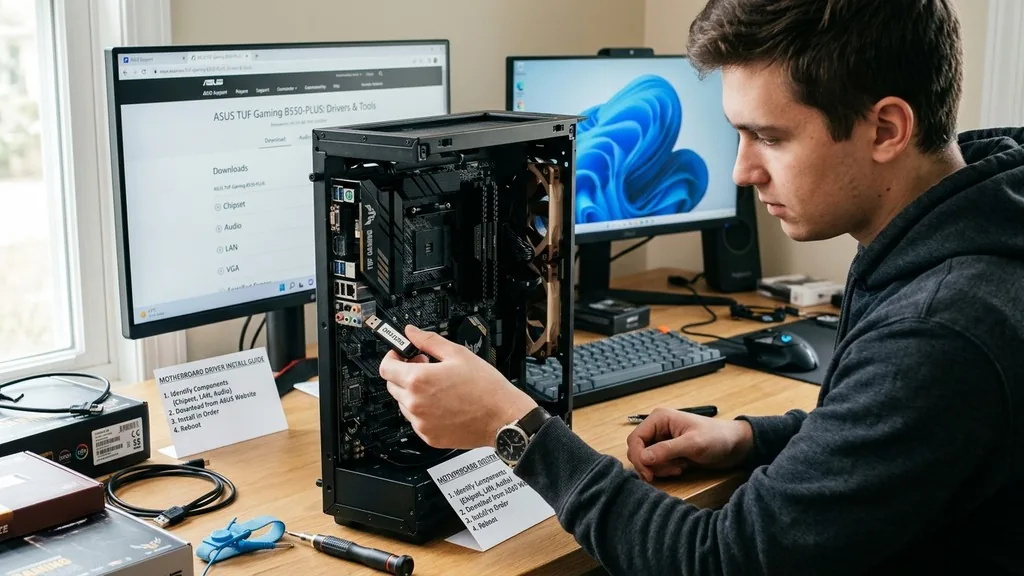
When you build a new PC or perform a clean installation of an operating system, the hardware might appear to function, but it is rarely performing at its peak. Learning how to install motherboard drivers is the critical bridge between raw silicon and a responsive, stable computing experience.
Many users mistakenly assume that Windows Update handles everything, but relying solely on generic drivers often leaves your system lacking essential optimizations for audio, networking, and chipset efficiency. By taking control of this process, you ensure that every component on your board communicates correctly with your CPU and OS, preventing common glitches like stuttering, connection drops, or unrecognized hardware peripherals.
Understanding the Role of Motherboard Drivers
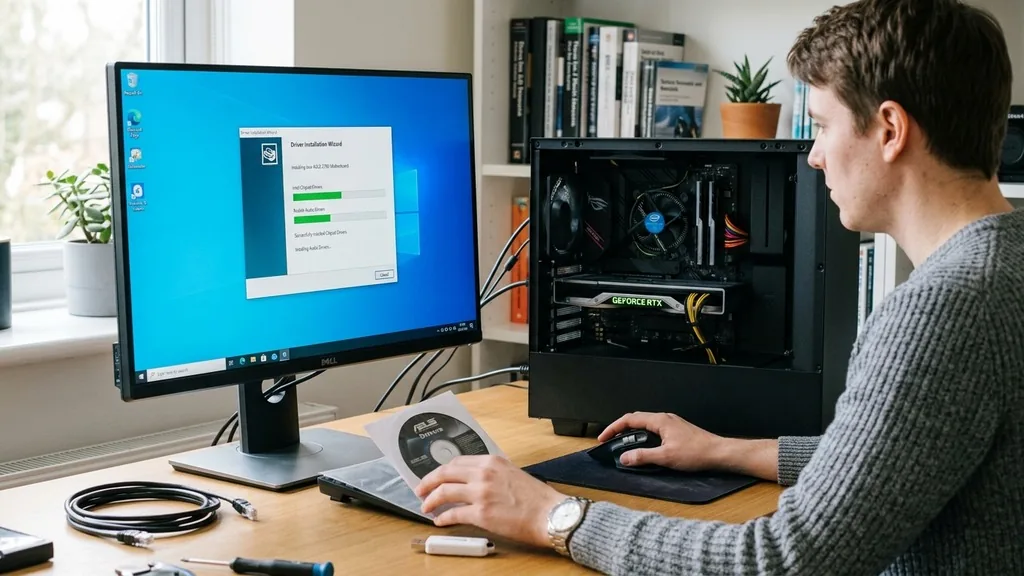
Motherboard drivers act as the essential software translator between your hardware components and the operating system. Without these specific instructions, the operating system cannot effectively manage the communication pathways across the motherboard.
You can think of the motherboard as the central nervous system of your computer; drivers are the signals that tell the brain how to interact with the limbs. When you install drivers, you are providing the OS with the specific language required to control features like the PCIe lanes, SATA controllers, and integrated power management systems.
If you skip this step, your computer might default to basic, generic drivers provided by Microsoft. While these allow the system to boot and display images, they rarely unlock the full potential of your hardware. For example, a generic USB driver might work for a mouse but fail to provide the high-speed data transfer rates your USB 3.2 ports are capable of.
Similarly, your integrated audio chip might produce sound, but without the correct manufacturer-specific driver, you might lose access to advanced features like digital surround sound or front-panel audio jack detection. Ensuring these bits of software are correctly installed is the foundation of a reliable build.
Identifying Your Motherboard Model
Before you can download anything, you must know exactly what hardware you are working with. Many users make the mistake of guessing their motherboard model, which can lead to system instability if the wrong software is installed. To identify your board, you can physically check the PCB for a printed model number, but the easiest way is to use software.
You can open the System Information tool in Windows by typing “msinfo32” into the search bar. Look for the “BaseBoard Product” field; this provides the exact model name.
If you have already discarded the box and the markings are obscured by a GPU or a large air cooler, command-line tools are your best friend. Opening the Command Prompt and typing “wmic baseboard get product,Manufacturer” will return a clean, text-based identification. Once you have this information, you are ready to visit the manufacturer’s website.
It is imperative that you only source these files from the official Intel support portal or your specific manufacturer’s site, such as Gigabyte, MSI, or Asus. Third-party driver update tools often bundle unnecessary bloatware or, in worse cases, malware, so sticking to official channels is a security best practice.
Navigating the Manufacturer Support Page
Once you have identified your hardware, you need to find the official support page. Most manufacturers host a dedicated “Support” or “Download” section on their websites.
You will need to enter your model name exactly as it appears in your system information. If you use a slightly different name, the site might return no results or, worse, offer drivers for a different revision of the board.
When you reach the specific product page, look for the “Drivers & Utility” or “Download” tab. You will likely see a list of categories including Chipset, Audio, LAN, and SATA. Each category contains the software required for a specific function on the motherboard.
It is common to feel overwhelmed by the sheer number of options, but you generally only need to focus on the essential categories. Do not feel pressured to install every single utility program listed; often, these are just optional management software that can consume system resources without providing significant benefits. Focus on the core driver packages first, as these are the ones that dictate system performance and stability.
The Essential Order of Operations
Installing drivers in a specific sequence can prevent many common installation errors. While modern operating systems are more resilient than they were ten years ago, the chipset driver is always the first priority.
The chipset driver acts as the master controller for all other components; installing it first creates the foundation for the OS to correctly identify and manage the other hardware. If you install the LAN or audio drivers before the chipset driver, you might find that those devices remain unrecognized or fail to initialize correctly.
After the chipset drivers are installed, proceed to the networking drivers (LAN or Wi-Fi). Getting your internet connection stable is a secondary priority so that you can easily download any remaining updates or patches. Once the network is up, move to the audio and storage drivers.
Finally, you can install any secondary management tools or BIOS update utilities. If you are ever prompted to restart your computer during this process, do so. While it might seem like a nuisance, restarting allows the operating system to clear its cache and correctly register the new drivers with the kernel, preventing conflicts between old and new configuration files.
Comparing Driver Installation Methods
There are several ways to manage your motherboard software. Choosing the right method depends on your technical comfort level and how much control you want over your system.
| Method | Pros | Cons |
|---|---|---|
| Manual Download | Clean, no bloatware, full control. | Time-consuming, requires research. |
| Manufacturer Utility | Automated, easy to use. | Often installs unwanted extra software. |
| Windows Update | Set and forget, highly stable. | Often outdated or generic drivers. |
Manual installation is the gold standard for enthusiasts. It ensures your machine remains free of “bloatware”—those unnecessary background processes that manufacturers include to upsell their own software suites.
While the manufacturer utility approach might save you ten minutes of clicking, the cost is often a slower boot time and higher RAM usage due to background services that you likely never use. If you want the fastest, most streamlined system, always opt for the manual path.
Addressing Topical Gaps and Common Pitfalls
A common question that arises is whether you need to install every single driver listed on the support page. The short answer is no. Manufacturers often list legacy drivers or specialized drivers for specific RAID configurations that the average home user will never need.
For example, if you are not using a RAID array, you do not need to install the Intel Rapid Storage Technology drivers. Similarly, if you aren’t using the onboard audio because you have a dedicated sound card or a USB DAC, the audio driver might be unnecessary.
Another frequent pitfall is the “BIOS update” trap. Many users assume that because a BIOS update is listed on the driver page, they should install it. BIOS updates are fundamentally different from drivers; they update the firmware of the motherboard itself.
If your system is running stable, you generally do not need to update the BIOS. Only perform a BIOS update if you are installing a new CPU that requires it for compatibility or if you are experiencing specific, documented hardware issues that the update explicitly claims to fix. A failed BIOS update can render a motherboard unusable, so it should only be approached with caution.
Managing System Stability After Installation
Once you have installed the necessary drivers, your job isn’t quite finished. You should spend a few minutes monitoring your system to ensure everything is operating as expected. Open the Device Manager by right-clicking the Start button and selecting it from the menu.
Scan the list for any yellow exclamation marks. A yellow mark indicates that Windows has detected a device but does not have the correct driver to operate it. If you see one, you may need to revisit the support page or run a manual search via Windows Update.
Check your taskbar for any new icons that appeared after installation. If you installed a manufacturer’s audio suite, you might see a new control panel icon. Take a moment to open it and ensure your audio settings are configured correctly—for instance, setting the output to 24-bit/48kHz if you are using high-quality speakers.
If you notice any sudden system crashes or “blue screens” shortly after installing a specific driver, you can use the System Restore feature to revert your machine to its state before the installation. This is why it is always wise to create a System Restore point before you begin the driver update process.
Long-Term Maintenance and Updates
The world of hardware is constantly evolving, and driver updates are occasionally released to patch security vulnerabilities or improve performance in newer applications. However, you do not need to check for updates every week. A good rule of thumb is to check for updates every three to six months or whenever you notice a specific performance issue.
If your PC is running perfectly, there is no urgent need to update your drivers. The old adage “if it isn’t broken, don’t fix it” holds a lot of weight when it comes to system drivers.
If you do decide to update, always check the release notes on the manufacturer’s site. A good driver update will list exactly what it changes, such as “improves compatibility with Windows 11” or “fixes a memory leak in the network controller.” If you see a note that addresses a problem you have been experiencing, then by all means, proceed with the update.
Otherwise, stay the course. By maintaining a disciplined approach to updates, you avoid the risk of introducing new bugs into a perfectly stable system. Keeping your system clean and organized is the best way to ensure long-term performance.
Frequently Asked Questions
- Do I need to install every driver listed on the support page? No, you only need to install the core drivers like chipset, LAN, and audio. Many items listed are optional software utilities that are not required for the basic functionality of your hardware.
- How do I know which driver is causing a problem? If your system becomes unstable after an update, use the Device Manager to roll back the driver to the previous version. If the issues persist, use System Restore to revert your entire system to a known stable point.
- Is it safe to use third-party driver update software? It is generally recommended to avoid third-party tools. These programs often bundle unwanted software and may install incorrect driver versions. Always stick to the official manufacturer’s website for the safest and most reliable results.
- Should I update my BIOS along with my drivers? Only update your BIOS if you are experiencing specific hardware issues or need compatibility for a new processor. BIOS updates carry a risk of bricking your motherboard if they fail, so they should be performed only when absolutely necessary.


