

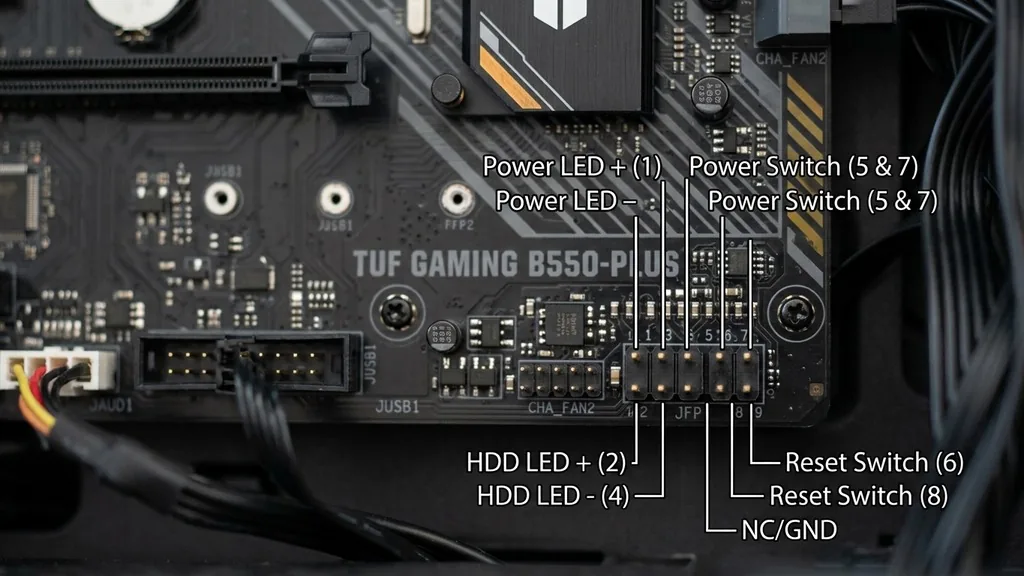
The JFP1 header is a fundamental component found on most modern motherboards, particularly those manufactured by MSI. If you are building a computer from scratch, you will eventually encounter this block of pins when it comes time to connect your case’s front panel buttons and indicators.
Understanding what is JFP1 on motherboard is essential because it serves as the vital link between your physical computer case and the electrical signals that power the system. Without this connection, your power button remains unresponsive, and your system status lights will not function as intended.
Essentially, JFP1 stands for Joint Front Panel 1. It is a specific cluster of pins designed to receive the small, multi-colored wires that snake from the front of your PC case to the internal circuitry of your board.
While some manufacturers use different labels like F_PANEL, MSI systems almost universally adopt the JFP1 designation. This header acts as the command center for your manual inputs and basic system feedback, bridging the gap between your physical chassis and the motherboard’s underlying logic.
The Anatomy of the JFP1 Header
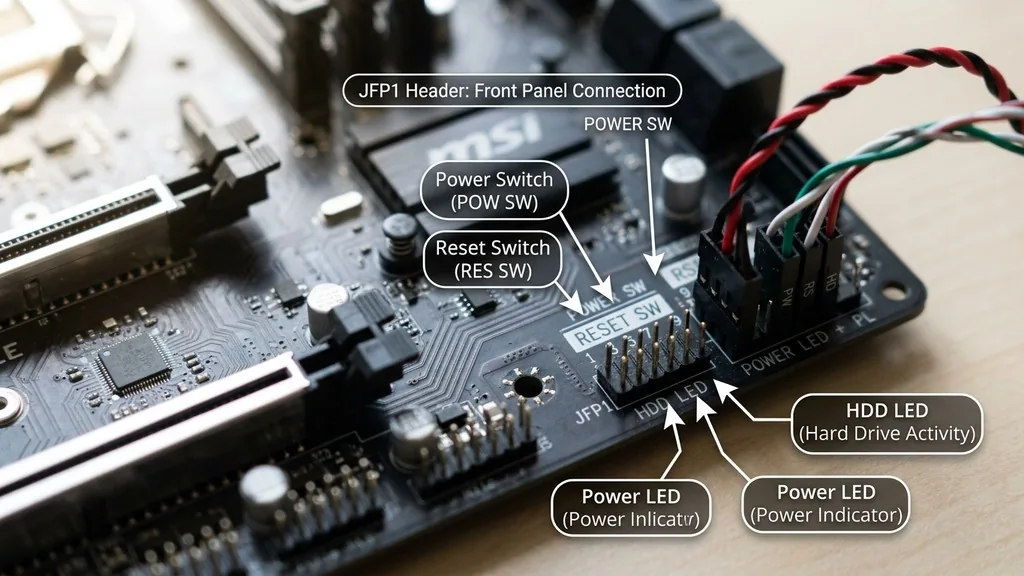
The JFP1 header on a motherboard is a standardized set of pins that facilitates the connection of essential front-facing controls and indicators. It typically consists of a small cluster of pins, usually arranged in a rectangular grid, which corresponds to the specific functions of your PC case. By plugging the cables from your case into these pins, you enable basic system operations like turning the PC on and off, restarting the OS, and monitoring drive activity.
Most JFP1 headers follow a specific layout to prevent incorrect connections. You will generally find pins dedicated to the power switch, the reset switch, the power LED, and the HDD LED. Each of these functions requires a two-pin connection.
Because these connectors are not keyed—meaning they don’t have a plastic shroud that forces them into a specific orientation—it is easy to accidentally install them incorrectly if you aren’t careful. Understanding the physical layout is the first step toward a successful build.
The pins are usually arranged in a 9-pin or 10-pin block. Even though there might be a missing pin in the corner (often used as a physical key to help orient the connector), the remaining pins are clearly marked in the motherboard manual. Always refer to your specific board’s documentation to see the exact pinout, as even within the same brand, minor variations in layout can occur across different product generations.
How JFP1 Connects to Your PC Case
Connecting your PC case to the JFP1 header is a process that requires patience and a steady hand. The cables coming from your case—often labeled as POWER SW, RESET SW, HDD LED, and POWER LED—are small and can be delicate. These cables are designed to slide onto the pins of the JFP1 header, completing the electrical circuit necessary for your computer to respond to your physical inputs.
When you press the power button on your case, you are essentially closing a circuit. The signal travels through the cable connected to the JFP1 power pins, sending a low-voltage pulse to the motherboard’s power management controller.
This triggers the power supply unit (PSU) to begin delivering electricity to the rest of the components. Without this specific link, the motherboard has no way of knowing you want to turn the system on.
It is helpful to think of the JFP1 header as a gateway. The cables act as messengers, carrying status information back and forth. The HDD LED, for instance, flashes when the storage drive is reading or writing data.
This is a simple visual feedback loop enabled entirely by the connection made at the JFP1 header. If the computer is running but the light isn’t blinking, it is almost always because the HDD LED cable was plugged into the wrong pins or oriented with the wrong polarity.
Decoding the Pinout Diagram
Every motherboard manufacturer provides a manual that includes a detailed pinout diagram for the JFP1 header. This diagram is your ultimate source of truth.
It shows exactly which pair of pins belongs to which function. If you are struggling to identify which cable goes where, the diagram is the only document you should trust, as generic online guides may refer to a different motherboard revision than the one you are holding.
When looking at the diagram, you will see labels like PLED, PWRSW, HDLED, and RESET. These correspond to the labels printed on the tiny plastic connectors of your case cables. One of the most common mistakes builders make is confusing the Power LED and the Hard Drive LED.
While they both provide visual feedback, they serve different purposes. The Power LED indicates the system state, while the HDD LED indicates disk activity.
The following table summarizes the typical functions of these connectors found on a standard JFP1 header:
| Connector Label | Function | Typical Pin Count |
|---|---|---|
| PWR SW | System Power On/Off | 2 Pins |
| RESET SW | System Reset/Restart | 2 Pins |
| HDD LED | Storage Drive Activity | 2 Pins |
| PWR LED | Power Status Indicator | 2 Pins |
Addressing Common Connection Errors
If you finish assembling your PC and it refuses to turn on, the JFP1 header is the first place you should check. It is very common for a single pin to be misaligned, or for a connector to be pushed onto the wrong pair of pins entirely. Because these connectors are so small, they can sometimes be difficult to seat properly, especially in cramped computer cases.
One frequent issue is the polarity of the LED connectors. Unlike the power and reset switches, which are simple momentary switches that work regardless of direction, LEDs are diodes. They only allow electricity to flow in one direction.
If you plug in the HDD LED or Power LED backwards, the light simply won’t turn on. If you encounter this, try flipping the connector 180 degrees. It will not cause any damage to the motherboard or the LED to install it incorrectly, so you can safely experiment until the light functions.
Another issue arises when you accidentally connect the reset switch to the power switch pins. If your computer turns on but immediately restarts or shuts down randomly, double-check your wiring. You may have swapped the power and reset cables.
Always ensure that the text on the plastic connector is facing the direction indicated in your motherboard manual. For more detailed technical specifications on hardware interfaces, you can visit the official Intel support documentation to understand how standard motherboard headers function.
JFP1 Versus JFP2: What is the Difference?
You might notice a JFP2 header located right next to the JFP1 header on many MSI boards. While they look similar, their functions are distinct.
While JFP1 is primarily for the front panel buttons and activity lights, JFP2 is often reserved for internal speakers or specific chassis diagnostic LEDs. Understanding the distinction is vital to avoid plugging your power switch into the wrong header.
JFP2 is generally used for the small internal beeper that emits system POST (Power-On Self-Test) codes. If you have ever heard a single “beep” when your computer turns on, that sound is coming from a speaker connected to the JFP2 header. In some modern cases, this speaker is omitted entirely, but the header remains on the board for legacy support or specific diagnostic tools.
Do not confuse the two. If you plug your power button cable into the JFP2 header, your computer will not turn on. The pins are not wired to the power management circuitry in the same way.
Always verify that you are working with the JFP1 block before attempting to force any cables onto the motherboard. If you are unsure, the motherboard PCB itself usually has the labels “JFP1” and “JFP2” silkscreened directly onto the surface next to the pins.
Tips for Easier Installation in Tight Spaces
Installing front panel connectors is widely considered the most tedious part of building a PC. The headers are often located at the very bottom edge of the motherboard, which is usually the hardest area to reach once the graphics card and other components are installed. To make this easier, consider connecting these cables before you mount the motherboard inside the computer case.
Having the motherboard on a flat, well-lit surface allows you to see the tiny labels on the PCB much more clearly. You can also use a pair of tweezers or needle-nose pliers to gently guide the connectors onto the pins.
Because the pins are thin, they can bend if you apply too much force at an angle. Always push straight down to prevent damage to the motherboard header.
If you find the wires are too short or the connectors are too difficult to manage, some cases come with a “Q-Connector” or a similar adapter. This is a small plastic block that allows you to plug all your front panel cables into one easy-to-handle piece, which then slides onto the motherboard pins as a single unit. If your case didn’t come with one, you can sometimes purchase them separately, though they are usually proprietary to specific motherboard brands.
Troubleshooting Non-Responsive Front Panel Buttons
If you have verified that your wiring is correct and the computer still won’t power on, there are a few other steps to take. First, ensure that the power supply unit is switched on at the back of the case.
It sounds simple, but it is a common oversight. Next, check that the 24-pin ATX power cable and the 8-pin CPU power cable are fully seated on the motherboard.
If everything else is plugged in correctly, you can perform a “jump test” to rule out a faulty front panel button. Use a screwdriver to very carefully and briefly touch the two pins designated for the power switch on the JFP1 header.
If the motherboard powers on, then your case’s power button is likely defective or the cable itself has a break in it. This is an effective way to isolate the problem to either the case or the motherboard.
Remember that the JFP1 header is a passive interface. It does not control the power itself; it only sends the signal to the motherboard to initiate the power-on sequence. If you suspect a motherboard issue, ensure that your BIOS is updated and that there are no short circuits occurring between the motherboard and the case chassis.
Common Misconceptions About Front Panel Headers
A common myth is that you can ruin your motherboard by connecting the front panel cables incorrectly. While it is certainly frustrating when things don’t work, it is actually quite difficult to cause permanent electrical damage to the JFP1 header. Because the pins are low-voltage and the connectors are designed for basic signal transmission, the most likely outcome of a bad connection is simply that the computer won’t start or an LED won’t light up.
Another misconception is that all motherboards share the same JFP1 pinout. While many manufacturers have converged on a similar layout, there is no universal industry standard for the exact order of the pins.
Never assume that a cable setup from an old PC will work on a new motherboard without checking the manual. Always take the time to verify the pinout for your specific model.
Finally, some builders worry that the JFP1 header is fragile. While you should never use excessive force, the pins are robust enough to withstand multiple connections and disconnections.
If you are a hobbyist who changes cases or upgrades components frequently, you don’t need to worry about the header wearing out under normal use conditions. Treat it with the same care you would give any other component, and it will serve you well throughout the life of your system.
Frequently Asked Questions
- Is JFP1 the same as the F_PANEL header? Yes, they perform the exact same function. JFP1 is the specific term used by MSI, while F_PANEL is a more generic industry term used by other manufacturers like ASUS or Gigabyte to describe the front panel connector block.
- Can I use a motherboard without connecting the JFP1 header? Technically, yes, but you will have no physical way to turn the computer on or reset it. You would have to use a screwdriver to jump the power pins every time you want to boot the machine.
- What happens if I plug the JFP1 cables in the wrong way? For the power and reset switches, nothing happens because they are simple switches. For the LEDs, they simply will not light up. You can safely flip the LED connectors until they work correctly without damaging the board.
- Are there any other headers like JFP1? Yes, most boards have a JFP2, which is typically for the system speaker or secondary indicators. Always check your motherboard manual to ensure you are connecting your case cables to the correct header, as the labels are usually printed on the board.


