

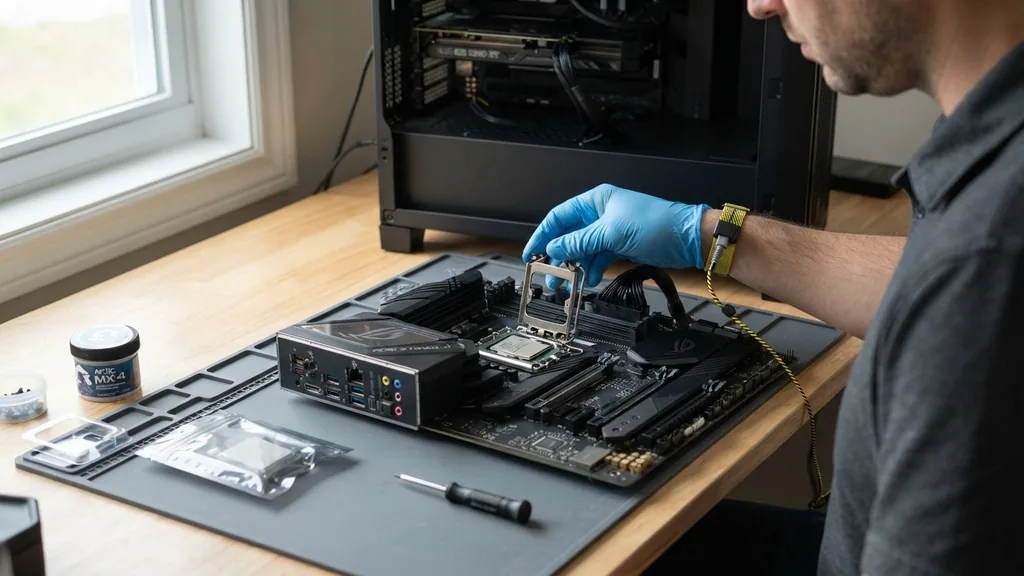
Removing a processor from your computer is a task that requires patience, precision, and a steady hand. Whether you are upgrading to a faster chip or troubleshooting a hardware failure, knowing how to remove a CPU from a motherboard without damaging sensitive components is a vital skill for any PC builder.
Because the interface between the silicon and the circuit board relies on hundreds of microscopic contact points, even a minor slip can lead to bent pins or a cracked substrate. By following a methodical approach and respecting the mechanical nature of the socket, you can ensure the process remains safe and successful.
Preparation and Safety Protocols Before You Begin
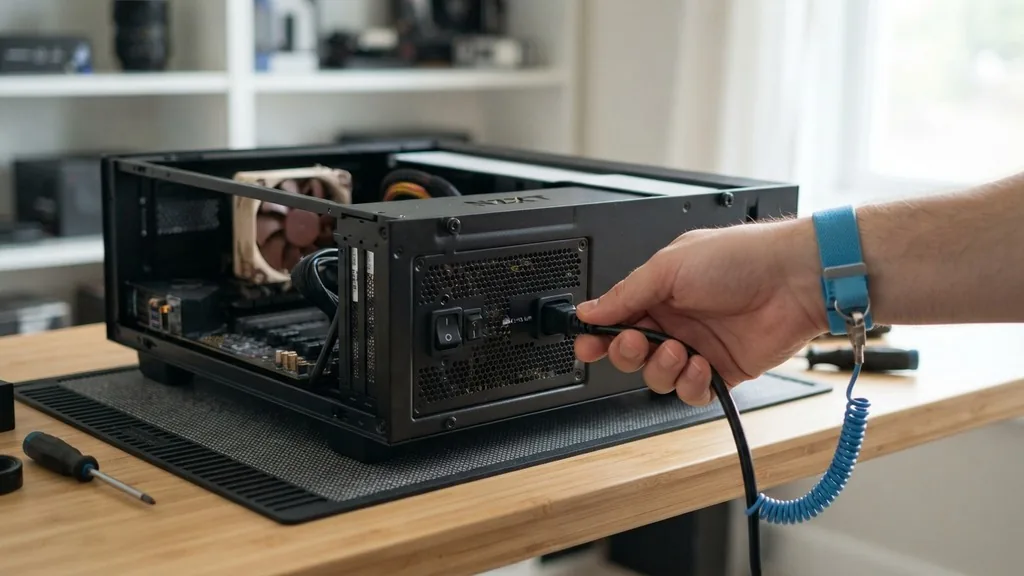
To remove a CPU from a motherboard safely, you must first eliminate the risk of electrostatic discharge (ESD) and ensure the system is completely powered down. Start by shutting down your computer through the operating system, then flip the power supply unit switch to the “off” position. Unplug the power cable from the wall outlet and press the case’s power button for a few seconds to drain any residual energy trapped in the capacitors.
Static electricity is the silent killer of modern electronics. Before touching the internal components, ground yourself by touching a large, unpainted metal surface on the computer case. If you have an anti-static wrist strap, now is the time to wear it.
Working in a well-lit area with a clean, non-conductive surface is essential. Avoid wearing wool or synthetic fabrics that generate high static charges. Having a small container or magnetic tray nearby to store your screws will prevent them from rolling off the table and disappearing into your carpet, which is a common frustration during hardware maintenance.
Detaching the CPU Cooler
The CPU cooler acts as the bridge between your processor and the ambient air. You cannot remove the CPU until the cooler is completely detached. Start by unplugging the fan cable from the motherboard header, which is usually labeled CPU_FAN.
Depending on your specific model, the mounting mechanism will vary. Intel stock coolers often use push-pins that require a quarter-turn rotation to release, while aftermarket coolers might use a backplate and thumbscrews.
If you have a sticky thermal interface—the paste that transfers heat—the cooler might feel “glued” to the processor. Do not pull straight up with force. Instead, gently twist the cooler back and forth to break the suction of the thermal paste.
If it remains stubborn, run the computer for a few minutes before starting to warm up the paste, making it less viscous. Once the cooler is removed, place it aside and immediately inspect the processor surface for any remaining thermal compound that might need cleaning.
Understanding Socket Types and Retention Mechanisms
Different processors use distinct retention methods. Intel LGA sockets use a metal load plate and a tension lever to keep the processor pressed firmly against the pins.
AMD AM4 sockets use a ZIF (Zero Insertion Force) mechanism with a small metal lever that locks the processor pins into the socket holes. Knowing your specific socket type is critical because applying force in the wrong direction can permanently damage the socket pins.
Distinguishing Between LGA and PGA Architectures
The primary difference lies in where the pins are located. In an LGA (Land Grid Array) socket, the pins are on the motherboard. In a PGA (Pin Grid Array) socket, the pins are on the processor.
When you remove a CPU from an LGA motherboard, you are exposing delicate motherboard pins. When you remove a CPU from a PGA motherboard, you are handling a delicate chip with hundreds of fragile pins on its underside. Always handle the processor by its edges to avoid touching the contact points or pins.
Step-by-Step Guide to Releasing the Processor
Once the cooler is out of the way, you can focus on the socket itself. For Intel-style LGA sockets, push down on the tension lever and move it slightly outward to unhook it from the retention bracket.
Slowly lift the lever upward; this will cause the load plate to rise. Once the load plate is clear, you can carefully pick up the processor by its edges.
For AMD-style PGA sockets, lift the lever arm until it is in a vertical position. This movement physically shifts the internal locking mechanism, releasing the pins from the grip of the socket. Once the lever is fully raised, the processor should be loose.
If it doesn’t lift out with a gentle touch, do not pry it. Re-check that the lever is fully extended. If the processor remains stuck, it is likely held by residual thermal paste on the sides, not by the socket lock itself.
Managing Thermal Paste and Cleanup
Thermal paste is a necessary evil. It fills the microscopic gaps between the metal heat spreader of the CPU and the base of your cooler.
When you remove the CPU from the motherboard, you will likely find dried or tacky paste residue on the processor’s top surface. Use high-purity isopropyl alcohol—ideally 90% or higher—and a lint-free microfiber cloth or coffee filter to wipe it away.
Never use paper towels, as they leave behind tiny fibers that can cause thermal issues later. Wipe in a circular motion until the surface is mirror-clean. If you are preparing to install a new processor, you must ensure the surface is completely dry and free of debris.
Any leftover residue can create an uneven contact surface, leading to hotspots and thermal throttling during heavy workloads. You can consult the official processor installation guidelines from Intel for more details on managing thermal interface materials.
Comparing CPU Removal Steps by Socket Type
The following table summarizes the key differences in the removal process for common socket architectures. While the core principle of “release and lift” remains the same, the mechanical nuances vary.
| Socket Type | Retention Method | Primary Risk | Removal Action |
|---|---|---|---|
| Intel LGA | Load Plate / Lever | Bent motherboard pins | Release lever, lift plate |
| AMD AM4 (PGA) | ZIF Lever | Bent processor pins | Raise lever, lift CPU |
| AMD AM5 (LGA) | Load Plate / Lever | Bent motherboard pins | Release lever, lift plate |
Handling and Storing Your Processor Safely
Once you successfully remove the CPU from the motherboard, you need a safe place to store it. Processors are incredibly sensitive to physical impact. If you have the original plastic “clamshell” packaging, place the chip inside it immediately.
If you do not have the original box, place the CPU on an anti-static foam pad. Never leave a processor sitting on a conductive surface or loose in a drawer where it can be crushed.
If you are upgrading, take the time to inspect the old processor. If it is a PGA type, look at the pins under a bright light. If any pins are slightly bent, they can sometimes be straightened with a thin credit card or a mechanical pencil tip, provided the pin isn’t snapped off.
Treat the processor as a precision instrument, not a standard piece of hardware. The silicon die inside the heat spreader is protected, but the delicate contact points are the most vulnerable part of your entire computer build.
Common Mistakes to Avoid During Removal
Even experienced builders make mistakes when they rush the process. The most common error is failing to release the retention lever fully. If you try to pull the CPU out while the lever is still applying pressure, you risk pulling the socket itself off the motherboard or snapping the retention arm.
Another frequent issue is dropping the CPU during the removal process. Always maintain a firm, two-finger grip on the edges of the heat spreader.
Avoid touching the gold contact pads on the bottom of the processor with your bare fingers. The oils from your skin can create a barrier that interferes with electrical connectivity or causes corrosion over time. If you accidentally touch the contacts, clean them carefully with a small amount of high-purity isopropyl alcohol before reinstalling.
Finally, never force the processor into or out of the socket. If you feel resistance, stop immediately and re-examine the alignment and the position of the locking lever.
Addressing Topical Gaps: Troubleshooting Stuck CPUs
Sometimes, despite your best efforts, a processor simply will not come out. This is most common with older systems where the thermal paste has essentially turned into a permanent adhesive. If you have already removed the cooler and the processor appears “stuck” to the socket, do not pull upward.
Instead, try applying a very small amount of heat to the processor surface using a hairdryer set to a low, warm setting. This can soften the paste and allow you to gently wiggle the CPU free.
If the processor is a PGA type (pins on the chip) and seems glued, ensure the tension lever is fully vertical. If the lever is up but the chip is stuck, the issue is almost certainly the thermal paste between the heat spreader and the cooler (if the cooler hasn’t been removed) or simply the suction created by the paste. Be patient.
Use a thin plastic pry tool—not metal—to very gently nudge the corner of the chip upward, but only if you have exhausted all other options. Force is your enemy; patience is your best tool when dealing with complex, high-density hardware.
Frequently Asked Questions
- Can I reuse a CPU after removing it? Yes, you can absolutely reuse a processor. As long as the pins are straight and the contact points are clean, the chip remains fully functional. Ensure you apply fresh thermal paste before mounting your cooler again to guarantee proper heat transfer.
- What should I do if I bend a pin while removing the CPU? If you bend a pin on a PGA processor, you can often straighten it carefully using a thin blade or a mechanical pencil. If you bend a pin on an LGA motherboard socket, it is much harder to fix and often requires professional repair or board replacement.
- Do I need to remove the motherboard to take out the CPU? No, you do not need to remove the motherboard from the computer case. You can perform the entire removal process while the motherboard is mounted in the chassis, provided you have enough clearance for your screwdriver to access the cooler mounting screws.
- Is it safe to touch the top of the processor? Yes, touching the top of the processor (the heat spreader) is generally safe. However, avoid touching the bottom side where the pins or gold contact pads are located, as oils from your skin can affect the electrical performance of the component over time.
Maintaining your PC hardware is a rewarding part of the hobby. By learning how to remove a CPU from a motherboard correctly, you gain the confidence to perform your own upgrades and repairs, saving money and deepening your understanding of how your machine functions.
Take your time, stay grounded, and always prioritize the safety of those tiny, high-performance components. Your processor is the heart of your system, and it deserves the most careful handling during every phase of its life cycle.


