

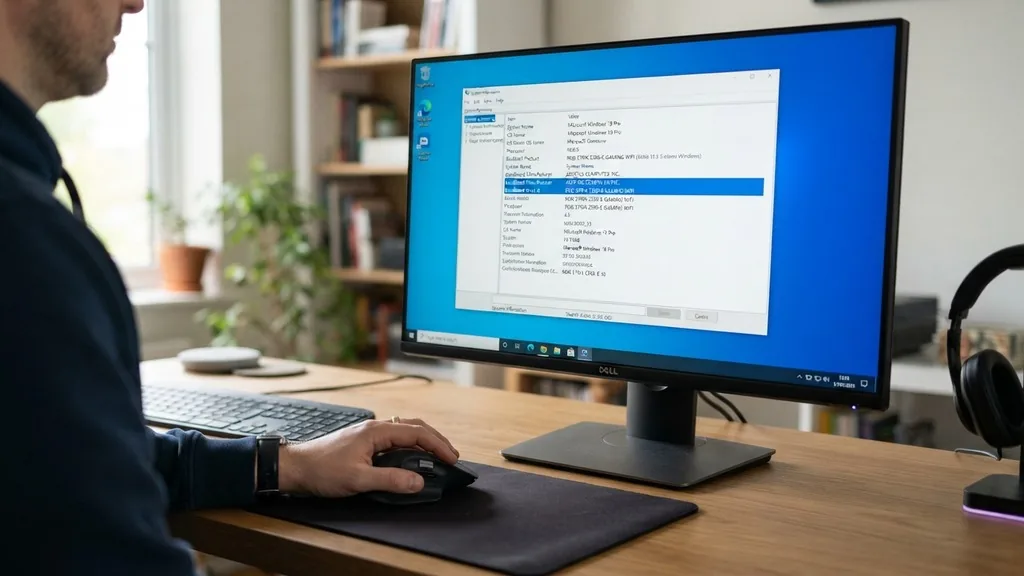
Knowing your computer’s core hardware is essential for anyone looking to upgrade their system, troubleshoot performance issues, or simply keep their drivers up to date. Learning how to find out what my motherboard is can seem intimidating if you aren’t familiar with command-line tools or internal hardware identification, but the process is actually quite straightforward.
Whether you are running a custom-built desktop or a pre-built machine, several built-in utilities allow you to identify your baseboard without needing to open the chassis or remove any components. By understanding your motherboard model and the identity of your manufacturer, you can ensure that you download the correct BIOS updates, verify compatibility for new RAM modules, or check if your current slot configuration supports a new graphics card.
Using the Windows System Information Utility
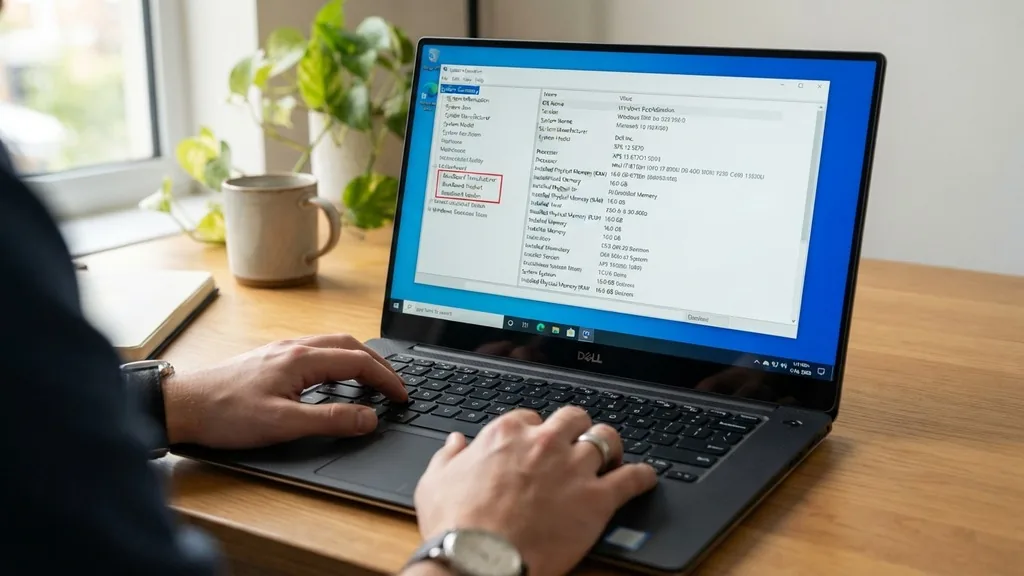
The most accessible way to identify your hardware on a Windows machine is through the system information tool. This built-in utility pulls data directly from the OS to provide a snapshot of your PC’s components. To access this, press the Windows key, type “msinfo32” into the search bar, and press Enter.
Once the window opens, ensure you are on the “System Summary” tab. Look for the rows labeled “BaseBoard Manufacturer” and “BaseBoard Product.”
These fields will explicitly list the company that produced your board and the specific model number. This is the fastest way to get the information you need without installing third-party software.
While this method is highly reliable for most modern desktop builds, there are instances where the system information might display “To be filled by O.E.M.” or generic placeholders. This is common with pre-built systems from major retailers where the manufacturer uses custom-branded boards that don’t report their retail market name. If you encounter this, don’t worry; it simply means the board is proprietary, and you’ll need to look for the model number printed directly on the PCB or use a different identification method listed later in this article.
Running Command Prompt Queries
If you prefer a more direct approach, you can leverage the Windows Management Instrumentation Command-line (WMIC) to query your hardware directly. This method is excellent for power users who want to extract data without navigating through graphical menus. Open the Command Prompt by typing “cmd” in your search bar.
Once the black window appears, type the following command and press Enter: wmic baseboard get product,Manufacturer,version,serialnumber. This command tells the system to reach into the hardware abstraction layer and return the exact details stored in the board’s firmware.
The output will be displayed in a clean, text-based format. You will see the manufacturer name, the specific model product ID, and often the serial number. This is particularly useful if you are trying to register your product for a warranty claim or if you need to provide precise specifications to a technical support representative.
Because this pulls data directly from the firmware, it is usually more accurate than the System Information tool, which relies on the OS to interpret the data. If the command returns nothing or shows “unknown,” it typically indicates that the board’s firmware was not programmed with these identifiers at the factory, which is rare but possible on some budget-oriented hardware.
Checking the BIOS or UEFI Interface
Entering the BIOS or UEFI is the gold standard for hardware identification because it bypasses the operating system entirely. To do this, restart your computer and repeatedly press the key designated for BIOS entry—usually Delete, F2, F10, or F12, depending on your board’s design.
Once you are inside the interface, look for a “System Information,” “Main,” or “About” tab. The motherboard model is almost always prominently displayed on the landing screen, often accompanied by the current BIOS version and the CPU type.
This method is the most reliable way to verify hardware if your Windows installation is corrupted or if you are working on a machine that hasn’t had an OS installed yet. It is also the best place to check if your board is an ATX, Micro-ATX, or Mini-ITX form factor, as some high-end BIOS interfaces include a visual map of the board or a description of the layout. If you are having trouble finding the model, look for the “Board Explorer” or “Hardware Monitor” sections within the BIOS, as these often provide a detailed breakdown of every component connected to the main circuit board.
Physically Inspecting the Hardware
Sometimes, software utilities fail to provide a clear answer, or you might find yourself with a computer that won’t boot. In these scenarios, the only way to find the identity of your hardware is to open the case. Power down the computer, unplug the power supply, and remove the side panel.
Most manufacturers silkscreen the brand and model number directly onto the PCB. You will usually find this text printed in white or gold letters near the CPU socket, between the PCIe slots, or near the RAM DIMM slots.
If you have a large CPU cooler or a bulky graphics card blocking your view, you may need to use a flashlight or a small mirror to see into the tight corners. If the model number isn’t obvious, look for a sticker on the board itself. These stickers often contain the model name, a barcode, and the serial number.
Be careful not to touch the sensitive electrical components while you are inside the case, and always ground yourself by touching a metal part of the chassis to prevent static discharge from damaging your hardware. For those who want to learn more about the technical standards of these boards, you can visit the official Intel support pages for insights into motherboard architecture and design.
Third-Party Diagnostic Software
If you want a more user-friendly interface than the Command Prompt but need more detail than the standard Windows tools provide, third-party software is the way to go. Programs like CPU-Z or HWInfo are industry standards for hardware enthusiasts. These tools scan your system and present a comprehensive dashboard of every component, including the exact revision of your motherboard, the chipset it uses, and the current clock speeds of your memory and CPU.
CPU-Z, in particular, has a dedicated “Mainboard” tab that is incredibly useful. It lists the manufacturer, the model, the chipset, and the southbridge, along with the BIOS version and date. This is arguably the easiest way to gather all the necessary information to verify if your board supports a specific CPU upgrade.
Many users prefer these tools because they also provide real-time monitoring of temperatures and voltages, which can be vital if you are experiencing stability issues. Always ensure you download these utilities from the official developer websites to avoid bundled bloatware or security risks.
Understanding Motherboard Form Factors
When identifying your board, it is helpful to know what physical size you are working with. The form factor determines whether the board will fit into your case and how many expansion slots you have available.
The most common sizes include ATX, Micro-ATX, and Mini-ITX. Understanding this is crucial if you are planning a case swap or a significant hardware upgrade.
| Form Factor | Dimensions | Expansion Slots |
|---|---|---|
| ATX | 12 x 9.6 inches | Up to 7 |
| Micro-ATX | 9.6 x 9.6 inches | Up to 4 |
| Mini-ITX | 6.7 x 6.7 inches | 1 |
The table above illustrates the standard sizing conventions. ATX is the standard for full-sized desktop towers, offering the most room for components and airflow. Micro-ATX is a popular mid-range choice that balances size and functionality.
Mini-ITX is designed for compact, space-saving builds, though it limits your ability to add extra PCIe cards. Knowing which one you have will dictate your future hardware choices, especially when selecting a new power supply or a cooling solution.
Addressing Identification Gaps and Common Issues
A frequent challenge users face is when the system reports a “Generic” or “OEM” board. This happens because companies like Dell, HP, or Lenovo often order boards designed specifically for their chassis requirements.
In these cases, the “model number” listed in software might be a proprietary code that doesn’t correspond to a retail product. To solve this, you should use the computer’s service tag or serial number on the manufacturer’s support website.
- Enter your service tag on the manufacturer’s support portal to see the exact build configuration.
- Check the original purchase receipt or digital order history for a detailed parts list.
- Use the “System Information” tool to find the “System Model” (like Dell Optiplex 7090) and search for the motherboard specifications for that specific PC model.
- If all else fails, look for the PCB version number printed near the RAM slots, which can sometimes be searched online to find forum discussions about that specific board revision.
By using the manufacturer’s support portal, you can often find the official schematics and driver downloads, which are far more useful than knowing the retail name of the board anyway. This approach ensures that you are getting the exact firmware updates designed for your specific revision of the hardware, which prevents compatibility issues that can occur when using generic drivers.
Why You Need This Information
Knowing your hardware identity is not just for tech enthusiasts; it is a foundational skill for maintaining a healthy computer. If you ever need to perform a BIOS update to support a newer CPU or to fix a security vulnerability, you must know the exact model to ensure you don’t flash the wrong firmware, which could “brick” your system. Furthermore, understanding your board’s chipset and socket type is the only way to accurately determine which CPUs are compatible with your machine.
When you check your hardware, you are also gaining insight into the longevity and upgrade path of your computer. For example, knowing you have a B550 chipset tells you that you likely have PCIe 4.0 support, which informs your decision on which SSD to buy for faster storage performance.
It is a proactive step that saves time, prevents costly mistakes, and gives you a much deeper understanding of the machine that powers your daily work or entertainment. Whether you are a casual user or a power user, these identification methods provide the confidence needed to manage your system effectively.
Frequently Asked Questions
- Will the BIOS always show the motherboard model? Yes, the BIOS or UEFI interface is the most reliable place to find your motherboard information, as it reads the data directly from the board’s firmware. Even if an OS fails to identify it, the BIOS will almost always display the manufacturer and model name.
- Can I find my motherboard model on a Mac? Apple hardware is proprietary, so you won’t find a standard “motherboard” model in the same way you do on a PC. You can see the logic board information by clicking the Apple Menu, selecting “About This Mac,” and checking the system report for hardware details.
- Is it possible to damage my PC by checking the motherboard model? Software methods like using the Command Prompt or System Information are perfectly safe. If you open your PC case to look at the board, simply ensure the computer is unplugged and use caution to avoid static discharge or accidental damage to the delicate components.
- Why does my motherboard say “To be filled by O.E.M.”? This indicates that your computer was likely built by a company like HP, Dell, or Lenovo using a custom board. Because these boards are not sold at retail, they don’t always have a standard model name. Use your PC’s serial number on the manufacturer’s support site instead.


