

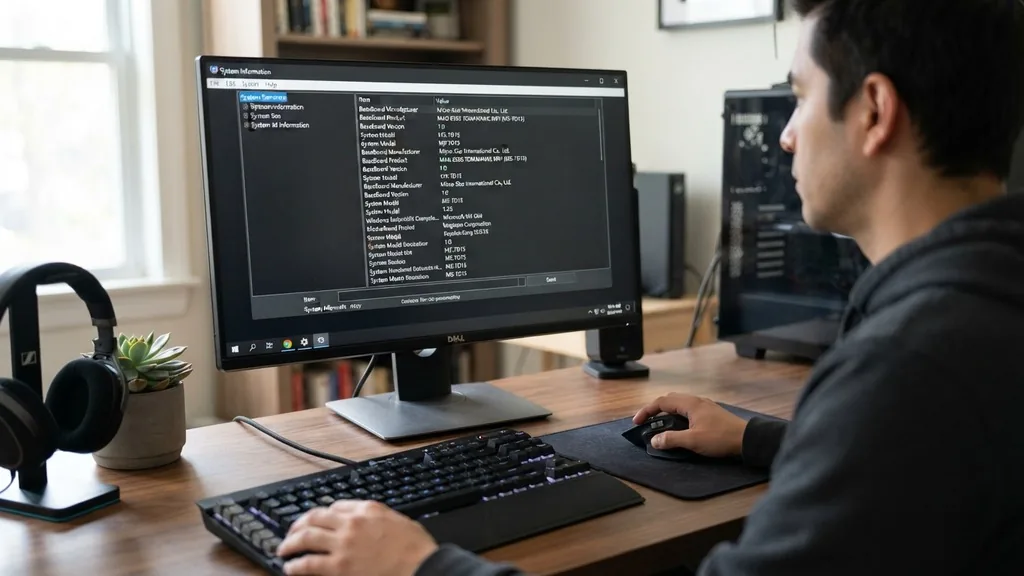
Knowing how to find out what your motherboard is becomes essential the moment you decide to upgrade your RAM, replace a faulty processor, or troubleshoot a persistent hardware conflict. The motherboard acts as the central nervous system of your computer, connecting every component from the GPU to the storage drives. If you don’t know the specific make and model, you cannot download the correct drivers, determine compatibility for new hardware, or even understand the limitations of your current setup.
Fortunately, you don’t need to be an IT professional to extract this information. Whether you are using a desktop PC or a laptop, there are several reliable ways to pull up your system specifications without ever needing to touch a screwdriver.
Using Windows System Information for Quick Identification
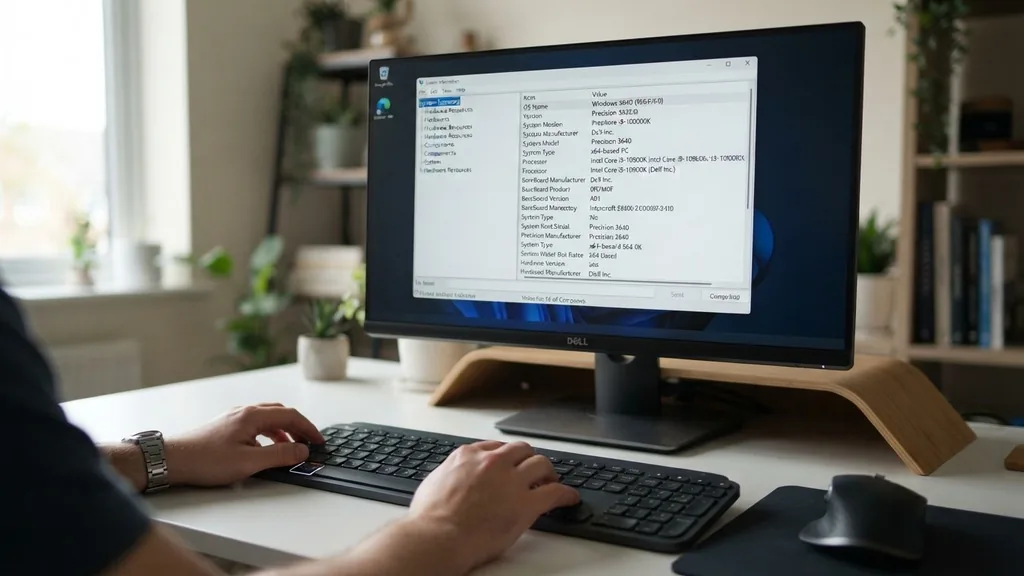
The simplest way to identify your hardware is by using the built-in Windows System Information tool. This utility provides a snapshot of your machine’s configuration, including the motherboard manufacturer and the specific product model. To access it, press the Windows key on your keyboard, type “msinfo32” into the search bar, and hit Enter.
Once the window opens, ensure you are on the “System Summary” tab. Scroll down through the list until you find the rows labeled “BaseBoard Manufacturer,” “BaseBoard Product,” and “BaseBoard Version.”
These specific fields provide the exact data you need. The “BaseBoard Product” is your motherboard model, while the manufacturer field tells you if you are running an ASUS, MSI, Gigabyte, ASRock, or perhaps a proprietary board from a pre-built system manufacturer like Dell or HP.
This method is highly reliable for most modern Windows installations, including Windows 10 and Windows 11. If the fields appear blank or display “Not Available,” it is often because the motherboard manufacturer did not program the DMI (Desktop Management Interface) information correctly into the firmware, which is common in some budget-tier or specialized corporate workstations.
Leveraging Command Prompt for Advanced Users
If you prefer a faster, text-based approach, the Command Prompt is an incredibly efficient tool for retrieving your motherboard model. This method is favored by power users because it bypasses the graphical interface entirely.
Open the search bar, type “cmd,” and launch the Command Prompt as an administrator. Once the black window appears, you can query the Windows Management Instrumentation Command-line (WMIC) to pull the data directly from the system firmware.
Type the following command precisely and press Enter: wmic baseboard get product,Manufacturer,version,serialnumber. The system will immediately output the manufacturer, the specific product model, and often the serial number. If you only care about the model, you can shorten this to “wmic baseboard get product.”
This command is particularly useful if you are scripting or need to copy the model name to paste it into a web browser for driver searches. It is a clean, no-nonsense way to get the facts without navigating through multiple menus or dealing with the bloat of graphical system utilities.
Extracting Hardware Details Through BIOS or UEFI
When you need to know your motherboard model regardless of whether the operating system is functional, the BIOS or UEFI interface is your most reliable source of truth. Because this information is stored directly on the motherboard’s firmware chip, it is independent of Windows, Linux, or macOS.
To access this, restart your computer and repeatedly tap the designated key—usually F2, F12, Del, or Esc—as the machine powers on. The specific key is typically displayed on the screen for a few seconds during the boot process.
Once you enter the BIOS, look for a “Main,” “System Information,” or “About” tab. Most modern UEFI interfaces will display the motherboard model prominently on the home dashboard. This is an excellent way to verify hardware if you are currently troubleshooting a system that refuses to boot into Windows.
Furthermore, if you are planning to update your BIOS to support a newer CPU generation, you must know the exact version currently installed. The BIOS screen will display this version number, allowing you to cross-reference it with the manufacturer’s support page to see if an update is required. You can learn more about the technical standards governing these interfaces at the Unified Extensible Firmware Interface Forum.
Checking Motherboard Information on macOS Systems
Apple computers handle hardware identification differently than Windows PCs. Because Apple maintains tight control over their hardware, you rarely need to know the specific motherboard model for compatibility reasons, as you cannot upgrade the logic board yourself.
However, if you are curious or need to provide information for technical support, you can access this via the “About This Mac” menu. Click the Apple icon in the top left corner of your screen and select “About This Mac.”
For more granular data, hold the Option key and click the Apple menu, then select “System Information.” In the window that appears, look under the “Hardware” section. You will see the “Model Identifier” and the “Boot ROM Version.”
While Apple does not use standard motherboard naming conventions like “B550” or “Z790,” the Model Identifier (e.g., MacBookPro18,1) tells you everything you need to know about your specific hardware revision. This identifier is the key to finding parts, manuals, and software compatibility lists for your specific machine.
Inspecting Physical Hardware for Model Numbers
Sometimes software utilities fail to report the motherboard model, or perhaps the computer won’t turn on at all. In these scenarios, you must perform a physical inspection of the board. If you are using a desktop, power down the computer, unplug it from the wall, and remove the side panel.
Most manufacturers print the model name in large, bold letters directly onto the PCB (printed circuit board). Look near the CPU socket, the RAM slots, or between the PCIe expansion slots.
If the motherboard is covered in dust or hidden beneath a large air cooler, you might need a flashlight to spot the model number. If you still cannot find it, look for a sticker on the back of the I/O shield or near the memory slots that contains a serial number or a long string of alphanumeric characters. You can often type that serial number into the manufacturer’s website to identify the board.
For laptops, physical inspection is much more difficult because the motherboard is buried beneath the chassis. In those cases, searching the specific laptop model number (found on the bottom casing) is almost always more effective than attempting to disassemble the machine to find a board-level part number.
Identifying Motherboard Specifications via Third-Party Tools
If you want a highly detailed report on your entire system, including the motherboard’s chipset, socket type, and current BIOS version, third-party diagnostic tools are superior to native Windows utilities. The industry standard for this is CPU-Z.
This free, lightweight application is used by enthusiasts and professionals to verify hardware components. When you run CPU-Z, navigate to the “Mainboard” tab.
This tab provides a clean, categorized view of your motherboard, including the manufacturer, the model, the chipset, and the Southbridge. It even tells you the BIOS version and date. Unlike the built-in Windows tools, CPU-Z is designed to parse the motherboard’s SPD (Serial Presence Detect) data and internal registers, making it far more likely to correctly identify obscure or custom-built boards.
Other tools like HWiNFO64 provide even deeper telemetry, such as real-time voltage and temperature sensors for your motherboard’s VRMs (Voltage Regulator Modules). These tools are invaluable when you are overclocking or trying to diagnose overheating issues that might be caused by a faulty motherboard power delivery system.
Comparing Methods for Motherboard Identification
Choosing the right method depends on your technical comfort level and the state of your computer. Not every approach works in every situation, as summarized in the table below.
| Method | Best Used When | Difficulty |
|---|---|---|
| System Information (msinfo32) | You are inside Windows and want a quick answer. | Very Easy |
| Command Prompt (WMIC) | You want a fast, copy-pasteable text string. | Easy |
| BIOS/UEFI | The system won’t boot or you need BIOS info. | Moderate |
| Physical Inspection | Computer is dead or software reports nothing. | Hard |
| CPU-Z | You need deep, technical specs and chipset data. | Easy |
Each of these methods serves a specific purpose. If you are a casual user, stick to System Information or CPU-Z.
If you are building or repairing machines, the BIOS and physical inspection methods are non-negotiable skills. Always keep a record of your motherboard model once you find it; keeping a digital note of your core components can save you hours of troubleshooting time in the future.
Addressing Common Identification Obstacles
You might encounter situations where the methods listed above return confusing or generic information. This is particularly common with pre-built computers from manufacturers like Dell, HP, Lenovo, or Acer.
These companies often use proprietary motherboards that do not follow standard naming conventions. Instead of seeing a name like “MSI MAG B550 TOMAHAWK,” you might see a string of numbers or a motherboard named after the computer chassis itself.
In these cases, the best way to find your motherboard specifications is to search for your computer’s “Service Tag” or “Serial Number” on the manufacturer’s support website. Every pre-built machine has a sticker on the case containing this information. Once you input that code into the manufacturer’s “Support” or “Drivers” page, it will pull up the exact specifications for your unit, including the motherboard part number.
This is often more useful than the motherboard model itself, as proprietary boards are rarely sold as standalone retail products. If you are upgrading, knowing the proprietary part number is essential, as these boards often have unique power connectors or mounting patterns that prevent them from being moved into standard aftermarket PC cases.
Frequently Asked Questions
- Will the BIOS tell me what motherboard I have? Yes, the BIOS or UEFI interface is one of the most accurate ways to identify your motherboard model because it reads the information directly from the hardware firmware. It is the best method to use if your computer is having trouble booting into the operating system.
- How do I find out what motherboard I have without turning it on? You can find the model by physically inspecting the motherboard inside the computer case. Look for the brand and model number printed directly on the circuit board, usually located near the CPU socket, RAM slots, or between the PCIe expansion slots.
- Is there a way to check if my motherboard is ATX? You can determine the form factor by looking at the model name and searching it on the manufacturer’s website. Alternatively, count the number of mounting holes and the overall dimensions of the board. An ATX motherboard typically measures 12 x 9.6 inches and has up to nine mounting screws.
- Can I use third-party software to see my motherboard model? Yes, tools like CPU-Z are highly recommended for this purpose. They provide a dedicated “Mainboard” tab that lists the manufacturer, model, chipset, and BIOS version, often providing more technical detail than standard Windows system tools or command-line queries.


