

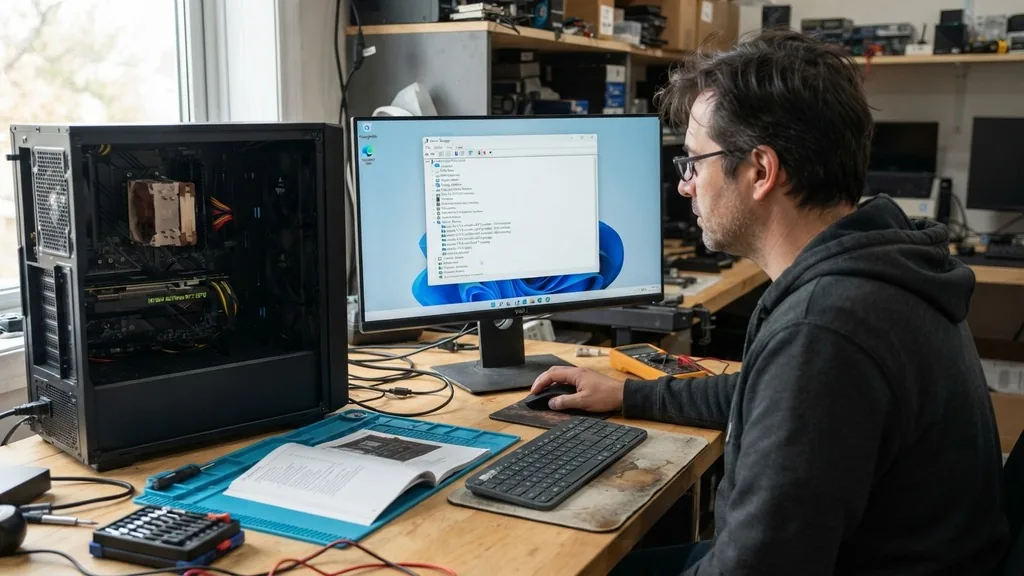
Finding your motherboard details inside the Windows environment can be surprisingly elusive for many users. You might have opened the Device Manager expecting to see a clear entry labeled “Motherboard,” only to find a long list of processors, disk drives, and controllers instead. The reason for this is simple: Windows categorizes hardware by its function rather than its physical mounting point.
The motherboard is the foundation of your computer, acting as the central hub that connects your CPU, RAM, and storage. Because every internal component communicates through the motherboard, Windows treats it as the “System” or “Baseboard” entity rather than a discrete device that requires its own driver in the traditional sense.
Why the Motherboard is Hidden from Device Manager
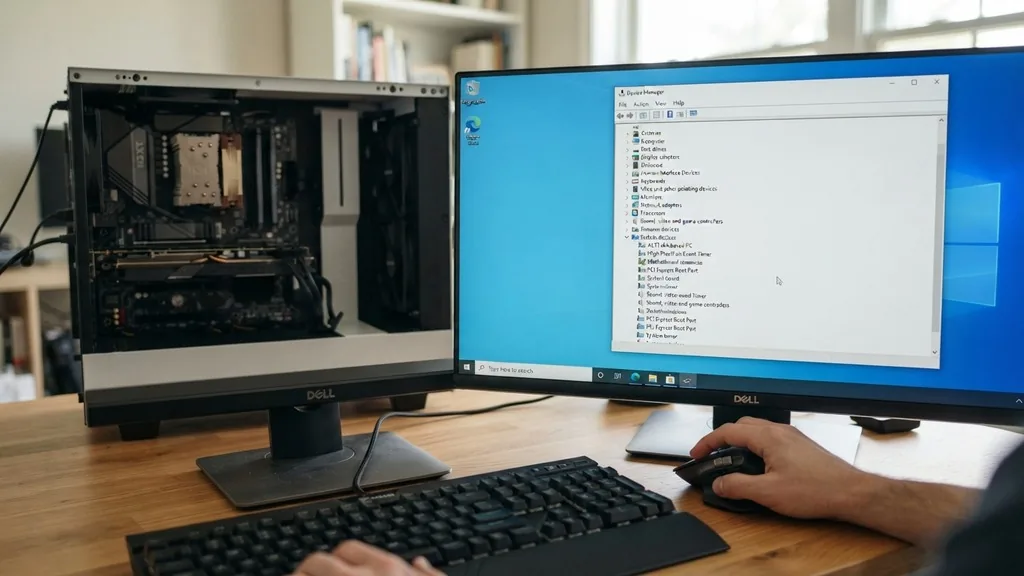
The motherboard is not listed as a standalone device in the Device Manager because it is not a peripheral in the way a mouse or a network card is. In the Windows architecture, the motherboard represents the system board—the backbone of your computer. When you browse the Device Manager, you are looking at components that require specific drivers to facilitate communication between the operating system and the hardware.
Because the motherboard functions as the host for these components, its identity is often abstracted away. The drivers that manage motherboard-level features, such as the chipset or the bus controllers, are found under entries like “System devices” or “IDE ATA/ATAPI controllers.”
If you are looking to identify your hardware for a driver update or a repair, the Device Manager is often the wrong tool. Instead of listing a single “motherboard” entry, Windows distributes the motherboard’s identity across various categories.
You will find entries for the System Management BIOS (SMBIOS) and various chipset drivers that reveal information about the manufacturer and the specific board model. Understanding this distinction is key to successfully navigating your system configuration without feeling lost in the technical jargon of the Windows hardware tree.
Using System Information to Identify Your Board
The most reliable way to find your motherboard information in Windows is by using the System Information utility. Unlike the Device Manager, which focuses on device status and driver health, the System Information tool is designed to provide a snapshot of your hardware configuration, including the exact model and manufacturer of your baseboard.
To access this, you simply press the Windows key, type “msinfo32,” and hit Enter. Once the window opens, the “System Summary” page will display a row labeled “BaseBoard Manufacturer” and “BaseBoard Product.”
This method is far superior to digging through the Device Manager because it queries the BIOS directly. The information presented here is pulled from the DMI (Desktop Management Interface) tables, which are stored in the firmware of your motherboard.
By checking these fields, you can get the exact model name, which is vital if you are planning to upgrade your RAM or install a new CPU. If the field shows “To be filled by O.E.M.,” it usually means the computer was custom-built or the manufacturer did not populate the BIOS strings correctly, which can happen with certain boutique PC builders.
How Command Prompt Reveals Hardware Secrets
If you prefer a more technical approach, the Command Prompt (CMD) or PowerShell can pull motherboard details in seconds. This is particularly useful if you are working on a remote machine or if you want to export the data to a text file.
By using the Windows Management Instrumentation Command-line (WMIC), you can bypass the graphical interface entirely. Open the Command Prompt as an administrator and type the following command: “wmic baseboard get product,Manufacturer,version,serialnumber.”
This command instructs the operating system to query the motherboard firmware for specific data points. The results will appear directly in your console, providing you with the exact model and serial number. This is an excellent way to verify your hardware when you are troubleshooting stability issues or checking if a motherboard has been replaced during a service repair.
Using command-line tools is a standard practice for IT professionals because it is fast, reliable, and does not require navigating through cluttered menus. You can learn more about how System Management BIOS standards help the OS identify hardware by consulting official documentation.
Verifying Hardware via Third-Party Software
Sometimes the built-in Windows tools provide cryptic names that are difficult to search online. If your motherboard model is listed as a long string of numbers or a generic code, you might need a specialized utility to interpret that data. Tools like CPU-Z or HWInfo are industry standards for hardware enthusiasts.
These applications scan the entire system and cross-reference your motherboard’s ID against a massive database of known hardware. This often reveals the “marketing name” of the board, which is much easier to use when searching for manuals or driver updates on the manufacturer’s website.
When you run these programs, navigate to the “Mainboard” or “Motherboard” tab. You will see detailed information including the chipset, the BIOS version, and the current bus speed.
This is especially helpful if you are trying to determine if your board supports a specific generation of processors. While the Device Manager might tell you that your “Intel Chipset” is working fine, these third-party tools will tell you exactly which revision of the board you have, which is critical for ensuring compatibility with modern hardware components.
Distinguishing Between Desktop and Laptop Hardware
It is important to note that the experience of identifying a motherboard differs significantly between a desktop and a laptop. In a desktop environment, the motherboard is a standard form factor, like ATX or Micro-ATX, and you can often find the model name printed directly on the board itself.
If you are comfortable opening the case, looking for the branding near the RAM slots or the CPU socket is the most definitive way to identify your hardware. Laptops, however, use proprietary boards that are specific to that chassis design.
In a laptop, the “BaseBoard” information provided by Windows is often the only way to identify the motherboard, as the board is buried deep beneath the keyboard and cooling assembly. Because laptop motherboards are rarely replaced as individual units—usually, the entire logic board is swapped—knowing the specific model is less about upgrading and more about finding the correct firmware updates or troubleshooting power management issues. Always rely on the software-based methods mentioned earlier when dealing with laptops to avoid the risk of damaging delicate internal components.
Common Troubleshooting Steps for Missing Data
What should you do if the motherboard information is missing or shows up as “Unknown”? This is a common issue that usually points to a problem with your chipset drivers.
If the baseboard information is not visible in System Information or through the command line, it often means the Windows generic drivers are failing to communicate correctly with the motherboard’s SMBus. To fix this, you should visit the manufacturer’s website—such as ASUS, MSI, or Gigabyte—and download the latest “Chipset” or “Management Engine” drivers.
Once these drivers are installed, the operating system can properly interpret the signals from the motherboard. This process is often overlooked because users assume that if the computer turns on, the drivers are fine.
However, outdated chipset drivers can cause a variety of performance issues, including slow USB speeds, erratic sleep behavior, and failure to detect secondary storage devices. If you are still unable to retrieve the motherboard model after updating the drivers, it may indicate a corrupted BIOS that requires a flash update to restore full functionality.
Understanding the Role of the BIOS and UEFI
The motherboard is essentially a passive host until the BIOS or UEFI (Unified Extensible Firmware Interface) initializes it. When you press the power button, the UEFI firmware performs a Power-On Self-Test (POST) to identify every connected component. This is where the motherboard identity is established.
If you are struggling to find your motherboard details in Windows, entering the BIOS by pressing the Delete or F2 key during startup is a foolproof alternative. The BIOS screen almost always displays the motherboard model and the current firmware version at the top of the main menu.
This environment is independent of the operating system, meaning it is not affected by missing drivers or software bugs. If you need to know your motherboard model to determine if you can overclock your CPU or adjust fan curves, the UEFI is your best resource.
It provides a raw, unfiltered look at your hardware configuration. Many modern boards also feature an “Easy Mode” in the UEFI that presents this information in a clear, graphical layout, making it accessible even to users who are not comfortable with deep-level system configuration.
Comparison of Hardware Identification Methods
To help you choose the right approach for your specific needs, the following table compares the various ways to find your motherboard details. Each method serves a different purpose, ranging from quick checks to deep-level diagnostics.
| Method | Ease of Use | Depth of Info | Best For |
|---|---|---|---|
| System Information (msinfo32) | High | Moderate | Quick checks and general identification |
| Command Prompt (WMIC) | Moderate | High | Automated scripts and remote diagnostics |
| Third-Party Tools (CPU-Z) | High | Very High | Detailed hardware analysis and overclocking |
| BIOS/UEFI Menu | Low | Maximum | Firmware verification and hardware settings |
Each of these methods provides a different perspective on your system. Choosing the right one depends on whether you just need to know the brand for a quick web search or if you need granular data for high-performance tuning.
Frequently Asked Questions
- Why can’t I see my motherboard listed in Device Manager? The motherboard is not a peripheral device. Windows lists it under system-level categories such as “System devices” or “Firmware,” because it acts as the host for all other hardware rather than a single device that needs a separate driver installation.
- Can I damage my motherboard by checking its model name? No, using software tools like System Information or command-line queries is completely safe. These tools only read information from the system firmware and do not modify any settings, so they pose no risk to your hardware or data integrity.
- What should I do if the motherboard model says “To be filled by O.E.M.”? This usually happens on pre-built computers from companies like HP, Dell, or Lenovo. In these cases, you should use the computer’s serial number or service tag on the manufacturer’s support website to find the specific motherboard details and compatible driver updates.
- Does a Mac have a motherboard in Device Manager? Mac computers do not use the Windows Device Manager. Instead, they use “System Information,” which can be found by holding the Option key and clicking the Apple menu. This displays the “Model Identifier” and “Logic Board” information for Apple hardware.
By utilizing these various methods, you can confidently identify your system’s foundation. Whether you are performing a simple check for compatibility or diving deep into system diagnostics, understanding that the motherboard is an integrated component rather than a standalone device is the first step toward master-level system management. Always prioritize firmware-based identification (like the BIOS or CMD) when you need accurate, reliable data that isn’t dependent on the health of your Windows driver installation.


