

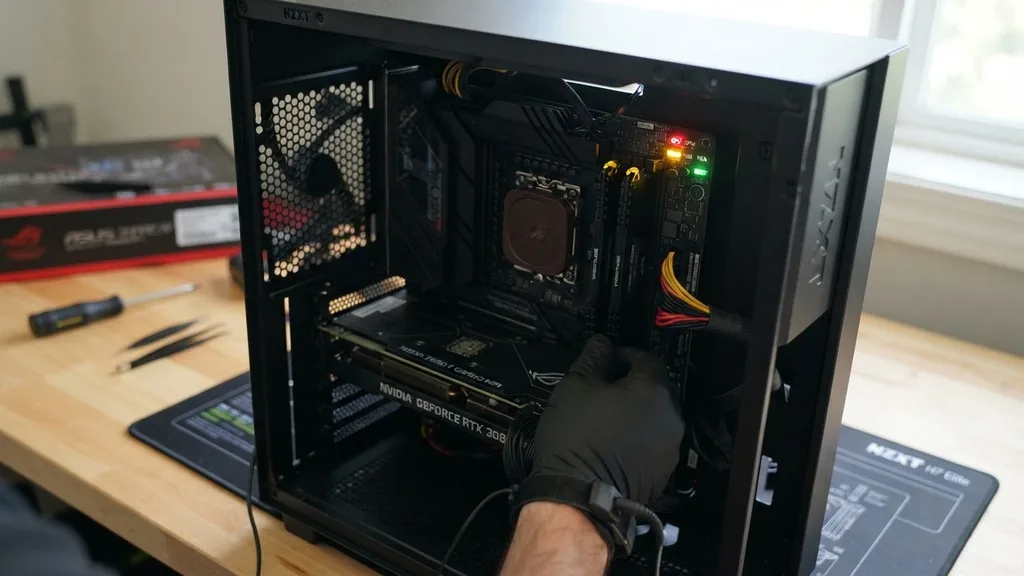
Encountering a yellow light on your motherboard is one of the most frustrating experiences for a PC builder. You press the power button, the fans spin, the lights glow, but your monitor remains pitch black. That persistent amber or yellow hue is a silent diagnostic signal from your system, indicating that something has gone wrong during the initialization process.
Often referred to as a Q-LED indicator, this light is designed to tell you exactly where the POST (Power-On Self-Test) process has stalled. While it feels like a catastrophic failure, it is frequently a manageable issue related to hardware communication.
Understanding the Q-LED Indicator System
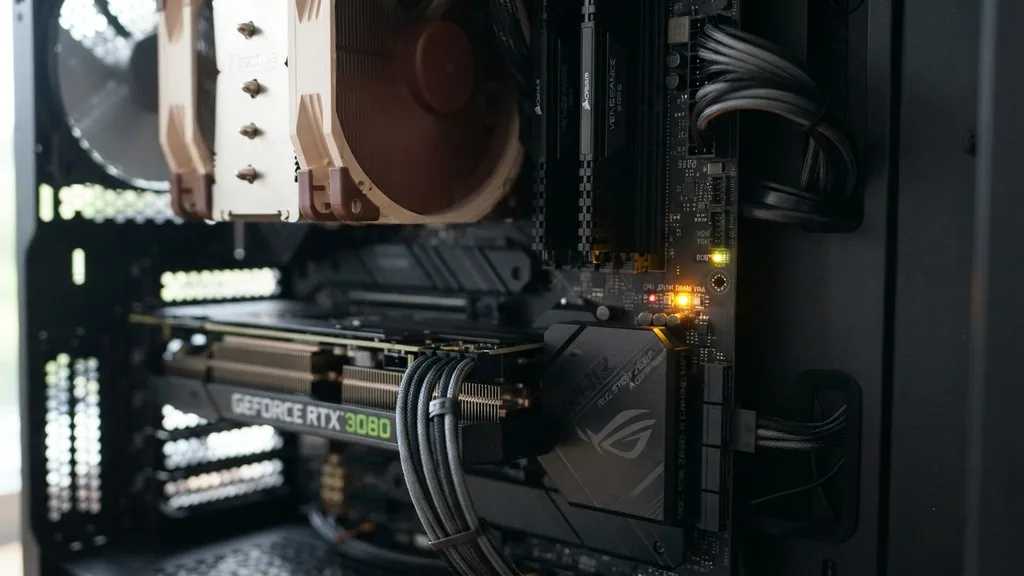
The yellow light on your motherboard acts as a visual diagnostic tool provided by the manufacturer. Modern motherboards utilize a series of four small LEDs—usually labeled CPU, DRAM, VGA, and BOOT—to communicate the status of the startup sequence.
When you see a yellow or amber light illuminated near the DRAM label, it specifically signals a failure during the memory initialization phase. This is the stage where the BIOS checks the integrity and compatibility of your installed RAM before handing control over to the operating system.
Most manufacturers, such as ASUS, MSI, and Gigabyte, use standardized color coding. A solid yellow light typically points to a DRAM issue, while a blinking light might indicate that the memory is currently undergoing training.
It is vital to consult your motherboard manual to confirm the specific meaning of the light for your exact model, as some boards use different color schemes for CPU or storage errors. If the light stays on indefinitely, your system has failed the POST and cannot proceed to boot.
Troubleshooting RAM Seating and DIMM Slots
The most common cause for a yellow DRAM light is improper RAM seating. If the contact points on the memory module do not perfectly align with the pins inside the DIMM slot, the motherboard cannot initialize the stick.
Even if the RAM looks like it is in place, a microscopic gap can prevent the electrical connection required for the system to recognize the hardware. You should always start your troubleshooting by physically removing the RAM sticks and re-inserting them firmly until you hear a distinct click.
If re-seating the RAM in the same slots does not work, try using only a single stick of memory. Test each stick individually in the second slot from the CPU, which is the primary slot for most modern motherboards. This process helps determine if you have a faulty RAM module or a dead DIMM slot.
If the system boots with one stick but fails with two, you might be dealing with a channel incompatibility or a damaged slot on the motherboard itself. Always ensure you are working on a non-conductive surface to prevent accidental static discharge, which can permanently damage sensitive electronic components.
Addressing Memory Training and First Boot Delays
Users often panic when they see a yellow light, assuming their hardware is broken, when in reality, the system is simply performing memory training. This is especially true on a first boot or after a hardware change.
During this process, the BIOS calculates the optimal electrical timing and voltage for your specific RAM configuration. This can take anywhere from thirty seconds to several minutes, during which the motherboard may hold the yellow DRAM light to indicate that it is busy.
If you have just assembled your PC, give the system at least five minutes of idle time before forcing a shutdown. If the light persists for longer than that, or if the system cycles through the light repeatedly without ever reaching the BIOS screen, then you are likely facing an actual configuration error rather than a training phase. Avoid the temptation to clear the CMOS or swap components immediately; patience during the initial boot cycle is often the simplest solution to an apparent hardware failure.
Performing a CMOS Reset to Clear BIOS Settings
Sometimes the motherboard stores corrupted settings that prevent it from correctly communicating with your RAM. A CMOS reset effectively clears these temporary settings and forces the BIOS to revert to its factory-default state.
This is an essential step if you were previously overclocking your memory or if you made changes to the BIOS that caused the system to become unstable. To perform this, locate the round coin-shaped battery on your motherboard, remove it for about thirty seconds, and then place it back in.
Alternatively, many high-end motherboards include a dedicated button or a two-pin jumper labeled CLRTC or JBAT1. Shorting these pins with a screwdriver for a few seconds will achieve the same result as removing the battery.
Once the CMOS is reset, the system will be forced to re-detect all hardware components from scratch. If your issue was caused by an incorrect XMP profile or a memory speed that the CPU’s integrated memory controller could not handle, a reset will usually allow the system to boot into the BIOS again.
Verifying CPU Socket Pins and Compatibility
While the yellow light is almost always related to DRAM, it is important to remember that the memory controller is located inside the CPU. If the CPU is not seated correctly, or if there are bent pins in the CPU socket, the memory controller cannot communicate with the DIMM slots.
This can trigger a false-positive DRAM light even if your RAM is working perfectly. If you have ruled out the RAM modules themselves, you must carefully inspect the CPU socket for any bent or missing pins.
This is a delicate process, particularly with Intel LGA sockets where the pins are on the motherboard rather than the processor. Use a magnifying glass or a high-resolution camera to check for any pins that look misaligned or reflective compared to the rest of the grid.
If you find a bent pin, you can sometimes carefully nudge it back into place with a needle, though this carries a risk of breaking the pin entirely. Ensure your cooler is not tightened unevenly, as uneven pressure on the CPU heat spreader can also cause intermittent contact issues with the memory lanes.
Updating the BIOS for Improved Stability
An outdated BIOS version is a frequent culprit for memory incompatibility, especially when using newer high-speed RAM kits with older motherboard firmware. Manufacturers frequently release updates specifically to improve memory training and stability.
If your motherboard supports a BIOS Flashback feature, you can update the firmware even if you cannot get the system to reach the POST screen. This involves placing the firmware file on a FAT32-formatted USB drive, plugging it into the designated BIOS port, and pressing the flashback button.
Before updating, verify the exact revision number of your motherboard. Installing the wrong BIOS file can render your motherboard unusable, so be extremely careful when choosing the download.
Once the update is complete, the motherboard will restart and attempt to initialize the hardware again with improved compatibility tables. This is a highly effective way to fix yellow lights caused by using newer DDR5 kits on early-production motherboards that were not originally programmed to recognize them.
Checking Power Supply Unit Voltage and Cabling
The power supply unit (PSU) must provide stable, clean voltage to the motherboard for the memory to function correctly. If the 24-pin ATX cable or the 8-pin CPU power cable is not fully seated, the system may fail to provide enough juice to the DIMM slots during the power-up sequence.
Check all power connections, including the cables leading from your power supply to the motherboard. If you are using custom sleeved cable extensions, remove them and connect the stock cables directly to the board to rule out a faulty extension.
In rare cases, the PSU itself might be failing to supply the correct voltage on the 3.3V or 5V rails, which are critical for motherboard logic. If you have access to a spare power supply, testing it can eliminate the PSU as a variable. Additionally, ensure that your motherboard’s standoffs are installed correctly; if the board is shorting against the metal case, it can cause erratic behavior and power delivery issues that manifest as diagnostic light errors.
Addressing Common Hardware Conflicts
Sometimes the issue is not the RAM itself, but a conflict with other hardware installed on the board. For example, a faulty GPU, an incorrectly installed M.2 drive, or even a shorted front-panel connector can interfere with the POST process.
If you are still seeing the yellow light after trying the steps above, strip your system down to the bare minimum. This means removing all internal drives, extra PCIe cards, and USB peripherals, leaving only the CPU, one stick of RAM, and the power supply connected.
If the system boots in this “barebones” configuration, you can start adding components back one by one to identify the source of the conflict. This systematic approach, often called the “breadboarding” method, is the most reliable way to isolate hardware faults in a complex system. Use the following table to help you identify which components might be causing the yellow light based on your specific symptoms during the boot sequence.
| Symptom | Likely Cause | Recommended Action |
|---|---|---|
| Yellow light stays on during first boot | Memory training | Wait 5-10 minutes for POST |
| Yellow light remains after CMOS reset | RAM seating or dead slot | Re-seat RAM or move to different slot |
| Light alternates between yellow and red | CPU or motherboard socket issue | Check CPU pins and socket pressure |
| System boots, then crashes with yellow light | Unstable XMP profile | Disable XMP in BIOS settings |
Frequently Asked Questions
- Can I use a different RAM kit to test my system if I see a yellow light? Yes, using a known-working kit from another computer is an excellent way to determine if your original RAM is defective or if the motherboard itself has an issue. If the system boots with the test RAM, your original kit is likely the problem.
- Does a yellow light always mean the motherboard is dead? No, it rarely means the motherboard is dead. It almost always indicates a communication error between the CPU and the RAM. Most cases are resolved by re-seating the memory or updating the BIOS, and the motherboard usually remains perfectly functional once the memory is properly initialized.
- Should I worry about the yellow light if the computer eventually boots? If your computer eventually boots after a long delay, it is likely completing memory training. However, if this happens every single time you turn on the PC, you may want to update your BIOS or manually adjust your DRAM voltage to speed up the initialization process.
- Is it safe to clear the CMOS while the power is on? Absolutely not. Always disconnect the power supply from the wall outlet and hold the power button on your case for a few seconds to drain any residual electricity before performing a CMOS reset or touching any internal components to prevent electrical shorts.
Ultimately, fixing a yellow light on your motherboard is a process of elimination. Start with the most likely culprits—RAM seating and memory training—and work your way toward more complex possibilities like CPU pin damage or BIOS firmware issues.
By staying methodical and keeping your workspace clean, you can identify the exact source of the failure. Remember that most modern motherboards are quite resilient, and what appears to be a hardware death sentence is often just a simple configuration mismatch that can be resolved with a few minutes of patient troubleshooting.


