

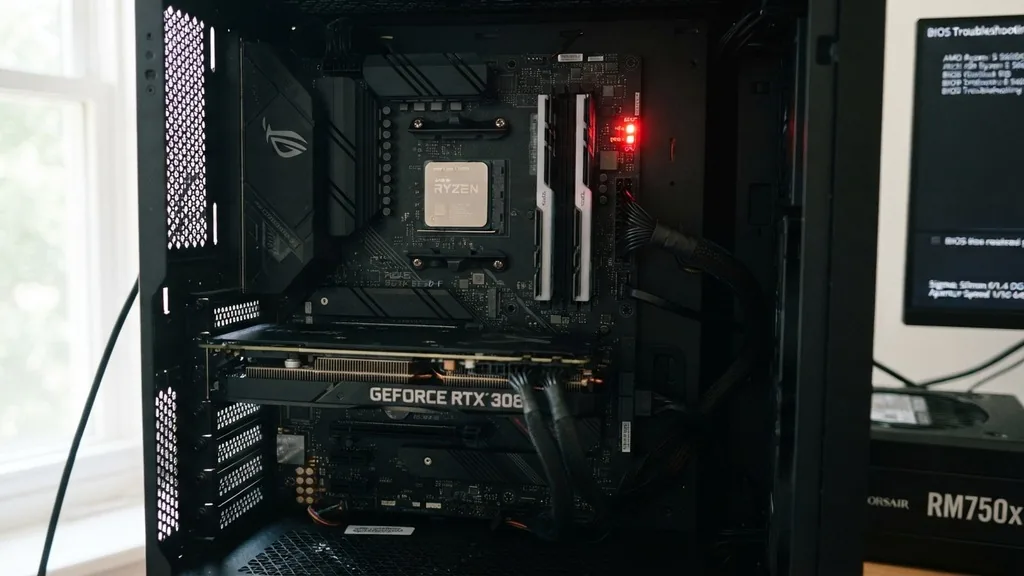
When you build a custom computer or upgrade your existing rig, the motherboard acts as the central nervous system for every component. Occasionally, you might notice a small LED labeled “VGA” glowing on the board, often accompanied by a lack of an image on your monitor.
Understanding what does vga mean on motherboard is essential for any PC enthusiast because this indicator is a diagnostic tool designed to tell you exactly where the boot process has stalled. It is not an error code for the legacy analog video port, but rather a warning from the motherboard’s firmware that it cannot detect a functional graphics output.
Decoding the VGA Debug LED
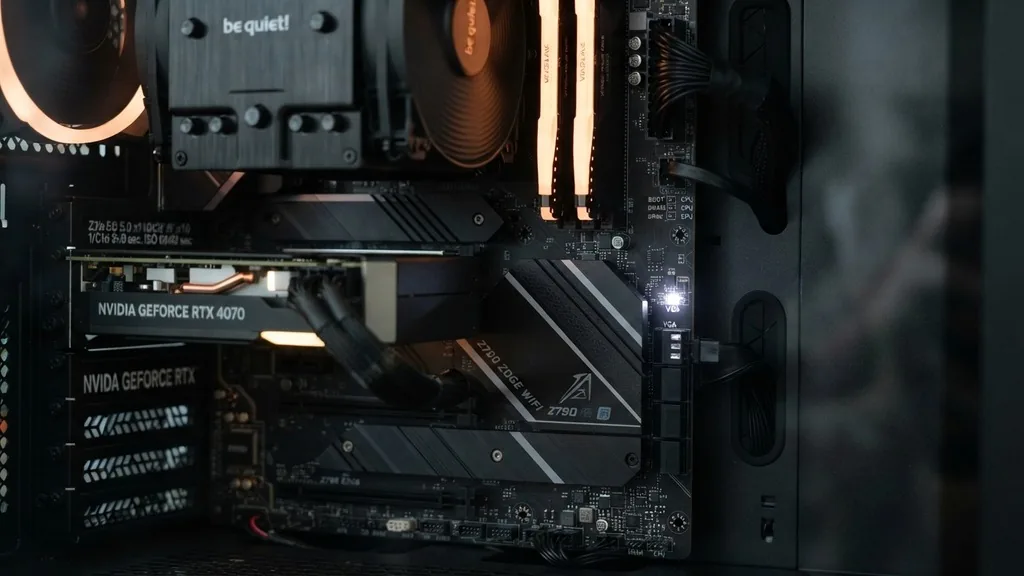
The VGA debug light is a specific diagnostic indicator found on many modern motherboards, particularly those from manufacturers like ASUS, MSI, Gigabyte, and ASRock. When you turn on your computer, the system runs through a Power-On Self-Test (POST). During this phase, the motherboard checks the CPU, RAM, and storage devices.
The VGA light specifically pertains to the graphics subsystem. If the motherboard fails to initialize the graphics card or detect an active display output, this light remains illuminated, signaling a failure to complete the video initialization step of the boot sequence.
This light does not necessarily mean your graphics card is dead. It simply means the motherboard cannot communicate with it properly at that exact moment.
This could be due to a loose physical connection, a power issue, or a configuration mismatch within the BIOS. For many users, this light is the first indication that something is wrong, and it is usually the primary reason a computer will turn on, spin its fans, but fail to display a “no signal” message on the screen.
The Difference Between VGA Ports and VGA Diagnostic Lights
One common point of confusion is the terminology. Historically, the acronym VGA stands for Video Graphics Array, which refers to the old blue, 15-pin analog connector used for monitors in the 1990s and early 2000s.
However, when you see a “VGA” label next to an LED on your motherboard, it has absolutely nothing to do with that blue port. It is an abbreviation for “Video Graphics Adapter” or simply “Video.”
Modern motherboards use these labels to categorize the hardware check phases. When the motherboard firmware, often referred to as the UEFI or BIOS, attempts to initialize the video output, it looks for a compatible device. If it finds nothing, the diagnostic circuit triggers the LED.
Distinguishing between the legacy connector and the status light is vital. If you are trying to plug an old monitor into a modern motherboard VGA port, you might still get no signal, but that is a connectivity issue, not a motherboard diagnostic failure. You can learn more about the technical evolution of display standards at the official Intel technical documentation portal.
Common Causes for a Persistent VGA Light
When your motherboard reports a VGA failure, the root cause is usually found in the physical installation or the power delivery to the graphics hardware. A graphics card that is not seated firmly in the PCIe slot is the most frequent culprit. Even if it looks like it is in place, a slight tilt can prevent the pins from making full electrical contact.
Another common issue involves the power cables. Modern high-performance graphics cards require dedicated power directly from the power supply unit (PSU). If you have forgotten to plug in the 6-pin or 8-pin PCIe power cables, or if those cables are not pushed all the way into the sockets, the card will fail to initialize.
Additionally, if you are using a modular power supply, ensure the cables are plugged firmly into the PSU side as well. Sometimes, a faulty riser cable—often used in vertical GPU mounting—can also cause the motherboard to fail in recognizing the card.
How to Troubleshoot Graphics Initialization Failures
If you find yourself staring at an illuminated VGA light, the best approach is to follow a systematic process of elimination. Start by powering down the system and unplugging the power cable. Remove the graphics card from the PCIe slot and inspect the contacts.
If you see dust or debris, use compressed air to clean the slot. Re-seat the card, ensuring you hear a distinct “click” from the retention clip.
If re-seating does not work, consider the following checklist:
- Check all PCIe power cables to ensure they are fully seated in both the card and the power supply.
- Test the graphics card in a different PCIe slot if your motherboard has more than one.
- Verify that your monitor is plugged into the graphics card output, not the motherboard’s integrated HDMI or DisplayPort, if your CPU lacks integrated graphics.
- Clear the CMOS to reset BIOS settings to factory defaults, as incorrect display settings can sometimes cause a hang during the POST process.
- Ensure your power supply has enough wattage to support the current graphics card, especially if you have recently upgraded your hardware.
The Role of the BIOS in Graphics Recognition
Sometimes the motherboard is perfectly healthy and the graphics card is functional, but the BIOS settings are preventing the system from identifying the device. This frequently happens when switching between an integrated graphics processor (iGPU) and a dedicated graphics card. If the BIOS is set to prioritize the “iGPU” but you have plugged your monitor into the dedicated graphics card, the system might get confused or hang during the boot process.
To resolve this, you might need to enter the BIOS menu. If you have no display, you may need to temporarily remove the graphics card and use the motherboard’s video output to reach the BIOS settings. Once inside, look for settings labeled “Primary Display,” “Initiate Graphic Adapter,” or “PEG/PCIe priority.”
Setting this to “PEG” or “PCIe” tells the motherboard to prioritize the dedicated graphics card over any integrated solution. Save your changes, shut down, reinstall the graphics card, and attempt to boot again.
VGA Lights and Multi-Monitor Configurations
Users running multi-monitor setups or complex configurations involving capture cards can sometimes trigger a false positive with the VGA light. If your system is connected to multiple displays, the motherboard might struggle to negotiate the handshake with all of them during the initial boot phase. This is particularly common if you are using a mix of different connection types, such as DisplayPort and HDMI, or if you are using active adapters that the BIOS doesn’t immediately recognize.
If you are stuck, try disconnecting all monitors except for one, and plug that single monitor directly into the primary DisplayPort or HDMI port of the graphics card. This simplifies the handshake process for the motherboard.
Once the system successfully boots into the operating system, you can reconnect your other displays. In some cases, updating your motherboard BIOS to the latest version can fix compatibility issues with newer graphics cards that might be causing these negotiation failures.
Hardware Compatibility and Defective Components
While rare, it is possible that the graphics card itself has suffered a hardware failure. If you have tried re-seating the card, checking power cables, and resetting the BIOS, the next step is to test the card in another computer.
If the card fails to display an image or triggers a VGA light in a different system, the card is likely faulty. Conversely, if the card works perfectly in another machine, the issue might lie with your motherboard’s PCIe slot or the power supply’s ability to provide stable voltage to that specific rail.
| Symptom | Likely Cause | Recommended Action |
|---|---|---|
| VGA Light ON + No Display | Graphics card not seated | Remove and re-insert the GPU firmly |
| VGA Light ON + Fans Spinning | Missing PCIe power cable | Connect all power cables to the GPU |
| VGA Light Flickers then off | Slow handshake/monitor delay | Try a different cable or monitor |
| VGA Light ON + BIOS Access | Incorrect display priority | Change primary graphics to PCIe in BIOS |
Addressing System Instability and Power Delivery
Beyond the graphics card itself, the power supply unit (PSU) plays a critical role in the VGA initialization phase. If the PSU is failing or is of insufficient quality, it may not be able to provide the “in-rush” current required by the graphics card when it wakes up during the boot process. This causes the card to fail its internal power-on test, leading to the VGA debug light remaining lit.
Furthermore, if you are using extension cables for your GPU power, these can sometimes introduce resistance or signal degradation. If you are troubleshooting, always plug the PSU cables directly into the graphics card to rule out the extension cables as the source of the problem.
Additionally, check the 24-pin motherboard power connector. If this is loose, the motherboard may not be providing enough power to the PCIe lanes themselves, which can cause the graphics card to appear invisible to the system.
When to Consider Professional Help
If you have performed all the standard troubleshooting steps—re-seating the card, checking all power connections, clearing the CMOS, and even testing the card in a different system—and the VGA light remains stubbornly illuminated, you may be dealing with a more complex motherboard issue. The PCIe slot itself can be damaged, or there could be a failure in the motherboard’s trace circuitry.
If the motherboard is still under warranty, contact the manufacturer. Provide them with the results of your testing. Mention that you have cleared the CMOS and tested with a known working graphics card.
This information helps them determine if the board is defective and needs an RMA (Return Merchandise Authorization). Do not attempt to solder or modify the motherboard components yourself, as this will immediately void your warranty and likely cause further, irreversible damage to the system.
Frequently Asked Questions
- Why is my motherboard VGA light on even though my PC boots? Sometimes a VGA light remains on due to a slow display handshake or a monitor that takes too long to wake up. If your computer boots into Windows successfully, the light is likely a minor communication delay rather than a hardware failure.
- Can faulty RAM trigger a VGA light? Typically, no. Faulty RAM usually triggers a DRAM debug light. However, if your system memory is unstable, it can cause the entire POST process to fail before it even reaches the VGA check. Always ensure your RAM is seated correctly if you suspect system instability.
- Is the VGA light the same as a BIOS error? It is a physical indicator of a BIOS-level check. The motherboard firmware performs this check, and the light is the hardware feedback mechanism. It is effectively a visual representation of a “no video device found” error within the system’s firmware initialization sequence.
- Should I worry if the VGA light stays on for a few seconds during boot? No, that is normal. Most motherboards cycle through various debug lights (CPU, DRAM, VGA, BOOT) as they perform their self-tests. If the light turns off after a few seconds and the system boots normally, your hardware is functioning exactly as it should.


